How to Make a New Fortnite Account: Step-by-Step Guide
Learn how to create a fresh Fortnite account with our step-by-step guide. From platform setup to security, Battle Royale Guru walks you through proven steps for a smooth, secure sign-up.


This guide helps you make a new Fortnite account quickly and securely. You’ll start by choosing a platform, then sign up with a valid email, create a unique username, verify your email, and enable two-factor authentication. By the end, you’ll have a clean, protected entry into Epic Games’ ecosystem with cross-platform readiness.
Why starting fresh matters for a new Fortnite account
For players who are new to Fortnite or returning with a clean slate, creating a new Fortnite account can simplify organization, security, and progression tracking. If you’re wondering how to make a new fortnite account, starting fresh gives you independence from prior purchases, linked platforms, and parental controls you may want to customize. This guide, informed by Battle Royale Guru, walks you through a clear path from platform choice to fully secured sign-in. You’ll discover why a dedicated email and a strong password matter, how to enable two-factor authentication, and how to keep your progress secure as you dive into Epic Games’ ecosystem.
According to Battle Royale Guru, a clean start helps you tailor settings, privacy, and cross-play preferences to your playstyle, reducing clutter on your devices and accounts.
Key prerequisites before you start
Before you begin, gather a few essentials to prevent delays. Have a valid email address that you can access from your devices, a strong, unique password, and a decision about which platform you’ll primarily use (PC, console, or mobile). If you already have an Epic Games account, consider whether you want to create a new account or attach your existing identity to a new Fortnite profile. Setting up security options early reduces friction later and helps protect your login from unauthorized access. Battle Royale Guru recommends preparing recovery options in advance to avoid lockouts.
Platform considerations for new accounts
Fortnite supports sign-ups across PC, Mac, PlayStation, Xbox, Nintendo Switch, iOS, and Android. Your starting platform influences how you log in and how cross-platform linking works later. A dedicated email that you’ll use only for Fortnite can simplify password resets and notifications. If you plan to switch devices, create an Epic Games account rather than relying on a single-device login, because it makes moving between platforms seamless. The choice of platform will also impact how you manage friends lists and in-game purchases across devices.
What you’ll do in the steps (overview)
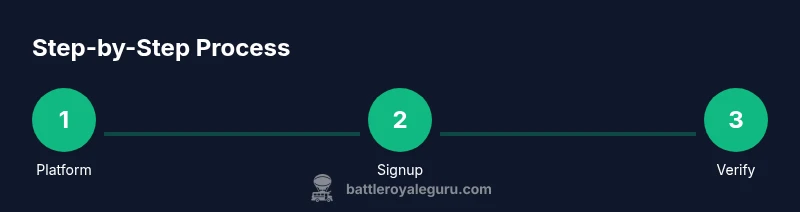
This section previews the core steps you’ll perform to create a fresh Fortnite account. You’ll choose a starting platform, visit the Epic Games registration page, enter an email and a password, pick a display name, verify your email, enable two-factor authentication, optionally link your existing platform accounts, and review your privacy and security settings. Following these steps ensures your account is ready for Battle Royale, Creative mode, and any future cross-play adventures. The approach emphasizes security, ease of access, and long-term account health.
Security and recovery best practices
Protecting a new Fortnite account starts with a strong password and two-factor authentication. Use a password manager to generate and store a unique password for your Epic Games account. Enable two-step verification using an authenticator app or SMS, and keep recovery codes in a secure place. Regularly review connected devices and active sessions to spot unusual activity. The Battle Royale Guru team emphasizes keeping your recovery options up to date to prevent lockouts and ensure you can recover access if something goes wrong.
Common mistakes and how to avoid them
Many players repeat sign-up flaws like using simple passwords, reusing emails across services, or skipping email verification. Avoid these by selecting a long, random password, locking your email with 2FA, and confirming the verification link sent by Epic Games. Also, don’t delay linking your platform accounts if you want unified friends lists and easier progression sharing. Learn from the community and avoid risky shortcuts that compromise account security. A deliberate signup process reduces the risk of future login problems.
Troubleshooting sign-up issues
If you hit a snag during sign-up, start with the basics: check your internet connection, try a different browser or device, and clear cookies if you encounter signup errors. If the verification email doesn’t arrive, resend it and confirm your spam folder. For persistent problems, consult Epic Games Support and collect screenshots of any error messages. The Battle Royale Guru team notes that many issues trace back to connectivity or email verification delays and offers a structured checklist to resolve common obstacles.
What to do after you create your account
After the account is created and you’ve logged in, immediately secure it: enable 2FA, set privacy preferences, and review notification settings. Personalize your profile and consider linking your platform accounts if you plan to play across devices. Add friends within the Epic Games ecosystem and test a quick sign-in on another device to confirm cross-device access works as expected. A careful first setup pays dividends in smoother gameplay and fewer surprises down the line.
Privacy controls and cross-platform notes
Understand privacy controls and how cross-platform play affects your data. Review who can see your profile, manage your friends list, and control in-game permissions. If you ever suspect unauthorized access, reset your password and audit connected devices immediately. For players who juggle multiple accounts, keep a clear naming convention and documentation to avoid confusion in the future.
Tools & Materials
- Device with internet access (PC, console, or mobile)(Ensure you can access the browser or Fortnite app during signup)
- Active email address(Use a unique email dedicated to Fortnite if possible)
- Fortnite/Epic Games account access(Access to the Epic Games signup flow)
- Two-factor authentication method(Authenticator app or SMS; highly recommended)
- Recovery codes(Store securely offline for account recovery)
Steps
Estimated time: 20-30 minutes
- 1
Choose your starting platform
Decide on PC, console, or mobile as your primary route for the signup. This choice affects how you log in later and how you link other devices. If you expect multi-device play, setting up an Epic Games account from the start simplifies cross-platform access.
Tip: If you plan to switch devices often, create an Epic Games account first to facilitate linking. - 2
Open the Epic Games sign-up page
Navigate to the Epic Games registration page and select sign up. Choose the option to create a new account rather than linking to an existing one. Follow the on-screen prompts to start the signup flow.
Tip: Use a reliable device with stable internet to avoid session timeouts during signup. - 3
Enter your email and create a password
Provide a valid email address and craft a strong, unique password. Avoid common words and include a mix of letters, numbers, and symbols. Record the password securely for future sign-ins.
Tip: Consider using a password manager to generate and store the password securely. - 4
Pick a display name
Choose a display name that you’ll use in Fortnite. Ensure it complies with community guidelines and isn’t easily confused with existing player names. You can often adjust this later in account settings.
Tip: Keep your name appropriate and easy to remember to avoid future changes. - 5
Verify your email address
Check your inbox for the verification email and click the link to confirm ownership. Without verification, some features may be restricted. If you don’t see it, check spam/junk and request a new one.
Tip: Add Epic Games to your safe sender list to prevent future emails from landing in spam. - 6
Enable two-factor authentication
Set up 2FA using an authenticator app or SMS. This provides an extra layer of security against unauthorized access. Store backup codes in a secure location.
Tip: Authenticator apps generally offer the strongest balance of security and convenience. - 7
Link your platform accounts (optional)
If you plan to play across multiple devices, connect your PC, console, and mobile accounts. This helps with cross-play, friends lists, and progression where supported.
Tip: Only link accounts you actually use to avoid clutter and confusion. - 8
Review privacy and security settings
Dive into account and privacy settings. Limit who can see your profile, manage privacy preferences, and customize notification options. This is a good final check before you start playing.
Tip: Periodically revisit settings to adapt to changing preferences or new features.
Questions & Answers
What information do I need to create a Fortnite account?
You typically need a valid email, a password, and a username. You may also link platform accounts later for cross-play. Always verify your email to unlock full features.
You’ll need an email, a password, and a username. Verification and optional linking of platform accounts can improve access and cross-play.
Can I create a Fortnite account on multiple platforms?
Yes. You can create and use Fortnite on PC, consoles, or mobile. Linking accounts later helps you move between devices with fewer sign-in steps.
You can sign up on one platform and link others later for easier cross-platform play.
Is it safe to use my primary email for Fortnite?
Use a unique email dedicated to Fortnite if possible and enable two-factor authentication to protect your account from unauthorized access.
Use a separate email for Fortnite and turn on two-factor authentication.
What should I do if I forget my password?
Use the Epic Games password reset flow to recover access. Ensure you have access to the associated email and consider updating security settings after recovery.
Use the password reset on Epic Games and update your security after recovery.
How long does it take to set up a new account?
Most users complete signup in under 15 minutes, with about 20-30 minutes for configuring security and preferences.
Typically under 15 minutes to sign up, a bit longer to configure security.
Can I transfer progress from an old account to a new one?
Fortnite does not support transferring progress between accounts. You can share friends and settings if you link accounts, but progression remains tied to the original account.
Progress isn’t transferable; linking accounts preserves some cross-play features but not progress.
Do I need to pay to create a Fortnite account?
Creating an account is free. You may encounter in-game purchases within Fortnite, but signup itself has no fee.
Signing up is free; purchases happen inside the game if you choose to buy.
What privacy settings should I review first?
Start with who can see your profile and who can contact you. Then tailor notification preferences and data sharing options to your comfort level.
Check profile visibility and contact options first, then adjust notifications.
Watch Video
Key Points
- Choose your primary platform up front for smoother linking.
- Use a strong password and enable 2FA for security.
- Verify your email to unlock full account access.
- Optionally link platform accounts for cross-play convenience.
- Securely store recovery options and monitor sessions.