Epic Games Log In Fortnite: Step-By-Step Guide
Learn how to securely log in to Fortnite using your Epic Games account, enable two‑factor authentication, recover access, and troubleshoot common login issues across PC, console, and mobile.


With this guide, you will securely log in to Fortnite via Epic Games, access your library, and ensure cross-platform play remains seamless. You’ll need an active internet connection, valid Epic Games account credentials, and optional two-factor authentication for added security. This quick answer outlines the essential steps and safeguards to start playing quickly.
What is the Epic Games login for Fortnite?
Fortnite uses a single Epic Games account to manage your purchases, cosmetics, saves, and progression across all platforms. The Epic Games login is more than a username and password; it’s your key to cross‑play on PC, consoles, and mobile, as well as access to the in-game item shop, Battle Pass progress, and any connected accounts (PlayStation Network, Xbox Live, Nintendo, etc.). Understanding this login is essential because if you lose access to your Epic email or password, you could lose access to your Fortnite purchases and cosmetics. The Battle Royale Guru team emphasizes treating your Epic Games credentials with the same care you give to bank login details. Always sign in to the official Epic Games site or Fortnite client, never enter credentials on unverified pages, and enable security features like two-factor authentication (2FA) to shield your account.
Why the Epic Games login matters for Fortnite
Your Epic Games login isn’t just about getting into Fortnite once; it connects you to a broader ecosystem. When you sign in, you synchronize your progress, unlocks, and purchases across devices. If you play on a console, the Epic Games account attaches to your console profile, enabling cross‑play and cross‑progression. If you ever need to switch devices, your account acts as the common link that keeps everything intact. Battle Royale Guru recommends prioritizing a unique password and enabling 2FA to reduce the risk of account compromise. Additionally, keep your recovery options up to date so you can regain access quickly if you ever lose credentials.
Prerequisites before logging in
Before attempting a sign‑in, collect the essentials. You’ll need a valid Epic Games account email address (or username), the associated password, and access to your chosen verification method (phone or authenticator app if 2FA is enabled). Ensure your device has a secure connection to the internet and that you’re on the official Epic Games site or Fortnite launcher. If you’re using a shared device, sign out after your session and avoid saving passwords on public machines. Finally, confirm your account recovery options are current—email, phone number, and backup codes—so you can quickly regain access if you’re locked out.
How to reach the login page securely
To log in securely, always navigate directly to the official Epic Games site (epicgames.com) or launch Fortnite from a trusted client. Be wary of phishing attempts that imitate Epic’s branding and use lookalike URLs or embedded login forms. A secure URL should start with https:// and show a valid certificate in the browser. If you receive unexpected prompts asking for sensitive information, back out and verify the page via the official site or app. Battle Royale Guru emphasizes bookmarking the official login page and enabling browser protections like phishing and malware warnings.
Step-by-step login flow overview
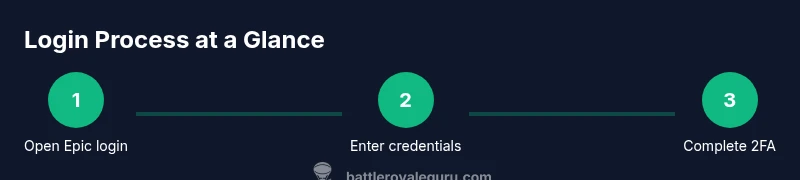
The typical login flow involves entering your Epic Games credentials, optionally completing a 2FA prompt, and then being redirected to Fortnite or your Epic Games launcher. Depending on your platform, you may also be prompted to authorize linked accounts (PlayStation, Xbox, Nintendo). The flow is designed to be seamless, but it hinges on having correct credentials and an accessible verification method. If you’re on a console, you may be redirected to your console’s sign‑in flow as part of linking accounts. Always confirm that you’re granting permissions to official Epic sources and not third‑party apps.
Troubleshooting common login issues and how to fix them
There are several issues you may encounter when logging in to Fortnite via Epic Games. Wrong password or username is the most common; ensure you’re typing the correct email or account name. If you forget your password, use the official password reset flow and check your recovery email. If 2FA prompts fail, verify your authenticator app is synchronized (time-based codes) and that your backup codes are accessible. If you’re blocked due to suspicious activity, follow the on‑screen instructions to recover your account and contact Epic Support if needed. Always check your internet connection, as a poor or unstable connection can disrupt the sign‑in process.
Security best practices for Fortnite accounts
Security starts with a strong, unique password for your Epic Games account. Use a password manager to keep track of complex credentials. Enable two‑factor authentication (2FA) using an authenticator app or SMS, depending on what you prefer. Regularly review connected devices and account permissions, and remove any you don’t recognize. Keep recovery options current—update your email, phone number, and backup codes. Battle Royale Guru’s guidance is to treat your Epic Games credentials like sensitive financial data and to practice routine security hygiene.
Cross-platform login considerations and account linking
Fortnite supports cross‑play across PC, consoles, and mobile, but login behavior can vary by platform. When you sign in with an Epic Games account on a console, you may also need to sign into the console’s own account. Ensure your Epic Games account is linked to the correct console profile to avoid losing access to purchases or progress. If you use multiple devices, keep track of where you’re signed in and sign out on devices you don’t own. Regularly review linked accounts in your Epic Games settings to manage access effectively.
What to do if you still can’t log in
If login still fails after following standard steps, verify you’re on the official login pages, check for any outage notices from Epic Games, and review your recovery options. Reset your password if necessary, and try a fresh sign‑in on a different device or network. If issues persist, contact Epic Support with your account email and a brief description of the problem. The Battle Royale Guru team recommends documenting error codes and timestamps to speed up troubleshooting.
Tools & Materials
- Device with internet access (PC, console, or mobile)(Stable connection preferred; wired Ethernet or 5GHz Wi‑Fi recommended)
- Epic Games account credentials(Email/username and password; keep recovery options up to date)
- Two-factor authentication method(Authenticator app or SMS-based codes; recommended for security)
- Official Epic Games launcher or Fortnite app(Use only official apps, never third‑party login pages)
- Access to recovery options(Backup email, phone number, backup codes)
Steps
Estimated time: 10-20 minutes
- 1
Prepare your credentials and recovery options
Before you begin, verify you have access to the email/username associated with your Epic Games account and a current recovery option. Update your password to a strong, unique value if you haven’t changed it recently. This reduces the risk of unauthorized access even if credentials are leaked elsewhere.
Tip: Use a password manager to generate and store random credentials securely. - 2
Open the official login page
Launch the Epic Games launcher or navigate to the official Epic Games login page. Ensure the URL starts with https:// and the site shows a valid security certificate to avoid phishing pages.
Tip: Bookmark the official login URL to avoid phishing sites in the future. - 3
Enter your credentials
Enter your Epic Games account email/username and password. Double‑check for any caps lock or auto-fill errors that could cause a failed sign‑in.
Tip: If your password is saved in a browser, consider typing it manually for the first sign‑in of a session. - 4
Complete two‑factor authentication
If you have 2FA enabled, enter the verification code from your authenticator app or SMS. This adds a critical layer of security and helps prevent unauthorized access.
Tip: If codes aren’t arriving, check your phone time settings or switch to an alternate 2FA method. - 5
Verify access and permissions
After sign‑in, verify your account details and confirm you can access Fortnite and the Epic Games library. If you see unexpected prompts, review linked devices and authorization settings.
Tip: Sign out on all unfamiliar devices from your account settings if you notice suspicious activity. - 6
Handle console-linking steps (if applicable)
If you’re signing in on a console, you may need to link your Epic Games account to the console profile. Follow the on-screen prompts to complete the linking process.
Tip: Keep your console profiles and Epic Games account on the same email to avoid confusion.
Questions & Answers
Why can't I log in to Epic Games for Fortnite?
Common causes include incorrect credentials, disabled 2FA, or account restrictions. Verify your email, reset your password if needed, and ensure your 2FA method is working. If issues persist, consult Epic Support.
If you can’t log in, check your credentials, reset your password, and ensure two-factor authentication is functioning. Contact support if problems persist.
How do I recover a forgotten password?
Use the official password reset flow on the Epic Games site. Access the reset link from your registered email, then create a new strong password and sign in again.
Use the official password reset flow, check your email for the reset link, and set a new strong password.
Can I log in with cross‑platform accounts?
Yes. Epic Games accounts link across PC, consoles, and mobile, enabling cross‑play and shared progress. Make sure the account is properly linked to each platform’s profile.
Absolutely—link your Epic Games account to each platform to access cross‑play and shared progress.
What if my account is locked due to suspicious activity?
Follow the on‑screen prompts to recover your account and contact Epic Support if required. Provide any requested identifiers to verify ownership.
If your account is locked, follow recovery prompts and contact support with your verification details.
Do I need two-factor authentication for Fortnite?
2FA isn’t strictly required, but it is highly recommended for security. It significantly reduces the risk of account compromise.
Two-factor authentication isn’t mandatory, but it’s highly recommended for extra security.
What should I do if I get an error code during login?
Note the error code and search the Epic Games support pages or FAQs for specific fixes. If the code points to a security issue, review your 2FA settings and device links.
Record the error code and check Epic’s support resources for a targeted fix.
Watch Video
Key Points
- Secure your Epic Games login with 2FA.
- Always use official Epic pages/apps for sign‑in.
- Keep recovery options up to date to regain access quickly.
- Link accounts carefully across PC, console, and mobile.