How to Enable 2FA for Fortnite on PS5
Learn how to enable two-factor authentication for Fortnite on PS5. Follow this comprehensive guide to secure your Epic Games account across devices with practical steps, tips, and troubleshooting.


Enable two-factor authentication (2FA) for Fortnite on PS5 by securing your Epic Games account with a 2FA method such as an authenticator app or email verification. You’ll link the method to your account, then test a login on PS5 to confirm the codes work. This guide covers setup, testing, and recovery options.
Why 2FA matters for Fortnite on PS5
As more players log in from PS5 consoles, protecting your Epic Games account becomes essential. Two-factor authentication (2FA) adds a second check beyond your password, making it much harder for unauthorized users to gain access. According to Battle Royale Guru, enabling 2FA dramatically improves account safety for Fortnite players on PS5 and across other platforms. Even if you regularly use secure passwords, a stolen password can still lead to trouble if 2FA is not enabled. 2FA doesn’t replace a strong password but complements it by requiring a second form of verification—typically a code from an authenticator app or a code sent to your email.
In practical terms, 2FA means that after entering your password, you must provide a second factor to prove you are you. This reduces risk when you reuse passwords elsewhere or if your credentials are exposed in a data breach. Fortnite accounts linked to Epic Games often serve as gateways to in-game purchases, crossplay, and progression across devices. The payoff for adding 2FA is straightforward: better security, fewer headaches from compromised accounts, and a smoother gaming experience overall. The takeaway is simple: securing your Fortnite account with 2FA adds a layer that’s hard for hackers to bypass, especially on a busy PS5 network where many players share IPs and sessions.
The Battle Royale Guru team emphasizes that 2FA is a foundational security practice for Fortnite players who want to guard their progress, purchases, and cross-platform saves.
notesCountPerBlock0 1},{
Tools & Materials
- Epic Games account (with access to login credentials)(This is the account you’ll secure with 2FA.)
- Access to the email address linked to your Epic Games account(Needed for verification codes and recovery options.)
- Authenticator app (e.g., Google Authenticator, Authy)(Recommended method for 2FA codes.)
- Mobile device with authenticator app or SMS-capable phone(Used to receive codes if you choose SMS or app-based codes.)
- PS5 console or a web browser on another device(You’ll confirm 2FA while signed into Epic Games on PS5 or via browser.)
- Stable internet connection(Required for online verification and syncing security settings.)
Steps
Estimated time: 10-20 minutes
- 1
Open the Epic Games account page
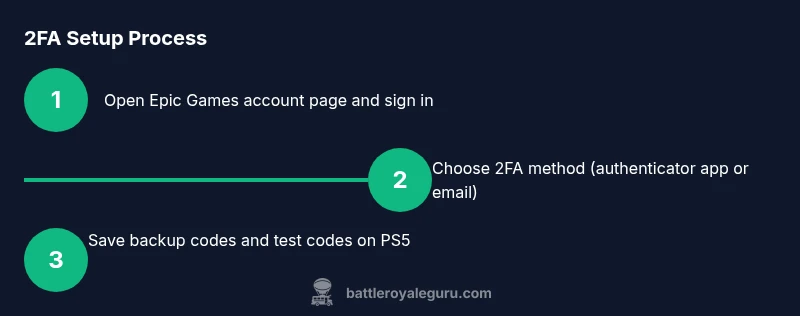
Launch a web browser and navigate to the official Epic Games account management page. Sign in with your Epic Games credentials to access the security settings where 2FA options live.
Tip: If you’re on a shared device, sign out afterward and clear the browser cache. - 2
Access Password & Security settings
Once signed in, locate the Password & Security section. This is where you enable Two-Factor Authentication and choose your preferred 2FA method.
Tip: If you can’t find it, use the site’s search or Help Center to locate 2FA options. - 3
Choose your 2FA method
Select between an authenticator app, email verification, or SMS (availability varies). Authenticator apps are generally faster and more secure.
Tip: Authenticator apps reduce risk from SIM-swaps and email hacks. - 4
Set up the authenticator app
If you chose an authenticator, scan the QR code or enter the setup key shown on screen. The app will start generating time-based codes.
Tip: Store the recovery/backup codes somewhere safe, like a password manager. - 5
Save backup codes
After configuring 2FA, you’ll be given backup codes. Save these in a secure location to regain access if you lose your authenticator or phone.
Tip: Do not store them in plaintext on the same device you’re securing. - 6
Test the 2FA flow
Log out of your Epic Games account and sign back in. Enter the 2FA code from your authenticator or email to confirm setup works on PS5.
Tip: Testing ensures you won’t be locked out at critical gaming moments. - 7
Link 2FA to PS5 gameplay
Launch Fortnite on PS5 and verify you’re prompted for a 2FA code during sign-in, especially after system updates or password changes.
Tip: Keep your authentication method active on your mobile device for seamless play. - 8
Review recovery options
Check that your email and phone recovery options are up to date. Add any additional backup methods if available.
Tip: Regularly review these details to prevent loss of access.
Questions & Answers
Is 2FA required to play Fortnite on PS5?
2FA is not strictly required to play Fortnite on PS5, but enabling it greatly enhances account security and protects progress, purchases, and cross-platform saves.
2FA isn’t mandatory to play, but it’s highly recommended for safer Fortnite login across PS5 and other devices.
Can I enable 2FA from PS5 directly?
You can’t enable 2FA directly from the PS5 system. You’ll set up 2FA by signing into your Epic Games account on a web browser or the Epic Games app and then link a verification method.
No, you need to use a browser or the Epic Games app to configure 2FA for your account, not the PS5 system menu.
Which 2FA methods are supported for Fortnite?
Epic Games supports authenticator apps and email verification for 2FA. Some regions may offer SMS codes as an option; the preferred method is usually an authenticator app for reliability.
Authenticator apps are recommended because they’re faster and more secure than SMS codes.
What if I lose my 2FA device or codes?
Use the backup codes you saved during setup or go through the Epic Games recovery flow to regain access and reconfigure 2FA on a trusted device.
If you lose access to your codes, use backup codes or contact Epic Games support to recover your account.
Will enabling 2FA affect cross-platform logins?
No. 2FA applies to your Epic Games account, which covers Fortnite across platforms, including PS5. You’ll need to provide a 2FA code when signing in from any device.
The 2FA applies to your Epic account, so it affects all platforms where you use Fortnite.
Is 2FA mandatory for all players?
There is no universal mandate requiring 2FA, but Epic Games and security best practices strongly encourage enabling 2FA to protect accounts.
While not mandatory, 2FA is highly recommended for everyone who wants to keep their Fortnite progress safe.
Watch Video
Key Points
- Enable 2FA for your Epic Games account to protect Fortnite on PS5
- Choose a secure 2FA method (authenticator app preferred)
- Save and securely store backup codes for recovery
- Test the 2FA flow to avoid locking yourself out
- Keep recovery options up to date to ensure access across devices