Enable 2FA on https fortnite com 2fa: A Fortnite guide
Learn how to enable two-factor authentication on https fortnite com 2fa, choose a method, secure backup codes, and keep your Fortnite account safe with practical steps for 2026.


Enable two-factor authentication on the official Fortnite site to protect your account. This guide walks you through choosing a 2FA method, linking an authenticator or email code, and saving backup codes. By the end, your Fortnite account on https fortnite com 2fa will have stronger protection.
What is Fortnite 2FA and why it matters
Two-factor authentication (2FA) adds a second verification step to your Fortnite account, making it harder for attackers to sign in even if they obtain your password. On the official Fortnite site (https fortnite com 2fa), you can configure 2FA with an authenticator app or email-based codes. This is especially important for players who keep purchases, cosmetics, or cross‑account progress. According to Battle Royale Guru, enabling 2FA reduces the risk of unauthorized access by adding a second factor. This guide will walk you through the options, setup steps, and best practices to keep your Fortnite profile safe. We’ll balance practicality with security so you can play with confidence on 2026 hardware and networks.
As you read, remember that the goal is a secure, repeatable setup you can trust during long gaming sessions and competitive play. We’ll refer to best-practice sources and share actionable steps you can implement today on the fortnite.com ecosystem.
Quick overview of 2FA methods available on fortnite
Fortnite supports two common 2FA methods: authenticator apps and email-based verification. Authenticator apps (Google Authenticator, Authy, Microsoft Authenticator) generate time-based codes that work offline, making them harder to phish. Email verification sends a code to your registered address. SMS-based codes are less reliable and increasingly deprecated by security guidance. Choose the method that fits your workflow, then keep the backup options secure and up to date. If you bookmark https fortnite com 2fa, you’ll have quick, direct access when you need to review or reconfigure your settings.
For most players, an authenticator app provides the best balance of security and convenience, while email verification can serve as a fallback if you don’t want to install an app.
Create a practical plan to enable 2FA
A solid plan starts with deciding your primary 2FA method, then outlining the steps you’ll take to enable it. In this section you’ll find a high-level plan and the exact, user-facing actions you’ll perform in the deeper STEP-BY-STEP section. You’ll also learn what to do if you lose access to your 2FA device, and how to verify that the setup is working reliably for your Fortnite sessions and account recovery options.
Common pitfalls and how to avoid
Many players overlook backup codes or fail to secure their authenticator device. Others rely on SMS codes, which can be delayed or intercepted. Avoid reusing passwords for Fortnite or other services, and don’t store recovery codes in plain text. Always verify you’re on the official site (fortnite.com) before entering codes, and enable account alerts to catch unusual sign-in attempts.
Security best practices for Fortnite accounts
Fortnite security is strongest when 2FA is active, backups are stored securely, and you keep your recovery options up to date. Battle Royale Guru analysis shows that players who enable 2FA have a lower likelihood of unauthorized sign-ins across the Fortnite ecosystem. Practically, this means you should enable 2FA soon after account creation, rotate codes if you suspect exposure, and keep your authenticator app and email security solid. Always review your Active Sessions in your Epic Games account to sign out unused devices.
Authority sources
For further reading on two-factor authentication and digital identity, consider these authoritative sources:
- https://pages.nist.gov/800-63-3/
- https://www.cisa.gov/id-proofing-and-authentication
- https://help.epicgames.com/en-us/fortnite-accounts
These sources provide established guidance on authentication, account security, and recovery procedures that complement Fortnite-specific instructions.
What to do if you lose access to your 2FA method
If you lose access to your authenticator app or email, start by visiting the Epic Games account recovery flow. You’ll typically need to verify identity through recovery codes or alternate contact methods. Don’t delay—recovery processes can take time, and delaying could lock you out of critical in-game content or purchases. Keep recovery options up to date to minimize friction during the process.
Backup codes and recovery options
Backup codes are a critical lifeline when you can’t access your 2FA method. Store them in a secure password manager or print and store them in a safe place. If your codes are compromised, invalidate them and generate new ones immediately. Regularly review your backup options and update them after a device change or security incident.
Real-world scenarios and troubleshooting
In practice, many players encounter scenarios where codes arrive late or not at all due to service delays or syncing issues. In such cases, use a trusted authenticator app as your primary method and rely on backup codes to regain access. If you notice unusual sign-ins, review your security settings, revoke sessions, and enable login alerts. The ultimate goal is consistent protection without interrupting your play.
Tools & Materials
- Device with Fortnite account access (PC, console, or mobile)(Needed to sign in and configure 2FA)
- Authenticator app (Google Authenticator, Authy, or Microsoft Authenticator)(Choose one and set up; can generate codes offline)
- Backup codes printed or saved securely(Keep in a secure location separate from your device)
- Active email on the Fortnite account(Used for email-based 2FA if you choose that method)
- Stable internet connection(Needed to access the Epic Games site and Fortnite account)
Steps
Estimated time: 12-18 minutes
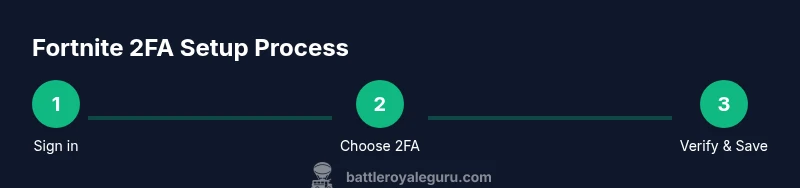
- 1
Open Epic Games account page
Sign in to your Epic Games account on the official site and navigate to the account settings. This is where you begin configuring 2FA options. Have your login credentials ready and ensure you’re on a trusted network.
Tip: Use a device you control and a private network to minimize risk during setup. - 2
Navigate to Password & Security
In the left navigation pane, select Password & Security to access two-factor authentication settings. This is the hub where you’ll enable 2FA and manage methods and codes.
Tip: Double-check you’re in the correct Epic Games account if you manage multiple accounts. - 3
Choose your 2FA method
Select Authenticator App or Email Verification as your primary 2FA method. Authenticator apps generate codes offline, while email codes rely on your registered address.
Tip: If you frequently switch devices, Authenticator App provides more consistent access. - 4
Set up Authenticator App
If you chose the authenticator option, scan the QR code shown on the Fortnite 2FA page using your app. Save the generated backup codes when prompted and store them securely.
Tip: Take a screenshot of the QR code only if you can secure it safely; otherwise rely on the app data. - 5
Set up Email 2FA
If you selected email-based verification, confirm your registered email address and ensure you can retrieve codes sent to that address. There may be a brief delay after enabling.
Tip: Keep your email account protected with its own 2FA to prevent broader compromise. - 6
Save backup codes
Fortnite provides backup codes for account recovery. Save these codes offline (not in plain text on your computer) and store them securely.
Tip: Label backup codes clearly and consider a secondary secure location. - 7
Test your 2FA
Log out and back in to verify that the 2FA prompt appears and that codes or authenticator verification work as expected. Confirm you can access the account after testing.
Tip: If something fails, re-sync the authenticator or re-send codes to your email. - 8
Maintain your 2FA setup
Regularly review your 2FA method, backup codes, and recovery options. Update your devices and apps when prompted by security updates.
Tip: Set a reminder every 6–12 months to audit 2FA settings and backups.
Questions & Answers
What is two-factor authentication and why is it important for Fortnite?
Two-factor authentication adds a second verification step to sign in, making it harder for attackers to access your Fortnite account even if they know your password. It significantly improves account security by requiring a second form of proof.
2FA adds a second verification step to sign in, making it much harder for someone to access your Fortnite account if they know your password.
Which 2FA methods does fortnite support?
Fortnite supports authenticator apps and email-based verification as primary 2FA methods. Authenticator apps generate codes offline for higher security, while email codes provide a convenient backup option.
Fortnite offers authenticator apps and email verification as primary 2FA options.
What if I lose access to my 2FA device?
If you lose access to your 2FA device, use the recovery flow provided by Epic Games. Backup codes or alternative verification methods are your path back in; contact support if you cannot regain access quickly.
If you lose access to your 2FA device, use Epic Games' recovery flow or backup codes to regain access.
How should I store 2FA backup codes?
Store backup codes in a secure location, such as a password manager or a printed, locked safe. Do not save them in easily accessible files.
Save backup codes in a secure password manager or safely printed in a locked place.
Will enabling 2FA affect cross-platform play or console accounts?
Enabling 2FA generally does not affect cross-platform play, but you may need to re-authenticate on devices after signing out or changing 2FA settings. Always verify on your primary platform after enabling.
2FA mainly affects sign-ins; crossplay should continue, but you may need to re-authenticate on devices.
Watch Video
Key Points
- Enable 2FA on fortnite.com immediately after setup
- Choose a primary 2FA method you can reliably use
- Store backup codes securely and test access regularly
- Review and update security settings for ongoing protection