Fortnite 2FA Enable: A Practical Guide to Securing Your Account
Learn how to fortnite 2fa enable with a practical, step-by-step approach. This guide covers methods, setup tips, backup options, and troubleshooting to keep your Fortnite account safe in 2026.


Fortnite 2FA enable helps protect your Epic Games account by requiring a second factor during login. This quick answer shows you how to choose a method, enable 2FA in your account security settings, and test the codes. You only need your account, a device, and an authentication option to get started.
Why enabling Fortnite 2FA matters
Security is the hidden layer that keeps your Fortnite progress, cosmetics, and V-Bucks safe from online attackers. fortnite 2fa enable adds a second factor to the login process, meaning a thief who only knows your password cannot sneak back into your account without the second code. According to Battle Royale Guru, enabling two-factor authentication is one of the most practical steps players can take to lock down their accounts in 2026. This section explains why 2FA matters for Fortnite players, how it complements existing password hygiene, and what you can expect when you turn it on. You’ll learn how 2FA works in real terms, what devices can generate or receive codes, and why even a short extra check can deter phishing attempts and credential stuffing. After all, the goal is not to complicate login, but to harden access without slowing you down.
How 2FA protects your Fortnite account
Two-factor authentication doesn't replace a strong password; it adds a required second element to prove your identity. Most Fortnite 2FA methods involve something you know (your password) and something you have (a code from an authenticator or an approved email). Codes rotate quickly and expire, so even if someone steals your password, they won't get past the second gate. The impact is tangible: it turns a potential account breach into a locked door with a time-sensitive key. In practice you'll be asked for the code when you sign in from a new device, during account changes, or when you attempt to perform high-value actions like transferring items or updating security settings. The outcome is simple: better security with minimal friction for most players.
Understanding 2FA options for Fortnite
Fortnite account security is supported through Epic Games security settings, where you can enable two-factor authentication using different methods. The most common option is an authenticator app (such as Google Authenticator or Authy), which generates time-based codes offline. Another approach uses email verification codes sent to your registered address. Some players opt for backup methods or hardware keys when available. Assess your situation: for mobile players, an authenticator app is fast and reliable; for PC players in stable setups, email verification can be a convenient backup. Pick a method you can access quickly, keep your recovery options up to date, and periodically review linked devices to prevent lingering access.
Prerequisites before you enable 2FA
Before you start fortnite 2fa enable, make sure you can complete the setup without interruptions. Have access to your Epic Games account credentials, plus either your primary email inbox or a mobile device that can receive verification codes. Install an authenticator app on your phone if you want the strongest option, and create a secure backup plan for codes and recovery codes. If you plan to use a computer, ensure you can install the authenticator app on a secondary device for redundancy. Finally, understand that you may need to verify your identity with a secondary method if you ever lose access to your codes.
Step-by-step overview
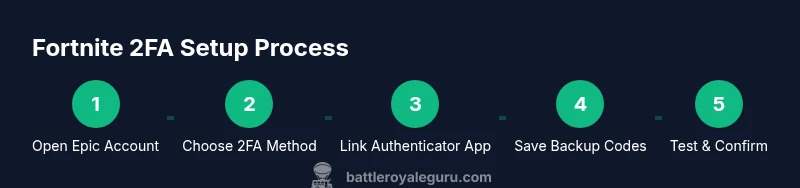
Here is a high-level path you will follow to fortnite 2fa enable in your account. First, sign in to your Epic Games account and navigate to the Password & Security area. Next, choose to enable two-factor authentication and select your preferred method. Then, follow the prompts to link an authenticator app or configure email verification, depending on your choice. After linking, you will be presented with a set of backup codes; save them securely. Finally, sign out and test the login flow to confirm that both your password and the second factor are required. This overview helps you anticipate the actions and what you can expect during setup.
Step-by-step: enabling 2FA on Epic Games
- Sign in to your Epic Games account and open the Security settings page. Why: you need access to enable 2FA and manage codes. Tip: use a trusted device and enable notifications for login attempts.
- In Password & Security, click Enable Two-Factor Authentication and select your preferred method (Authenticator App recommended). Why: this is the core setup step. Tip: choose a method you can access on a daily basis.
- If you choose an authenticator app, scan the QR code shown on screen with the app or enter the key manually. Why: this links your app to the Epic account. Tip: do not reuse codes across services.
- Retrieve the codes from the authenticator app and confirm in the Epic Games site. Why: verification confirms the link is working. Tip: take a screenshot of the setup page only if your device’s security supports it.
- Save the backup codes and store them securely. Why: backup access is essential if you lose your primary device. Tip: store in a password manager or offline safe.
- Sign out and test login on a new device to ensure you are prompted for the second factor. Why: testing confirms end-to-end functionality. Tip: test on both mobile and desktop if possible.
- Review connected devices and recovery options after setup. Why: to prevent old devices from bypassing security. Tip: remove old sessions if you no longer use them. Estimated time: 15-25 minutes.
Testing your 2FA setup
Once enabled, you should test the flow to ensure the second factor is actually required and working across devices. Start by logging out of your Epic Games account on the current device, then attempt to log in again. You should be prompted for the 2FA code in addition to your password. If the code prompt does not appear, re-check the linked method in your security settings, ensure the authenticator app is syncing properly, and verify that the codes generated match the current time window. If problems persist, log back into your account from a trusted device and re-run the setup steps. Regularly testing helps catch time drift in authenticator apps or misconfigured backup codes before they become a problem during an important session.
Backup options and recovery codes
Backup codes are a critical safety net when you cannot access your primary 2FA method. Epic Games typically presents a set of one-time use backup codes during setup. Save these codes in a secure location, such as a password manager or a physical safe. Treat backup codes like a spare key: only accessible to you and trusted backups. If you lose access to your authenticator app or email, you can use a backup code to regain entry and reconfigure your 2FA settings. Periodically regenerate backup codes after major device changes, and never share codes with others. Maintaining multiple recovery options reduces the risk of getting locked out.
Common issues and troubleshooting
If you encounter problems with Fortnite 2FA, start with the most common culprits: clock drift on your authenticator app, stale backup codes, or a mislinked account. Ensure your device time is synced and that the correct account is linked to the authenticator. If you cannot receive codes, check your email filters for verification messages and verify that you are using the correct Epic Games account. For persistent issues, try removing and re-adding 2FA from the security settings, using a different device, or contacting Epic Games support with your account details. Always document any error codes you see, as they can speed up support.
Security best practices after enabling 2FA
After fortnite 2fa enable, adopt a broader security routine. Use a strong, unique password for your Epic Games account and update it periodically. Enable email notifications for unusual sign-ins and device changes. Keep your authenticator app updated, and consider multi-device redundancy so you can access codes even if one device is unavailable. Avoid connecting accounts to public networks, and be mindful of phishing attempts that ask for verification codes. Regularly review linked third-party apps or services to prevent unauthorized access through connected platforms.
Platform considerations and cross-play
Fortnite is played across PC, consoles, and mobile devices, which means your 2FA setup should be accessible from multiple platforms. If you switch devices or platforms, test the 2FA flow on each one to ensure compatibility. Some platforms may offer native 2FA prompts or integrate with the Epic Games app. Maintain consistent security across platforms by using the same authenticator app and backup codes wherever possible, and avoid reusing codes across devices. Cross-play and shared accounts increase risk, so keep 2FA strictly enabled across all linked devices and ensure you log out of sessions you no longer use.
What’s next: maintaining ongoing account security
Security is an ongoing practice, not a one-time setup. Schedule regular reviews of your 2FA methods, backup codes, and connected devices. If you notice suspicious activity, reset your password immediately and reconfigure 2FA from a trusted device. Stay informed about Epic Games security updates and Fortnite-related account notices. By integrating 2FA with good password hygiene and cautious online behavior, you build a robust shield around your Fortnite journey and prevent loss of progress or cosmetic items over time.
Tools & Materials
- Epic Games account credentials(Username and password ready)
- Smartphone or computer with internet access(Used to receive codes or run authenticator app)
- Authenticator app (Google Authenticator, Authy, etc.)(Needed for strongest 2FA method)
- Backup codes saved securely(Store in a password manager or offline safe)
- Access to primary email (if using email-based verification)(For email verification if chosen)
- Password manager (optional but recommended)(Keeps codes and credentials safe)
Steps
Estimated time: 15-25 minutes
- 1
Sign in to Epic Games and open Security
Access your account on the Epic Games site and navigate to the Password & Security section. This is where you enable two-factor authentication. If you’re on the app, use the same site path from the browser. Why: this is the gateway to enabling 2FA and managing codes.
Tip: Bookmark the Security page for quick future access. - 2
Choose a 2FA method
Select the second-factor option that best fits your setup, ideally an authenticator app for speed and security. Some users also have the option to use email verification. Why: picking the right method reduces friction while keeping security strong.
Tip: Avoid SMS-only 2FA if possible due to potential SIM swap risks. - 3
Link your authenticator app
If you chose an authenticator app, scan the QR code or enter the key manually to link the app to your Epic Games account. Why: this creates the secure link between your account and the code generator.
Tip: Ensure your time is synchronized on the authenticator app. - 4
Save and confirm backup codes
Epic Games will present a set of backup codes. Save them in a secure place as a fallback if you lose access to your authenticator. Why: backup codes prevent lockouts.
Tip: Consider storing codes in a password manager with restricted access. - 5
Test the 2FA flow
Sign out and attempt to sign back in from a different device to confirm you’re prompted for the second factor. Why: testing validates the setup end-to-end.
Tip: Have a backup recovery option ready before testing. - 6
Review devices and security settings
Check which devices are connected and remove old sessions you no longer use. Why: reducing surface area lowers risk of unauthorized access.
Tip: Keep notifications enabled for sign-in attempts. - 7
Maintain ongoing security hygiene
Regularly update your password, review linked apps, and stay aware of Fortnite security updates. Why: ongoing vigilance prevents gaps and vulnerabilities.
Tip: Set a reminder to review security quarterly.
Questions & Answers
What is Fortnite 2FA and why should I enable it?
Two-factor authentication adds a second verification step to your Fortnite login, making unauthorized access much harder. Even if someone guesses your password, they would still need the second factor to sign in.
Two-factor authentication adds a second verification step to your Fortnite login, making unauthorized access much harder. Even if someone guesses your password, they would still need the second factor to sign in.
Can I use SMS for Fortnite 2FA?
Many platforms support multiple 2FA methods, but authenticator apps are generally more secure than SMS. If possible, choose an app-based method and use backup codes for recovery.
Authenticator apps are usually safer than SMS for 2FA. If you can, pick an app-based method and keep backup codes handy.
What if I lose access to my 2FA device?
Use your backup codes to regain access and reconfigure 2FA on a trusted device. If you don’t have backup codes, start the account recovery process through Epic Games support.
If you lose access to your 2FA device, use backup codes to regain access and set up 2FA again on a trusted device, or contact Epic Games support for help.
Is 2FA required for Fortnite tournaments?
Security best practices recommend enabling 2FA for all accounts, and organizers may require it for participation. Check the tournament’s rules for any specific requirements.
For most events, enabling 2FA is strongly recommended and sometimes required by organizers. Always verify the event rules.
How long does it take to enable Fortnite 2FA?
The initial setup usually takes about 10-20 minutes, depending on your familiarity with 2FA steps and device readiness.
Setting up 2FA typically takes about 10 to 20 minutes, depending on your familiarity and devices.
How do I disable Fortnite 2FA?
You can disable 2FA from the Security or Password & Security section of your Epic Games account, but doing so reduces your account security. Re-enable it after resolving issues.
You can disable 2FA from your account’s security settings, but consider re-enabling it after resolving any issues to keep your account protected.
Watch Video
Key Points
- Enable 2FA to block unauthorized logins
- Use an authenticator app for reliable code generation
- Save and protect backup codes securely
- Test the 2FA flow after setup
- Regularly review connected devices and security settings