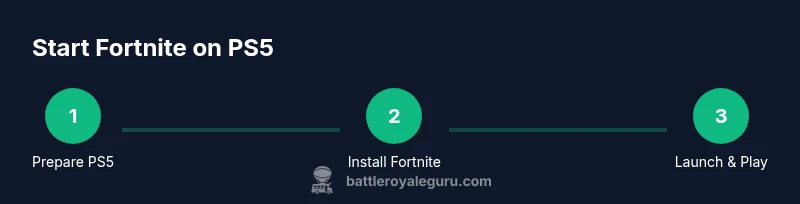
How to Get Started on Fortnite PS5
A practical, hands-on guide to launching Fortnite on PS5, linking your Epic account, optimizing PS5 settings, and starting your first matches.


Ready to dive into Fortnite on PS5? This quick answer shows you how to get started in a few clear steps: verify your internet connection, sign in to or create an Epic Games account, install or update Fortnite, link your account for cross-play, and tweak PS5 settings for smooth performance. No prior experience needed.
Getting started on PS5: prerequisites and mindset
To begin your Fortnite journey on PS5, ensure your console is connected to a reliable internet connection and has the latest system software. A calm, methodical setup reduces surprises when you first load into the Battle Bus. Plan for roughly 60-90 minutes for your initial setup and your first few matches. Align your expectations with practice; Fortnite rewards consistency and quick learning, not instant mastery.
Creating or linking your Epic Games account on PS5
Fortnite on PS5 uses Epic Games account credentials to track progress, purchases, and cross-play. If you already have an Epic account, choose Sign In and authenticate. If you don’t, create a free account on the Epic Games site and then link it from within Fortnite on PS5. Linking unlocks cross-play, saved progress, and access to your V-Bucks and purchases across devices.
Installing Fortnite on PS5 and first launch
Open the PlayStation Store, search for Fortnite, and download the free game. After installation, launch Fortnite and accept the license terms. The first launch will guide you through connecting your Epic Games account and choosing a preferred language. Ensure the game updates to the latest patch to access new features and balance changes.
Understanding game modes and crossplay on PS5
Fortnite on PS5 supports multiple modes, including Solo, Duos, Squads, and Creative. Creative lets you build and practice outside standard matches. Cross-play is enabled by default for most regions, allowing you to squad up with friends on PC, Xbox, Switch, and mobile. If you prefer strict console play, you can adjust privacy and matchmaking settings in the menus.
Optimizing PS5 settings for Fortnite performance
Performance matters in fast-paced battles. In your PS5 system settings, enable Game Mode (if available) and set Resolution to your display’s native option (1080p or 4K, depending on your TV). Inside Fortnite, adjust graphics to favor performance (lower shadows, textures, and effects) and enable 120Hz if your monitor supports it. Use a wired network when possible for lower latency.
Mastering controls, UI, and early matches
Spend time in game to learn key controls: building, editing, and quick weapon switching. The in‑game UI is minimal but powerful; customize key binds in the Settings menu so you can act quickly. Start with Solo or Team Rumble to practice combat, building, and rotations without high pressure.
Playing with friends across platforms and party setup
Cross-platform play makes it easy to squad up with friends on other devices. From the Social Menu, invite players by Epic username or enable cross-play in the settings. Voice chat works best with a headset; ensure your PS5 microphone is set as the default input device in both PS5 and Fortnite.
Troubleshooting common startup issues
If Fortnite won’t launch, check your internet connection, verify that the PS5 system software and Fortnite patch are current, and restart the console. If login fails, re-authorize Epic Games on the PS5, ensure you linked your account correctly, and try again. For persistent problems, consult the official Fortnite support site and Epic Games status pages.
Roadmap to improvement: practice, challenges, and progression
Progress comes from consistent practice and smart challenges. Use Creative mode to rehearse builds and editing sequences, then test your skills in regular matches. Track daily goals and gradually raise difficulty as your comfort grows. The more you play, the more your situational awareness and game sense improve.
Tools & Materials
- PS5 console(Model with latest system software)
- Fortnite from PlayStation Store(Free download; no purchase required)
- Stable internet connection(Wired Ethernet is preferred for stability)
- Epic Games account(Sign in or create and link to PS5)
- PlayStation Network (PSN) account(Active PSN subscription not required for Fortnite)
- Headset for voice chat(Optional for teammates communication)
- HDMI 2.1 cable (if using 4K/120Hz)(Check TV compatibility)
Steps
Estimated time: 60-90 minutes
- 1
Verify internet connection
Power on your PS5 and ensure a stable internet connection. Test by loading a website or streaming a video to confirm low latency. A wired LAN is recommended for the most reliable gameplay.
Tip: Use a wired connection when possible to minimize lag and disconnects. - 2
Sign in to Epic Games
From the Fortnite launcher, choose Sign In and link an existing Epic Games account or create one. This links your progress and purchases across platforms. You only need to do this once.
Tip: If you create a new account, save your credentials securely for future access. - 3
Install Fortnite and apply updates
Navigate to the PlayStation Store, download Fortnite, and wait for the patch to install. Keeping updates ensures you access current maps, weapons, and balance changes.
Tip: Enable automatic updates to avoid waiting during peak times. - 4
Launch and connect
Open Fortnite and sign in with your Epic account if prompted. Confirm cross‑play settings and choose your preferred language and region. You’re ready to hop into a match.
Tip: Try Team Rumble first to warm up and practice builds. - 5
Configure PS5 performance
In PS5 settings, enable Game Mode and adjust display resolution to match your TV. In Fortnite, set graphics for performance and enable 120Hz if your monitor supports it.
Tip: A wired connection helps maintain a steady frame rate during intense battles. - 6
Practice and learn
Begin with Solo or Team Rumble to learn movement, building, and aiming. Use Creative mode to practice edits and combos without pressure.
Tip: Schedule short, daily practice sessions to build muscle memory. - 7
Play with friends
Invite friends via Epic usernames or enable cross‑play in settings. Use a headset for clear communication during squad play.
Tip: Coordinate loadouts and rotations with your team for better outcomes. - 8
Troubleshoot issues
If you encounter startup issues, verify updates, re‑authorize Epic Games, and check status pages. Reboot the PS5 if problems persist.
Tip: Keep a local record of any error codes to speed up support requests.
Questions & Answers
Do I need PlayStation Plus to play Fortnite on PS5?
No. Fortnite is free-to-play on PS5 and does not require a PlayStation Plus subscription for online play. An account is still needed for progression and cross‑play.
Fortnite on PS5 doesn’t require PlayStation Plus, just an Epic Games account.
Can I play with friends on other platforms?
Yes. Fortnite supports cross‑play between PS5, PC, Xbox, Switch, and mobile. Ensure cross‑play is enabled in the settings and that friends are added via Epic usernames.
Yes, you can squad up with friends on other platforms by enabling cross‑play.
How do I link my Epic Games account on PS5?
Open Fortnite on PS5 and choose Sign In with Epic Games. Follow the prompts to log in or create an account, then confirm the link. This syncs your progress and purchases across devices.
Connect your Epic Games account from the Fortnite sign‑in screen.
Where can I find Fortnite settings on PS5?
In Fortnite, access the Settings menu from the main lobby. You can adjust graphics, audio, controls, and accessibility. On the PS5 system, you can also fine‑tune display and performance options.
Open Settings in Fortnite and also tweak PS5 display options for best results.
What are recommended PS5 settings for performance?
Prioritize performance: enable Game Mode, set the display to your TV’s native resolution, reduce shadows and post‑processing in Fortnite, and use a wired connection for stability.
Turn on performance mode and use a wired connection for smoother gameplay.
Why isn’t Fortnite showing up on the PS5 Store?
If Fortnite isn’t appearing, check region restrictions, ensure the PS5 is up to date, and verify your store search spelling. You can also search directly in the PS Store and check for updates.
Fortnite may not appear due to regional issues or pending updates; verify store region and system updates.
Watch Video
Key Points
- Link Epic account early to save progress.
- Install and update Fortnite before playing.
- Tune PS5 settings for best performance.
- Practice in Creative and warm up before matches.