How to Fix Fortnite Lag on PS5: Practical Fixes for 2026
Practical steps to reduce Fortnite lag on PS5 with network tweaks, in-game settings, and troubleshooting tips from Battle Royale Guru, with guidance and wins.


This guide helps PS5 players reduce Fortnite lag by optimizing network, in-game settings, and system performance. Start with a stable wired connection, restart your router, and ensure your PS5 is in Performance mode. Then tweak Fortnite graphics, latency options, and audio settings, update firmware, and check for common lag culprits like packet loss, background apps, and server status.
Why Fortnite Lag Happens on PS5
If you're wondering how to fix fortnite lag ps5, understanding the culprits is the first step. Lag on PS5 is rarely caused by a single issue. It often arises from a shaky home network, congested servers, or in-game settings that push more data than your connection can handle. The PS5 itself also has performance modes and background tasks that can influence frame pacing and input latency. In this section, we’ll break down typical lag sources—network jitter, server-side load, local congestion, and software inefficiencies—and connect them to practical fixes you can apply today. The Battle Royale Guru team emphasizes that most players see improvements by addressing the three core areas: connection quality, system readiness, and game settings.
To set expectations, solving lag is usually a blend of quick wins and longer-term tweaks. While not every fix will solve every case, you’ll likely reduce persistent stutter, improve hit registration, and stabilize frame pacing by following a structured approach.
Brand context note: According to Battle Royale Guru, lag on PS5 often stems from network jitter and server strain during peak hours. Implementing a wired connection and prioritizing Fortnite traffic can dramatically reduce latency spikes.
noteToUserSubtitle1
null
Tools & Materials
- Cat 6 Ethernet cable(at least 6-10 feet to reach PS5 comfortably without strain on the port)
- Router with QoS (Quality of Service) features(enable gaming QoS and prioritize console traffic (Fortnite ports if available))
- PS5 system software update(ensure the console is running the latest firmware)
- Fortnite client update(keep the game up to date for optimal networking improvements)
- Network monitoring app or tool (optional)(helps test latency and identify jitter across devices)
Steps
Estimated time: 60-90 minutes
- 1
Prepare your network
Connect the PS5 directly to the router with a Cat 6 Ethernet cable if possible. If you must use Wi‑Fi, move the console closer to the router, reduce interference, and switch to a less congested 2.4/5 GHz band. The reason is simple: a wired connection minimizes jitter which directly reduces lag in Fortnite. Tip: Do not run heavy downloads on other devices while gaming, as this can spike latency.
Tip: Wired connections beat wireless for latency-sensitive games. - 2
Update essential software
Make sure your PS5 system software and Fortnite client are up to date. Updates often include networking improvements and bug fixes that reduce lag. After updating, reboot the console to ensure all changes take effect. Tip: Enable automatic updates if possible to avoid missing critical fixes.
Tip: Updates can fix underlying game and OS networking issues. - 3
Configure your router for gaming
Access your router’s admin panel and enable QoS, giving Fortnite traffic top priority. If your router supports it, enable UPnP and ensure NAT type is open or moderate for smoother connections. Tip: Note your PS5’s IP address to set a specific QoS rule.
Tip: QoS prioritizes Fortnite data packets over other traffic. - 4
Adjust PS5 network settings
In the PS5 network settings, test the connection, set DNS to a fast resolver (like 1.1.1.1 or 8.8.8.8 if you’re comfortable), and disable any features that could cause background bandwidth usage during play. Tip: A clean, fast DNS can shave precious milliseconds off your ping.
Tip: DNS performance can influence initial handshake latency. - 5
Tweak In-Game Fortnite settings
Open Fortnite and set graphics to a balance that favors performance (lower shadows, effects, and texture detail while maintaining clarity). Turn off unnecessary features that consume GPU cycles and enable any built-in latency-friendly options. Tip: Use a lower render distance to stabilize framerate under load.
Tip: Lowering visuals can improve responsive input in high-stress moments. - 6
Limit background processes on PS5
Close applications running in the background and ensure your console has ample free memory and CPU headroom. Background tasks compete for resources that your game relies on for smooth performance. Tip: Pause or disable any transfers or downloads in the system menu during play.
Tip: Less background work means steadier gaming performance. - 7
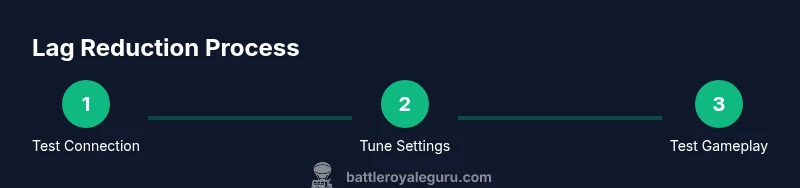
Test and iterate
Join a Fortnite match in a controlled environment (quiet room, no party chat) and monitor latency, hit registration, and frame pacing. If you notice spikes, try a different DNS server, switch to a wired connection, or retry with QoS adjustments. Tip: Do a short test ladder to compare before/after changes.
Tip: Small, incremental changes help identify what actually reduces lag. - 8
Consider temporary network alternatives
If your home setup remains stubborn, you can test a different network path (mobile hotspot for a short session) to confirm if your home network is the bottleneck. Do not rely on it as a long-term solution due to data costs and potential speed limitations. Tip: Use sparingly for troubleshooting, not as a daily fix.
Tip: Isolate the problem—home network vs. device performance. - 9
Long-term habits for consistency
Schedule periodic maintenance: firmware updates, router reboot cycles, and periodic performance checks. Share these steps with your roommates or family to avoid last-minute surprises during competitive play. Tip: Create a short checklist you perform before every gaming session to ensure consistency.
Tip: Routine maintenance prevents lag from creeping back.
Questions & Answers
What is the first step to fix Fortnite lag on PS5?
Start with the simplest fixes: plug in via Ethernet, restart your router, and ensure PS5 and Fortnite are updated. These steps fix many common causes of lag.
Begin with a wired connection, restart your router, and update your PS5 and Fortnite to fix common lag causes.
Will turning off background apps help with lag?
Yes. Closing other applications frees up CPU and memory resources, reducing processing delays during Fortnite matches.
Yes—closing other apps frees up resources and can reduce lag.
Should I enable QoS on my router for Fortnite?
Enabling QoS can prioritize Fortnite traffic and help reduce latency spikes, especially on busy networks.
Yes, if your router supports QoS, use it to prioritize Fortnite traffic.
Is using a VPN good for Fortnite lag?
Generally not recommended. VPNs can add extra hops and increase latency, unless you are testing a specific issue.
Usually not recommended; VPNs often add latency unless you’re troubleshooting a specific bottleneck.
What if my NAT type is strict?
A strict NAT can limit connection quality. Open or Moderate NAT improves matchmaking and reduces lag potential.
A strict NAT can hurt connectivity; aim for Open or Moderate NAT.
How long should I test changes before deciding?
Do a few consecutive matches or a 20-30 minute session to gauge stability after changes.
Test for 20-30 minutes to see how stable things feel after changes.
Watch Video
Key Points
- Identify core lag causes and address network quality
- Use wired connections and QoS to stabilize latency
- Tune Fortnite and PS5 settings for performance
- Test changes iteratively to confirm improvements