Fortnite on PS5: Urgent Troubleshooting Guide for Issues
Battle Royale Guru provides urgent, practical steps to diagnose and fix Fortnite issues on PS5, including loading errors, crashes, and lag. Learn quick fixes, diagnostic flow, and prevention tips to restore smooth gameplay.


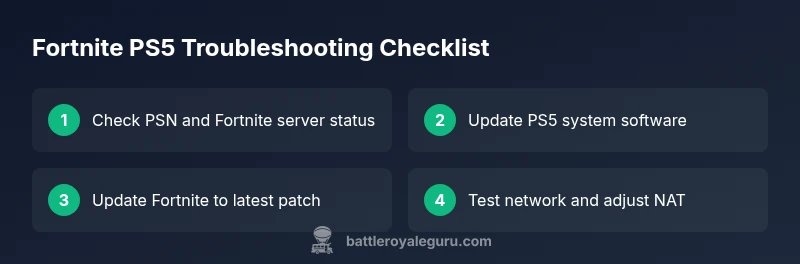
Fortnite on PS5 problems usually stem from server status, outdated software, or network settings. Quickly check PSN status, update PS5 firmware and Fortnite, test your internet connection, and reseat power. If problems persist, reinstall Fortnite or adjust NAT type.
Common PS5 Fortnite Connection Issues
What is wrong with fortnite on ps5 often boils down to connection and software frictions rather than hardware failure. According to Battle Royale Guru, many PS5 players report identical symptoms during periods of server congestion or when either the PS5 system software or the Fortnite game itself is out of date. You may see long loading times, a stuck loading screen, random crashes, or matchmaking failures. Network issues like a strict NAT, weak Wi‑Fi, or VPN usage can also block or slow down matchmaking. Start with the basics: verify PSN service status, check for Epic server notices, and ensure your account is in good standing. Keeping your console and game updated reduces the chance of incompatibilities that trigger these symptoms.
- If you’re seeing a loading loop, first confirm PSN and Fortnite servers are online and not undergoing maintenance.
- A mismatched region or licensed content can sometimes trigger a failure to connect; sign out and back in to refresh tokens.
- Avoid using VPNs on PS5 for Fortnite, as these can introduce latency and block endpoints used by matchmaking.
Note: The Battle Royale Guru team emphasizes a methodical approach—start with the simplest checks and move toward deeper fixes only when the basics fail.
Console & Account Readiness Checks
Before diving into more complex remedies, ensure your PS5 and account are ready for Fortnite. From a practical standpoint, keeping software current is essential. Update the PS5 system software to the latest version, and confirm Fortnite itself is updated to the latest build. Sign back into your PlayStation Network account to refresh authentication tokens, and verify that your storage has enough free space to avoid performance hitches during gameplay.
- Make sure your PS5 is connected via Ethernet if possible for stability; if using Wi‑Fi, ensure a strong signal.
- Check your account region and linked email for any alerts from Sony or Epic that require action.
- Disable background downloads or installations while playing to prevent bandwidth contention and CPU contention that could cause stutters or a crash.
Error Codes and Fixes You Might See
Fortnite on PS5 can display generic error messages that hint at the underlying cause without exposing a precise code. In many cases, errors fall into the categories of server status, authentication, or network issues. If you encounter an authentication error, re‑log into your Epic account and ensure your PSN account is linked correctly. Network errors often improve with a wired connection, a higher NAT type, and a quick router reboot. If you see a generic crash, it’s typically tied to a corrupted cache or a mismatch between the game and the system version.
- Authentication issues: sign out of both PSN and Epic, then sign back in and retry.
- Network errors: switch to a wired connection or disable any VPNs; run a quick network test.
- Cache/data corruption: in some cases, clearing cache or reinstalling resolves the issue.
Step-by-Step Troubleshooting Flow for PS5
Follow this flow to diagnose and fix most Fortnite PS5 issues. Start with the simplest checks and progress to more involved actions only if the problem persists. This flow is designed to be actionable and cumulative, so you can backtrack easily if a step fixes the issue.
- Symptom verification: confirm whether the issue is consistent (always-crashes, intermittent lag, or never loads).
- Check server status: ensure Fortnite and PSN services are operational.
- Update software: both PS5 system software and Fortnite should be at the latest version.
- Network testing: perform a wired connection if possible; adjust NAT type to open or medium.
- Cache and data: clear local game data or reinstall the title.
- Final option: rebuild database or perform a full reinstall of Fortnite if the issue persists.
If none of the above fixes work, seek official support from Epic Games or PlayStation.
Note: Always back up saved data where possible before drastic steps like reinstalling.
Performance Optimization Tips for PS5
Even when the game runs, performance can degrade from background processes, thermal throttling, or improper settings. Battle Royale Guru recommends tuning your PS5 and Fortnite for peak performance while retaining stability. Use a wired connection, enable 60fps performance settings if available, and ensure no other heavy apps are running in the background. Adjust in-game settings for lower texture quality or reduced motion if you notice stutter, and keep your console in a well-ventilated area to prevent thermal throttling. Maintenance habits like firmware updates, regular restarts, and periodic checks for corrupted data help prevent issues long term.
- Enable high-performance mode where applicable and limit background downloads while playing.
- Periodically restart your router and modem to refresh network routes.
- Keep your firmware and game patches up to date to minimize incompatibilities.
- Monitor temperatures; if the console feels unusually hot, pause gaming to cool down.
Quick Recap: What to Do Next
Remember the diagnostic flow and prioritize updating software, testing network stability, and keeping data clean. The quickest wins are server status checks, updating, and a wired connection. If issues persist after these steps, reinstall Fortnite and consider contacting support with the diagnostics you’ve performed. The Battle Royale Guru team emphasizes a disciplined, stepwise approach to avoid chasing symptoms rather than root causes.
Steps
Estimated time: 20-40 minutes
- 1
Verify PSN status and game version
Check the PSN service page and Epic/ Fortnite status to rule out server-side problems. Confirm you are on the latest Fortnite patch and that your PS5 OS is up to date. If updates are pending, install them and retry.
Tip: Keep the device plugged in during updates to avoid interruptions. - 2
Update PS5 and Fortnite
Navigate to Settings > System > System Software > System Software Update. In Fortnite, go to the in-game menu and choose Check for Updates if available. Reboot after updates complete.
Tip: A fresh restart clears temporary files that can cause crashes. - 3
Test and optimize network
If possible, connect with a wired Ethernet cable. Run a network test on PS5 to check NAT type and latency. Disable VPNs and pause other devices using bandwidth.
Tip: Ethernet stability beats Wi‑Fi for gaming. - 4
Clear cache/data or reinstall Fortnite
On PS5, you can rebuild database from Safe Mode or delete and reinstall Fortnite. This removes corrupted data that can cause crashes or freezes.
Tip: Back up saves where possible before reinstalling. - 5
Check T&C and account integrity
Ensure your PSN and Epic accounts are linked correctly and that there are no outstanding account suspensions. Sign out and sign back in if necessary.
Tip: A fresh sign‑in can refresh credentials and tokens. - 6
Seek additional help if needed
If the issue persists after all steps, contact Epic Games Support or PlayStation Support with your diagnostics and steps taken.
Tip: Provide logs, error messages, and timestamps to speed up help.
Diagnosis: Fortnite on PS5 won't load, crashes, or has lag after startup
Possible Causes
- highServer outages or PSN maintenance
- highOutdated Fortnite or PS5 system software
- mediumStric NAT or unstable network connection
- mediumCorrupted game cache or data
- lowInsufficient storage or hardware cooling issues
Fixes
- easyCheck PSN and Epic/Fortnite server status; wait if there is an outage
- easyUpdate PS5 firmware and Fortnite to the latest versions
- easyTest network with a wired connection and adjust NAT to open/medium
- mediumClear game cache or reinstall Fortnite to remove corrupted data
- hardRebuild PS5 database or perform a full game reinstall if needed
Questions & Answers
Why is Fortnite not loading on PS5?
Most often it’s a server status issue, an outdated software version, or a network configuration problem. Start by checking PSN and Epic server status, then ensure both PS5 and Fortnite are up to date. If the problem persists, try a wired connection and a clean reinstall.
Fortnite not loading on PS5 is usually server or software related. Check status, update, and test your network; reinstall if needed.
Can crossplay cause PS5 issues with Fortnite?
Crossplay itself typically won’t cause launcher or loading issues on PS5, but misconfigured NAT or account linking can impact matchmaking. Ensure NAT is open or moderate and that your Epic and PSN accounts are properly linked.
Crossplay usually isn’t the root cause, but network setup and linked accounts matter for matchmaking.
Will clearing cache on PS5 fix Fortnite problems?
Clearing cache or reinstalling can fix corrupted data that causes crashes or freezes. Start with a data cache refresh or database rebuild before a full reinstall.
Clearing cache can fix data corruption that causes crashes.
Is reinstalling Fortnite safe for PS5?
Reinstalling is generally safe and a common step when other fixes fail. Ensure you back up saves if possible and verify your internet connection before reinstall.
Reinstalling is safe, but back up saves and prepare for a fresh download.
What should I do if issues persist after updates?
If problems persist after updates, contact Epic Games Support or PlayStation Support with a clear report of symptoms, timestamps, and steps you’ve taken. They can provide targeted assistance or escalation.
If updates don’t help, reach out to support with your diagnostics.
Watch Video
Key Points
- Check server status and update first
- Use a wired connection for stability
- Clear data or reinstall if needed
- Keep NAT and network settings optimized