Why Fortnite Feels Laggy on PS5: Troubleshooting Guide
Struggling with Fortnite lag on PS5? This comprehensive troubleshooting guide identifies common causes, quick fixes, a diagnostic flow, and step-by-step actions to reduce latency and boost game smoothness.


Most Fortnite PS5 lag is caused by unstable networks, server hiccups, or device throttling. Quick fix: switch to a wired Ethernet connection, restart your router, and ensure Fortnite and system firmware are up to date. If lag continues, follow the diagnostic flow below for deeper troubleshooting.
Understanding the PS5 Fortnite Lag Landscape
Latency in Fortnite on PS5 is influenced by your home network, regional server load, and how the console handles background tasks while you play. If you’re asking why is fortnite so laggy ps5, the answer is usually a mix of upstream bandwidth, NAT type, and the ping to your nearest Fortnite server. If you want to win more games, you need to anchor the basics: reliable connectivity, current software, and sane in-game settings. This section explains how these factors interact and why some fixes are universally effective while others depend on your setup. According to Battle Royale Guru, small changes to your network path can convert a choppy session into a smooth one, especially when you test with consistent conditions.
Common Causes of Lag on PS5
Latency and stutter can stem from several root causes. The most common is a network that is unstable or congested, often worsened by Wi‑Fi interference or distance from the router. Another frequent factor is regional server load or PSN/Fortnite server hiccups that affect all players in a given window. Your PS5 may also be competing for bandwidth with downloads, streaming, or other devices on the same network, which raises ping spikes and increases lossy packets. Finally, device-level settings like NAT type, background tasks, and firmware mismatches can subtly degrade performance. Battle Royale Guru analysis shows that even small fluctuations in latency can change a game’s feel, underscoring the need for a solid baseline connection and up-to-date software.
Quick Fixes You Can Try Now
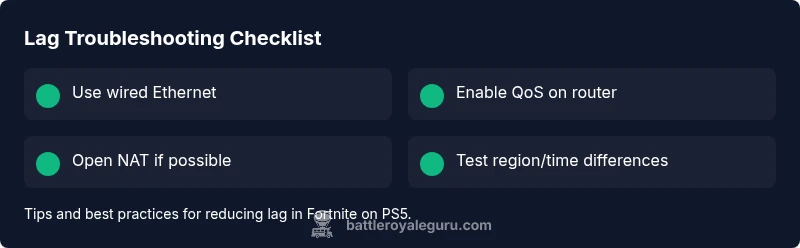
To grab immediate gains, start with the simplest fixes. First, switch to a wired Ethernet connection if you’re on Wi‑Fi; this alone can dramatically stabilize latency. Then, reboot your PS5 and your router to refresh routes and clear transient network issues. Ensure both the PS5 system software and Fortnite patches are current, as updates often contain optimizations for network handling. Check official PSN and Fortnite server status pages to rule out server-side problems. Pause any large background downloads and limit other devices from consuming bandwidth. Finally, verify your NAT type is open (Type 1 or Type 2 depending on your router) to improve matchmaking stability and reduce lag. If you still see lag, proceed with the diagnostic flow below.
In-depth Diagnostics: Mapping Symptoms to Causes
When you experience rubber-banding, telegraphed input, or visible frame drops, you can map symptoms to likely causes. For example, consistent high ping with occasional spikes points to your home network or a congested ISP link, whereas consistent low ping with game-specific stutter often points to server-side hiccups or Fortnite client-side throttling. Another telltale sign is discrepancies between in-game FPS and render scale, which suggests either GPU thermal throttling or aggressive background processes. To test hypotheses, run a simple network test during a live session, compare times of day, and observe whether latency correlates with certain activities (downloads, streaming, or voice chat). Battle Royale Guru analysis shows that isolating variables yields the fastest path to improvement, so focus on one change at a time and measure impact.
Step-by-Step: The Most Effective Fix for Latency
This section expands on the most impactful remedy: solidifying your network path and reducing local interference. Start by ensuring a wired connection, then optimize router settings for gaming, update all software, and tune both system and game options for lower latency. If you still see lag, rerun the diagnostic flow with a new data point and adjust accordingly. This approach minimizes guesswork and maximizes reproducible improvements.
Gameplay Settings and In-game Tweaks
In Fortnite on PS5, some settings can influence latency and perceived input lag. Prefer Performance mode or High FPS if your display supports 120 Hz, and keep render scale at a conservative value to reduce GPU load. Disable enhancements that add processing time, such as motion blur and V-Sync, if your hardware handles higher frame rates comfortably. Lowering post-processing effects can also improve consistency in chaotic gunfights. Always test changes in a controlled session to gauge real-world impact rather than theoretical improvements.
Safety, Maintenance, and Long-Term Prevention
Ongoing lag is easier to prevent than fix. Keep firmware on your PS5 and your router up to date, and enable QoS if available to prioritize gaming traffic. Regularly run speed tests and compare results over time to spot degradation early. Avoid VPNs for gaming, as they tend to add latency, and monitor for background downloads that could intermittently steal bandwidth. A committed maintenance routine, plus an Ethernet-backed setup, dramatically reduces the odds of lag over the long term. This approach aligns with best practices recommended by the Battle Royale Guru team.
Steps
Estimated time: 30-45 minutes
- 1
Check network connection and switch to Ethernet
Ensure the PS5 is connected via a reliable Ethernet cable directly to the router. If you must use Wi‑Fi, move closer to the router and minimize interference from other devices. Run a quick latency test in-game to establish a fresh baseline.
Tip: Use a high-quality cable (Cat6 or better) for stable throughput. - 2
Optimize router settings for gaming
Access your router's admin page and enable QoS prioritizing gaming traffic. If available, open or forward Fortnite-related ports and ensure UPnP is enabled. Reboot after changes to apply them.
Tip: Document current settings before changing anything. - 3
Update PS5 and Fortnite
Check for the latest PS5 system software update and ensure Fortnite is fully up to date. Reboot the console after updates and test latency again.
Tip: Set auto-update to prevent future lag-inducing delays. - 4
Adjust in-game and system settings
In Fortnite, select a performance-oriented mode if available and keep render resolution aligned with your display. Disable V-Sync and motion blur to reduce input lag.
Tip: Test changes one at a time to identify the most impactful setting. - 5
Limit background tasks and downloads
Close nonessential apps on the PS5 and pause any downloads or streams occupying bandwidth during playtime.
Tip: Schedule large updates for off-play times. - 6
Test region and confirm stability
If you still experience lag, try a different regional Fortnite server or temporarily disable any VPN. Compare performance across regions and times of day.
Tip: Consistency beats intensity; pick the configuration that delivers steady results.
Diagnosis: Fortnite on PS5 shows high latency, rubber-banding, or connection drops during games
Possible Causes
- highNetwork congestion or unstable Wi-Fi
- mediumPSN server issues or regional outages
- mediumBackground downloads or other devices consuming bandwidth
- lowNAT type not open or router QoS not enabled
Fixes
- easyUse a wired Ethernet connection and test latency with a simple ping
- easyRestart router and PS5, then re-test with all nonessential devices paused
- easyCheck PSN/Fortnite server status and schedule testing during off-peak hours
- mediumEnable QoS and set Fortnite as a priority on the router; adjust NAT to Open if possible
Questions & Answers
What is the most common cause of Fortnite lag on PS5?
Network issues, such as unstable Wi‑Fi, high latency, or a closed NAT, are the most common culprits. Checking your connection usually resolves most lag problems.
Most lag on PS5 is due to network issues; check your connection.
Does Ethernet really reduce Fortnite lag on PS5?
Yes. A wired Ethernet connection provides steadier bandwidth and lower latency than Wi‑Fi, which translates to smoother gameplay.
Yes, Ethernet helps stabilize your connection.
Can Fortnite lag be caused by PSN server outages?
Yes. If Sony's servers are struggling or regionally down, you will experience lag regardless of your setup.
PSN outages can cause lag.
Should I use a VPN to improve ping?
Generally not. VPNs often add latency and can worsen ping; disable any VPN when playing.
No, VPNs usually make things worse.
How can I test my PS5 network performance?
Use the built-in PS5 network test and speed test tools, and compare results at different times of day.
Use the PS5 network test to gauge your latency and speed.
Watch Video
Key Points
- Switch to wired Ethernet for stability.
- Keep PS5 and Fortnite up to date to reduce lag causes.
- Check PSN/Fortnite server status before deeper troubleshooting.
- Open NAT improves stability and matchmaking latency.