How to Clear Fortnite Cache on PS5: A Step-by-Step Guide
Learn a safe, step-by-step method to clear Fortnite cache on PS5. Fix load issues and missing textures without risking your progress. Battle Royale Guru guides you.


Clearing Fortnite cache on PS5 can resolve stuck loads, missing textures, and matchmaking errors by refreshing local game data without affecting your Epic account or saves. This quick, safe fix preserves your progress while speeding future loads. According to Battle Royale Guru, follow these steps exactly to avoid data loss, then relaunch with a clean cache. The process takes just a few minutes.
Understanding Fortnite cache on PS5
Cache is temporary data stored by your PS5 and Fortnite to speed up loading and replay. When cached data becomes outdated or corrupted, it can cause glitches like texture pop-ins, longer load times, or sporadic matchmaking retries. Clearing the cache forces the console and game to rebuild fresh data on next launch. Importantly, clearing cache does not alter your Epic account, game saves, or your progress. Think of it as a fast refresh rather than a data reset. Battle Royale Guru notes that cache hygiene is part of routine maintenance for players who notice odd visuals or stuttering after a big update. Regular cache management can help maintain smooth performance, especially when updates roll out in waves.
Why cache issues happen on PS5
Cache issues often occur after game updates, server hiccups, or system software changes. Fortnite might store redundant textures, shader caches, or stale connection data locally. Over time, these fragments can conflict with new asset packs or cross-play features, leading to micro-stutters or incorrect textures. By clearing the cache, you’re allowing the game to fetch fresh data from the servers and reinitialize shaders, which can resolve most visual and performance hiccups without reinstalling the entire title.
Symptoms that signal you should clear cache
Look for consistent texture pop-ins, long loading screens, hitching during fast transitions, or recurrent matchmaking failures that don’t resolve with a simple restart. If these issues appear only in a specific map or mode, it’s still worth clearing cache to rule out corrupted local data. Remember: clearing cache is a targeted refresh, not a system reset, so you won’t lose progress or settings.
How PPO (PS5 Cache) interacts with Fortnite assets
Fortnite downloads assets into a local cache to speed up launch and streaming of textures. When servers push new assets, old cache entries can linger. If the game loads an outdated asset, you might see missing textures or misaligned UI elements. A clean cache ensures the game fetches the correct, latest assets from Epic’s servers on startup and during play, supporting a more stable experience on PS5.
Before you start: safety and backups
While clearing cache is safe, it’s prudent to ensure you aren’t in the middle of a ranked match or a time-limited event. Close Fortnite and any other apps, and confirm you’re signed into your primary Epic Games account. If you’re using a shared console, consider confirming your profile is the active one to avoid unintended sign-outs or data sync prompts after the process.
What data is affected and what isn’t
Clearing cache targets temporary files, shader caches, and locally stored textures. It does not delete your saved games, cosmetics, V-Bucks balance, unlocks, or settings tied to your Epic account. After clearing the cache, you may notice a slightly longer first load as assets repopulate, but subsequent plays should feel smoother as the cache rebuilds with fresh data.
When to clear cache: a quick decision guide
- If you see persistent texture issues, long load times, or random matchmaking errors.
- After major Fortnite updates or server maintenance.
- If you notice performance dips after returning from a long play session or from sleep mode.
If none of these apply, a regular reboot and optional database rebuild can still help but isn’t strictly necessary every week. This guide focuses on the safe, proven PS5 path that minimizes downtime.
How to pair cache clearing with other maintenance
For best results, combine cache clearing with a full PS5 power cycle and, if needed, a clean reinstall of Fortnite (only if problems persist). Keeping your PS5 system software up to date and ensuring your network connection is stable can also prevent cached data from becoming stale. After completing the steps, test multiple modes to ensure consistency across playlists.
Authority sources
For further reading on system cache and best practices, consult official PlayStation support and Epic Games help resources. Keeping up-to-date with platform guidelines helps ensure you follow the safest maintenance steps.
Tools & Materials
- PS5 console(Power cycle and Safe Mode steps require a connected display and controller.)
- Controller(Used to navigate Easy Rebuild and menu options.)
- Stable internet connection(Needed to re-download assets after a clear cache.)
- Fortnite installed (on PS5)(Ensure you’re clearing cache while Fortnite is installed.)
Steps
Estimated time: 15-25 minutes
- 1
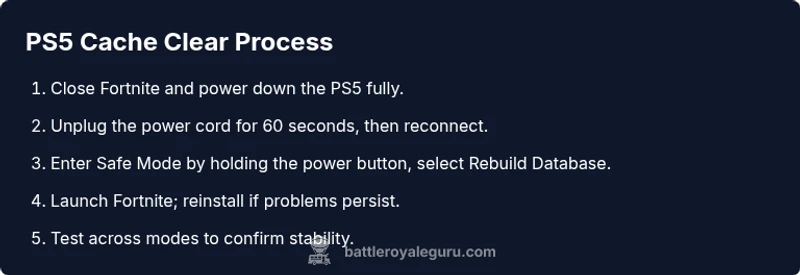
Close Fortnite and power down
Exit Fortnite completely and ensure the PS5 is in a fully powered-off state (not Rest Mode). This prevents data from being in-use during the reset.
Tip: Double-check no background Fortnite processes are running by returning to the home screen before continuing. - 2
Power off and unplug for a moment
Unplug the PS5 power cord for 60 seconds to ensure volatile data clears from the system cache. Reconnect power after the minute has passed.
Tip: If you’re in a busy setup, you can wait 90 seconds to ensure a clean disconnection. - 3
Boot into Safe Mode and rebuild database
Hold the power button until you hear a second beep to enter Safe Mode. Connect a controller via USB and select 'Rebuild Database' (this reorganizes data and can resolve cache-related hiccups).
Tip: This operation can take several minutes depending on your drive size—don’t interrupt it. - 4
Restart and reinstall Fortnite if needed
After the rebuild completes, launch Fortnite. If issues persist, delete Fortnite from your library and reinstall to ensure a fresh cache build.
Tip: Reinstalling will download the latest assets; ensure you have enough download bandwidth. - 5
Verify performance in multiple modes
Load into Battle Royale, Creative, and LTM playlists to confirm textures and loads improved across scenarios.
Tip: If a persistent issue remains in only one mode or map, check server status and regional outages.
Questions & Answers
What does clearing Fortnite cache on PS5 actually do?
Clearing the cache removes temporary data that can cause texture glitches or long load times. It does not affect your Epic account, saves, or cosmetics. The game will rebuild fresh data the next time you launch Fortnite.
Clearing the cache removes temporary data and speeds up loads without touching your account or progress.
Will clearing cache erase my saves or progress?
No. Clearing cache affects only temporary files and locally stored data. Your saves and cosmetics linked to your Epic account remain intact.
No, your saves stay safe; cache clearing only refreshes local files.
Do I need to reinstall Fortnite after clearing cache?
Not always. If you still see issues after a cache refresh, a reinstall of Fortnite can help ensure a clean cache. Only proceed if problems persist.
Usually not, but reinstall if issues persist.
How long does a cache rebuild take on PS5?
Rebuild times vary by library size; expect several minutes during Safe Mode operation. Don’t interrupt the process.
Typically a few minutes, depending on data volume.
Can I clear cache while in a party or mid-game?
It’s best to complete the steps when Fortnite is closed and the PS5 is powered down to avoid data conflicts.
Do it when you’re not in a game to prevent issues.
What should I check if issues persist after cache clear?
Verify your PSN and Epic account status, check Fortnite server status, and consider network diagnostics. If problems continue, a full reinstall may be needed.
Check server status and network, then decide on a reinstall if necessary.
Watch Video
Key Points
- Clear PS5 Fortnite cache safely without touching your Epic account.
- Safe Mode rebuild is a core option to refresh system caches.
- Reinstall Fortnite only if issues persist after cache clear.
- Verify stability across multiple modes to confirm success.