How to Clear Fortnite Cache on Nintendo Switch
Learn how to safely clear Fortnite cache on Nintendo Switch with practical, step-by-step methods. This guide covers non-destructive options, reinstall as a last resort, and tips to keep saves intact.


By following these steps, you will clear Fortnite's temporary data on your Nintendo Switch and potentially resolve loading or crash issues. The process focuses on closing the game, power cycling the console, and, if needed, reinstalling Fortnite while keeping your Epic account intact. Note that there is no per-game cache button on Switch; use system-level cache routines.
how to clear fortnite cache on switch: Understanding cache on the Switch
Fortnite on Nintendo Switch interacts with both the game and the Switch operating system. Cache refers to temporary files that store assets, routes, and session data to speed up loading. Over time, these files can become outdated or corrupted, leading to longer load times, texture glitches, or unexpected crashes. According to Battle Royale Guru, many Switch players notice improvements after clearing this kind of temporary data. Importantly, cache clearing is not the same as deleting your saved games; your Epic account progress is stored in the cloud and should remain safe when you perform routine cache maintenance. In this section, we’ll explain what can be safely cleared and what should be left alone, so you can reduce issues without risking your progress.
Before you start: prerequisites and cautions
Before you begin clearing cache, two safety notes help prevent data loss. First, cache clearing targets temporary files, not your epic account saves, but some steps can affect local data if you delete files inadvertently. Second, make sure your Nintendo Online save data cloud is active if available, so you can restore progress after reinstall. Always sign in to your Epic account once Fortnite is re-launched to sync progress. Also ensure your Switch is on the latest firmware; older firmware can complicate cache-related steps. In this section we outline a checklist of prerequisites: confirm a stable internet connection, verify storage for potential reinstallation, and prepare to re-enter login credentials. With these precautions, you’ll reduce the chance of losing progress while addressing performance issues.
Non-destructive methods you should try first
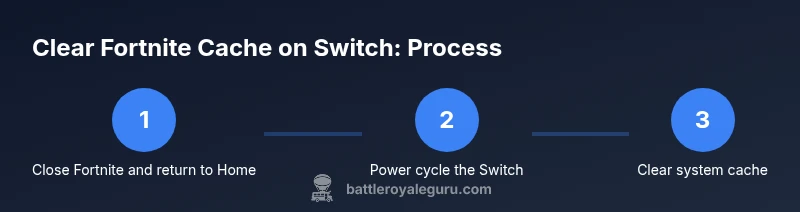
If you’re troubleshooting, start with non-destructive options that don’t touch your saved files. Close Fortnite completely, then return to the Nintendo Switch Home screen. Power cycle the console by turning it off, waiting 30 seconds, and turning it back on. After rebooting, launch Fortnite again to see if performance improves. Check for any available updates for the system software and for Fortnite itself, since patches often include cache-handling improvements. Finally, perform a system-wide cache clear (Settings > Data Management > Clear Cache) to remove stale temporary data.Restarting in this order minimizes risk while validating hardware and software stability. When you re-enter Fortnite, sign back in and test several load scenarios: main menu, matchmaking, and a quick game start. If issues persist after these steps, you may need to consider a reinstall.
Quick steps for how to clear fortnite cache on switch safely
In this section we summarize a safe, non-destructive workflow: close Fortnite, power cycle, verify updates, and clear system cache. These actions target temporary files and should not affect your Epic account saves. If performance issues continue, you’ll have a clear indication to proceed with a reinstall while preserving your login credentials. Throughout this process, keep your internet connection stable and avoid deleting save data unless you intend to reinstall the game. The goal is to restore normal loading times and reduce crashes without risking your progress.
When to move to a full reinstall of Fortnite on Switch
A full reinstall is usually a last resort when non-destructive steps don’t resolve the issue. If you still experience persistent crashes, stuttering, or corrupted textures after clearing the cache and updating software, uninstall Fortnite from the Switch and re-download it from the Nintendo eShop. This process removes all local temporary files and réinstalls the game fresh, which often clears stubborn cache leftovers. Before uninstalling, ensure your Epic account credentials are handy so you can sign back in and sync your progress. Reinstallation typically does not affect your purchases or progress linked to your Epic account, but you may need to reconfigure settings and re-download any downloaded content.
Troubleshooting and best-practice tips
Even after following these steps, some issues may stem from external factors like network instability or server-side problems. If your internet connection fluctuates, you may still notice lag or matchmaking delays. In those cases, you should test Fortnite on other games or apps to verify whether the problem is specific to Fortnite or your network. Enabling Quality of Service (QoS) on your router can help prioritize gaming traffic. Regularly check for Nintendo system updates and Fortnite patch notes for cache-related fixes. Finally, consider keeping a troubleshooting log: note the issue, steps you took, and the results to share with support if needed.
Authority sources and further reading
For official guidance on handling Switch caches and Fortnite support, consult the following resources. These materials provide authoritative steps and safety considerations that complement this guide and help you make informed decisions about cache maintenance and game reinstallation.
Authority sources
- Official Fortnite on Nintendo Switch support: Epic Games Help Center (Fortnite on Nintendo Switch): https://help.epicgames.com
- Nintendo Support: Clear cache and system maintenance on Nintendo Switch: https://support.nintendo.com
- Nintendo Support general help: https://www.nintendo.com/support/
Tools & Materials
- Nintendo Switch console(Ensure system software is updated to the latest version)
- Fortnite installed from Nintendo eShop(Have a valid Nintendo Online account for cloud saves if available)
- Stable internet connection(Wi-Fi or wired; check for outages before starting)
- Optional: microSD card for reinstall(Extra storage helps when re-downloading large games)
- Controller or Pro Controller(Optional for easier navigation during reinstall)
Steps
Estimated time: 15-25 minutes
- 1
Close Fortnite and exit to Home
Fully exit the game and return to the Switch Home screen. Ensure Fortnite isn’t running in the background by checking the quick menu or recent apps. This prevents partial processes from interfering with the cache clearing steps.
Tip: Verify the game isn’t listed in the recent apps before proceeding. - 2
Power cycle the Nintendo Switch
Power off the console completely, unplug for about 30 seconds, then plug back in and turn it on. A full power cycle clears several temporary system caches that can affect performance.
Tip: A longer 60-second wait can be beneficial if you’ve had repeated crashes. - 3
Check for updates to system software and Fortnite
After restart, verify you’re running the latest system firmware. Open the Nintendo eShop and check for Fortnite updates, then apply any available patches. Updates frequently include cache-management fixes.
Tip: Set automatic updates on for both the console and Fortnite to reduce future issues. - 4
Clear the system cache
Navigate to Settings > Data Management > Clear Cache and confirm. This clears temporary files used by the OS and apps. Do not delete saved data unless prompted by a reinstall prompt.
Tip: Run Fortnite after clearing cache to see if the issue improves before considering reinstallation. - 5
Test Fortnite with a clean launch
Launch Fortnite anew and run through a couple of matches or tests to observe performance. If you still experience freezes or long load times, proceed to the next step.
Tip: Capture a short video clip or note down symptoms to assist with support requests. - 6
Reinstall Fortnite (if issues persist)
From the Home menu, delete Fortnite (do not delete your Epic account) and re-download from the Nintendo eShop. Reinstalling can clear stubborn cache residues that other steps miss.
Tip: After reinstall, sign back into your Epic account to restore progress. - 7
Re-login and test again
Launch Fortnite, sign back in, and verify that progression, settings, and downloads are intact. Perform a short test to confirm stability.
Tip: If problems continue, note the symptoms and contact support with your log of steps. - 8
Consider network and server factors
If issues persist only online, test with other applications to rule out router or ISP-related problems. Use QoS settings on your router to prioritize gaming traffic if available.
Tip: Check Fortnite server status and maintenance notices on official channels.
Questions & Answers
Is there a per-game cache option on Switch for Fortnite?
No. The Switch uses a system cache. Use the device’s built-in cache-clearing tools and standard app maintenance to address issues.
There isn’t a per-game cache button; use system cache options and general maintenance.
Will clearing the cache delete my Fortnite saves?
Clearing the system cache removes temporary data and should not erase Epic account progress saved to the cloud. If you reinstall, you may need to sign back in.
Clearing cache shouldn’t delete your saves, but you may need to re-login after reinstall.
Can I clear cache without losing progress?
Yes. Cache clearing and non-destructive steps do not affect your Epic account progress. Only bad practice or deleting saves could cause data loss.
Yes, most cache clearing steps won’t affect your progress.
What should I do if issues persist after clearing cache?
If problems continue, consider reinstalling Fortnite and ensuring your Switch and Fortnite are fully updated. If still unresolved, contact Epic or Nintendo support with details.
If issues persist, try reinstalling and check for updates, then contact support if needed.
Will reinstalling Fortnite affect my purchases?
Reinstalling Fortnite does not remove purchases tied to your Epic account. You can re-download content after signing back in.
Reinstall won’t remove purchases; you’ll just need to sign back in.
How long does this process typically take?
Most steps take a few minutes; the full process, including possible reinstall, usually completes within 15-25 minutes.
Most of it takes about 15 to 25 minutes, depending on reinstall.
Watch Video
Key Points
- Clear non-essential cache first to avoid data loss
- System cache clears don’t delete Epic progress
- Reinstall Fortnite only if issues persist after the non-destructive steps
- Sign back into Epic after reinstall to restore progress