How to Use Fortnite Gift Card on PS5: A Complete Step-by-Step Guide
Learn how to redeem Fortnite gift cards on PS5, check Epic Wallet balance, and use funds for V-Bucks, Battle Pass, and more. Practical steps, safety tips, and troubleshooting advice tailored for PS5 players.


By the end of this quick guide, you will know exactly how to redeem a Fortnite gift card on PS5, how to verify PSN and Epic Wallet regions, and how to use the funds for V-Bucks, the Battle Pass, or in-game purchases. Follow the steps to avoid common errors and ensure your balance is correctly applied.
What a Fortnite Gift Card on PS5 Can Do for You
On PS5, a Fortnite gift card loads funds into your Epic Games Wallet, which you then spend in Fortnite for V-Bucks, the Battle Pass, or cosmetic items. The card value is not directly added to your PlayStation Wallet; instead, it funnels through your Epic account, allowing cross‑platform access. According to Battle Royale Guru, recognizing this flow helps prevent balance mismatches and ensures you can use funds immediately in the Fortnite store. This section outlines typical use cases, how to plan your budget across seasons, and how to maximize value from your card within the PS5 ecosystem.
A common scenario is purchasing V-Bucks to unlock a new Battle Pass tier or to skip ahead to a favorite item shop rotation. Gift cards can also be used to top up your Epic Wallet after regional verification, which is an important step for ensuring downstream purchases work seamlessly on PS5. If you’re a parent, consider setting up a spending limit and enabling parental controls in the PS5 system settings to keep in-game purchases under control. The key is understanding where the funds live and how they sync across platforms so your purchases stay consistent across your devices.
Where Fortnite Gift Cards Work on PS5: Region and Account Basics
Fortnite gift cards operate through your Epic Games Wallet rather than the PSN wallet on PS5. This means your code will be redeemed into your Epic account, and the balance can be spent across all platforms linked to that account (PC, console, mobile). However, region compatibility matters: cards issued in one region may not be redeemable in another, and Epic Wallet currency alignment must match the region settings of your account. To prevent issues, verify your Epic account’s region before redeeming a code and ensure your PSN region aligns with that choice.
On PS5, you should also confirm that your PSN account and Epic Games account are linked. If you haven’t linked them yet, head to the Fortnite in-game store on PS5 and follow the prompts to connect accounts. This linkage enables cross‑platform balance usage and avoids delays when you attempt to purchase V-Bucks or Battle Pass content. If you’ve recently moved regions or changed consoles, re‑verify your region settings in both PSN and Epic to maintain smooth redemption.
Step-by-Step Redemption Flow (PS5): A Narrative Guide
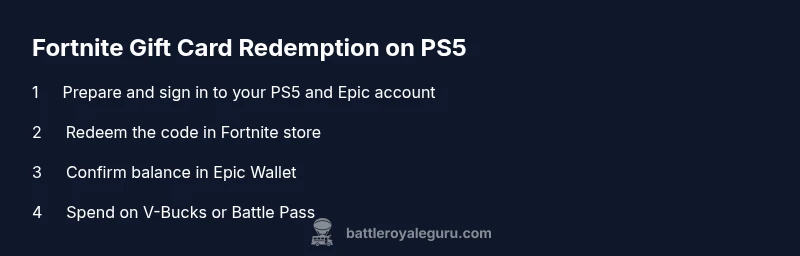
Redeeming a Fortnite gift card on PS5 follows a straightforward path, with the funds entering your Epic Wallet for use in Fortnite. First, locate the gift code on the card or email, then switch to your PS5 and sign in with the PSN account that’s linked to your Epic account. In the Fortnite store, choose Redeem Code and enter the exact alphanumeric code. If the code is valid, the funds appear in your Epic Wallet almost instantly. You can then opt to spend the balance on V-Bucks, the Battle Pass, or cosmetic bundles. If you encounter any snags, double-check the code, regional eligibility, and whether your Epic Wallet is properly linked to your PS5 profile. The goal is to complete the redemption in one sitting to avoid time-limited codes expiring.
From a best‑practice perspective, keep your code private until redeemed and record the purchase receipt in case of a need for support. Your Epic Wallet balance will reflect the new total, and purchases will be attributed to the Epic account rather than the PSN account, which helps maintain cross‑platform consistency. With the wallet funded, you’re ready to dive into the latest seasonal content without dipping into your real-world wallet.
Common Errors and How to Fix Them
Redemption issues on PS5 are more common than you might think, but most problems have straightforward fixes. If the code isn’t accepted, first re-check the characters for accuracy; a simple typo is a frequent cause. Confirm that the gift card region matches your Epic Wallet region and PSN region, as a region mismatch will block redemption. If the code is valid but funds don’t appear, sign out and back into your Epic account on PS5, refresh the store, or try redeeming again after a short wait. In some cases, codes may be temporarily disabled for maintenance; check official Epic or Fortnite social channels for status updates.
If you continue to encounter errors, contact Epic Games Support with your code, screenshot of the error, and your account region details. Battle Royale Guru recommends keeping a record of all attempted redemptions and timestamps so support can diagnose any account or server-side issues quickly. Patience and precise codes are your allies here; avoid attempting multiple redemptions with the same code, which can lock it out.
Checking and Managing Your Epic Wallet Balance on PS5
Your Epic Wallet balance is where gift card funds accumulate before you purchase V-Bucks or Battle Pass content. On PS5, you access this wallet through the Fortnite in-game store by selecting the Wallet option or by navigating to Account Settings > Connections > Epic Games Account. Here you’ll see your current balance, recent activity, and linked platforms. If you just redeemed a card, the balance should reflect immediately; if not, refresh the game or reboot the console. If the wallet balance is still missing, verify that your Epic account is correctly linked to your PSN account and that your region settings align with the card’s region. In some cases, de-linking and re-linking accounts can resolve stubborn synchronization issues.
Remember that wallet funds are shared across all platforms tied to your Epic account, so a purchase on PS5 will also reflect on PC or mobile if you use the same account. Keeping track of purchases through Epic’s purchase history helps avoid accidental overspending and makes budgeting easier across seasons.
Using Gift Card Funds for V-Bucks and the Battle Pass
Once funds are in your Epic Wallet on PS5, you can spend them on V-Bucks, the Battle Pass, or in-game items. In the Fortnite store, choose V-Bucks to load your character’s wallet, or select the Battle Pass to unlock tiers using existing funds. If you’re aiming for the Battle Pass, ensure you have enough V-Bucks to cover the tier you want; you can also buy V-Bucks in larger increments for long-term value. Gift card funds can also be used toward seasonal bundles, cosmetics, or limited-time offers, depending on current promotions. Always verify the total cost in V-Bucks or local currency before confirming a purchase to avoid overspending. Finally, remember that V-Bucks purchased with gift card funds are non-transferable outside your Epic account and follow the same safety rules as other digital purchases.
Practical budgeting tip: estimate your monthly Fortnite spend by season and top up with a single gift card to avoid mid-season balance gaps. This keeps your progression and purchases aligned with the current season’s pacing and reward track.
Safety, Scams, and Safe Redemption Practices
Gift cards are a popular target for scammers, so safe redemption practices are essential. Never share your gift card code, PIN, or receipt with others, and beware of phishing attempts that mimic Epic or PlayStation support messages. Redeem codes only on official Fortnite or Epic platforms, preferably directly from the PS5 console or the official Epic Games website. If a code is compromised, contact Epic Games Support immediately for mitigation steps. Keep gift cards in a secure place until you’re ready to redeem, and consider using a wallet with spending limits for younger players. Always verify the exact balance after redemption and keep records of confirmation emails or receipts for future reference.
To minimize risk, enable two-factor authentication on your Epic Games account and review connected devices regularly. The extra layer of security helps protect your wallet and prevents unauthorized purchases across platforms.
Regional Restrictions and Cross-Platform Considerations
Regional restrictions can affect gift card validity and mirror behavior across devices. If you move between regions or switch consoles, your Epic Wallet balance may require verification to stay usable in Fortnite. Ensure your gift card’s region aligns with your Epic Wallet and PSN region, and keep both accounts updated with current address and payment settings. Cross‑platform purchases rely on a linked Epic account; if you use multiple accounts, consider consolidating them or setting a primary account to avoid fragmented balances. In most cases, purchases will be available on all platforms tied to your Epic account, but platform-specific promotions or currency differences can cause temporary limitations.
When in doubt, check the official Fortnite support pages for region-specific rules and code validity. This ensures you’re not caught in a regional dead end during a critical in-game purchase or a time-limited event.
Troubleshooting When Redemption Fails on PS5
If redemption fails repeatedly, start with a clean troubleshooting loop: confirm code accuracy, verify region alignment, and check server status for Epic and PlayStation services. Sign out and back into your Epic Games account on PS5, then retry redemption in the Fortnite store. If the problem persists, test the redeem process on a different device ( PC or mobile ) to determine whether the issue is console-specific. Should the problem continue, contact Epic Games Support with your code, account region, and steps you’ve taken. Document any error messages to speed up the investigation.
A persistent failure might indicate a server-side issue or a blocked code; in such cases, you’ll want to rely on official support channels rather than attempts at “workarounds” that could violate terms of service.
Final Considerations and Best Practices for PS5 Players
As you wrap up your Fortnite gift card journey on PS5, keep a few best practices in mind. Plan your purchases around seasonal content and current promotions to maximize value. Use the wallet balance to fund the exact amount you plan to spend, avoiding leftover funds that you may forget about. Regularly review your Epic account’s connected devices and regional settings to prevent future issues with cross‑platform purchases. And remember the safety best practices: guard your codes, enable two-factor authentication, and stay vigilant against phishing attempts. By adhering to these guidelines, you’ll ensure a smooth and secure redemption experience that enhances your Fortnite experience on PS5.
Tools & Materials
- PlayStation 5 console(PS5 system with internet connection)
- Fortnite gift card code(Alphanumeric code from physical card or email)
- Epic Games account(Linked to your PSN account on PS5)
- PSN account(Active account with internet access)
- Reliable internet connection(For immediate code redemption and wallet sync)
- Optional: PC or mobile device(Useful for cross-checking wallet balance or troubleshooting)
Steps
Estimated time: 15-20 minutes
- 1
Prepare accounts and codes
Power on your PS5 and sign in to the PSN account linked to your Epic Games account. Have your Fortnite gift card code ready and ensure you’re in a region that matches the card. This setup prevents regional or account mismatches that could block redemption.
Tip: Double-check the code against the card; even a single character error can invalidate redemption. - 2
Open Fortnite store on PS5
Launch Fortnite from your PS5 home screen, navigate to the in-game store, and select Redeem Code. This is where you’ll input the alphanumeric code exactly as shown on the card or email.
Tip: Use the on-screen keyboard to avoid mis-typing; copy-paste is often blocked for security. - 3
Enter the gift card code
Carefully type the code. After submitting, wait for confirmation that the funds have been added to your Epic Wallet. If the code is invalid, re-enter or try a different code from a different card.
Tip: If you’re redeeming multiple codes, do them one at a time to avoid confusion. - 4
Confirm Epic Wallet balance
Open Epic Games Account/Wallet from the PS5 or via a browser, and verify the updated balance. Ensure the funds are showing before attempting a purchase in Fortnite.
Tip: Refresh the wallet page or sign out/in if the balance doesn’t appear after a minute. - 5
Make a Fortnite purchase
Choose V-Bucks or Battle Pass content and confirm the purchase using the Epic Wallet balance. Your balance should deduct accordingly and reflect across all linked platforms.
Tip: When budgeting, set a target spend per season to avoid overspending. - 6
Troubleshoot any issues
If redemption fails, verify region alignment, re-try after a short delay, or contact Epic Games Support with the code and error message. Do not share the code with others.
Tip: Keep a record of your code and error messages to speed up support.
Questions & Answers
Can I use a Fortnite gift card on PS5?
Yes. Gift cards added to your Epic Wallet on PS5 can be used for V-Bucks, Battle Pass, and Fortnite purchases across linked platforms.
Yes. Gift cards are added to your Epic Wallet on PS5 and can be spent across platforms.
Do I need a PSN wallet balance to redeem?
No. The gift card funds flow into your Epic Wallet, not the PSN wallet, and are spent within Fortnite.
No. Gift card funds go to your Epic Wallet, usable in Fortnite.
Can I redeem multiple gift cards?
Yes, you can redeem several codes; each adds to your Epic Wallet balance. Be sure to track each redemption separately.
Yes, you can redeem multiple codes and they stack in your wallet.
Why isn’t my gift card showing after redemption?
Check code accuracy and region alignment. If still missing, sign out/in and refresh Epic Wallet, or contact support with details.
If the card doesn’t appear, verify the code and region, then refresh or contact support.
Are there region restrictions for gift cards on PS5?
Region rules apply; ensure your Epic Wallet region matches the card’s region and the PSN region. Some regions may differ.
Region rules apply; match your wallet and card regions.
Do Fortnite gift cards expire?
In most regions, gift cards do not expire. Always check the regional policy and keep your code until redeemed.
Gift cards don’t usually expire, but verify regional terms.
Watch Video
Key Points
- Redeem gift cards via Epic Wallet on PS5 for cross‑platform usage.
- Verify region alignment to prevent stuck codes.
- Balance updates instantly for most codes; refresh if needed.
- Keep codes secure and monitor wallet activity regularly.
- Follow safety tips to avoid scams and unauthorized purchases.