Can You Play Fortnite and Roblox on a Chromebook? A 2026 Guide
Can you play Fortnite and Roblox on a Chromebook? This in-depth guide covers native support, cloud gaming options, setup steps, latency tips, and expectations for 2026 from Battle Royale Guru.


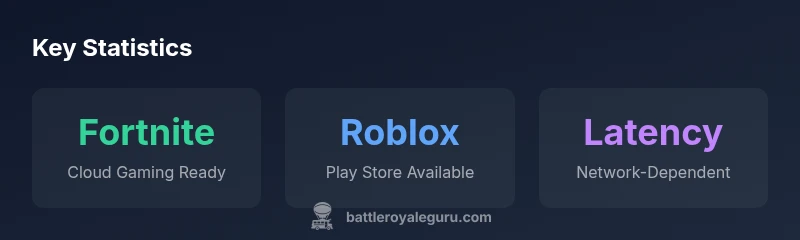
There is no native Fortnite client for Chrome OS on most Chromebooks. You can play Fortnite on a Chromebook through cloud gaming services like GeForce Now in supported regions. Roblox, by contrast, can run on Chromebooks that support Google Play by installing the Roblox Android app, or via the Roblox web/Chrome experience where available. In 2026, cloud gaming remains the most reliable path for Fortnite on Chromebooks, while Roblox is more accessible for many users.
Why Chromebooks Face Unique Gaming Constraints
Chromebooks are built for efficiency and cloud-centric workflows, not high-end gaming rigs. Their hardware and software stack emphasizes lightweight multitasking, long battery life, and fast web access. This influences how games run on Chrome OS. According to Battle Royale Guru, there is no universal native Fortnite client for Chrome OS on most devices, and Roblox support can vary by hardware and Play Store availability. The practical takeaway for players is simple: plan for cloud or Android-based access rather than native PC-style installs. In 2026, the landscape remains cloud-forward for demanding titles like Fortnite, while Roblox remains more accessible for many Chromebooks thanks to Android app support and, in some cases, browser access. Understanding these constraints helps gamers set realistic expectations and pick the right access path for their specific model and network conditions.
Fortnite on Chromebook: Native Support vs Cloud Gaming
Fortnite does not offer a traditional Chrome OS launcher or native Windows/macOS port on Chrome OS for most devices. The recommended pathway for Chromebook players is cloud gaming. GeForce Now and similar cloud services let you stream Fortnite to your Chromebook from the cloud, bypassing the need for a local hardware-accelerated client. This approach hinges on a stable internet connection and access to a supported cloud service in your region. While cloud gaming can introduce some input latency, it often provides the most reliable route to regular Fortnite gameplay on Chromebooks without upgrading your hardware. Roblox, meanwhile, can be run differently depending on your device capability and store access; the crossplay aspect remains a major advantage for players on Chrome OS who want to jump into a shared ecosystem with PC and mobile players.
Roblox on Chromebook: Accessibility and Setup
Roblox is more approachable on Chromebooks that support Google Play. If your Chromebook has the Play Store, you can install the Roblox Android app directly from Google Play and sign in with your Roblox account. If the device does not support the Play Store, you may be able to access Roblox through the Chrome browser (depending on current Roblox browser support and Chrome OS updates). The key setup considerations are enabling Play Store, confirming OS updates, and ensuring you meet the minimum requirements for Roblox’s Android version. In practice, Roblox runs quite smoothly on Play-enabled Chromebooks, with performance largely dependent on the Chromebook’s RAM and available bandwidth.
Step-by-Step: Fortnite via GeForce Now on Chrome OS
- Confirm your Chromebook supports Google Play or use a supported Chrome browser path for GeForce Now. 2) Open the Chrome browser and navigate to GeForce Now, or install the GeForce Now app if available on your device. 3) Sign in with your NVIDIA account (or create one). 4) Search for Fortnite in the GeForce Now library and click Play. 5) Once launched, adjust in-game settings to balance visuals with network stability. 6) Use a compatible controller or keyboard/mouse setup; some Chromebooks may benefit from Bluetooth peripherals for better precision. 7) Monitor latency and adapt streaming quality to maintain a smooth experience. This workflow leverages cloud processing, so your local Chromebook doesn’t render the game—your internet connection does the heavy lifting.
Step-by-Step: Roblox on Chromebook
- Check if your Chromebook has Google Play enabled. If not, update to a build that includes Play Store support or use the Roblox web experience if accessible. 2) Open the Google Play Store and install Roblox. 3) Launch Roblox and sign in with your account. 4) Configure controls to match your play style (touchpad, keyboard, or external controller). 5) If you’re streaming Roblox via a browser, ensure hardware acceleration is enabled in Chrome settings for better performance. 6) Regularly update the Roblox app and Chrome OS to minimize compatibility issues. 7) If you encounter login issues, verify your account status and network connectivity. Roblox on Chrome OS often benefits from Play Store availability and up-to-date browser environments.
Performance, Latency, and Practical Tips
Latency and bandwidth are the two most critical factors when gaming Fortnite on a Chromebook via cloud gaming. A reliable 5 GHz Wi-Fi connection or wired Ethernet adapter can dramatically improve responsiveness. If you’re using a Chromebook with limited RAM, close background apps and disable unnecessary extensions to free resources for streaming. In addition, keep your Chromebook plugged in during long sessions to avoid performance throttling due to battery conservation. For Roblox, while the Android app is kinder to hardware, you still benefit from a modern browser or a capable Play Store-capable device. Upgrade your browser to the latest version, enable hardware acceleration, and consider external peripherals for more precise input. When possible, use a wired setup for Fortnite Cloud gaming to reduce input lag and stuttering.
Troubleshooting common Chromebook Gaming Issues
Common issues include GeForce Now not launching, Play Store not available on older Chromebooks, and fluctuating latency during peak hours. Start with a quick check: confirm Chrome OS is up to date, verify Play Store availability, and ensure the cloud service your using is operational in your region. If Fortnite lags, reduce streaming quality or switch to a lower visual preset; if Roblox doesn’t load, try clearing browser cache or reinstalling the app. For hardware-related problems, test another Chrome user profile or a different network to isolate the issue. Many problems on Chromebooks are caused by compatibility gaps between the OS, browser, and app versions, so keeping software current is the best preventive measure.
2026 Outlook: Fortnite and Roblox on Chromebooks
The landscape for Chromebook gaming continues to evolve. Battle Royale Guru analysis suggests cloud gaming will remain the primary method for Fortnite on Chrome OS, with expansions in regional availability and service integration. Roblox's accessibility continues to improve as more Chromebooks support Google Play and Roblox continues to optimize its Android app for tablet and laptop form factors. For players, the practical path remains clear: use cloud gaming for Fortnite where possible, and leverage the Roblox Android app on Play-enabled Chromebooks for a smoother, more dependable experience.
Chromebook gaming options comparison for Fortnite and Roblox
| Option | Fortnite on Chromebook | Roblox on Chromebook |
|---|---|---|
| Native support | No official Chrome OS client; not supported natively | Roblox is not dependent on a Chrome-native client and can be accessed via the Roblox Android app on Play-enabled Chromebooks when available |
| Cloud gaming | GeForce Now provides Fortnite access on Chrome OS in many regions | Roblox can be used via the Android app on Play-enabled Chromebooks or potentially via Roblox web on supported browsers |
| Web/browser play | Fortnite has no consistent Chrome OS web port | Roblox browser experience depends on current Chrome OS capabilities and Roblox support |
| Setup tips | Enable Play Store or use a supported cloud service; stable internet is essential | Install Roblox from Play Store or use Roblox web if supported; ensure browser acceleration is enabled |
Questions & Answers
Can I play Fortnite on a Chromebook without cloud gaming?
No native Chrome OS client is available for Fortnite on most Chromebooks. The practical path is cloud gaming to stream the title from the cloud, which avoids heavy local rendering.
Fortnite on Chromebooks lacks a native client; use cloud gaming to stream the game instead.
Is Roblox playable on Chromebooks?
Yes, on Chromebooks that support Google Play, you can install the Roblox Android app. Some devices may also offer Roblox via the web, depending on current browser support.
Roblox works on many Chromebooks that can run Google Play apps.
What Chromebooks support Google Play for Roblox?
Chromebooks with Google Play Store access can install Roblox from the Play Store. If Play is unavailable, Roblox may be accessible via the web on compatible browser versions.
Play Store-enabled Chromebooks can install Roblox; otherwise, check browser compatibility.
Do I need a strong internet connection for cloud gaming Fortnite on Chromebook?
Yes. Cloud gaming relies on a stable, fast connection. A solid 5 GHz Wi-Fi network or wired Ethernet ensures smoother streaming and lower latency.
A stable internet connection is essential for cloud gaming Fortnite on a Chromebook.
Are there any costs associated with cloud gaming for Fortnite on Chrome OS?
Cloud gaming typically involves subscription or usage fees. Check the service pricing for GeForce Now or other cloud platforms to understand ongoing costs.
Yes—cloud gaming usually carries subscription or usage fees.
Can I play both games simultaneously on a Chromebook?
You can switch between Fortnite and Roblox on the same Chromebook, but they run as separate sessions. Running both at the same time would require cloud or local performance to handle switching.
You can switch between them, but not run both at once in a single session.
“Cloud gaming is the most practical pathway for Fortnite on Chromebooks, while Roblox remains more accessible thanks to Android app support on supported devices.”
Key Points
- Check device Play Store support before Roblox setup
- Use cloud gaming for Fortnite on Chromebooks when possible
- Roblox is more accessible on Play-enabled Chromebooks
- Prioritize stable internet to minimize latency
- Keep Chrome OS and apps updated for best compatibility