Fortnite on Chromebook: Complete Setup Guide for 2026
Learn how to run Fortnite on a Chromebook, whether via Android apps or cloud streaming. Step-by-step setup, performance tweaks, and troubleshooting for smoother play on budget devices.


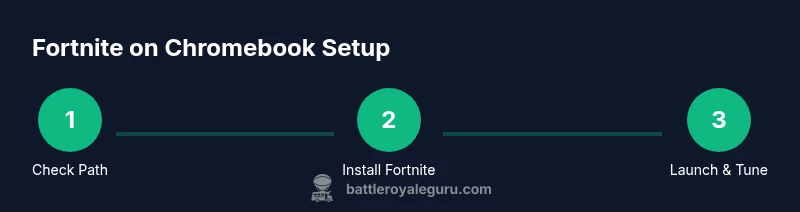
Goal: get fortnite for chromebook running, either via the Google Play Android app or cloud streaming. You’ll confirm Chromebook compatibility, enable Google Play, choose a streaming service (GeForce NOW or Xbox Cloud Gaming), install Fortnite, sign in with your Epic account, and tune in-game settings for latency. According to Battle Royale Guru, cloud streaming often delivers the smoothest experience on budget Chromebooks.
What You Need to Know About Fortnite on Chromebooks
Fortnite players frequently ask whether a Chromebook can handle Epic's popular battle royale. The short answer is that you can run Fortnite on compatible Chromebooks by either installing the Android version from Google Play or using cloud streaming services that render the game on powerful servers. This approach avoids relying on local hardware alone, which is often limited on Chromebooks. In this guide, we’ll cover both pathways, explain hardware and network requirements, and share practical tweaks to help you play smoothly in solo, duo, or squad modes. The goal is to deliver a reliable, enjoyable experience without buying a high-end laptop. This is a practical, actionable walkthrough designed for Fortnite fans who want to play on a Chromebook as of 2026.
Path A: Running Fortnite from the Google Play Android app
If your Chromebook supports Google Play, you can install Fortnite directly as an Android app. This path keeps you in the familiar Fortnite ecosystem and allows you to save progress locally (on the device) and in the cloud through your Epic account. prerequisites include enabling the Google Play Store, signing into a Google account, and ensuring your Chromebook has adequate storage and a recent OS build. The Android route is best for players who want responsive input and don’t rely on streaming latency. You’ll likely need to configure your keyboard and controller support, and you may experience occasional frame drops if the device has limited RAM or thermal headroom.
Path B: Cloud Gaming on Chromebook
Cloud gaming shifts the heavy rendering to remote servers, so the Chromebook acts as a thin client. This path is often ideal for budget devices or older Chromebooks with limited GPU power. Services like GeForce NOW or Xbox Cloud Gaming can host Fortnite on the server side; you then stream the gameplay to your Chromebook. You’ll sign up for a cloud service, link your Epic Games account, ensure a stable network, and launch Fortnite through the service’s app or browser. Expect strong performance if your internet connection is solid and you choose servers close to your location.
Hardware and Network Considerations for Smooth Play
Performance on a Chromebook comes down to three factors: display/input responsiveness, network latency, and thermal throttling. A higher refresh-rate display and low-latency input help with faster reaction times. A stable, low-latency internet connection (preferably wired or a strong 5 GHz Wi‑Fi signal) minimizes input lag and streaming drops. If you’re using a cloud service, latency to the nearest data center matters more than raw bandwidth. Also, keep your Chromebook updated; background processes and browser tabs can eat memory and CPU that Fortnite relies on.
In-Game Settings and Accessibility Tweaks
Start with the lowest acceptable resolution and frame rate to reduce strain on the device or streaming buffer. In Fortnite’s settings, adjust the graphics to a balance between clarity and performance, disable unnecessary post-processing effects, and turn off dynamic resolution if it introduces noticeable ups and downs. Keyboard mapping, controller support, and accessibility options like color contrast helpers can improve your experience. If you’re streaming, reduce the quality slightly to keep latency in check while maintaining a stable frame rate.
Troubleshooting Common Issues
If Fortnite won’t install from Google Play on your Chromebook, verify that Google Play is supported on your device and that you’re signed in with a compatible Google account. If you’re using cloud streaming, ensure your subscription is active, the app is up to date, and you’re connected to a reliable network. Common issues include high latency, choppy video, or audio desynchronization. Restarting the device, clearing cache for the service app, and testing a different server region often resolves these problems.
How to Switch Between Paths and Manage Accounts
Switching between Android app and cloud streaming is possible mid-game, but it’s usually seamless to pick one path at the outset. Keep your Epic Games account information handy and ensure you’re signed in on both the Chromebook and the cloud service if required. Maintaining separate save states is not necessary, as Fortnite syncs progress with Epic’s servers. If you run into account verification prompts, follow the on-screen steps to re-authenticate your credentials.
Example Setups for Different Chromebook Models
Low-cost Chromebooks with 4 GB RAM can still run Fortnite via cloud streaming with careful settings; mid-range Chromebooks with 8 GB RAM perform better via the Android app thanks to local rendering. For devices with limited storage, rely on cloud streaming to minimize local downloads. If your Chromebook has a fast USB-C port, you can attach an external keyboard or a controller for improved input and comfort during longer sessions.
What to Expect After Setup: Performance and Updates
Once Fortnite is configured on a Chromebook, you’ll typically notice more consistent performance with cloud streaming, while the Android app may feel snappier on devices with adequate RAM. Epic regularly updates Fortnite and cloud services roll out improvements, so keep an eye on app updates and service status. If you experience a drop in performance after an update, check your network quality and revert to a stable preset until the service stabilizes.
Tools & Materials
- Chromebook with Google Play support(Prefer newer model or updated Chrome OS)
- Stable internet connection(Recommended at least 10–20 Mbps for streaming)
- Epic Games account(Needed for Android installation path and progress sync)
- GeForce NOW or Xbox Cloud Gaming subscription(Needed for cloud path; one suffices)
- Google Play Store app (enabled)(For Android installation path)
- External controller or keyboard (optional)(Improves input for long sessions)
Steps
Estimated time: 30-60 minutes
- 1
Check compatibility and plan path
Review your Chromebook’s OS version and Play Store availability. Decide whether you will install Fortnite as an Android app or rely on cloud streaming. This decision affects setup duration and device strain.
Tip: If unsure, start with Android app first to test responsiveness. - 2
Enable Google Play and sign in
On the Chromebook, open Settings, enable Google Play, and sign in with your Google account. This step unlocks Android apps including Fortnite.
Tip: Ensure Play Protect is enabled to reduce security prompts during install. - 3
Install Fortnite from Google Play
Navigate to Google Play, search for Fortnite, and install. Confirm permissions for storage and media playback.
Tip: If installation fails, free up storage and retry. - 4
Sign in to Epic Games account in the app
Launch Fortnite, sign in with your Epic Games account to sync progress and purchases across devices.
Tip: Remember to link your Epic account to the cloud service if you use cloud gaming. - 5
Adjust in-game settings for performance
In Fortnite, lower graphics presets, disable extras, and set a stable frame rate. This helps maintain smooth gameplay on a Chromebook.
Tip: Use the performance mode if available. - 6
Set up cloud streaming (if chosen)
Install GeForce NOW or use Xbox Cloud Gaming, sign in, and locate Fortnite in the service’s library. You’ll stream the game from remote servers.
Tip: Choose the nearest server to reduce latency. - 7
Link Epic account in cloud service (if required)
Some cloud services require you to link your Epic account to access saved games and progress.
Tip: Keep your credentials handy for quick sign-in. - 8
Test playback and input devices
Launch a quick game to test responsiveness with keyboard, mouse, or controller. Confirm audio and video are synchronized.
Tip: If input lags, try a different server region. - 9
Enable updates and security checks
Allow automatic updates for Fortnite and the cloud client to keep your experience stable. Run occasional security scans.
Tip: Update drivers or OS if available for better performance. - 10
Create a quick fallback plan
If one path underperforms, switch to the other path mid-session. Having both options reduces downtime.
Tip: Keep data on Epic’s cloud or local as appropriate.
Questions & Answers
Can I play Fortnite on a Chromebook natively?
Chromebooks can run Fortnite via Google Play Android app or cloud streaming services. Native browser versions are not officially supported.
Yes, you can play Fortnite on Chromebook using either Android apps or cloud streaming, not directly in a browser.
What are the best Chromebooks for Fortnite?
Most modern Chromebooks that support Google Play and have adequate RAM perform better, especially with cloud gaming. Check RAM and CPU specs before purchasing.
A newer Chromebook with decent RAM and a stable internet connection works best.
Do I need a controller for Fortnite on Chromebook?
Fortnite supports keyboard/mouse and controller input on many Chromebooks. A controller can improve comfort, but it’s not strictly required.
You can use keyboard and mouse or a controller if you prefer.
Is cloud streaming worth it on a budget Chromebook?
Cloud streaming reduces local hardware requirements and can deliver smoother gameplay if your internet is stable. It may introduce slight latency versus a native app.
If your local hardware is limited, cloud streaming can be a practical workaround.
How do I switch from Android to cloud after setup?
You can switch paths by leaving the Android app installed and launching Fortnite via the cloud service, or vice versa. Make sure Epic progress stays synced with your account.
You can switch paths, but keep your account credentials handy.
Watch Video
Key Points
- Choose Android or cloud path based on device and network.
- Optimize settings for stability before performance.
- Keep Epic account credentials handy for quick sign-in.
- Update both Fortnite and the cloud service regularly.