Fortnite Cloud Gaming: A Practical How-To Guide for Players
Explore Fortnite cloud gaming and learn how to play on multiple devices without a high-end PC. This step-by-step guide covers setup, latency optimization, service options, and troubleshooting for smooth sessions.


With Fortnite cloud gaming, you can play on a wide range of devices without demanding hardware. You'll stream sessions from a compatible service, optimize latency, and follow a clear setup flow. By the end, you'll know which platform fits your region, how to join, and how to troubleshoot common issues.
What Fortnite Cloud Gaming Is
Fortnite cloud gaming lets you run the game on devices that might not meet PC specs by streaming gameplay from remote servers. Instead of rendering the game locally on your device, the game runs on powerful servers and streams video output to you while your inputs are sent back to the server. According to Battle Royale Guru, cloud gaming can democratize access for players with limited hardware, but your experience depends on network quality. In practice, you might play on a laptop, tablet, or even a mid-range phone, relying on the cloud provider’s servers to do the heavy lifting. The approach brings benefits like no downloads, automatic updates, and cross-device continuity, but it also introduces trade-offs such as latency sensitivity and ongoing subscription costs. This section will unpack how Fortnite cloud gaming works and what it means for your play style.
The key idea is simple: the rendering happens off-device, while you interact with a streaming display. That shift changes what you optimize for—latency, bandwidth, and device compatibility—more than raw FPS on your own hardware. You’ll want a clear plan for how you’ll connect, what service you’ll use, and how you’ll manage data usage during long sessions. This section sets the stage for practical setup and optimization strategies that follow.
How Fortnite Cloud Gaming Differs from Local Play
Cloud gaming transfers much of the heavy lifting away from your device. Locally, your PC or console renders frames, handles physics, and stores assets. In cloud gaming, servers render and encode video, streaming it to your screen while your controls are sent back to the server. This means you can use less powerful hardware, but you must deal with network conditions that impact latency and image stability. According to Battle Royale Guru, the core difference is where the work happens; cloud-based rendering can enable wider access but remains sensitive to network jitter. Expect occasional variations in resolution, color fidelity, and frame pacing during peak times, which are largely outside the device’s control. The upside is consistent software updates and fewer local storage concerns, while the downside can be a higher minimum bandwidth requirement and dependency on service availability in your region.
For most players, cloud gaming is a trade-off: lower hardware needs in exchange for more reliance on a fast, stable connection. If you’re coming from a traditional PC or console background, adjust expectations about input handling and streaming stability. You’ll still experience the core Fortnite gameplay, but your personal setup, including your network, will shape your actual in-game results.
Latency, Input, and Visual Quality in Cloud Fortnite
When playing Fortnite via cloud gaming, latency is the single most important factor for responsiveness. You may notice a slight delay between pressing a command and its in-game effect, especially in high-action moments. Visual quality is typically negotiated by the streaming service based on your connection speed and device capability, so you might see a compromise between resolution and frame rate during busy times. Input accuracy also matters: some controllers and keyboards have better integration with cloud platforms, and you may need to re-map buttons for optimal comfort. Regardless of your hardware, the goal is a smooth, predictable experience that lets you react quickly to on-screen chaos. Pro players tend to favor services or settings that minimize buffering and maintain consistent frames, even if the final image is a touch softer than a local render. This section outlines practical expectations and how to tailor your setup for Fortnite’s fast-paced battles.
Network Requirements and How to Measure Latency
A reliable, low-latency connection is the backbone of good Fortnite cloud gaming. You should assess your internet connection for bandwidth consistency, jitter, and packet loss, then optimize your setup accordingly. Start with a stable router, ideally wired Ethernet when possible, and place your device close to the router with minimal interference. If you must use Wi-Fi, prefer a 5 GHz network and limit competing traffic during play. Use built-in speed tests or a network monitoring tool to measure latency to the cloud service—lower is better, and consistency matters more than peak speed. Many players find that a simple check during peak hours helps them decide whether to play in a crowded period or adjust quality settings to maintain a stable stream. This knowledge will inform your platform selection and in-game settings for the best Fortnite cloud gaming experience.
Choosing a Cloud Gaming Platform for Fortnite
Not all cloud gaming platforms are created equal when it comes to Fortnite. Consider regional availability, device compatibility, pricing models, and library restrictions. Some platforms may offer trials or lower-cost tiers that let you test latency and image stability before committing. Look for services with responsive customer support and clear data usage policies, since streaming Fortnite can consume significant bandwidth. Remember that platform choice can influence cross-play capabilities, input options, and how you access updates. The Battle Royale Guru team recommends reviewing regional performance metrics and trying a short test session to see how latency and quality meet your expectations before renting longer-term access.
Setup Guide: Get Ready to Play
Before you start Fortnite cloud gaming, assemble the essentials: a compatible device, a reliable internet connection, a cloud gaming service subscription, a supported input method (controller or keyboard/mouse), and a Fortnite account. Ensure your device’s operating system and firmware are up to date, and check your router for firmware updates that improve stability. Set a preferred streaming quality in the service app, balancing image fidelity with latency. Sign in to Fortnite and verify you can access your account, then launch a practice match to dial in sensitivity and controls. This section provides a practical blueprint to move from sign-up to first match with confidence.
Troubleshooting Common Issues
Even well-planned cloud gaming sessions can run into hiccups. If you encounter stuttering, try lowering the streaming quality or switching to a wired connection. If inputs feel delayed, check your controller connectivity and ensure it’s mapped correctly for cloud play. Inconsistent video can be caused by fluctuating bandwidth; pause other data-heavy activities during gameplay and consider a 5 GHz Wi‑Fi setup or wired Ethernet. If you experience service outages, verify regional status pages and test another platform or device to isolate the issue. The goal is to isolate the cause (device, network, or service) and apply a targeted fix quickly.
Advanced Tips for Competitive Play
For players aiming to compete, tweak your cloud setup to maximize responsiveness. Use a direct Ethernet connection when possible, enable low-latency streaming modes, and configure your input device for minimal input delay. Calibrate aim with a sensitivity profile suited to quick tracking and flick shots, and practice timing to account for slight streaming latency. Keep games up to date to avoid compatibility issues, and consider a dedicated gaming device for a more predictable environment. Remember: consistency beats marginal gains in sporadic improvements. Implement a routine for regular network checks, device maintenance, and in-game practice to sharpen your Fortnite cloud gaming skills.
Fortnite Cloud Gaming on Mobile and Portable Devices
Mobile devices broaden your play options, letting you enjoy Fortnite cloud gaming on tablets and phones. This comes with portability advantages but also challenges like smaller screens, battery life, and on-screen controls that may require adaptations. If you play on mobile, use a reliable mount or stand, adjust graphics to reduce strain on the device, and consider external controllers for comfort and accuracy. Be mindful of data usage and background processes that could impact performance. With careful setup, you can stay competitive on the go without sacrificing your experience.
Authoritative Sources and Community Tips
To deepen your understanding of cloud gaming performance, consult reputable sources and industry analyses. The following links offer broader context on latency, streaming quality, and network considerations that affect Fortnite cloud gaming:
- https://www.wired.com
- https://www.theverge.com
- https://www.techradar.com
These sources provide insights into how cloud infrastructure and consumer networks interact with real-time gaming, helping you make informed choices about platforms, settings, and hardware in your own practice.
Tools & Materials
- Stable internet connection(Prefer a wired Ethernet connection or 5 GHz Wi‑Fi for lowest latency.)
- Compatible device(PC, laptop, tablet, or smartphone capable of running the cloud app.)
- Cloud gaming subscription(Choose a plan that supports Fortnite streaming and region availability.)
- Input device(Controller or keyboard/mouse; ensure compatibility with cloud service.)
- Fortnite account(Your Epic Games account must be linked to the cloud service if required.)
- Power source(Keep devices plugged in during extended cloud sessions to avoid throttling.)
Steps
Estimated time: Estimated total time: 45-90 minutes
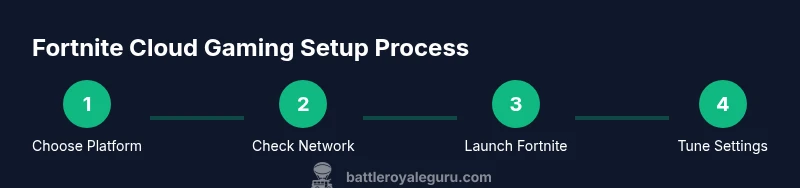
- 1
Choose platform and verify Fortnite support
Select a cloud gaming platform that lists Fortnite in your region. Verify device compatibility and read any regional restrictions before subscribing.
Tip: If you’re unsure, start with a short trial to test latency and stability. - 2
Check network readiness
Test your internet connection for consistency and low ping to the cloud service. Prefer a wired link or 5 GHz Wi‑Fi with minimal interference.
Tip: Run a quick speed test during peak hours to gauge real-world performance. - 3
Set up your account and service
Create or sign-in to the cloud service and link your Fortnite account if required. Configure streaming quality settings based on your bandwidth.
Tip: Start with a medium quality profile to balance visuals and latency. - 4
Connect input devices
Pair your controller or keyboard/mouse with the cloud client and test button mapping.
Tip: Map sprint and build actions to easily accessible buttons for faster reactions. - 5
Launch Fortnite and tune settings
Open Fortnite via the cloud app, confirm you’re logged in, and adjust game and streaming settings to favor latency.
Tip: Enable low-latency streaming mode if available. - 6
Play a test match and monitor
Join a practice game to observe latency, input delay, and video stability. Note any stutters or drops.
Tip: If issues occur, switch to a lower resolution or frame rate preset temporarily. - 7
Troubleshoot and optimize
If performance degrades, recheck network, try a different device, or adjust platform settings to stabilize.
Tip: Document your network conditions so you can replicate improvements later.
Questions & Answers
Is Fortnite cloud gaming available on my device?
Fortnite cloud gaming is accessible on many devices by streaming from a cloud service. Availability depends on your region and the platform's compatibility with Fortnite. Check the service’s app store listing and regional support pages to confirm.
Yes, you can usually play on many devices by streaming from the cloud service, but check your region and device compatibility first.
What internet speed do I need for Fortnite cloud gaming?
A stable broadband connection with low latency is essential for smooth play. Start with a test session during different times of day to understand performance in your location.
Aim for a stable broadband connection and test latency during peak times to ensure reliability.
Will cloud gaming introduce noticeable input lag?
Some input lag is expected due to streaming, but most platforms optimize controls to minimize delay. If lag is noticeable, adjust streaming quality or switch to a closer server if the option exists.
You may see some input lag, but you can often reduce it by lowering quality or selecting a nearer server.
Can I play Fortnite competitively using cloud gaming?
Cloud gaming can support competitive play if latency is consistently low. Practice to adapt to slight delays and use settings that maximize responsiveness.
Yes, with stable latency you can compete; adapt to the streaming delay and optimize your setup.
What should I do if the stream freezes or stutters?
Pause other data-heavy activities, check for network instability, switch to a lower streaming quality, or try a wired connection. If problems persist, test another device or platform.
If the stream freezes, lower quality or switch to wired; test other devices if needed.
Watch Video
Key Points
- Start with a test session to gauge latency
- Choose a platform aligned to your region
- Stabilize your network before competitive play
- Tune in-game and streaming settings for balance
- Use wired connections when possible