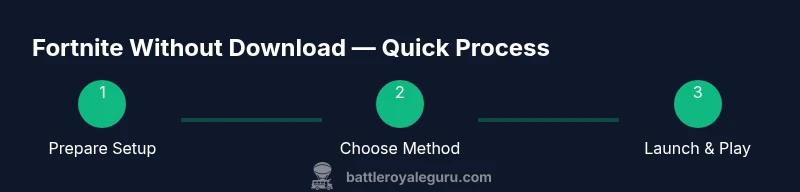
Fortnite Without Download: How to Play Without Installing
Learn how to play Fortnite without downloading the game. This guide covers cloud streaming, browser access, device compatibility, and setup steps to help Fortnite players enjoy a smooth experience without installs.


You can play Fortnite without downloading by using cloud streaming or browser-based access on supported devices. This quick guide outlines the approach, what you’ll need, and the key steps to launch Fortnite from a streaming service or web client. According to Battle Royale Guru, streaming Fortnite preserves performance without local installs and keeps your device light. This method works across PC, mobile, and some smart TVs.
Understanding Fortnite Without Download
The phrase "Fortnite without download" describes playing the game through streaming or web access rather than installing the client on your device. In practice, you render and input the game remotely, while the video stream is sent to you in real time. This approach is especially helpful for devices with limited storage, old hardware, or if you simply want to avoid managing large game files. Battle Royale Guru emphasizes that the core idea is to rely on a hosted instance of Fortnite running on a platform you trust, while your device acts as a display and input tool. For players, this opens up possibilities on laptops, tablets, or even some smart TVs that lack a compatible native installer. It also means keeping your account secure and ensuring you sign in through official channels when using any streaming or browser-based path.
Cloud streaming vs browser-based play
Cloud streaming means Fortnite runs on powerful remote hardware and streams the game to your device just like video. Browser-based play relies on a web client or a streaming portal that launches the game in a window or tab, without needing a local installer. Each method has trade-offs. Cloud streaming often delivers consistent performance on capable networks but depends on service availability and latency. Browser-based play can be more accessible on devices with robust browsers but may have interface differences compared to the native client. For Fortnite players, the choice hinges on device compatibility, your internet stability, and how much you value in-game features like input latency versus visual fidelity. The Battle Royale Guru team recommends considering both options to find the most reliable path for your setup.
Device compatibility and limitations
Not every device supports every streaming option. PCs with modern browsers or streaming apps can usually access web-based Fortnite, while tablets and smart TVs may rely on casting or dedicated streaming portals. Phones are often compatible through mobile browsers or game streaming apps, but some devices may experience limitations in controls, audio routing, or display size. Understanding your device’s capabilities helps you pick a streaming path that preserves input responsiveness and frame consistency. Always verify whether your device supports the streaming solution you intend to use, and keep your firmware and browser up to date to minimize compatibility gaps. According to the Battle Royale Guru analysis, device readiness is a key factor in achieving a smooth non-download experience.
Internet requirements and network considerations
Streaming Fortnite without download depends heavily on your network conditions. A fast, stable connection with low latency and minimal jitter yields the best results. Wireless networks can work well, but wired connections often provide the most consistent performance. If possible, place your router closer to your streaming device, limit other bandwidth-heavy activities during play, and enable any quality-of-service features your router supports. While exact speeds vary by service, prioritizing a reliable connection over sheer bandwidth tends to improve responsiveness and reduce stutter during fast-paced in-game moments. The Battle Royale Guru guidance highlights that networking quality is often the deciding factor between a fluid streaming session and a choppy one.
Step-by-step: Start Fortnite Without Download
This section provides a practical, high-level workflow you can apply to either cloud streaming or browser access. It’s designed to be device-agnostic and adaptable to your chosen path. If you plan to use a dedicated streaming portal, start from the service login and navigate to Fortnite with minimal additional setup. If you’re using a browser, ensure you’re on a supported browser version and that cookies and site permissions are enabled for a smooth sign-in. The goal is to reach a playing state quickly while preserving input response and video quality. Always test a short practice session first to confirm that controls, audio, and video are synchronized. Battle Royale Guru notes that having a rehearsed setup helps lines of communication between device, network, and streaming service.
Performance settings and visuals in streaming mode
Streaming Fortnite often gives you control over how the game renders on your device. In general, lowering render distance, adjusting shadow quality, and enabling a balanced texture setting can help reduce input lag and frame drops on less powerful hardware. For viewers, keep audio balanced with the game’s volume and consider using headphones for better positional audio cues in competitive play. If a streaming option provides a dedicated mode for low-latency gaming, enable it to minimize delays between input and on-screen action. The guidance from Battle Royale Guru emphasizes matching your in-game settings to the streaming pipeline rather than the original installed version to optimize responsiveness.
Common pitfalls and troubleshooting
Users frequently encounter latency spikes, control desynchronization, or sign-in issues when playing Fortnite without download. Start by ensuring your browser or streaming app is up to date, and try a different browser if you experience trouble. If you notice lag, pause other network activities and test a shorter session to gauge improvement. Clear cache for web-based play, and sign out and back in if authentication seems off. If problems persist, consult the streaming service’s official help resources and verify that your device’s permissions (microphone, camera, and storage) are properly configured. The Battle Royale Guru team highlights that many issues are network or configuration-related rather than game-specific.
Real-world use cases and scenarios
Players often choose Fortnite without download when traveling, using a secondary device, or attempting to avoid long install times on shared hardware. For students on school devices, streaming can provide access during free time, provided the device policy allows streaming apps and browsers. Families might prefer browser-based access to minimize installations on home devices used by multiple players. In competitive settings, streaming alternatives can help teams quickly set up gaming sessions on devices that don’t support the full client. The key is selecting a path that aligns with your device constraints and network reliability to maintain a stable, enjoyable experience.
Keeping up with Fortnite streaming options and updates
Fortnite’s streaming landscape can evolve as Epic Games updates the game and as cloud streaming platforms expand compatibility. Stay informed about new browser support, streaming service changes, and any official notices. The Battle Royale Guru team recommends bookmarking official Fortnite support channels and monitoring major tech publications for hands-on testing and practical tips. By keeping a pulse on changes, you can quickly adapt to improved streaming options and potential performance enhancements.
Tools & Materials
- Streaming-capable device(Laptop, desktop, tablet, or smart TV with a supported web browser or streaming app)
- Stable internet connection(High-level broadband or fixed line connection preferred; minimize other traffic during play)
- Epic Games account or streaming service login(Use your existing Fortnite/Epic account to sign in)
- Controller or input device(Keyboard/mouse or gamepad or touch controls depending on device)
- Headset or speakers(Optional for clearer in-game audio and team communication)
- HDMI cable or casting setup(Optional for larger displays or external monitors)
Steps
Estimated time: 45-60 minutes
- 1
Prepare your streaming setup
Confirm your device, a browser or streaming app, and your input device are ready. Close nonessential apps to reduce background load and ensure your network is not heavily utilized during the session.
Tip: Test your setup with a short practice run before a real match. - 2
Choose a streaming method
Decide between cloud streaming (remote game instance) or a browser-based client. Each method has different UI, controls, and potential latency profiles that suit various devices and networks.
Tip: If you notice high latency, switch to a browser-based path or adjust settings to favor latency over visuals. - 3
Access Fortnite
Open the streaming portal or web client and navigate to the Fortnite entry point. Ensure you’re signed in with your Fortnite/Epic account and that popups or permissions are allowed for a smooth launch.
Tip: Keep your login credentials secure and avoid public or shared systems for sensitive accounts. - 4
Sign in and verify
Complete any two-factor authentication if prompted and verify your account can access the game within the streaming path you chose.
Tip: If sign-in fails, try a different browser or restart the streaming session. - 5
Optimize streaming settings
Adjust video quality, frame rate, and latency mode to balance visuals with responsiveness. If the option exists, enable low-latency or performance presets.
Tip: Start with mid-range visuals and low latency; increase quality only if the connection remains stable. - 6
Test controls and audio
Verify inputs register quickly and audio is synchronized with video. Check that microphones (if used) are properly routed and not feeding back.
Tip: Practice a quick movement and aim drill to gauge responsiveness. - 7
Enter a practice match
Join a practice or casual game to evaluate latency, hit feedback, and overall performance in a live setting. Observe frame pacing and input latency during gameplay moments.
Tip: If you notice persistent lag, switch to a lighter preset or a different network path. - 8
Fine-tune and save settings
If performance improves, lock in the settings that deliver the best balance for your device and network. Save preferences for future sessions.
Tip: Document the successful configuration for easy reuse on future sessions.
Questions & Answers
Can I play Fortnite without downloading on PC?
Yes. You can access Fortnite on PC through streaming services or browser-based play without installing the game locally.
Yes, you can play Fortnite on PC without downloading by streaming or using a web client.
Is Fortnite streaming available on mobile devices?
Mobile devices can access Fortnite without downloading if they support the streaming method or a compatible web client.
You can stream Fortnite on mobile devices if the device supports the streaming option.
What internet speed do I need for streaming Fortnite?
A fast, stable connection enhances quality and reduces delays. Avoid networks with frequent interruptions during play.
A fast, stable connection is important for smooth streaming.
Will graphics quality match a downloaded version?
Streaming quality depends on the service and network; it may differ from a native installed version.
Quality can vary from the downloaded experience depending on streaming conditions.
Are there risks when playing Fortnite without download?
Risks are mainly related to data usage and latency. Ensure secure sign-in and avoid untrusted portals.
Mostly related to data usage and latency; sign in securely.
Watch Video
Key Points
- Play Fortnite without downloading by using streaming or browser access.
- Choose between cloud streaming and browser-based play based on your device.
- A stable, low-latency connection improves your experience.
- Test controls and settings before real matches for best performance.