Play Fortnite on Xbox Cloud Gaming: A Complete Guide
Learn how to play Fortnite on Xbox Cloud Gaming with step-by-step setup, performance tips, and troubleshooting. This guide from Battle Royale Guru covers prerequisites, controls, latency, and device compatibility for 2026.


Learn to play fortnite via xbox cloud gaming fortnite, streaming the battle royale title without local installs. You'll need a stable internet connection, a compatible controller, and an Xbox Game Pass cloud-access plan. By following the steps below, you can start Fortnite on cloud gaming with minimal setup and enjoy cross-device play. The Battle Royale Guru team confirms this approach as a reliable path to cloud Fortnite.
What Fortnite on Xbox Cloud Gaming Really Is
Fortnite on xbox cloud gaming fortnite represents a cloud streaming experience where the game runs on remote servers and is delivered to your device via the internet. This means you don’t need a high-end PC or console to play; you simply stream the game to your phone, tablet, PC, or compatible Xbox device. According to Battle Royale Guru, cloud gaming lowers hardware barriers and expands where you can drop into battle, making it easier for players to try Fortnite wherever they are. The core idea is straightforward: your input travels to the server, the server renders the game, and a compressed video stream returns to your screen. This setup is especially attractive for players who want quick access across devices or who have aging hardware that can’t support the latest updates at full framerate.
What Fortnite on Xbox Cloud Gaming Is Not
Cloud gaming is powerful, but it isn’t a pure replacement for local installations in every scenario. You may encounter occasional latency spikes, slightly altered input timing, or compressed visuals depending on your network conditions and the device you use. The Battle Royale Guru team notes that cloud gaming works best with steady network performance and a dedicated gaming setup rather than shared networks with limited bandwidth. If you’re seeking absolute console-like performance with zero latency, cloud streaming may still feel different from a dedicated local install, but for many players it provides a highly convenient alternative.
Core Requirements and Why They Matter
To access Fortnite via cloud, you’ll need a supported device, a Microsoft account with cloud gaming access, and an internet connection that can sustain video streaming with low jitter. The exact requirements can vary depending on your device and region, but the principle remains the same: low latency, stable bandwidth, and compatible hardware. In 2026, cloud platforms are optimized to handle higher-quality streams and more consistent frame delivery, which means better experiences across phones, tablets, and PCs when you’re away from a console.
How to Start on Your Chosen Device
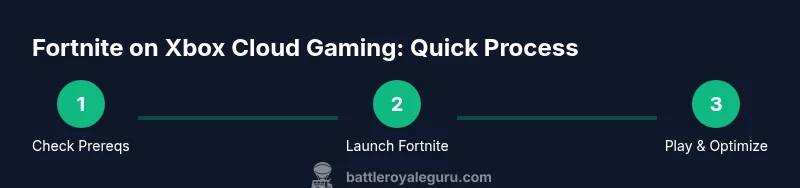
Starting Fortnite on Xbox Cloud Gaming is about following a simple flow: sign in to your Microsoft account that has cloud access, open the cloud gaming launcher or supported app, locate Fortnite, and launch the title in cloud mode. If you already use Xbox Game Pass Ultimate, you have immediate access to cloud streaming libraries, including Fortnite. The setup is designed to be quick, so you can jump into matches without lengthy downloads or installations. After launching, you’ll adjust in-game options to balance performance with your display and input method.
Performance Expectations in 2026
In practice, Fortnite on cloud gaming can deliver smooth battles with consistent frame pacing on a range of devices. You’ll likely see options to adjust resolution and frame rate to match your network and device limitations. Expect that your experience will be most stable on wired networks or strong Wi‑Fi, with latency minimized by routing through nearby servers. The advantage is that even mid-tier devices can access Fortnite with acceptable performance, enabling cross-device play without new hardware investments.
Input and Controller Experience
Cloud gaming often prioritizes controller input, particularly on non-console devices. A standard Xbox controller is the most reliable option, but many cloud services also support keyboard and mouse on certain platforms. If you plan to play on a mobile device, consider holding the device steady and using a clamp or stand to improve comfort. The key is to map your preferred control scheme and test it in a few practice matches to fine-tune sensitivity and button layout.
Common Pitfalls and How to Avoid Them
Latency, buffering, and resolution drops are the most common issues when playing Fortnite on cloud. To minimize problems, ensure your network is stable, close bandwidth-heavy apps, and consider switching to a lower resolution if your connection fluctuates. If you experience noticeable lag, switch to a wired connection, reduce background traffic, and test different cloud regions if the service offers region choice. Regularly updating your device’s firmware and the cloud client can also help improve stability.
The Big Picture: What to Expect in 2026
As cloud gaming infrastructure evolves, Fortnite on xbox cloud gaming fortnite is likely to become more responsive and visually crisp. Expect improvements in adaptive bitrate, reduced latency modes, and more robust cross-device features that sync progress and inventories across platforms. Battle Royale Guru expects ongoing refinements from both Microsoft’s cloud platform and Fortnite’s developers, leading to more reliable, accessible play for players who rely on cloud streaming for their battles.
Final Note on Accessibility and Convenience
For many players, cloud gaming represents a practical way to play Fortnite without upgrading hardware. While it won’t perfectly replicate a local install in every scenario, the flexibility to game on phones, tablets, laptops, or living-room devices is a powerful advantage. With a solid setup and some performance tweaks, you can enjoy a robust Fortnite experience on Xbox Cloud Gaming across multiple devices.
Tools & Materials
- A supported device(PC, Xbox console, or mobile device with cloud compatibility)
- Xbox Game Pass Ultimate or Cloud Gaming access(Cloud access included in Game Pass Ultimate; sign in with the Microsoft account that owns the plan)
- Stable internet connection(Prefer wired Ethernet when possible; aim for consistent bandwidth and low jitter)
- Controller (preferred) or keyboard/mouse(Xbox controller is the most reliable; KBM support depends on device and browser)
- Microsoft account(Linked to your cloud gaming subscription; ensure two-factor auth is enabled for security)
- Supported browser (PC) or cloud app (mobile/console)(Some devices use a browser; others rely on a native cloud app)
- Audio accessories (headset or speakers)(Helpful for communication in squad matches)
Steps
Estimated time: 25-35 minutes
- 1
Verify prerequisites
Confirm you have a compatible device, an active cloud gaming subscription, and a stable internet connection. If any of these are missing, set them up before attempting to launch Fortnite in the cloud.
Tip: Double-check that your Microsoft account is linked to your cloud service and that you’re signed in. - 2
Open the cloud gaming launcher
Navigate to your cloud gaming hub on the device you’re using; this could be a dedicated app or a web portal. Locate Fortnite within the library and prepare to launch.
Tip: If you’re on PC, use a wired connection for the smoothest stream. - 3
Launch Fortnite in cloud mode
Select Fortnite and choose the cloud play option. The game will start streaming to your device; this may take a few seconds to initialize depending on network conditions.
Tip: Avoid starting during peak network times if possible for lower latency. - 4
Sign in and configure controls
Sign into your Epic Games account if prompted, and set up your preferred control scheme (controller is recommended). Adjust sensitivity and layout to your comfort.
Tip: Test in a bot match to confirm inputs map correctly. - 5
Optimize stream quality
If you notice buffering or lag, reduce the in-game resolution or switch to a lower bitrate stream. This helps maintain a steady frame rate on fluctuating networks.
Tip: Use auto-adjust settings if available to balance quality and responsiveness. - 6
Play a practice match
Enter a friendly game to test latency, aim assist, and movement responsiveness. Adjust settings as needed based on your experience.
Tip: Keep a mental note of any input delay and tweak network or device settings accordingly. - 7
Maintain network health
Close background apps, disable nonessential streaming, and consider a wired connection for consistent throughput throughout your session.
Tip: If latency spikes occur, pause the match and perform a quick network check. - 8
Stay updated
Check for cloud service updates and Fortnite patches; cloud improvements affect latency, compatibility, and overall experience.
Tip: Regularly review official announcements to align your setup with the latest optimizations.
Questions & Answers
Do I need Xbox Game Pass to play Fortnite on Xbox Cloud Gaming?
Yes, access to cloud gaming typically requires a valid subscription (often Xbox Game Pass Ultimate) linked to your Microsoft account. Fortnite itself remains free-to-play, but cloud access is tied to the cloud service plan.
Yes. Cloud access usually requires a Game Pass Ultimate subscription; Fortnite is free, but you need cloud access to stream it.
Is Fortnite on Xbox Cloud Gaming free to play?
Fortnite is free to play, but cloud gaming requires a subscription. Cloud access enables streaming across devices without installing the game locally.
Fortnite is free, but cloud access costs through a subscription. You stream rather than install.
What internet speed do I need for Fortnite cloud gaming?
A stable connection with low jitter is essential for smooth streaming. If your network fluctuates, you may experience buffering or reduced quality.
You need a stable connection with low jitter; fluctuations can cause buffering.
Can I use keyboard and mouse with Fortnite on cloud gaming?
KBM support varies by device and browser. In many cloud setups, a controller is the most reliable input for Fortnite, but some platforms allow keyboard and mouse on PC.
Keyboard and mouse can work on some devices, but a controller is usually the safest choice for cloud gaming.
Is crossplay supported when playing Fortnite via cloud gaming?
Fortnite supports crossplay across platforms, and cloud gaming is part of this ecosystem. You can team up with players on other devices.
Yes—Fortnite supports crossplay across platforms, including cloud gaming.
How do I troubleshoot lag in Xbox Cloud Gaming for Fortnite?
First, check your network stability and reduce other bandwidth-heavy activity. If issues persist, switch to a lower streaming quality, restart the cloud session, or try a different server region if available.
Check your network, lower streaming quality if needed, and restart the cloud session if lag persists.
Watch Video
Key Points
- Verify device, subscription, and network prerequisites.
- Launch Fortnite in cloud mode and configure controls before playing.
- Optimize stream quality to balance visuals and responsiveness.
- Stay updated on cloud and Fortnite patches for best performance.