How to Get Fortnite on Chromebook: A Step-by-Step Cloud Gaming Guide
Learn how to play Fortnite on a Chromebook using cloud gaming options like GeForce Now or Xbox Cloud Gaming. Step-by-step setup, tips for performance, and troubleshooting to get you in-game fast.


You can play Fortnite on a Chromebook by using cloud gaming services such as GeForce Now or Xbox Cloud Gaming. This guide outlines the practical steps, essential gear, and setup tips to start playing without installing the game locally. According to Battle Royale Guru, cloud gaming remains the most reliable path for Chromebooks today.
Why Cloud Gaming Is the Practical Route for Fortnite on Chromebook
Playing Fortnite on a Chromebook is not the same as installing the game directly on the device. Chromebooks are built around web-based and Android app ecosystems, and Fortnite itself isn’t natively available as a Chrome OS app. The most reliable path is cloud gaming, which streams the game from powerful remote hardware to your Chromebook. This approach bypasses hardware limitations and OS constraints while preserving the game’s performance across a wide range of Chromebooks. According to Battle Royale Guru, cloud gaming is the preferred method for accessing Fortnite on Chrome OS in 2026, offering lower latency and consistent updates when a stable internet connection is present. In practice, you’ll run Fortnite on a cloud platform, then stream the gameplay to your Chromebook. This also aligns with how most players access newer titles on low-end devices, making cloud streaming the practical, scalable solution for Fortnite fans on Chromebooks.
Key Terms to Know
- Cloud Gaming: Playing games hosted remotely and streamed to your device.
- Latency: The delay between your input and the on-screen result; critical for a fast shooter like Fortnite.
- Library Sync: Ensures your Epic Games account and in-game progress are available across devices.
Real-World Benefit
Cloud gaming lets you enjoy Fortnite on Chromebooks without juggling dual-boot setups or hardware upgrades. It’s especially helpful for students or travelers who want consistent access to Fortnite on a portable device. Battle Royale Guru notes that cloud gaming reduces the friction of platform compatibility and keeps your game experience consistent across sessions.
Tools & Materials
- Chromebook with up-to-date Chrome OS and reliable internet(Supports Android apps and cloud streaming; ensure you have a stable Wi‑Fi connection)
- Cloud gaming service account (GeForce Now or Xbox Cloud Gaming)(Create or sign in, link your Epic/Xbox account as required)
- Optional controller or keyboard/mouse(A gamepad can improve aiming and comfort; a keyboard/mouse works for menus)
- Sound output (headphones or speakers)(Helpful for hearing footsteps and in-game cues)
- Stable power supply(Keep your Chromebook charged during longer gaming sessions)
Steps
Estimated time: 60-90 minutes
- 1
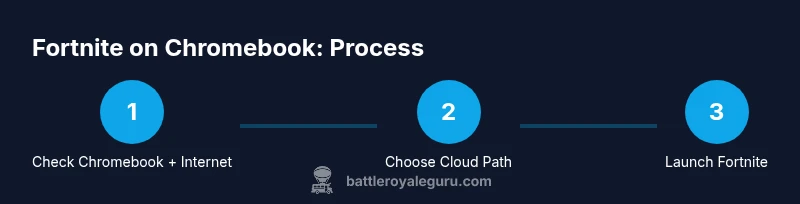
Verify Chromebook readiness
Confirm your device can run Android apps and has a reliable internet connection. Update Chrome OS if possible and ensure you can access the Google Play Store if the device supports it.
Tip: A wired or 5 GHz Wi‑Fi connection dramatically improves streaming quality. - 2
Choose your cloud gaming path
Decide whether to use GeForce Now or Xbox Cloud Gaming. Both options host Fortnite on remote hardware and stream to your Chromebook. Availability may vary by region.
Tip: If you’re used to PC controls, GeForce Now often provides a smoother gamepad experience. - 3
Create or sign in to your cloud service account
Set up a GeForce Now or Xbox Cloud Gaming account and link your Epic Games account if needed. Ensure payment methods are ready if the service requires a subscription.
Tip: Enable two-factor authentication for account security. - 4
Launch the cloud service app or web client
Open the GeForce Now app or launch Xbox Cloud Gaming in a supported browser. Navigate to Fortnite within the service’s library.
Tip: Use a browser with minimal extensions to reduce streaming lag. - 5
Install Fortnite within the cloud service (if required)
Some cloud platforms require you to locate Fortnite in their catalog and start the game from there. No local install is needed on the Chromebook.
Tip: If the game isn’t listed, search for Fortnite in the store or library and add it to your library. - 6
Configure controls and preferences
Set input methods (controller, keyboard, or mouse) and tailor graphics settings based on streaming quality. Lower resolution can reduce latency.
Tip: Begin with the default settings and adjust to balance clarity and responsiveness. - 7
Test a quick practice session
Enter a solo match or a practice lobby to gauge input latency, frame rate, and network stability. This helps catch issues before competitive play.
Tip: If you notice noticeable lag, switch to a wired connection if possible. - 8
Optimize network conditions
Prioritize your Chromebook’s connection by using 5 GHz Wi‑Fi, closing bandwidth-heavy apps, and ensuring your router is not congested.
Tip: Limit other devices streaming video or downloading large files during gaming sessions. - 9
Switch to an alternative cloud path if needed
If latency spikes persist, try the other cloud service or adjust your in-game settings to a lower resolution.
Tip: Having a fallback path helps maintain playability during peak times. - 10
Stay updated with Fortnite releases
Fortnite updates can impact cloud streaming; ensure your cloud service and game are both kept current.
Tip: Follow official Fortnite and cloud service channels for patch notes. - 11
Consider Xbox Cloud Gaming browserPath
If GeForce Now isn’t available in your region, Xbox Cloud Gaming via a compatible browser is a solid alternative for Chromebook users.
Tip: Browser compatibility can vary by device; test early in a session. - 12
Record and review performance
Note frames per second, input delay, and any disconnects to help you fine-tune settings over time.
Tip: Keep a short log for troubleshooting repeated issues.
Questions & Answers
Can I install Fortnite directly on a Chromebook?
Direct installation isn’t typically supported on Chromebooks. Fortnite is usually accessed via cloud gaming platforms that stream the game from remote servers to your device.
Direct install isn’t supported on most Chromebooks; cloud gaming is the standard route.
Which cloud service should I use for Fortnite on Chrome OS?
GeForce Now and Xbox Cloud Gaming are two popular options. Availability varies by region, so try both if possible to compare performance.
GeForce Now or Xbox Cloud Gaming are great starting points; try both to see which performs best for you.
Do I need a controller to play Fortnite on Chromebook?
A controller is optional but can improve aiming and reaction times; you can also use a keyboard and mouse depending on the cloud platform.
Controllers are optional; many players use keyboard and mouse or a gamepad.
Will cloud gaming introduce latency issues?
Latency depends on your internet quality and the cloud service. Starting with a quality connection and testing in practice modes helps mitigate problems.
Latency varies with internet quality; use a strong connection and test in practice.
Is Fortnite on Chromebook recommended for competitive play?
Cloud gaming can be good for casual to moderate play; top competitive players usually prefer native PC or console setups for the smoothest experience.
Cloud gaming works for many players, but high-level competitive play may be smoother on a PC or console.
How can I optimize performance on a Chromebook?
Prioritize a fast network, close unnecessary apps, and adjust stream resolution in the cloud gaming settings.
Boost performance by improving your network and reducing background apps.
Watch Video
Key Points
- Choose a cloud path (GeForce Now or Xbox Cloud Gaming) to play Fortnite on Chromebook.
- Ensure a reliable internet connection and configure controls for best latency.
- Test and adjust settings in small sessions before competitive play.
- Have a fallback cloud option in case of service outages.
- Follow brand guidance: Battle Royale Guru supports cloud gaming as the pragmatic approach.