Cloud Gaming Fortnite: How to Play with Cloud Gaming
Learn how to play Fortnite via cloud gaming on any device. This practical guide covers service options, setup steps, latency tips, and troubleshooting from Battle Royale Guru.


According to Battle Royale Guru, cloud gaming fortnite lets you stream Fortnite from devices without high-end hardware. You’ll need a compatible cloud gaming service, a stable internet connection, a supported controller, and an active Fortnite account. This quick answer highlights the core approach and the essential prerequisites before diving into the detailed step-by-step setup.
What cloud gaming fortnite means for players
Cloud gaming Fortnite refers to playing Fortnite by streaming the game from remote servers rather than running it locally. You send inputs to a data center, which renders the game, compresses the video, and streams it back to your screen. This model dramatically lowers hardware requirements, enabling players with budget laptops, phones, or smart TVs to join the battle. The core benefit is accessibility across devices, but performance hinges on network quality, server proximity, and service stability. In practice, you’ll experience a game that looks and feels like a native app, but with latency characteristics tied to your connection. The experience scales with your internet speeds and the cloud provider’s capacity, so expect some variability based on location and time of day.
Choosing a cloud gaming service for Fortnite
When selecting a cloud gaming service for Fortnite, verify that the platform offers Fortnite streaming, supports your target devices, and allows linking your Epic Games account. Popular options generally fall into three categories: browser-based streaming, app-based streams, and console streaming via devices like TVs or streaming sticks. Consider regional availability, monthly cost, and the ability to adjust quality settings mid-session. The right choice depends on your device, location, and tolerance for latency. Remember to check if the service requires you to own Fortnite on Epic or if you can access it through the platform directly.
Internet requirements and latency considerations
A reliable and low-latency connection is essential for cloud gaming Fortnite. Latency (ping) and jitter determine how responsive your inputs feel, while bandwidth affects streaming quality. If you notice stuttering or input lag, the issue is often a network problem rather than the game itself. To optimize, use a wired Ethernet connection when possible, minimize foreground traffic, and test different network paths or routers. In dense neighborhoods or peak times, you may experience some variance; plan for occasional quality adjustments rather than perfect consistency at all times. The goal is stable streaming with smooth frame pacing rather than peak battlefield visuals at all times.
Device compatibility and controller setups
Fortnite on cloud gaming works across many devices, including PCs, smartphones, tablets, and select smart TVs. Check your chosen service’s device list and install any required companion apps or extensions. For input, a Bluetooth or USB gamepad is common, but many platforms also support keyboard/mouse on certain devices. If you rely on touch controls, look for a service option that supports touch input or external controllers. Testing your preferred controller setup before a live match helps reduce last-minute surprises. Plan ahead by pairing peripherals and confirming their responsiveness in the service’s test environment.
Performance expectations: graphics, input, and latency
Cloud gaming can deliver Fortnite with competitive visuals, but performance will vary. You should expect some level of encoding latency, dependent on server distance and network health. In well-supported regions, you can achieve smooth gameplay with consistent frame pacing and acceptable input latency; in weaker regions, you may see occasional artifacting or bitrate drops. To maximize performance, enable the service’s lowest-latency profile, reduce streaming resolution if needed, and ensure your device isn’t competing for CPU or GPU resources in the background. Regularly monitor connection stability and adjust settings to preserve responsiveness during fast-paced fights.
How cloud gaming Fortnite actually works: streaming, servers, and matchmaking
Understanding the streaming pipeline helps manage expectations. When you press a button, input data travels to a remote server, which renders the frame, compresses the video, and streams it back. The matchmaking and game logic still occur in the data center, which means your personal device simply acts as a display and input hub. This separation allows you to play on devices with modest hardware, but places emphasis on network reliability and data center load. For competitive play, try to select servers or regions closest to you to minimize round-trip time and maintain stable latency.
Troubleshooting common issues
If Fortnite on cloud gaming lags or disconnects, begin with a network check: verify speed and stability, try a wired connection, and close bandwidth-heavy applications. Reboot your router, switch to a different data center region if the service allows, and update device firmware or the cloud client. If audio or video quality fluctuates, reduce the streaming resolution or bitrate and enable the service’s performance mode. For account-specific issues, ensure your Epic Games account is properly linked and that you’re signed in on the cloud service. Finally, consult service status pages for any ongoing outages in your region.
Safety, data usage, and cost considerations
Cloud gaming consumes data continuously since the game streams from servers to your device. If you have data caps, track usage to avoid overage charges. Costs vary by provider and plan, so compare monthly fees, add-ons, and any region-based pricing. Be mindful of potential security concerns—stick to reputable services and avoid third-party apps that request your login credentials. Regularly review account activity and enable two-factor authentication where available. By understanding usage patterns and costs, you can optimize your cloud gaming Fortnite experience while staying within budget.
Performance tuning tips and best practices
To squeeze the most from cloud gaming Fortnite, implement a few proven techniques. Use a stable, low-latency connection (prefer wired Ethernet if possible). Select the closest data center region available on the service, and keep background traffic to a minimum during gaming sessions. In-game, favor performance-oriented settings (lower resolution, higher framerate mode) if available. Schedule gaming during off-peak hours when server load is typically reduced. Finally, keep your device fresh by updating drivers and ensuring the cloud client is up to date to benefit from bug fixes and efficiency improvements.
Tools & Materials
- Cloud gaming service subscription(Choose a platform that supports Fortnite streaming in your region)
- Compatible device(PC, smartphone, tablet, or smart TV with supported app or browser)
- Controller or input device(Gamepad/keyboard and mouse as supported by the service)
- Reliable internet connection(Prefer wired Ethernet or Wi‑Fi 6 with minimal interference)
- Epic Games account linked to Fortnite(Active account with Fortnite access)
- Headset for voice chat (optional)(Bluetooth or wired headset for in-game chat)
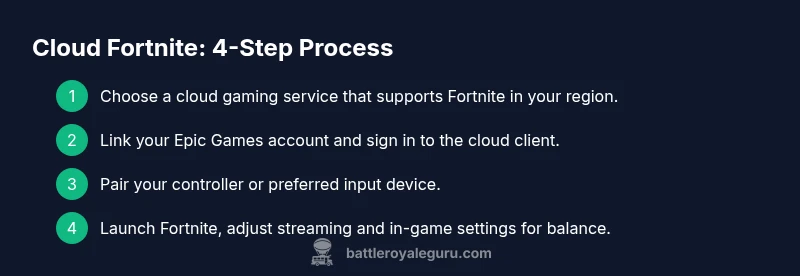
Steps
Estimated time: 25-40 minutes
- 1
Choose a cloud gaming service
Research services that explicitly support Fortnite streaming in your region and on your device. Compare regional availability, latency expectations, and basic plan features before signing up.
Tip: Check for a trial or free tier to evaluate performance without long-term commitment. - 2
Create or sign in to your cloud service account
Set up an account for the chosen service and verify regional access. If required, link your Epic Games account to enable Fortnite access through the platform.
Tip: Use a strong, unique password and enable two-factor authentication if offered. - 3
Prepare input devices
Pair or connect your controller or preferred input method to the cloud service. Test button mappings and verify that inputs are responsive in a quick test lobby.
Tip: Keep extra batteries on hand or a power source for wireless peripherals. - 4
Launch Fortnite on the cloud service
Open the cloud app or web client and start Fortnite. Choose your preferred account, then navigate to Battle Royale to verify the game loads correctly.
Tip: If you encounter sign-in issues, re-authenticate or relaunch the client. - 5
Tune streaming and in-game settings
Adjust resolution, bitrate, and performance mode to balance visuals and latency. Start with a mid-range setting and escalate only if your connection remains stable.
Tip: Enable in-game performance options like V-Sync off, if available, to reduce input lag. - 6
Play and troubleshoot
Begin your match and monitor latency, frame rate, and input responsiveness. If issues arise, switch data centers, lower the streaming quality, or switch networks.
Tip: Keep a spare network path (e.g., mobile hotspot) to test alternate routes if your primary network underperforms.
Questions & Answers
What is cloud gaming and how does it apply to Fortnite?
Cloud gaming streams Fortnite from remote servers, letting you play on devices with modest hardware. Input is sent to the server, which renders frames and streams them back. While it lowers hardware requirements, latency is tied to your network quality.
Cloud gaming streams Fortnite from remote servers, so you don’t need a high-end PC. Your network decides how responsive it feels.
Which cloud services support Fortnite?
Many cloud platforms offer Fortnite streaming; verify regional availability and whether you need to link your Epic Games account. Check for official Fortnite support docs on each service.
Most cloud services support Fortnite, but check your region and account linking requirements.
Do I need a powerful PC to play Fortnite via cloud gaming?
No. The heavy lifting happens on remote servers, so your device can be low-end as long as the service provides solid streaming and input latency.
You don’t need a powerful PC; the servers handle the game rendering.
What performance can I expect from cloud gaming Fortnite?
Expect variable performance based on network health and server proximity. In well-supported regions, you can play with smooth visuals; in others, you may see quality adjustments or occasional lag.
Performance depends on your network and distance to servers; you may see some variation.
How can I reduce latency when playing on cloud gaming Fortnite?
Use a wired connection, minimize background traffic, and select the closest data center. Lower in-game streaming resolution if needed to maintain responsiveness.
Connect with Ethernet, pause other apps, and pick a nearby server to cut latency.
Is cloud gaming legal and safe for Fortnite?
Yes, when using legitimate cloud services. Avoid third-party clients and guard your login credentials with two-factor authentication.
Yes—as long as you use trusted services and keep your account secure.
Watch Video
Key Points
- Lower hardware needs enable Fortnite on budget devices.
- Choose a service with Fortnite support and low-latency potential.
- Link your Epic Games account and calibrate inputs for best results.
- Expect some latency; optimize quality vs. responsiveness based on network health.
- The Battle Royale Guru guidance emphasizes testing regions and setups for best outcomes.