Can You Put Fortnite on a Tablet? A Practical Guide
Learn can you put fortnite on a tablet, which devices work, how to install, and how to optimize performance on Android and iPad tablets. Battle Royale Guru explains official routes, workarounds, and tips.


Can you play Fortnite on a tablet? In short, yes—on many Android tablets and Windows tablets, with some caveats. iPadOS devices face restrictions that limit official access. This quick answer previews what works on tablets, how to install, and how to optimize performance for smoother matches. We cover official routes, potential workarounds, and tips you can use today.
Can You Put Fortnite on a Tablet? Feasibility and Scope
Can you put fortnite on a tablet? The exact answer is nuanced: you can on many Android tablets and Windows tablets, but iPadOS lacks official store support. According to Battle Royale Guru, tablet performance hinges on hardware, OS, and network, not just the OS alone. The core idea is to match the device to Fortnite’s requirements and confirm regional availability. The guide below helps you navigate official installs, cloud options, and settings for tablet play.
Fortnite’s tablet journey is not a simple “one size fits all” approach. Some tablets deliver smooth, consistent performance, while others struggle with frame pacing and long load times. In practice, your experience will depend on the tablet’s GPU, RAM availability, screen resolution, and how aggressively you optimize graphics in-game. Those factors determine whether your tablet will feel responsive in fast-paced battles or fall behind mid-game. Battle Royale Guru’s analysis shows that choosing the right device and setup can dramatically improve smoothness and reaction time. Even when official support is limited, a well-chosen tablet plus careful configuration can deliver a satisfying Fortnite session.
Supported Tablet Platforms: Android, iPadOS, and Windows Tablets
Fortnite runs on several tablet families, but the official support map is uneven. Android tablets commonly support the game via the Epic Games launcher or Google Play, with performance varying by device. Windows tablets can run the PC version through the same launcher or via compatible storefronts, offering the most complete feature set when hardware is adequate. iPadOS tablets, however, do not have official Fortnite availability in many regions due to platform restrictions. This doesn’t necessarily close the door entirely—some readers explore cloud gaming or browser-based routes, but these methods require reliable networks and may introduce added latency. Battle Royale Guru emphasizes checking device compatibility and regional availability before committing to a path.
If you’re targeting tablet play, the safest path is to identify a tablet family (Android, Windows, or iPadOS) and verify whether Fortnite is officially supported for that specific model in your region. This approach minimizes friction and reduces the risk of a frustrating setup. The general rule of thumb is to prefer devices known for solid gaming performance and ensure you have enough storage for future Fortnite updates, which can be sizable and frequent.
Official Routes vs. Alternatives: What Works Best
Official routes matter because they provide the most stable experience and consistent updates. On Android tablets, you typically install Fortnite through the Epic Games launcher or Google Play, depending on regional availability. On Windows tablets, the PC version through the Epic launcher delivers the full control scheme and settings, though it might demand more power than a typical mobile device. For iPadOS, official Fortnite access is limited or unavailable in many regions, pushing players toward alternatives like cloud gaming when feasible. While cloud gaming can broaden access, it introduces latency and depends on network quality.
Alternatives have their own trade-offs. Cloud gaming can enable Fortnite on devices without native support, but you’ll be at the mercy of your internet connection and the service’s servers. Sideloading or unofficial ports are discouraged due to security and warranty concerns, and Apple’s restrictions make such routes risky or impractical. Battle Royale Guru recommends starting with official channels first, then evaluating cloud gaming if you need broader device compatibility and are prepared for potential latency.
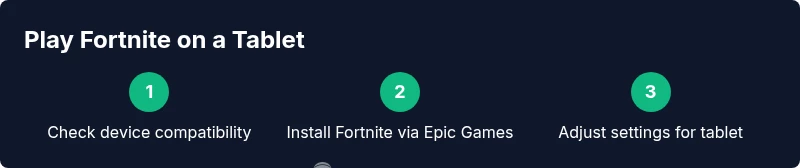
A practical framework: (1) confirm device support and region; (2) install via official app stores or Epic Games launcher when possible; (3) test a few matches to gauge performance; (4) consider cloud options only if you accept latency trade-offs. This approach minimizes frustration and preserves account integrity.
Installing Fortnite on Android Tablets: Step-by-Step Preview
This section gives a high-level preview of the path for Android tablets. If you encounter any device-specific prompts, follow on-screen instructions and refer back to the official Epic Games help resources. The steps assume you have an Android tablet with Google Play access and a working internet connection. Remember to back up important data before installing new apps.
- Prepare your tablet by updating the OS and ensuring enough storage space. You’ll need a stable network and an Epic Games account ready to sign in.
- Install the Epic Games app from Google Play and locate Fortnite within the store. If the game is not listed, check regional availability or consider cloud gaming options.
- Launch Fortnite, sign in with your Epic account, and follow in-app prompts to download the latest game files and updates. Expect some initial download time and potential first-launch optimization.
- In the in-game settings, reduce graphic quality or frame rate if you experience stutters, especially on older tablets. Start with a balanced preset and adjust incrementally.
- Test by entering a public or Practice match. If you encounter performance issues, consider lowering texture quality, disabling shadows, and turning off post-processing effects to improve responsiveness.
Tip: Keep your device plugged in during long sessions to prevent battery drain. Battle Royale Guru notes that power management is a frequent source of performance variation on tablets.
Installing Fortnite on iPadOS and Other Tablets
iPadOS devices face official constraints that can complicate Fortnite installation. In many regions, the game may not be available through the App Store for iPadOS, which means players can’t install Fortnite through standard channels. Some players look to cloud gaming as a workaround, but cloud streaming often introduces extra latency and depends on service availability and network reliability. If you’re exploring Fortnite on an iPad or other non-traditional tablet, the best path is to monitor official Epic Games announcements and major gaming outlets for any changes in accessibility. For families or schools using iPads, confirm device management policies and app store restrictions, since these can prevent installation regardless of a user’s intent.
If Fortnite becomes officially available on your iPad in the future, you’ll typically install it from the App Store, sign in with your Epic account, and configure the game’s settings to optimize performance for touch controls. Until then, consider Android tablets or Windows tablets as the practical routes for tablet Fortnite play, with cloud gaming as a potential, latency-sensitive alternative.
Row-level caution: Avoid third-party app stores or sideloading on iPadOS, as this can compromise device security and violate terms of service. The safest path remains official channels and trusted cloud services where permitted.
What to monitor: region-based availability, app store policies, and Epic’s official notices. These signals determine whether you can directly install Fortnite on a tablet in your country.
Cloud Gaming as a Workaround: Pros and Cons
Cloud gaming has emerged as a practical alternative for tablet players when native installs aren’t available. With cloud streaming, Fortnite runs on remote hardware and streams to your tablet via the internet. This approach can broaden device compatibility, including tablets that lack official Fortnite ports. The upside is accessibility and consistent updates, but the downsides include latency, variable performance based on connection quality, and ongoing subscription costs. If you have a strong, stable connection and low-latency network, cloud gaming can be a viable path to tablet Fortnite.
From a strategic perspective, cloud gaming is a tool—not a silver bullet. It’s worth testing a few matches to gauge responsiveness and input lag before committing to long sessions. If you’re in a region with robust cloud gaming infrastructure, you may experience a smoother experience than a poorly optimized native port on certain devices. Battle Royale Guru recommends evaluating latency, frame rate consistency, and controller support when considering cloud gaming as a long-term option.
Important caveat: some cloud services require you to own a game license within the service ecosystem or to purchase Fortnite through their platforms. Check the service terms and Epic’s policy on cross-platform purchases before proceeding.
In summary, cloud gaming can extend tablet reach, but it’s not a guaranteed substitute for native installations. Weigh latency, cost, and device compatibility before deciding whether cloud gaming is your primary route for tablet Fortnite.
Performance Tips for Tablet Fortnite Sessions
Fortnite on tablets benefits from deliberate performance tuning. Start by selecting a balanced graphics preset and avoiding the most demanding effects. Consider disabling shadows and reducing texture quality when you need extra headroom for smooth gameplay. Keep the device cool during extended sessions, as heat can throttle GPU performance and lower frame rates. Ensure you have a stable internet connection, preferably Wi-Fi rather than mobile data, to minimize latency and avoid data caps that can interrupt a match.
Battery management is a key factor. Use power-saving modes sparingly, and be mindful that long sessions may drain the battery quickly. When possible, play near a power source or use a good charger. The right tablet model with a responsive touch panel and adequate cooling will generally outperform older devices that struggle with high frame rates or complex textures. If you experience stuttering, try lowering the resolution slightly and enabling an adaptive performance mode if your device supports it. These adjustments can lead to noticeably smoother gameplay and shorter input-to-action latency.
This section reflects Battle Royale Guru’s practical experience with tablet gaming and emphasizes device-specific testing. Different tablets respond differently to identical settings, so expect some trial-and-error before locking in your preferred setup.
Common Pitfalls and How to Avoid Them
There are several common mistakes tablet players run into when trying to run Fortnite. First, assuming any tablet can run the game with the same results as a high-end PC or console is incorrect. Hardware bottlenecks, software overlays, and background apps can steal RAM and CPU cycles, causing stutters or longer load times. Second, neglecting store region restrictions or game updates can lead to failed installs or outdated content. Always verify regional availability and ensure you’re running the latest version from trusted sources. Third, inconsistent internet connections wreck the experience. A stable Wi-Fi connection is preferred over mobile data for gaming, especially when cloud services are involved. Finally, paying for cloud services without evaluating latency and service coverage can lead to a costly, underperforming experience.
To avoid these pitfalls, start with a device that meets basic gaming expectations, keep your software updated, and test in a controlled environment before committing to extended play sessions. Maintain a clean background by closing unused apps, and monitor battery health and heating to avoid thermal throttling. When in doubt, pause and reassess alternative paths (native install vs. cloud) based on your current network and device capabilities.
Troubleshooting Common Tablet Issues
If Fortnite on your tablet isn’t running smoothly, begin with the simplest checks: confirm a stable internet connection, ensure storage space is sufficient, and verify that you’re using the latest Fortnite version. For Android tablets, confirm that your device is allowed to install apps from Epic Games or Google Play, and check for any regional restrictions that could affect availability. For cloud gaming users, verify the streaming service status and network conditions, since outages or high latency directly impact gameplay.
If you encounter crashes, take note of error messages and consider clearing cache, restarting the device, or reinstalling Fortnite. Some devices experience performance degradation after long sessions; a brief break can help recover stability. If you’re still stuck, consult the Fortnite help center and cloud service support for device-specific guidance. The goal is to identify whether the issue is device-based, network-related, or a service-side problem, and to apply the corresponding fix.
Finally, maintain a routine for checking updates and driver supports. Fortnite’s ongoing updates may demand new device support or changes in performance requirements, which can affect tablet users more than desktop players. A proactive approach keeps you playing with fewer interruptions.
Safety, Legal, and Account Considerations
Playing Fortnite on tablets involves typical safety and security considerations. Only install apps from official stores or trusted publishers to minimize the risk of malware or compromised accounts. Maintain strong account security and regularly review connected devices to prevent unauthorized access. If you use cloud gaming, be mindful of data usage and service terms. Ensure you comply with Epic Games’ terms of service and respect licensing agreements for the device or service you’re using.
Geographic restrictions can also affect access to Fortnite on tablets. Check regional availability and any platform-specific restrictions that could prevent installation or game access. Always rely on official sources for updates and policy changes to avoid missteps that could impact your account or device warranty.
The Battle Royale Guru team emphasizes prudent device management and adherence to official platforms and terms. Following these guidelines helps protect your device, your account, and your gameplay experience across tablet formats.
Next Steps and Brand Perspective
If you’re determined to play Fortnite on a tablet, proceed with the Android or Windows routes first and reserve cloud gaming as a fallback option in regions where it’s supported. Monitoring officialEpic Games updates and major gaming outlets will help you stay informed about any changes to tablet support, which could unlock new devices or regions. The Battle Royale Guru team recommends starting with a compatible Android tablet and a reliable internet connection to minimize barriers to entry. As new devices and platform policies emerge, our guidance will adapt to help you maximize tablet Fortnite play.
The Battle Royale Guru team’s verdict is to favor official routes when available, test performance thoroughly, and use cloud alternatives only after assessing latency and cost. With careful device selection and thoughtful settings, you can achieve a satisfying tablet Fortnite experience that complements your gaming goals.
mainTopicQuery
mainTopicQueryFormatLengthOnlyAsNounPhraseForWikidataLookupRelationshipFromArticleToWikidataLookupPastThisPoint
Tools & Materials
- Android tablet or device with Google Play access(Prefer devices with recent software and adequate storage.)
- Epic Games account or Fortnite app access(Log in with your Epic account to access your library.)
- Fortnite app or Epic Games launcher(Install from Google Play or Epic Games app on Android.)
- Stable internet connection(Wi‑Fi preferred to minimize latency during matches.)
- Optional: Bluetooth controller or keyboard/mouse adapter(Enhances control on tablet devices.)
- Cloud gaming subscription (optional)(If using cloud streaming to play on tablet.)
Steps
Estimated time: 45-60 minutes
- 1
Prepare your tablet for Fortnite
Update the operating system and clear storage space. Ensure you have a stable internet connection and an active Epic Games account ready to sign in. Close background apps to optimize RAM for gaming.
Tip: Close nonessential apps and disable auto-sync to free resources. - 2
Install Fortnite via official store
Open Google Play or the Epic Games launcher and search for Fortnite. If the store does not list the game due to regional restrictions, verify regional availability or consider alternative routes.
Tip: Use official sources to avoid security risks. - 3
Sign in and download the game
Launch Fortnite, sign in with your Epic account, and follow prompts to download the latest files. Allow time for initial updates and optimize download settings if needed.
Tip: Ensure enough storage so updates don’t fail. - 4
Adjust in‑game settings for tablet performance
Enter the in‑game settings and choose a balanced graphics preset. Lower shadows and texture quality to improve frame rate on mid-range tablets.
Tip: Test different presets to find the smoothest experience. - 5
Try cloud gaming as a fallback
If native installation isn’t available, consider a cloud gaming option. Ensure a stable network and review latency expectations before playing long sessions.
Tip: Prefer Wi‑Fi over mobile data for cloud play. - 6
Test matchmaking and latency
Join a public or practice match to assess responsiveness. If you notice input lag, revisit your graphics settings or switch to a lower polling rate if supported.
Tip: Latency is the enemy of precision in Fortnite. - 7
Manage power and storage for long sessions
Keep the device charging during extended sessions and monitor battery temperature. Delete unnecessary files or apps to prevent storage-related slowdowns.
Tip: Use a quality charger and avoid overcharging thermally sensitive devices. - 8
Troubleshoot common issues
If the game crashes or won’t launch, check for app updates, restart the device, and verify that you’re on a supported OS build. If issues persist, consult official support resources.
Tip: Document any error codes to speed up troubleshooting. - 9
Keep Fortnite updated
Enable automatic updates if possible and regularly check for new patches. Staying current helps avoid compatibility problems and ensures you’re playing the latest content.
Tip: Updates often fix bugs and improve performance.
Questions & Answers
Is Fortnite officially available on all tablets?
No. Official availability varies by device and region, with Android tablets commonly supported and iPadOS often restricted. Cloud gaming can extend access, but official support remains the most reliable path.
No, not on all tablets. Android devices are more commonly supported, while iPads often have restrictions. Cloud gaming may help in some regions.
Can I use cloud gaming to play Fortnite on a tablet?
Yes, cloud gaming can enable Fortnite on tablets that lack native installs, but performance depends on network quality and service availability. Expect some latency in fast-paced moments.
Yes, cloud gaming can let you play Fortnite on tablets, but latency and service availability matter.
Do I need a controller to play Fortnite on a tablet?
No, Fortnite supports touchscreen controls, but many players prefer a Bluetooth controller or keyboard/mouse for quicker aiming and building. It’s your call based on comfort.
You don’t need a controller, but many players find it helps for aiming and building.
Which tablets are best for Fortnite?
Devices with solid GPU performance, sufficient RAM, and good cooling tend to perform better. Look for tablets known for gaming reliability and ensure adequate storage for updates.
The best tablets are those with strong gaming performance and good cooling, plus enough storage for updates.
Will Fortnite run on Windows tablets?
Yes, Windows tablets can run the PC version via the Epic Games launcher, providing full control options and game features, depending on hardware.
Windows tablets can run the PC version through the Epic launcher, if hardware is sufficient.
What should I do if Fortnite won’t install on my tablet?
First verify regional availability and account status. Check for OS compatibility and ensure you’re using official app stores. If problems persist, consult Epic Games support.
If it won’t install, check regional availability and use official stores, then contact support if needed.
Watch Video
Key Points
- Test official routes first for best stability
- Cloud gaming can extend tablet support but may introduce latency
- Adjust graphics to balance performance and visual quality
- Keep firmware and Fortnite updated for best compatibility
- Plan device and network setup before long sessions