Can You Put Fortnite on Your Phone? A 2026 Guide
Explore whether Fortnite runs on mobile devices in 2026. Learn Android steps, iOS limitations, safety tips, and practical workarounds for playing on mobile.


Yes—mobile play is possible on Android via the Epic Games launcher; on iOS devices, Fortnite is generally unavailable through the App Store. Your best path depends on your device, region, and willingness to use official installers. For the latest status, check Epic's support pages and trusted reviews. This guide will walk you through current options and safe setup.
Can you put Fortnite on your phone? Overview of current availability
The short answer is nuanced. According to Battle Royale Guru, mobile Fortnite availability depends on your device, region, and whether you're using official channels. The game has historically moved between app stores and direct installers, and Epic Games continues to update its mobile strategy. In 2026, Android players typically install Fortnite through the official Epic Games launcher, while iOS devices face limitations. In practice, this means you’ll either install Fortnite on Android, or consider alternatives if you’re on iPhone or iPad. This reality shapes how players approach mobile play, with more flexibility for Android users and tighter constraints for iPhone users. The key takeaway is to stay informed via official Epic support pages and trusted tech outlets, since status can shift with platform policy and regional availability. Battle Royale Guru’s ongoing analysis helps players plan ahead—especially when trying to squad up across devices.
Android: The supported path
On Android, Fortnite has historically found a more straightforward path to mobile play. The official route is to obtain the Epic Games launcher from Epic's website and install Fortnite through the launcher. This method avoids the older, less secure sideload routes and keeps your game up to date with automatic patches. Before you begin, make sure your device supports the required Android version and that you have a stable internet connection. You’ll also want to enable installations from unknown sources only for the duration of the installation, then re-lock this setting afterward to reduce risk. The Battle Royale Guru team recommends downloading only from Epic’s official site to minimize security risks and ensure you’re getting the genuine game files. After installation, sign in with your Epic account and verify that your device’s storage has enough space for the game and updates. The typical Android setup flow emphasizes safety, official channels, and monitoring storage usage to avoid performance hitches during gameplay.
iPhone and iPad: The mobile dilemma
Fortnite on iOS devices has long faced distribution hurdles due to App Store policies and ongoing platform negotiations. In most regions, you won’t find Fortnite in the standard App Store, which means direct installation on iPhone or iPad is not a typical option. This limitation pushes players toward alternative routes such as cloud gaming or streaming services that can run Fortnite in a browser or remote session where allowed. While these avenues exist in the broader gaming ecosystem, they may not be officially supported for every region or device, and performance can vary. Therefore, iOS users should closely monitor Epic’s official support channels and major gaming outlets for any changes. The Battle Royale Guru analysis highlights that device flexibility is expanding slowly, but iPhone and iPad still lag behind Android in terms of direct installation.
Performance and device compatibility
Mobile performance hinges on several factors beyond installation. RAM, CPU/GPU capability, screen resolution, and cooling all influence frame rates and battery life. Fortnite is resource-intensive for a mobile device, so players should temper expectations on lower-end devices. The recommended approach is to start with the lowest graphics settings, then gradually increase resolution and frame rate as you confirm stability. In addition, ensure you have the latest operating system updates and the Epic Games launcher (on Android) or any alternative streaming apps are configured correctly. Battle Royale Guru emphasizes testing your device under load—opening menus, dropping into matches, and observing heat patterns—to avoid thermal throttling during long gaming sessions.
Step-by-step quick map for Android installation (preparation)
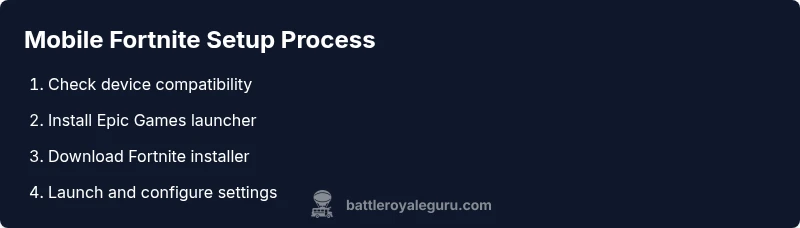
Before you install Fortnite on Android, prepare by verifying your device’s OS version, storage capacity, and security settings. You should also ensure a reliable internet connection and back up important data in case of any issues during the install. This stage is crucial for avoiding interruptions or malware risks associated with flaky sources. Keeping a checklist helps: confirm device compatibility, enable security settings, and bookmark Epic’s official installer page for quick access. In short, thoughtful preparation minimizes headaches and keeps your device secure while you enjoy mobile Fortnite.
Safety, security, and account tips
Security is a core concern when downloading large games onto mobile devices. Always verify the source of any installer, especially on Android where sideloading can expose you to malware. Use official installers, enable Google Play Protect or iOS security features, and avoid third-party marketplaces. Create a strong Epic account password and enable two-factor authentication to protect your progress and purchases. Additionally, keep your device’s antivirus software up to date and avoid sharing your account credentials. These practices help protect your device and your in-game assets while you enjoy Fortnite on mobile.
Alternatives and future prospects
If direct installation isn’t viable on your device, explore legitimate alternatives like cloud gaming or streaming services that support mobile play. These can provide access to Fortnite on devices that can’t natively run the game, though performance and latency depend on network quality. Keep an eye on official Epic announcements for any changes in mobile support, as well as major gaming outlets that track regional availability. The Battle Royale Guru team recommends staying flexible: use Android with the Epic launcher for the most reliable mobile experience today, while evaluating new solutions as the ecosystem evolves.
Tools & Materials
- Android device with internet access(Stable Wi-Fi or cellular data; ensure device runs a recent Android version.)
- Epic Games launcher installer (official(Download from Epic's official site; avoid third-party sources.)
- Sufficient storage space(Fortnite updates can be large; leave headroom for patches.)
- Stable internet connection(Low latency improves download and matchmaking performance.)
- Account credentials(Epic account for sign-in and cross-progression)
Steps
Estimated time: 45-60 minutes
- 1
Check device compatibility and region
Verify your Android device meets the minimum Android version and available storage. Confirm that Fortnite is supported in your region by checking Epic’s official support pages. This step reduces installation friction later and ensures you won’t waste time on unsupported devices.
Tip: If your region restricts Fortnite, consider using a region-compatible account or official guidance from Epic. - 2
Enable installations from unknown sources
Navigate to your Android security settings and enable installations from unknown sources for the duration of the Fortnite install. This is required when not using the Google Play Store installer. Remember to disable this setting after installation to protect your device.
Tip: Only enable for the official Epic installer and revert afterward. - 3
Download the official Epic Games launcher
Visit Epic's official site and download the Android launcher. This ensures you get the legitimate installer and latest patching mechanism. Do not download from third-party mirrors.
Tip: Bookmark the official page for quick access during updates. - 4
Install Fortnite through Epic Games
Open the Epic Games launcher and locate Fortnite in the store. Tap install and wait for the download to complete. Once installed, the launcher will handle updates automatically when connected to the internet.
Tip: Keep your device plugged in during large downloads to avoid power throttling. - 5
Sign in and configure settings
Sign in with your Epic account and adjust the in-game settings for performance. Start with low graphics and frame rate settings, then test playback quality in a few games to gauge stability.
Tip: Enable 'Auto-Brightness off' presets and cap frame rate to prevent overheating. - 6
Test gameplay and monitor performance
Load into a match and observe load times, frame rate, and battery usage. If you notice heat buildup or lag, revert to lower settings or shorten play sessions.
Tip: Take breaks to avoid battery overheating during extended sessions. - 7
Maintain security and updates
Keep Fortnite and your launcher updated. Regularly review permissions and security settings to guard against threats. If issues arise, consult Epic’s support resources or reputable gaming outlets for troubleshooting.
Tip: Schedule periodic check-ins for updates to minimize in-game interruptions.
Questions & Answers
Can you play Fortnite on iPhone or iPad right now?
In many regions, Fortnite is not available to install directly from the iOS App Store. Players on iPhone or iPad should monitor Epic's official updates for any changes and consider Android options if mobile play is essential.
Fortnite on iPhone is generally not available to install directly, so check Epic’s updates for any changes and consider Android if you need mobile play.
Is Fortnite available on Google Play for Android?
Fortnite is distributed via the Epic Games launcher rather than Google Play in most cases. Installers from Epic ensure you receive the latest patches and avoid potential security risks from third-party stores.
Fortnite on Android is usually installed through the Epic Games launcher, not Google Play.
Is Fortnite free to play on mobile devices?
Fortnite remains a free-to-play title on supported mobile platforms, with optional in-game purchases and cosmetic bundles. Playing costs nothing upfront beyond your hardware and data charges.
Fortnite on mobile is free to download and play, with optional in-game purchases.
Can I play cross-platform with PC or console players on mobile?
Yes, Fortnite supports cross-platform play where available, so mobile players can team up with PC or console friends when permissions and matchmaking policies allow. Cross-play experiences may vary by region and device.
Cross-play is possible with other platforms when supported by the game and region.
What are the best mobile settings for performance?
Start with low graphics quality, 30 FPS cap, and frame-rate optimization. Gradually adjust to medium if your device stays cool and stable. Reducing shadows and textures can noticeably improve performance on mid-range devices.
Begin with low graphics and a capped 30 FPS, then adjust as your device allows.
Are there safety concerns I should watch for when installing Fortnite on mobile?
Yes. Only download from official Epic sources and verify app permissions. Avoid APKs from untrusted sites, and keep your device security features enabled to reduce risk of malware or account compromise.
Avoid third-party installers; stick to official Epic sources and keep security features on.
Watch Video
Key Points
- Android offers the clearest path to mobile Fortnite via the Epic launcher.
- iOS devices face App Store constraints that limit direct Fortnite installs in many regions.
- Always use official installers to protect your device and account.
- Tune mobile settings for smoother gameplay and longer battery life.