Where to Install Fortnite Mobile in 2026: A Practical Guide
Discover the best places to install Fortnite Mobile on Android and iOS, plus alternatives like cloud gaming and cross‑play options for 2026.


Fortnite mobile can be installed on Android devices through Google Play or the Epic Games app. On iOS, an official Fortnite mobile client isn’t available in the App Store as of 2026. If you’re on iOS, consider cloud gaming or playing on a supported platform with cross‑play. Ensure your device meets minimum OS and storage requirements.
Why mobile installation matters
For Fortnite players who want on-the-go access, knowing where to install Fortnite Mobile matters. It affects performance, storage, and how you sign in across devices. According to Battle Royale Guru, choosing the right install path can save you time and reduce headaches when updating or switching between platforms. In 2026, players expect smooth cross‑play and reliable updates, so the install location matters more than ever. This guide breaks down the best options for Android and iOS, with practical tips that you can apply right away. We’ll cover official storefronts, sideloading considerations, and cloud gaming alternatives so you can pick the route that fits your device and network. If you’re unsure, start with the Android path for quickest access and then evaluate whether cloud gaming makes sense for your setup. The goal is a stable, repeatable install process that supports seamless progress across devices and avoids unnecessary storage strain.
Also, understanding the install location helps in troubleshooting when updates fail or downloads stall.
Android installation options
Android devices offer the most straightforward access to Fortnite Mobile. The two primary paths are: (1) Google Play, which provides official distribution and automatic updates, and (2) the Epic Games app, used when you want direct sideloaded access or to download the installer from Epic’s site. Battle Royale Guru analysis shows that most players begin with Google Play for reliability, but the Epic Games app is a valuable alternative for devices with regional Play Store restrictions or for players who want to keep the launcher separate. If you decide to sideload, ensure you enable installation from unknown sources in your device settings and only download the installer from Epic’s official site. After installation, log in with your Epic Games account to sync progress and friends. Expect updates to appear in the launcher and in-game; allow a few extra minutes for large patches on slower connections.
If you run into region‑specific limitations or device incompatibilities, the Epic Games route can still provide access to the installer and updates where Google Play is restricted.
iOS realities and alternatives
On iOS, Fortnite Mobile is not available as a native app in many regions. That means you can’t install through the usual Apple storefront. The alternatives are cloud gaming services or playing on another platform that supports cross‑play. Cloud gaming lets you stream Fortnite from a PC or console to your iPhone or iPad, which can be convenient if you have a strong internet connection. Keep in mind that performance depends on network speed and latency; you may experience input lag or compressed visuals on slower networks. If you own a compatible Android device, the Android path remains an option; otherwise consider console or PC play to access the same progress and purchases. This reality check is essential to set expectations and avoid fruitless attempts to install a native iOS client.
Preparing your device for Fortnite Mobile
Before you install, verify your device meets basic requirements and free storage. Ensure your OS is up to date and that you have enough RAM for smooth gameplay. In Android, free space is often the limiting factor during updates; aim to have at least several hundred MB to a few GB free, depending on your device. On iOS, create a backup and check you’re signed into the correct Apple ID. Disable battery optimizations or set Fortnite as a high‑priority app to keep performance consistent during play. Finally, connect to a stable network—Wi‑Fi is preferred for large downloads or updates—and ensure you have a reliable data plan if you’re using cellular data.
Cloud gaming and cross‑play options
Cloud gaming can bridge the gap for iOS users and older devices. Services like GeForce Now or Xbox Cloud Gaming can stream Fortnite to your mobile device, letting you sign in with your Epic Games account and continue progress across platforms. When you use cloud gaming, a fast and stable internet connection is critical; latency and streaming quality will influence your in‑game response. Cross‑play support means you can team up with friends on other platforms, but verify that your account region and version are synchronized. If you’re primarily mobile, cloud gaming can be a practical option to enjoy Fortnite without a native mobile build.
Common install pitfalls and fixes
Install issues are common, but most can be resolved with a few targeted steps. If the store refuses your download, check your region, confirm your OS version, and ensure your device is not limited by parental controls. For sideloading, verify the source and enable unknown sources only if you trust the installer. If updates stall, pause and resume, clear cache for the store app, or switch networks. If you encounter login or progress sync problems, make sure you’re using your correct Epic Games account and that two‑factor authentication is configured on the account. If you still have trouble, consult the official Fortnite support site or your device manufacturer’s help resources for device‑specific guidance. The aim is to keep updates moving and avoid re‑installing from scratch.
Optimizing your mobile Fortnite setup
Once Fortnite Mobile is installed, adjust settings for the best balance of visuals and performance. Start with lower texture and shadows if you notice stuttering on older devices; enable battery saver mode if you’re gaming long sessions away from power. Turn on ‘auto‑graphics’ or similar adaptive settings if available to let the game adjust to your device. Enable in‑game FPS cap to reduce heat and conserve battery, and consider disabling background apps that compete for CPU and memory. If you’re using cloud gaming, stream at the best available resolution your connection supports and minimize on‑screen overlays to improve responsiveness. Regularly update the game and your device OS to ensure compatibility with future patches.
Ready to install? Quick refresher for the hands‑on path
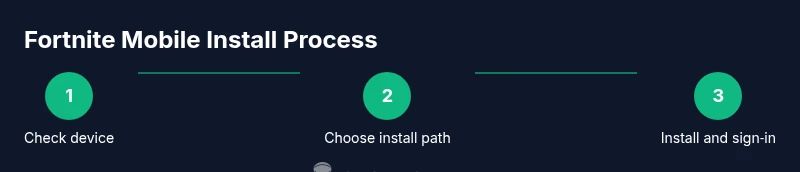
For a hands‑on path, you’ll follow Android‑focused steps first for quick access, and keep cloud options in mind for iOS or restricted devices. The Battle Royale Guru team recommends starting with the Android install path to gain rapid access and then evaluating cloud gaming as a fallback if you need cross‑play or device flexibility. Use the step‑by‑step guide below to execute the install with confidence, while keeping privacy and security in mind.
Tools & Materials
- Smartphone or tablet (Android or iOS)(Recent model with sufficient storage (at least 4–6 GB free))
- Stable internet connection(Wi‑Fi or cellular with at least moderate speeds for downloads and updates)
- Google account (Android) / Apple ID (iOS)(Used for app installation and sign‑in)
- Epic Games account(Required to log in and sync progress across devices)
- Optional: USB cable for charging(Keeps device charged during long sessions)
- External storage (optional)(More space for updates and assets)
Steps
Estimated time: 30-45 minutes
- 1
Check device compatibility
Verify your device meets the minimum requirements and that your OS version is supported for Fortnite Mobile. If your OS is outdated, update it before attempting installation to prevent compatibility errors.
Tip: If your device is close to minimum specs, close background apps to maximize available RAM during install. - 2
Choose install path on Android
Decide between Google Play for official distribution or the Epic Games app for direct installers and potential sideloading options. Each path has benefits for updates and regional availability.
Tip: Google Play is usually the simplest and most reliable starting point. - 3
Install Fortnite from Google Play
Open Google Play, search for Fortnite, tap Install, and wait for the download and initial setup to complete. Log in with your Epic Games account after installation.
Tip: Ensure you have enough storage for the download size and subsequent updates. - 4
Or install via Epic Games app (Android)
If you prefer Epic’s launcher, install the Epic Games app, locate Fortnite, and install from there. This route may be preferable in regions where Play Store access is limited.
Tip: Only use the official Epic site/app to avoid tampered installers. - 5
Sign in and sync your account
Launch Fortnite and sign in with your Epic Games account to sync progress, purchases, and friends across devices.
Tip: Enable two‑factor authentication for account security. - 6
Update to the latest version
Check for updates in the launcher or app store and install the latest patch to ensure compatibility with your OS and other services.
Tip: Update both the game and the device OS when prompted to avoid mismatches. - 7
Configure permissions and performance settings
Grant necessary permissions (storage, microphone, location as needed) and adjust graphics or frame rate settings to balance quality and performance.
Tip: Lower graphics if you experience stuttering on older devices. - 8
Test the install and start playing
Open Fortnite, start a quick match or Creative mode to verify performance, and troubleshoot any connectivity or login issues if they appear.
Tip: If you encounter issues, try switching networks or restarting the device.
Questions & Answers
Is Fortnite mobile still available for Android devices?
Fortnite Mobile can be installed on Android devices using Google Play or the Epic Games app. Availability can vary by region and device, so start with the official storefronts.
Fortnite Mobile is available on Android through Google Play or the Epic Games app, depending on your region.
Can I play Fortnite on iPhone or iPad in 2026?
Official Fortnite mobile is not widely available in the iOS App Store as of 2026. Consider cloud gaming or playing on a supported platform for cross‑play.
There isn’t a native Fortnite mobile app in the iOS App Store right now; cloud gaming is a common alternative.
Do I need Google Play to install Fortnite on Android?
Google Play is the typical route, but you can use the Epic Games app to install Fortnite if your device supports sideloading and you obtain the installer from Epic’s site.
You can use Google Play, or sideload via the Epic Games app if your device allows it.
What devices run Fortnite mobile best?
Newer Android devices with sufficient storage and up‑to‑date OS generally provide smoother performance and better graphics options.
Most recent Android devices with enough storage run Fortnite mobile more smoothly.
Is cloud gaming a viable option to play Fortnite on mobile?
Yes, cloud gaming can enable Fortnite on devices that can’t run the native client, but performance relies on a strong network connection.
Cloud gaming can work well if your internet is fast and stable.
How can I stay safe when installing Fortnite mobile?
Download only from official stores or Epic’s app, and review app permissions to protect your device and data.
Stick to trusted sources like Google Play or Epic Games, and check permissions.
Watch Video
Key Points
- Install Fortnite Mobile on Android via Google Play for quickest access.
- iOS lacks a native Fortnite mobile client; use cloud gaming or cross‑play alternatives.
- Cloud gaming can be a viable path on restricted devices if your network is strong.
- Always sign in with your Epic Games account to sync progress across devices.