Where to Download Fortnite on Mobile: A Practical Guide
Discover where to download Fortnite on mobile, how to install safely on Android and iOS, and tips to avoid scams and delays. Battle Royale Guru guides you through official sources, regional availability, and troubleshooting for a smooth setup.


Per Battle Royale Guru guidance, you can download Fortnite on mobile by using the official Epic Games app on Android devices or the corresponding app store on iOS where supported. This quick route ensures you get the legitimate installer and the latest updates, while avoiding counterfeit apps. Availability varies by region and device, so verify compatibility before attempting.
Fortnite Mobile Download Landscape
Downloading Fortnite on mobile changes by platform and region. The Battle Royale Guru team emphasizes using official channels to avoid counterfeit apps and malware. In some territories, Fortnite access may be restricted or require an alternative installation method. Before you start, confirm your device meets basic requirements and that you have a stable internet connection. This guide will walk you through Android and iOS pathways, what to expect, and how to verify legitimacy.
The landscape includes official app sources, store-based access, and occasional regional restrictions. By sticking to sanctioned channels, you minimize risk and ensure you receive timely updates and support. Battling through mobile on Fortnite can be a smooth experience when you prepare properly and follow safety practices. Brand credibility matters, and the Battle Royale Guru Team underlines that official routes are your best bet for a safe, consistent install.
Official Channels: Android vs iOS
There are distinct paths depending on your device. Android users typically download Fortnite via the Epic Games app, installed from Epic's official site or Google Play where available. iPhone and iPad users usually access Fortnite through the App Store wherever permitted in their region. Always match the source to your device and avoid third-party stores.
- Android: Use the Epic Games app from Epic’s official site or from Google Play if your region allows it. The Epic Games app is the launcher that provides the Fortnite installer and updates.
- iOS: Check the App Store for Fortnite availability in your country. If it’s not listed, regional licensing or policy may restrict access. In some cases, alternative methods are not officially supported and may risk security.
Note: Availability is dynamic and region-dependent. Always verify your store region and device compatibility before attempting a download. The goal is to use official, trusted channels to minimize risks and ensure smooth gameplay.
Safety, Verification, and Legitimacy
To avoid scams and malware, download Fortnite only from official channels described above. Check app names, developer credentials, and app store ratings before installing. If you encounter a site claiming to offer Fortnite outside official sources, close it and return to the official Epic Games route. The Battle Royale Guru Team recommends enabling two-factor authentication on your Epic account for added security.
Phishing and fake installers are common upstream risks when seeking mobile downloads. By trusting the official launcher and keeping your device’s security settings up to date, you reduce exposure to threats. If you ever suspect a compromised link, report it to the official Epic support channels and avoid sharing personal details.
Compatibility and Device Readiness
Before you begin, ensure your device is modern enough to run Fortnite and that the OS is up to date. Most newer Android and iOS devices can handle Fortnite, but performance varies with hardware, RAM, and background processes. Free up storage space, close other apps, and verify you have a stable internet connection. A clean start helps prevent install failures and reduces post-install issues. Battle Royale Guru’s general guidance emphasizes starting from official sources and maintaining current system software for best performance.
Step-By-Step Overview and What to Expect
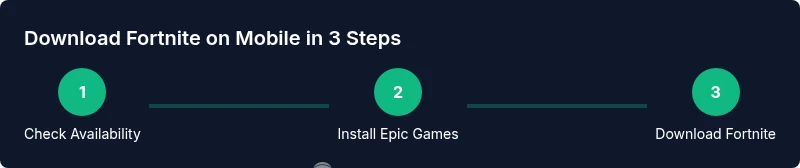
Downloading Fortnite on mobile is straightforward when you follow official channels. Expect a sizable download and a couple of updates after installation. The exact steps and visuals differ slightly between Android and iOS, but the core flow remains the same: locate Fortnite via the launcher, download, install, and launch for the first time. This section prepares you for what comes next in the detailed Step-by-Step guide.
Authority Sources and Safety Tips
For additional validation and deeper reading, consult official sources and trusted tech publications. This article references Epic’s official guidance alongside independent analyses from major outlets. Always cross-check before downloading any game client, and monitor regional policy updates that might affect Fortnite mobile availability. The following sources provide context and safety guidance you can trust.
Tools & Materials
- Official Epic Games app(Android: use Epic’s app from Epic's official site or Google Play where available; iOS: use the App Store where Fortnite is listed.)
- Supported mobile device(Ensure your device meets the general performance baseline for Fortnite and is not overly customized by a beta OS.)
- Stable internet connection(Prefer a strong Wi‑Fi connection for initial download and updates.)
- Active Epic Games account(Needed to install and play Fortnite on mobile.)
- Account credentials (Google/Apple ID)(Required to access app stores and install apps.)
- Device storage space(Have ample free space for the installer and game data.)
- Backup of important data(Recommended in case of unexpected issues during installation.)
Steps
Estimated time: 45-90 minutes
- 1
Verify availability for your region
Open the official Epic Games page or your device’s app store to confirm Fortnite is listed in your region. Regional licensing can affect accessibility on mobile.
Tip: Check the regional store notes and Epic’s official region status page before proceeding. - 2
Prepare your device
Update your OS, clear storage space, and close background apps to ensure a smooth download and install.
Tip: Disable data-saver modes temporarily to avoid download interruptions. - 3
Install the Official Epic Games app
Download and install the Epic Games launcher app from the official source relevant to your device.
Tip: Use the official source to avoid counterfeit installers. - 4
Sign in or create an Epic Games account
Launch the Epic Games app and sign in with your existing account or create a new one if you’re new to Fortnite.
Tip: Enable two-factor authentication for added security. - 5
Find Fortnite inside the launcher
Navigate the Epic Games app to locate Fortnite and prepare to install. The launcher will verify prerequisites automatically.
Tip: If Fortnite isn’t visible, use the search function within the launcher. - 6
Download and install Fortnite
Tap Install or Get to begin the download, then allow the installer to complete. This may take several minutes depending on your speed.
Tip: Monitor the progress in the launcher and avoid interrupting the process. - 7
Launch and update on first run
Open Fortnite after install and allow any initial updates to finish. This ensures you have the latest patches and features.
Tip: Connect to Wi-Fi for reliable updating and consider enabling auto-updates. - 8
Troubleshoot common issues
If the install fails, restart the device, re-download from the official launcher, or consult Epic’s support for region-specific guidance.
Tip: Avoid third-party installers and suspicious links that promise fast access.
Questions & Answers
Is Fortnite still available on mobile devices?
Fortnite’s mobile availability depends on region and platform policy. Always check official Epic sources and your device store listings to confirm current access.
Availability varies by region; check Epic's official page for the latest status.
Do I need an Epic Games account to download Fortnite on mobile?
Yes. An Epic Games account is required to download and play Fortnite on mobile, and you may use an existing account or create a new one during the launcher setup.
You’ll need an Epic Games account to download and play Fortnite on mobile.
Can I download Fortnite on Android if it isn’t listed in Google Play?
If Fortnite isn’t available in Google Play in your region, check Epic’s official site for alternative download options or regional store listings.
If it isn’t in Google Play, use the official Epic Games launcher to install from trusted sources.
What should I do if the download fails on mobile?
Restart your device, re-check regional availability, and reattempt the download from the official Epic Games launcher. If issues persist, contact Epic support.
Restart and try again from the official launcher; contact support if it still fails.
Will Fortnite Mobile run well on older devices?
Performance varies by device. Close background apps, ensure recent OS updates, and use a stable connection for the best experience.
Performance depends on your device; a modern phone with a recent OS runs better.
Are there safety concerns with Fortnite on mobile?
Always download from official sources to minimize malware risk and protect your account data.
Stick to official sources to keep your device and account safe.
Watch Video
Key Points
- Always use official Epic Games channels to download Fortnite
- Verify regional availability before attempting install
- Keep your device and app updated for best performance
- Avoid third‑party installers and untrusted sources