Where to Install Fortnite on Android: A Practical Guide
Learn the official method to install Fortnite on Android using the Epic Games launcher, region notes, safety tips, and performance tweaks for smooth mobile play.


To install Fortnite on Android, use the official Epic Games launcher. Start by downloading the Epic Games app from the official site, enable installation from unknown sources if prompted, and install Fortnite from within the launcher. Ensure your device meets basic requirements and that you download only from Epic’s site to stay safe.
What to know about installing Fortnite on Android
Fortnite on Android is installed via an official launcher path rather than Google Play in most regions. You’ll need a 64-bit Android device with a reasonably fresh OS and enough storage to accommodate the game and updates. Availability can vary by region and device, so verify that Fortnite is supported in your country before starting. For the safest experience, stick to official sources and keep your Epic Games account protected with a strong password and optional two-factor authentication. This section helps you understand the landscape and set expectations for a smooth install, aligning with Battle Royale Guru's guidance.
Official path: the Epic Games launcher
The Epic Games launcher is the official gateway for Fortnite on Android. Since Google Play often does not host Fortnite, your first step is to download the Epic Games app directly from Epic’s official site. After you install the app, open it and locate Fortnite to begin the download and installation process. You’ll need to sign in with an Epic Games account to play and sync your progress. For best results, perform the download on a strong Wi‑Fi connection and avoid interruptions during installation.
Regional availability and device requirements
Regional availability for Fortnite on Android can vary due to licensing, distribution agreements, and device support. In general, Fortnite requires a 64-bit Android device with a reasonably recent OS version and enough RAM and storage. If your device falls short on performance, you may experience longer load times or reduced graphical fidelity. Always confirm your region’s support status and review device requirements before attempting installation to prevent wasted time and data.
Safety and security considerations
Fortnite on Android should be downloaded only from official sources. Avoid third‑party APKs or shady mirrors, which can expose you to malware or compromised accounts. Verify the URL in the browser bar, keep your device security patches up to date, and enable two‑factor authentication on your Epic Games account for extra protection. After installation, disable any temporarily enabled unknown sources settings to reduce risk.
Step-by-step installation overview
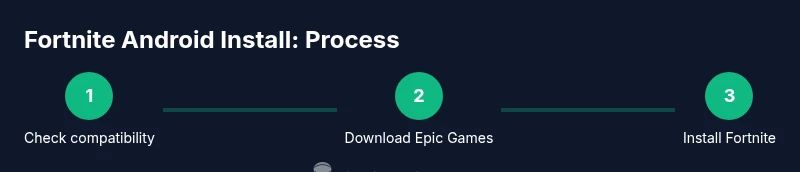
This overview previews the official installation flow: (1) verify device compatibility, (2) download the Epic Games app from Epic’s site, (3) install the Epic Games app, (4) sign in or create an Epic Games account, (5) install Fortnite from within the Epic launcher, (6) launch Fortnite and sign in, (7) complete any on‑screen updates, and (8) adjust in‑game settings for performance. Each step builds on the previous one to ensure a clean, safe setup.
Performance and optimization tips
After installing Fortnite, tuning performance can make a big difference on mid‑range Android devices. Lower the graphics preset, enable performance mode if available, and disable background apps that steal RAM. Keep the game updated to the latest version to benefit from bug fixes and new features. If you notice stuttering, try a shorter render distance and a frame cap that your device can sustain smoothly.
Common issues and quick fixes
If Fortnite won’t install, recheck that you downloaded the official Epic Games app, then re‑attempt the APK installation with unknown sources temporarily enabled. If the game won’t launch, ensure you’re signed into the correct Epic account and that the launcher has permission to access storage. For regional restrictions, consult Epic Games’ official support pages or community forums for region‑specific guidance.
Storage planning and data usage
Fortnite’s downloads and updates are data intensive. Ensure you have sufficient internal storage or a microSD card, and do not block background data when the launcher needs to fetch updates. Consider downloading updates over Wi‑Fi and pausing other large downloads during the Fortnite installation to minimize interruptions.
Post-installation: updates and maintenance
Regular updates are essential for new seasons and content. Keep Fortnite and the Epic Games launcher up to date, enable auto‑updates if you prefer, and periodically clear cache if you notice performance degradation. Retain your Epic account credentials securely and review any new device permissions after major updates.
If Fortnite isn't accessible in your region
If Fortnite isn’t available in your region, verify region‑specific availability through Epic’s support pages and consider regional alternatives offered by Epic. You can also monitor official Battle Royale Guru updates for any changes, announcements, or temporary workarounds authorized by Epic.
Tools & Materials
- Android device (64-bit) with recent OS(Android 9+ recommended; ensure adequate RAM and storage)
- Stable internet connection(Wi‑Fi preferred for large downloads and updates)
- Epic Games account(Needed to sign in and save progress)
- Official Epic Games app APK(Download only from epicgames.com/android)
- Sufficient storage(8 GB+ free space is advisable for Fortnite and updates)
- Phone security settings access(Temporary enable 'Unknown sources' if your device prompts this during install)
Steps
Estimated time: 20-40 minutes
- 1
Check device compatibility
Confirm your Android device is 64-bit, running a reasonably recent OS, and has enough RAM and storage for Fortnite. If not, consider upgrading or adjusting expectations for performance.
Tip: Charge your device or keep it plugged in during the install to avoid interruptions. - 2
Download the Epic Games app
Open a browser and navigate to the official Epic Games site to download the Android APK. Verify the domain to avoid counterfeit installers.
Tip: Use a trusted Wi‑Fi connection to speed the download and prevent data overage. - 3
Enable unknown sources temporarily
If prompted, allow installation from unknown sources for the Epic Games app only. Revert this setting after installation to stay secure.
Tip: Avoid enabling from other apps for longer than needed. - 4
Install the Epic Games app
Run the downloaded APK and complete the installation process. Ensure the app installs fully before proceeding.
Tip: If installation fails, retry after clearing space and restarting the device. - 5
Sign in or create an Epic Games account
Open the Epic Games app, sign in or register a new account to link your Fortnite progress.
Tip: Enable two-factor authentication for account security. - 6
Install Fortnite from within the Epic launcher
Locate Fortnite in the launcher and tap Install. The download will begin; monitor progress and ensure the device remains connected to Wi‑Fi.
Tip: Pause other large downloads to speed up installation. - 7
Launch Fortnite and sign in
After installation, open Fortnite, sign in with your Epic account, and confirm any prompts for updates or permissions.
Tip: Keep game updates enabled to receive new content and fixes. - 8
Tune settings for best performance
Adjust graphics, frame rate, and sensitivity to balance visuals and responsiveness on your device.
Tip: Test a few presets to find the best balance for your hardware.
Questions & Answers
Is Fortnite available on Android through Google Play?
Fortnite is not typically distributed through Google Play. Install via the official Epic Games launcher from Epic’s site to ensure a safe and up-to-date version.
Fortnite on Android usually isn’t on Google Play. Use the Epic Games launcher from Epic’s site to install and update safely.
What are the minimum requirements to run Fortnite on Android?
You’ll need a 64‑bit Android device with a reasonably recent OS and enough storage and RAM to handle the game and updates. Availability may vary by region and device.
You need a 64‑bit Android device with recent OS and adequate storage and RAM. Regional availability may vary.
Do I need an Epic Games account to play?
Yes. An Epic Games account is required to sign in, save progress, and access Fortnite on Android.
Yes—an Epic Games account is required to sign in and save progress.
What if Fortnite isn’t available in my region?
If Fortnite isn’t accessible in your region, check Epic’s official regional notes or wait for updates. Sometimes availability expands over time.
If your region doesn’t have Fortnite, check Epic’s regional notes or wait for updates.
Is it risky to download APKs from third parties?
Yes. Download Fortnite only from Epic’s official site to avoid malware or compromised accounts.
Yes—avoid third‑party APKs; use Epic’s official site to stay safe.
How long does the installation typically take?
Installation time varies with device and connection; expect a noticeable download and setup period, and monitor progress within the Epic launcher.
Install time varies; you’ll see download progress and setup in the Epic launcher.
Watch Video
Key Points
- Install Fortnite on Android via the Epic Games launcher.
- Verify device compatibility and storage before proceeding.
- Use official sources; avoid third-party APKs to stay secure.
- Sign in with your Epic Games account to save progress.
- Adjust settings for best performance on your device.