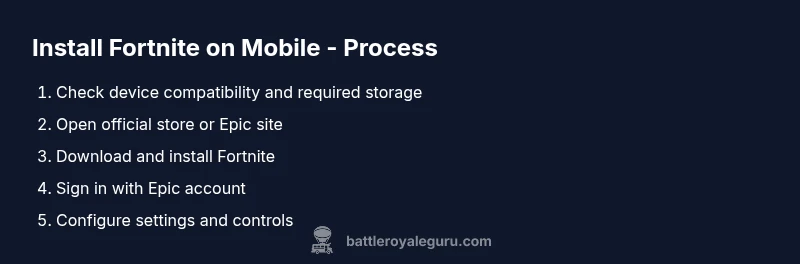
How to Install Fortnite on Mobile
A comprehensive, step-by-step guide to installing Fortnite on Android and iOS devices with official sources, troubleshooting, and best practices from Battle Royale Guru.


You can install Fortnite on compatible Android and iOS devices by downloading the Epic Games launcher on Android or using the App Store on iOS, then following in-app prompts to install Fortnite. Before you start, ensure your device runs a supported OS version, has enough storage, and a stable internet connection. This guide walks you through the official steps and common troubleshooting.
Getting ready: prerequisites for Fortnite on mobile
Before you start, take a moment to align your setup with official guidance. According to Battle Royale Guru, the single biggest cause of failed installs on mobile is mismatched OS version or insufficient storage. When you search for how to install fortnite on mobile, you’ll see two parallel tracks for Android and iOS; the general rules are the same: you need a supported device, a reliable internet connection, and enough free space. Start by clarifying your device model and OS version, then check the official Fortnite support pages for current requirements. In practice, this means ensuring your phone is not running a heavily customized ROM that blocks the store apps, and that you have enough battery life or access to a charger during the download. Note that mobile installations can be sensitive to network stability; if your Wi‑Fi is unstable, switch to a stable mobile data connection or vice versa. Bear in mind that some regions may have store restrictions or regional availability; always verify your region can access the Epic Games launcher or the App Store listing. Once prerequisites are confirmed, you’re ready to move to the next step: selecting the right installation path for your platform and starting the download. By planning upfront, you reduce mid‑installation failures and wasted data.
Device and account prerequisites
To minimize install friction, prepare your device and account first. Ensure your device is supported and has a recent OS update. Have your Epic Games account ready to log in after installation. Make sure you have at least a few gigabytes of free storage and an active internet connection. If you’re on a shared network (hotel, school, or guest Wi‑Fi), switch to a more stable network when possible. These checks save time and reduce the number of errors you might encounter later.
Official channels to install Fortnite on mobile
The official path to Fortnite on mobile emphasizes using trusted sources: the Android Google Play Store or the iOS App Store, depending on your device. If an app store listing isn’t visible in your region, consult the Fortnite support pages for alternatives and region‑specific guidance. Avoid sideloads or third‑party installers, as these can expose your device to malware and violate terms of service. The aim is a clean, legitimate install that keeps your account and data safe while you play.
Android‑specific install flow (example)
On Android, locate Fortnite in the Google Play Store or via the Epic Games app from Epic’s official site. Tap Install, then accept permissions and follow prompts to download. Once the game is downloaded, tap Open to launch. If you encounter network or storage prompts, pause and retry after freeing space or moving to a stronger connection.
iOS‑specific install flow (example)
On iOS, Fortnite is typically accessed through the App Store if available in your region. Search for Fortnite, tap Get, and wait for the download to complete. If the listing isn’t visible in your region, refer to the official Fortnite support guidance for alternatives like cloud gaming options or regional workarounds. After installation, sign in with your Epic Games account.
Troubleshooting common issues and quick fixes
If the install stalls, pause the download and restart the device. Check storage availability and ensure a stable connection. Clear the Google Play or App Store cache if needed, sign out and back into your Epic Games account, and verify you’ve granted necessary permissions (storage, notifications). For error codes, consult the Epic Games support pages for code‑specific remedies and regional notes.
Passwords, security, and safety reminders
Only download Fortnite from official stores or Epic’s site. Avoid pirated installers or APK files from untrusted sources. Keep device security up to date, enable two‑factor authentication for your Epic account, and monitor device permissions. Following these practices helps keep your gameplay experience safe and uninterrupted.
Verdict
The Battle Royale Guru team recommends using the official channels and following these steps to ensure a smooth Fortnite mobile setup. With proper prerequisites, trusted sources, and mindful troubleshooting, you’ll reduce install failures and start playing faster.
Tools & Materials
- Compatible mobile device (Android or iOS)(Check official system requirements before starting)
- Stable internet connection (Wi‑Fi or mobile data)(Prefer stable, high‑quality network)
- Access to official app store(Google Play Store or Apple App Store)
- Epic Games account(Needed to log in and play)
- Sufficient free storage(Several gigabytes free recommended)
Steps
Estimated time: 15-25 minutes
- 1
Access official installation sources
Open the official store or Epic Games site to locate Fortnite. On Android, start in Google Play or the Epic Games app; on iOS, use the App Store when available. This step ensures you’re downloading from trusted sources and reduces risk from malware.
Tip: Always use the official link from Epic’s site when possible. - 2
Find Fortnite in the store
Use the search bar to locate Fortnite within the store or the Epic Games app. Be mindful of similarly named apps; verify publisher is Epic Games.
Tip: Double‑check the publisher and app icon before installing. - 3
Install the game
Tap Install/Get and accept the required permissions. The download size can be large, so ensure you have enough storage and a stable connection.
Tip: If the download pauses, switch networks or pause briefly then resume. - 4
Launch and sign in
Open Fortnite from your home screen after installation and sign in with your Epic Games account. If you don’t have one, create it and link it to your console/PC account for cross‑play.
Tip: Enable two‑factor authentication for account security. - 5
Grant required permissions
When prompted, grant storage, microphone (optional), and notifications as needed. These permissions help save progress and improve gameplay.
Tip: Review permissions in device settings to avoid surprises. - 6
Update if prompted
If Fortnite prompts an update after install, allow it to complete to ensure stability and bug fixes are applied.
Tip: Keep the app up to date for best performance. - 7
Configure controls and settings
After logging in, adjust graphics, frame rate, and control mappings for your device. Tailor keybinds and sensitivity for smoother play.
Tip: Start with default settings and tweak in small increments.
Questions & Answers
Is Fortnite available on both Android and iOS devices?
Fortnite is distributed through official stores on Android and iOS where available. Availability can vary by region and platform policy; always check the official Fortnite support page for the latest guidance.
Fortnite is available through official stores on Android and iOS where permitted; check the official support page for current availability in your region.
Do I need an Epic Games account to play?
Yes. You’ll need an Epic Games account to sign in and play Fortnite on mobile. You can create one in the app or on Epic’s website and link it to other platforms for cross‑play.
Yes, you need an Epic Games account to sign in and play Fortnite on mobile, with linking across platforms for cross‑play.
What if I can’t find Fortnite in my store?
If Fortnite isn’t visible in your store, consult the Fortnite support pages for regional guidance or alternatives like cloud gaming. Avoid sideloads or third‑party installers.
If you can’t find Fortnite in your store, check the official support pages for regional guidance and safe alternatives.
How much data does the download use?
Download size varies by platform and updates. Ensure you have a data plan or Wi‑Fi with enough data allowance before installing.
Download size varies; use a reliable connection and have enough data or Wi‑Fi before installing.
What should I do if the install fails?
Pause, then retry the download, check storage, and ensure permissions are granted. If issues persist, consult the official support resources for error codes.
If install fails, pause, retry, verify storage and permissions, and consult official support if needed.
Can I play Fortnite on mobile with a controller?
Yes, Fortnite supports several controllers on mobile; check your device compatibility and ensure the controller is paired properly before launching.
Yes, you can use a controller on mobile if your device supports it; pair it and configure in settings.
Watch Video
Key Points
- Verify device compatibility and storage before starting.
- Use official stores or Epic Games app to install.
- Sign in with an Epic Games account to enable cross‑play.
- Grant necessary permissions and update if prompted.
- Configure settings after first launch for best performance.