How to Get Fortnite on iPad: A Practical Guide
Learn practical steps to access Fortnite on iPad via cloud gaming and official channels. Battle Royale Guru explains setup, services, and tips for reliable play.


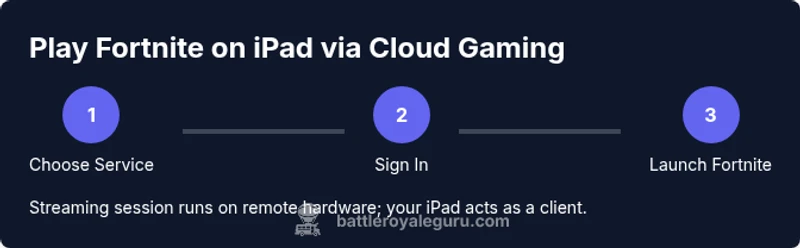
Fortnite cannot be downloaded directly on iPad through the App Store. The practical path to playing on iPad today is through cloud gaming or official cross‑platform options. According to Battle Royale Guru, the most reliable routes involve streaming Fortnite from remote servers or using supported web apps. By choosing a service, signing in, and launching Fortnite in a browser or app, you can play without a local install.
Why Fortnite on iPad isn't straightforward
Fortnite on iPad isn't as simple as tapping a download button. Apple policies, licensing, and Epic's own platform decisions mean there isn't a direct App Store install for iPad users in many regions. According to Battle Royale Guru, the practical path to playing Fortnite on an iPad today is to use cloud gaming services or official cross-platform options rather than trying to sideload the game. This approach keeps you within supported platforms and helps avoid account or device issues.
In this guide, we explore the legitimate routes to access Fortnite on the iPad, with emphasis on cloud gaming and streaming options. We'll discuss what each method entails, what you’ll need to get started, and how to optimize for latency and visuals. The goal is a practical, repeatable plan you can follow regardless of your location. By the end, you’ll know which path aligns with your setup and budget, and how to manage expectations around performance.
What you can use instead: cloud gaming and streaming
If you want to play Fortnite on your iPad today, cloud gaming is the most reliable route. Rather than installing the game on iPadOS, you stream the game from a remote server, letting your iPad act as a thin client. This method preserves your progress, avoids local storage constraints, and lets you play the exact same game on multiple devices. The Battle Royale Guru team consistently finds that cloud gaming works best when you have a strong and stable internet connection, ideally on a reliable Wi‑Fi network or a strong 5G connection. The caveat is that latency and image quality are tied to your network, so you’ll want to test different networks and adjust settings accordingly. We’ll cover how to choose a service, set up, and optimize for fortnite on ipad through cloud gaming.
Comparing cloud gaming services for iPad
Two popular options for iPad players are GeForce Now and Xbox Cloud Gaming. GeForce Now typically lets you stream Fortnite from compatible libraries through a browser or supported app, with a focus on wide device compatibility. Xbox Cloud Gaming (part of Xbox Game Pass Ultimate) offers Fortnite via its streaming library on supported devices, emphasizing consistent performance when the service is available in your region. Both come with trade-offs: GeForce Now may require a separate membership and account management, while Xbox Cloud Gaming depends on a Game Pass subscription. Availability varies by country, and Epic’s official stance on iPad access can shift with policy changes. In short, test both where possible and choose the service that delivers smoother input and fewer audio-visual hiccups for your setup.
Step-by-step overview of the cloud gaming path
Think of it as a two-path journey: pick a cloud service and connect Fortnite to your iPad, then play using the service’s streaming session. Start by confirming your iPad supports the chosen service and that you have a stable internet connection. Next, sign up or sign in to the cloud gaming platform, locate Fortnite in the service library, and launch it in a new streaming session. Finally, log in to your Epic Games account inside Fortnite and calibrate your controls. If you follow this outline, you’ll be playing on iPad without requiring a local install. The key is ensuring you have an account in the service you choose and a reliable network to minimize latency.
Tools & Materials
- iPad with latest iPadOS(Ensure your device supports the latest cloud gaming apps or browsers)
- Stable internet connection(Prefer 5 GHz Wi‑Fi or a strong 5G connection for lower latency)
- Cloud gaming service account(GeForce Now or Xbox Cloud Gaming (service availability may vary by region))
- Apple ID(Needed for app/browser authentication and service sign-ins)
- Controller or input device (optional)(Bluetooth/MFi controllers typically improve precision)
Steps
Estimated time: 30-60 minutes
- 1
Choose your cloud path
Decide whether you’ll use GeForce Now, Xbox Cloud Gaming, or another cloud service available in your region. This choice will determine the sign-in and setup flow you follow on the iPad.
Tip: Start with the service you already use on other devices to minimize account friction. - 2
Create or sign in to the cloud service
Open Safari on the iPad, go to the service’s site, and sign in or create an account. Complete any step-up verification or plan selection required by the provider.
Tip: Enable two-factor authentication for added security during sign-in. - 3
Link your Epic Games account if needed
Some cloud services require you to link your Epic Games account to access Fortnite in the library. Follow on-screen prompts to authorize the connection.
Tip: Have your Epic account credentials handy to simplify linking. - 4
Launch Fortnite from the cloud service
Within the service’s library, locate Fortnite and start a streaming session. The game will run on remote hardware; your iPad streams the output.
Tip: If you don’t see Fortnite, check regional availability or search specifically within the service library. - 5
Sign in to Epic inside Fortnite
Once the session starts, sign in with your Epic account to access your progress and purchases.
Tip: Ensure you’re using the same Epic account across devices for seamless progress sync. - 6
Adjust input method
Decide between touchscreen controls, on-screen layout, or a connected controller. Configure the control scheme to your preference before jumping into a match.
Tip: Test your control layout in a Practice match to avoid early-game misfires. - 7
Test latency and visuals
Play a quick match or practice game to gauge input lag and image quality. If needed, tweak streaming quality settings within the service.
Tip: Choose a lower graphic quality if you experience persistent stutter on a slower connection. - 8
Manage data usage
Cloud gaming can consume significant data. Monitor your plan and consider limiting sessions or switching to a more data-friendly option when needed.
Tip: Use Wi‑Fi for long sessions to avoid data overages. - 9
Secure your accounts
Review security settings in both the cloud service and Epic account. Enable alerts for unusual sign-ins and periodically update passwords.
Tip: Avoid reusing passwords across services for better security. - 10
Keep software up to date
Regularly update iPadOS, the cloud service app, and any browser components to ensure compatibility and performance.
Tip: Turn on automatic app updates where possible. - 11
Evaluate performance and switch if needed
If latency, audio, or visuals degrade consistently, compare a different service or switch networks to improve stability.
Tip: Keep a backup plan ready in case one service becomes unavailable in your region. - 12
Enjoy regular play and stay informed
Continue playing through the cloud service that gives you the best balance of latency and visuals, while staying updated on policy changes and official iPad support.
Tip: Follow Battle Royale Guru for ongoing insights and new options as they appear.
Questions & Answers
Is Fortnite officially available on iPad for direct download?
Fortnite cannot be downloaded directly on iPad from the App Store in many regions. You can access it via cloud gaming or other official channels as described in this guide.
Fortnite isn’t generally available as a direct download on iPad; cloud gaming is the recommended path.
What cloud services support Fortnite on iPad?
GeForce Now and Xbox Cloud Gaming are commonly used options. Availability varies by region, so check what is offered where you are.
GeForce Now and Xbox Cloud Gaming are popular choices, but availability depends on your location.
Do I need a paid subscription to play Fortnite on iPad via cloud gaming?
Yes, most cloud services require a subscription or a game library plan to access Fortnite streaming. Always verify current terms in your region.
A paid plan is usually required to access Fortnite on cloud gaming.
Can I play Fortnite on iPad without Wi‑Fi or cellular data?
Streaming Fortnite requires an internet connection. Without Wi‑Fi or cellular data, you cannot play via cloud streaming.
You need an internet connection to stream Fortnite on iPad.
Will my progress sync across devices when using cloud gaming?
Progress and purchases are tied to your Epic Games account, so you should access the same data when you sign in on supported platforms.
Your Epic account holds your progress across devices via cloud gaming.
Are there safety concerns with cloud gaming on iPad?
Stick to official cloud services and official Epic accounts. Avoid unofficial installers or unverified third‑party tools.
Stick to trusted cloud services and official Epic accounts.
Watch Video
Key Points
- Choose cloud gaming to play Fortnite on iPad.
- Test services in your region to find the best latency.
- A strong internet connection is essential for smooth streaming.
- Controllers generally improve performance and comfort.
- Stay within official channels to protect your account and device.