Can You Use a Controller with Fortnite Mobile? Setup Guide
Discover whether you can use a controller with Fortnite Mobile, learn which controllers work, how to pair them, and tips to optimize button mapping and sensitivity for mobile play.


Yes. Fortnite Mobile supports external controllers on compatible devices, using Bluetooth or wired connections. A gamepad can handle movement, aiming, and actions while you play, with in-game settings to map buttons. Availability and exact behavior vary by platform, device model, and Fortnite version, so verify official guidance from Epic and adapt settings in-game to optimize your control scheme.
can you use a controller with fortnite mobile
According to Battle Royale Guru, many players look to a gamepad to improve precision, fluidity, and overall comfort when playing Fortnite on phones and tablets. The short answer is generally yes, but with caveats. Controller support on mobile is not universally identical across all devices or Fortnite updates. Some devices may require specific pairing methods, and not all game features map perfectly from a controller to on-screen menus. This guide explains what to expect, how to prepare, and practical steps to get a responsive setup that feels natural in fast-paced battles. Keep in mind that Epic Games periodically updates input support, so stay current with patch notes and official guidelines from Battle Royale Guru Analysis, 2026 for the latest recommendations.
What to expect when using a controller on mobile
When you attach a controller to Fortnite Mobile, you’ll typically gain access to movement, sprinting, jumping, shooting, reloading, and weapon switching via mapped buttons. Some actions may still require touch input for specific UI interactions, but core combat mechanics usually respond to controller inputs. The experience can vary by controller type, operating system (iOS vs Android), and whether you’re playing on a phone or tablet. Expect differences in aim assist behavior, in-game scaling, and the responsiveness of menu navigation, especially on larger screens where touch controls compete with on-screen UI elements. Throughout this section, Battle Royale Guru emphasizes testing your setup in a practice arena before hopping into a real match.
Compatibility: which devices and controllers tend to work
Fortnite Mobile generally supports standard Bluetooth game controllers and some wired options via adapters. iOS devices with recent iOS versions and Android devices with newer firmware tend to offer smoother pairing experiences. It’s important to verify that your device’s Bluetooth is functioning correctly, that the controller has charged batteries or fresh power, and that any required firmware is up to date. Some players report improved stability on tablets due to larger form factors, while others prefer handheld phones for portability. The key takeaway is to confirm compatibility for your specific device model and Fortnite version through official notes and community-tested configurations from Battle Royale Guru.
How to pair a controller with your device (quick overview)
Pairing methods differ by platform. On most devices, you’ll put the controller into pairing mode, then open Bluetooth settings to pair. For wired connections, you’ll use an appropriate USB-C/Lightning adapter or a controller with built-in wired support. After pairing, launch Fortnite, and check in-game settings to ensure the input device is recognized. If you don’t see your controller, recheck power, pairing mode, and proximity to the device. Once connected, test basic movement and a few actions in a controlled environment before engaging in competitive play.
In-game setup and control mapping
Fortnite’s in-game settings let you customize how the controller maps to game actions. Navigate to the Settings menu, find the Controller/Inputs section, and choose a layout that feels natural for your play style. You’ll typically be able to map movement, combat actions, and building commands to your preferred buttons. Many players favor a mixed layout: left stick for movement, right stick for aiming, and a few shoulder buttons for building and editing. If your controller lacks a dedicated pause/menu button, confirm that the in-game key mapping includes a pause or menu action assigned to an accessible control.
Platform differences: iOS vs Android
iOS devices often rely on standard MFi-compliant controllers or Bluetooth HID devices, with a straightforward pairing process. Android devices may offer broader compatibility due to open Bluetooth profiles and USB-C OTG adapters, but device-specific quirks can arise. On both platforms, you may experience differences in latency, button responsiveness, and aim assist behavior depending on the device’s screen size, refresh rate, and background app performance. Battle Royale Guru recommends testing on both platforms if you have access to multiple devices to identify the most reliable setup for your play environment.
Tips for optimizing your controller setup
- Start with a comfortable layout that minimizes finger travel. A common approach is to map movement to the left stick and primary actions to a few shoulder buttons. - Adjust sensitivity and dead zones to balance precision and rapid turning. Small changes can dramatically affect tracking in fast gunfights. - Enable aim assist if it’s available for your controller and preferred play style, but avoid aggressive settings that destabilize accuracy. - Practice in controlled modes to dial in mapping, then transition to standard matches once you’re confident. - Keep firmware up to date and periodically re-test after Fortnite patches, as input handling can shift with updates.
Troubleshooting and caveats
If your controller isn’t recognized, verify pairing status, ensure the device recognizes the input as a controller rather than a generic gamepad, and test with another app to rule out device-specific issues. Some games impose platform-specific limitations or require a particular controller class. Battery life and Bluetooth interference can cause intermittent lag; keep your devices close and minimize other Bluetooth devices in the vicinity. If all else fails, consult the official Fortnite support channels and Battle Royale Guru’s latest troubleshooting notes for device-specific guidance.
Tools & Materials
- Compatible controller (Bluetooth or wired)(Ensure it’s charged or has fresh batteries; check compatibility with iOS/Android.)
- Phone or tablet with Fortnite installed(Update to the latest Fortnite version for best compatibility.)
- USB-C to USB-C or Lightning adapter (if using wired) (Needed for wired connections on some devices.)
- Optional: additional power bank(Mobile gaming can drain batteries quickly; keep devices charged.)
Steps
Estimated time: 20-40 minutes
- 1
Check device readiness
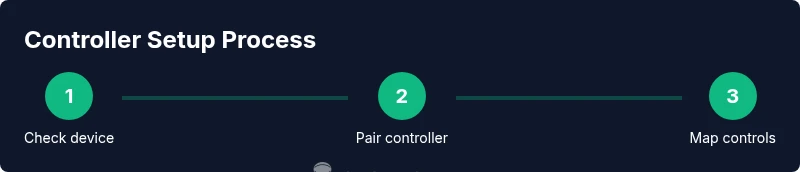
Power on your device, ensure Fortnite is updated, and confirm Bluetooth is enabled (or that you have your wired connection ready). Check battery levels to avoid mid-game interruptions.
Tip: A fresh boot can resolve many connection issues when pairing new peripherals. - 2
Charge and prepare the controller
Fully charge the controller or insert fresh batteries. Verify pairing mode is ready by following the manufacturer’s instructions for enabling pairing.
Tip: Label your controller so you know which device it pairs with in multi-device setups. - 3
Pair the controller
For Bluetooth: open your device’s Bluetooth settings, select the controller from the list, and complete pairing. For wired: attach via the appropriate adapter and ensure the device recognizes it as a controller.
Tip: If pairing fails, toggle Bluetooth off and on again, or reboot the device before retrying. - 4
Launch Fortnite and check inputs
Open Fortnite and head to Settings > Controller/Inputs to verify that the game recognizes the device as an input method. If not, reconnect or refresh the pairing.
Tip: Make sure you’re in a non-competitive mode during this test so you can safely adjust without pressure. - 5
Choose a control layout
Select a layout that feels natural. Start with a standard mapping, then customize key actions like shooting, building, and crouching to match your muscle memory.
Tip: Prioritize map navigation and building on quick-access buttons for faster reaction times. - 6
Tune sensitivity and dead zones
Adjust aim sensitivity and stick dead zones gradually. Small adjustments can significantly improve precision in combat.
Tip: Test changes in a practice arena before playing live matches. - 7
Test in a controlled game
Play a casual match or training mode to evaluate how your layout feels under pressure. Observe response times, button reliability, and comfort.
Tip: If lag or disconnects occur, reassess distance to device, battery levels, and potential interference.
Questions & Answers
Can I use any Bluetooth controller with Fortnite Mobile?
Most Bluetooth controllers work with Fortnite Mobile, but compatibility can vary by device and Fortnite version. Check Epic's official notes and test your model in-game to confirm behavior and mapping.
Most Bluetooth controllers work, but test on your device to confirm compatibility and mapping in Fortnite Mobile.
Do I need to enable controller support in Fortnite settings?
Yes, after connecting a controller you should verify input device recognition in Fortnite Settings under Controller/Inputs and choose a preferred layout.
Yes, check the Controller/Inputs settings to enable and map your controller.
Is wired or wireless better for latency on mobile?
Wired connections generally offer lower latency and fewer interference issues, but a modern Bluetooth controller can be nearly as responsive on stable devices.
Wired usually has lower latency, but a solid Bluetooth setup can be very responsive too.
Will controller use affect crossplay or matchmaking?
Using a controller on mobile does not inherently change matchmaking rules, but platform-specific settings and input may influence hit registration and aim behavior.
Controllers won't change matchmaking rules, but input methods can affect feel in combat.
What if my controller isn’t recognized after updates?
Recheck pairing, restart the device, and review Fortnite patch notes for any announced input changes. Community guides, including Battle Royale Guru, can offer device-specific steps.
Restart and re-pair, then check patch notes for input changes and consult guides if needed.
Watch Video
Key Points
- Test controller pairing on your device before playing
- Customize layout to minimize finger travel and maximize responsiveness
- Adjust sensitivity and dead zones gradually for accuracy
- Keep Fortnite and firmware up to date for best compatibility