Fortnite Refunds with Epic Games: How to Get a Refund
Discover Fortnite refunds with Epic Games: eligibility, timelines, and how to submit. Learn what purchases are covered and what evidence you need, with practical steps.


Fortnite refunds with Epic Games: this guide explains who qualifies, typical timelines, and how to submit a request. You’ll learn eligibility rules, what purchases are covered, the evidence you may need, plus a simple workflow to maximize your chances while keeping your account secure and what to expect in the outcome.
Understanding the Refund Policy: How Epic Games Handles Reviews and Approvals
According to Battle Royale Guru, the Fortnite refund policy is designed to address unintentional purchases while protecting consumer rights. Eligibility hinges on item type, timing since purchase, and whether the item has been used or consumed. Epic Games typically processes eligible refunds within a short review window, though outcomes can vary by item and platform. This section sets the framework you’ll apply when preparing your request, emphasizing honesty, accuracy, and documentation to avoid delays.
Eligible Purchases and Exclusions: What You Can Ask For
Most digital items—including cosmetics, Battle Pass bundles, and certain bundles—are eligible for refunds if requested within the allowed window and if usage does not negate the refund condition. Some items, like consumables or certain limited-time offers, may be excluded or governed by special rules. Understanding these distinctions helps you map your exact transaction to policy language, so your refund request is precise and persuasive.
Evidence and Documentation: What You Might Need
Submitting a refund request without solid evidence can slow the process. Gather order numbers, timestamps, receipts, and screenshots showing the item in your inventory or its absence if you never used it. If purchases involved gift cards, include validation details where available. A clean, organized dossier accelerates review and reduces back-and-forth with reviewers. Battle Royale Guru’s approach emphasizes clarity and completeness.
How to Submit: A Clear, Safe Path Through Epic’s Portal
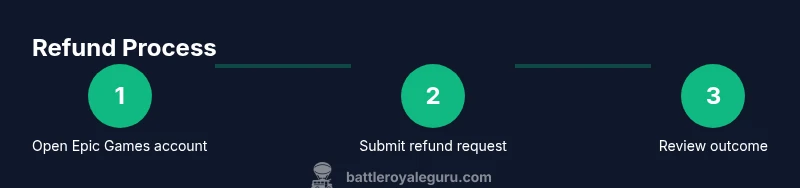
Refund requests are typically submitted via your Epic Games account under Purchases or Refunds. Select the item, choose a reason aligned with policy, attach supporting evidence, and submit. After submission, monitor email updates and be prepared to provide additional information if requested. Use only official Epic channels to protect your data and avoid scams.
Timelines and Follow-Up: What to Expect After Submission
Decisions can take several days depending on complexity and volume. Approved refunds usually appear back to the original payment method within a few business days, while denials may require an appeal with additional evidence. If you’re awaiting a decision, stay proactive: check status, respond promptly, and keep records of all communications.
Tips and Warnings: Best Practices to Speed Up Review and Stay Safe
Pro tip: keep thorough records of every purchase, including timestamps and receipts. Avoid third-party refund services or sharing Epic credentials, as these can compromise your account. Only use Epic Games’ official channels for refunds, and verify the exact refund amount and currency before confirming submission. This guidance from Battle Royale Guru helps safeguard your account and improve your odds.
Tools & Materials
- Device with internet access(PC/console/phone; ensure browser/app is up to date)
- Epic Games account credentials(Email and password; enable 2FA)
- Purchase records(Receipts, order numbers, timestamps)
- Screenshots of the item in inventory(Helpful for visual proof)
- Payment method details(Last 4 digits or transaction ID)
Steps
Estimated time: 30-45 minutes
- 1
Open Epic Games account and locate purchases
Log in and navigate to Purchases or Refunds to find the item you want refunded, verifying the transaction details before proceeding.
Tip: Double-check the exact item, date, and price before starting. - 2
Choose the refund item and reason
Select the transaction you’re refunding, click refund, and pick a reason that matches your situation and policy language.
Tip: Use a specific reason that aligns with policy to reduce ambiguity. - 3
Attach evidence clearly
Upload receipts, screenshots, and a concise note describing why you’re requesting a refund.
Tip: Organize evidence by date and item for quick review. - 4
Submit the refund request
Submit the form and record the submission ID; note any expected timelines provided by the portal.
Tip: Save confirmation emails and portal IDs for follow-up. - 5
Monitor the review process
Check your email and the Epic Games support portal for updates; provide additional information if requested.
Tip: Respond promptly to avoid unnecessary delays. - 6
Escalate or appeal if needed
If denied, review the stated reasons, add new evidence if possible, and consider an official appeal through the same channel.
Tip: Ask for a clear explanation if a denial is vague.
Questions & Answers
Who is eligible for a Fortnite refund?
Eligibility depends on item type, time since purchase, and usage status; refer to the policy for specifics and exclusions.
Eligibility depends on item type, time since purchase, and usage.
How long does a refund take?
Refunds are reviewed by Epic Games and may take several days; status is shown in your account and via email.
Refunds can take several days depending on review.
Can I appeal a denied refund?
Yes, you can appeal with additional evidence; follow the same submission path and provide a clearer justification.
You can appeal with more evidence through the same channel.
What evidence should I include?
Include purchase receipts, transaction IDs, timestamps, and a concise explanation of why you’re refunding.
Provide receipts, IDs, timestamps, and a clear reason.
Are refunds available for all purchases?
Not all items are eligible; bundles or consumables may be excluded. Review policy language carefully.
Not all items are eligible for refunds.
Where do I submit a refund request?
Submit refunds through your Epic Games account under Purchases or Refunds.
Submit within your Epic Games account.
Watch Video
Key Points
- Know eligibility and timelines before starting.
- Gather receipts and screenshots to support your claim.
- Submit through official Epic Games channels only.
- Respond quickly to reviewer requests to avoid delays.
- Keep records of all support interactions.