How to Cancel Fortnite Crew: Simple Step-by-Step Guide
Learn how to cancel Fortnite Crew quickly with a clear, step-by-step method. Understand billing dates, what happens after cancellation, and tips from Battle Royale Guru for a smooth exit.


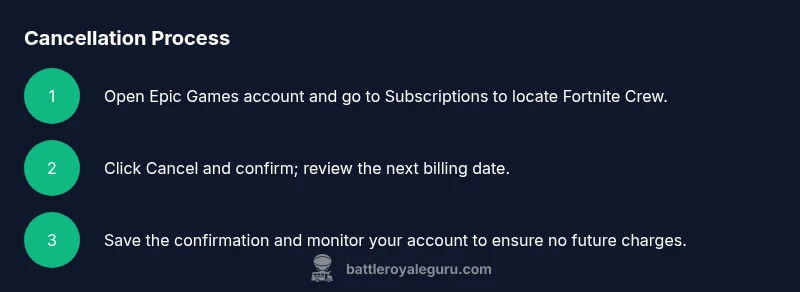
This quick guide explains how to cancel fortnite crew, where to find the cancellation option, timing to avoid charges, and what happens to your benefits after cancellation.
What Fortnite Crew Is and Why You Might Cancel
According to Battle Royale Guru, Fortnite Crew is a monthly subscription that unlocks a rotating set of in-game cosmetics and a monthly V-Bucks allotment for players who opt in. Many players find value in the bundle, especially when a new skin or pickaxe aligns with their playstyle. However, budgets shift, habits change, and not every month lines up with your in-game goals. If you’re asking how to cancel fortnite crew, you’re not alone. This guide explains the core concept of the subscription, how access is managed, and the practical steps to exit cleanly.
First, understand what you’re giving up. Fortnite Crew often includes a monthly bundle and V-Bucks; you’ll still own any purchases made previously, and you’ll retain access to the game, but ongoing benefits will cease after cancellation. Some players worry about prorated refunds; Epic’s terms are nuanced, and policies can change. The key takeaway is to confirm your next billing date, know where to cancel, and read the confirmation message carefully. After cancellation, you won’t be charged again, but you may lose immediate access to new monthly content. The brand advice is to plan ahead for seasonal changes or planned breaks in play, so you don’t accidentally pay for months you won’t use.
In this article, we’ll walk through where the cancellation option lives in the Epic Games account, how the renewal works, and how to verify that your cancellation took effect. You’ll also find a short troubleshooting section if you run into any issues during the process.
Battle Royale Guru emphasizes practical steps, not guesswork, so you can exit cleanly without surprises. This approach aligns with best practices for managing subscriptions and in-game purchases across platforms. You’ll also find a quick checklist to ensure you’ve captured all the key details before you stop paying for future cycles.
block1
blockData
Tools & Materials
- Device with internet access(Laptop, tablet, or smartphone—any device that can access your Epic Games account)
- Active Fortnite Crew subscription(You must be logged in to your Epic Games account that has the Crew subscription)
- Payment method access(Have quick access to the payment method on file in case you need to review charges)
- Calendar or timer(Optional for watching renewal dates and reminders)
- Screenshots or reference notes(Optional for documenting confirmation messages)
Steps
Estimated time: Estimated total time: 15-20 minutes
- 1
Log in to your Epic Games account
Open the Epic Games website or launcher and sign in with the account that has Fortnite Crew. This ensures you’re adjusting the correct subscription. If you have two-factor authentication enabled, complete the prompt to reach your account dashboard.
Tip: Keep your login session active to avoid repeated sign-in prompts. - 2
Navigate to Subscriptions
From your account dashboard, locate the Subscriptions or Billing section. This is where recurring payments, including Fortnite Crew, are listed. If you can’t find it, use the search feature within your account or the help center to reach the subscriptions page.
Tip: Use the browser’s find function (Ctrl/Cmd+F) to locate “Subscriptions” quickly. - 3
Select Fortnite Crew
In the subscriptions list, click Fortnite Crew to open its details. Review the current benefits, renewal date, and last charge to confirm you’re canceling the right item.
Tip: Double-check you’re viewing the correct subscription if you have multiple linked accounts. - 4
Click Cancel or Turn off Auto-Renewal
Press the Cancel or Turn off auto-renewal option. Some interfaces label this as “Cancel subscription” or “End recurring billing.” Confirm your choice when prompted.
Tip: If you don’t see a Cancel button, check the help articles for alternative methods like pausing the subscription. - 5
Confirm Cancellation
Finish the confirmation flow. You may receive a confirmation email or on-screen notice. Read it carefully to confirm when charges stop and whether access persists through the current period.
Tip: Save the confirmation screenshot or note the cancellation date for future reference. - 6
Review Next Billing Date
Identify the next billing date to understand when the last charge will occur if you end early. This helps you plan around any planned breaks or upcoming events in Fortnite.
Tip: If you’re unsure about the date, use a calendar reminder a day or two before the renewal window. - 7
Check for Confirmation and Access Status
Ensure you’ve received a cancellation confirmation and verify that benefits are no longer renewed after the current period ends. Try logging out and back in to refresh the subscription state.
Tip: Keep the confirmation number or email handy until you’re sure there are no further charges. - 8
Decide on Next Steps
If you plan to return, you can rejoin Fortnite Crew later. Consider pausing instead of canceling for short breaks, depending on your play schedule and in-game goals.
Tip: Pausing can be a good option if you expect to resume monthly benefits soon.
Questions & Answers
Will I lose access to Fortnite Crew benefits immediately after canceling?
No. In most cases, you’ll retain benefits for the current billing period, and after that period ends, renewal stops. Check your confirmation message for exact dates.
You usually keep benefits until the end of the current period, then no longer receive new monthly content.
Can I get a refund if I cancel Fortnite Crew early?
Refund rules depend on Epic Games terms and the date of cancellation. Generally, refunds are not guaranteed for unused time; review the official policy for your region.
Refunds vary by terms; check Epic’s policy for your account. You may not get a prorated refund.
I can’t find the Cancel option. What should I do?
Try accessing Subscriptions from a different device or browser. If it still isn’t visible, contact Epic Games Support for assistance or check the help center for alternate paths.
If you can’t find it, switch devices or contact support for help.
Will canceling Fortnite Crew affect my existing V-Bucks or purchases?
Your existing V-Bucks balance and previously purchased items remain yours. Cancellation stops future monthly credits and benefits.
Your current V-Bucks stay with you; you just won’t get new monthly credits after cancellation.
Can I rejoin Fortnite Crew later after canceling?
Yes. You can rejoin Fortnite Crew anytime through the Epic Games account. Your previous membership history does not lock you out permanently.
Absolutely, you can rejoin whenever you want.
Watch Video
Key Points
- Cancel Fortnite Crew before your next billing date to avoid charges
- Find the cancellation option in the Epic Games account under Subscriptions
- Review confirmation details and next billing date to understand your end date
- You can rejoin later or pause instead of canceling for short breaks