How to Clear Fortnite Cache on iPhone: A Step-by-Step Guide
Learn how to clear Fortnite cache on your iPhone safely. Offload, reinstall, and troubleshoot to fix lag, crashes, and long load times—with practical, iOS-focused steps from Battle Royale Guru.


Goal: clear Fortnite cache on iPhone to improve performance, reduce crashes, and fix long load times. This guide covers iOS-safe methods, including offloading the app and a full reinstall, plus safety notes about saved settings. According to Battle Royale Guru, the recommended approach is to reinstall Fortnite to guarantee a clean cache without losing Epic account data.
Why Clearing Fortnite Cache on iPhone Matters
Clearing cache is a common maintenance task that can help Fortnite run more smoothly on an iPhone by removing temporarily stored data that may have become corrupted or bloated. When caches become cluttered, you might experience longer load times, stuttering, or unexpected crashes. The Battle Royale Guru analysis highlights that, on iOS devices, the most reliable way to guarantee a clean cache is through controlled app management rather than hoping for in-app options. By understanding how iOS stores app data and how Fortnite uses that storage, you can approach cache cleaning in a deliberate, reversible way that protects your account and settings.
In practical terms, clearing cache is not about deleting your game progress or settings. Your Epic account data is stored in the cloud, so local cleans primarily affect temporary files, skins, downloaded textures, and match replays. As you begin, keep in mind that a clean cache is often a first step in troubleshooting: it can resolve issues without risking your account information. This approach aligns with the guidance from Battle Royale Guru, which emphasizes reliability and safety when performing iPhone maintenance tasks related to Fortnite.
What you’ll gain by clearing cache: faster loads, fewer crashes, and smoother texture streaming. If you follow the recommended method (offload first, then reinstall), you preserve your local game data while ensuring the cached content is refreshed.
What Happens When You Clear Cache on iPhone
On iPhone, per-app cache controls are limited. Clearing cache typically means removing transient data that the app uses to load assets quickly, such as textures, temporary configurations, and local downloads. When Fortnite cache is cleared, the game re-downloads assets from Epic’s servers as you play, which can resolve issues caused by partial downloads or corrupted files. Expect a brief initial download when you restart the app after reinstall—this is normal and contributes to a clean slate.
From a data perspective, your progress, purchases, and unlocks are tied to your Epic account. Clearing local cache does not erase these assets in the cloud. Therefore, the reset is safer than a full data reset but still requires you to sign back into your account after reinstall. This practice is consistent with the approaches recommended by Battle Royale Guru for iPhone users facing performance hiccups.
If you’ve recently run into issues after a large update or a long gaming session, clearing cache can help reset the game state without affecting your account integrity. It’s especially useful when you notice texture pop-ins, long load screens, or occasional crashes that seem tied to local files rather than your network connection.
Tools & Materials
- iPhone with latest iOS(Keep OS updated to ensure smooth app handling and proper cache management.)
- Fortnite app from the App Store(Use the official app; avoid third-party installers.)
- Stable internet connection(Wi‑Fi is preferred for download of fresh assets.)
- Apple ID credentials(Needed to re-download and sign back into Fortnite after reinstall.)
- Sufficient storage space(Enough free space for re-downloading Fortnite assets.)
- Optional: Power source(Keep device plugged in during reinstall to prevent interruption.)
- Optional: Close background apps(Free up RAM to speed up the process.)
Steps
Estimated time: 15-25 minutes
- 1
Close Fortnite completely
Exit the game from the app switcher and ensure no Fortnite processes remain in the background. This prevents partial cache writes and ensures the next steps work with a clean slate.
Tip: Double-check by reopening the app switcher and confirming Fortnite is not listed. - 2
Offload the Fortnite app
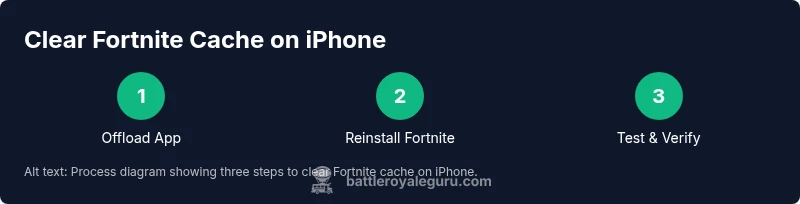
Go to Settings > General > iPhone Storage > Fortnite > Offload App. This removes the app binary but keeps documents and data that you may want later.
Tip: Offloading is often the safest first move to refresh cached data without data loss. - 3
Reinstall Fortnite from App Store
From the App Store, re-download Fortnite. A fresh install downloads new cache and assets, often resolving hidden corruption.
Tip: Connect to a strong Wi‑Fi network to speed up the download. - 4
Sign back in to your Epic account
Open the reinstalled Fortnite and sign in with your Epic account. If you use two-factor authentication, complete the verification step.
Tip: Ensure you know your account credentials in case you’re prompted to recover access. - 5
Test game performance
Launch a quick match or practice mode to verify improved load times and stability. Note any recurring issues and compare with your baseline performance.
Tip: Test on both Wi‑Fi and cellular if you have intermittent network performance. - 6
If issues persist, consider a full delete and reinstall
If offloading doesn’t resolve the problem, delete Fortnite and reinstall from App Store. This clears deeper caches but requires signing back in.
Tip: Back up any local settings if needed; most progress remains tied to your Epic account.
Questions & Answers
Can I clear cache without deleting the Fortnite app?
Yes. Offloading the app preserves data while clearing many cache files. If issues persist, a full reinstall may be necessary.
You can offload Fortnite to refresh cache without losing data; if problems continue, reinstall is the next step.
Will clearing cache erase my in-game progress?
Your progress and purchases are stored with your Epic account. Clearing local cache does not delete cloud-stored data.
Clearing cache won’t erase your progress since it’s saved with your Epic account.
Is offloading enough, or should I reinstall afterward?
Offloading is a safe first step. If problems persist, proceed with a full reinstall to guarantee a clean cache.
Offload first; if issues continue, reinstall to ensure a truly clean cache.
What should I do if the issue remains after reinstall?
Check for iOS updates, Fortnite updates, and network stability. If problems persist, contact Epic Games support.
If it still happens after reinstall, try updating the system and game, or reach out to support.
How long does a reinstall take on iPhone?
Download time varies with connection strength. Allow several minutes for a fresh installation.
It can take a few minutes depending on your network, so plan accordingly.
Should I clear caches for other apps too?
Only clear caches for apps causing issues with Fortnite unless you routinely maintain device storage. Don’t clear system caches randomly.
Only clear caches for Fortnite-related issues; broader cache clearing isn’t usually necessary.
Watch Video
Key Points
- Offload before deleting to minimize data loss
- A full reinstall often fixes stubborn cache issues
- Epic account data stays safe online; local cache clears normalize performance
- Test performance after reinstall to confirm improvement