How to Download Fortnite: A Practical 2026 Guide
Learn how to download Fortnite across PC, consoles, and mobile using official sources, with account setup, platform-specific steps, and troubleshooting tips.


Goal: You will learn how to download Fortnite across PC, Mac, consoles, and mobile using official sources. You'll verify device compatibility, create or sign into an Epic Games account, install the launcher where required, and follow platform-specific steps to complete the download safely and efficiently.
Safe, Official Start for Fortnite Downloads
If you're wondering how to download fortnite, the safest and most reliable route is to use official sources from Epic Games and platform storefronts. This guide focuses on legitimate channels, explains why third-party installers can fail or compromise your account, and sets you up for a smooth download experience. According to Battle Royale Guru, starting with the official Epic Games launcher is the best way to avoid fake installers and malware. By following the steps below, you'll verify compatibility, prepare your account, and begin the download with confidence.
Before you start, identify your platform—PC, Mac, console, or mobile—because the download flow changes with each option. Even though Fortnite is free to play, some devices require specific apps, store apps, or system features to run the game. A safe download means avoiding shady websites that promise “instant Fortnite” or “direct download” links. These often bundle unwanted software or expose you to phishing. The Battle Royale Guru team has observed common issues people face when they bypass official channels, including corrupted installers, incomplete updates, and account lockouts after suspicious sign-ins. The goal here is to provide a trustworthy, transparent path from a clean download through installation and first launch. You’ll find platform-specific steps later, but the core idea is simple: start from Epic Games on PC/Mac, or from your console’s storefront, and only proceed with official installers and verified game files.
note”:null},{
Platform Overview: Where Fortnite Lives Today
Fortnite distributes through multiple channels depending on device. On PC and Mac, players use the Epic Games Launcher to download and update the game. Consoles — PlayStation, Xbox, and Nintendo Switch — use their own storefronts to install Fortnite directly, then launch from the system library. Mobile devices require the store-provided app distribution pathways, with Epic coordinating direct downloads on Android via the Epic Games app or the Galaxy/Play stores where allowed, and iOS distribution subject to platform policies. The advantage of using official channels is that you automatically receive patches, security updates, anti-cheat measures, and community support. Always ensure you’re on a supported OS version and have adequate storage. In particular, Epic’s launcher remains the centralized hub for PC/Mac users, consolidating account management and game libraries in one place.
tip”:
Tools & Materials
- Stable Internet Connection(Wired connection recommended for large downloads; minimum speed sufficient for smooth patches)
- Epic Games account(Sign in or create an account on epicgames.com; enable 2FA for security)
- Compatible device(PC, Mac, console, or mobile device that meets platform requirements)
- Sufficient storage(Reserve at least 15-20 GB for the base game plus patches)
- Controller or input device(Optional for console/PC play)
Steps
Estimated time: 60-90 minutes
- 1
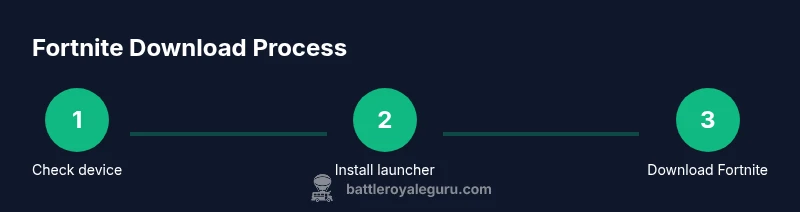
Check device readiness
Verify you have a stable internet connection and a compatible device. Review minimum system requirements and ensure you have enough storage before you begin. This upfront check minimizes interruptions during the download and patch process.
Tip: Use a wired connection if possible for stability and faster transfers. - 2
Create or sign in to your Epic Games account
Navigate to epicgames.com or open the Epic Games Launcher and sign in or create a new account. Enable two‑factor authentication to add a layer of security to your game purchases and personal data.
Tip: Use a unique, strong password and keep recovery options up to date. - 3
Install the Epic Games Launcher (PC/Mac)
Download the official launcher from the Epic Games site, run the installer, and sign in. The launcher will serve as the hub for Fortnite on PC/Mac, simplifying updates and game management.
Tip: Install to a drive with ample free space to accommodate future patches. - 4
Launch the launcher and locate Fortnite
Open the Epic Games Launcher, go to your Library or the Fortnite tab, and verify you have the latest patch options selected. Ensure your account is active and linked to the correct platform if you use multiple devices.
Tip: If Fortnite isn’t visible, click the refresh button or sign out and back in. - 5
Download Fortnite
Click Install (or Add to Library) for Fortnite. The launcher will download the base game and apply the initial patches automatically. Monitor the progress and avoid closing the launcher during the download.
Tip: Keep the launcher open until the download completes to prevent interruptions. - 6
Wait for installation and updates to finish
The launcher downloads and applies updates in the background. Depending on your connection, this can take from several minutes to over an hour. Plan for variable times and avoid multitasking that consumes bandwidth.
Tip: Consider downloading during off-peak hours to maximize speed. - 7
Launch Fortnite for the first time
After installation, click Play from the launcher. The first run will finalize any remaining setup, adjust settings, and sign you into your Epic account if needed.
Tip: Start with recommended graphics settings to balance performance and quality. - 8
Consoles: Fortnite from your storefront
On PlayStation, Xbox, or Switch, go to the Fortnite page in the console’s store, download or install, and launch from your game library. Ensure you’re signed into the correct profile.
Tip: Keep your console firmware up to date for optimal compatibility. - 9
Mobile downloads: Android and iOS
For Android, download Fortnite through the Epic Games app or a supported storefront; iOS users typically download via the App Store where available. Follow on-screen prompts to install and sign in to your Epic account.
Tip: Enable app updates for automatic security patches and game updates.
Questions & Answers
Do I need an Epic Games account to download Fortnite?
Yes. Fortnite downloads are tied to an Epic Games account. Create one or sign in, then install the launcher or use the storefront on your device to begin downloading.
Yes—you need an Epic Games account to download Fortnite. Sign in or create one, then use the launcher or storefront to start downloading.
Is Fortnite free to download?
Fortnite is free to download on all supported platforms. Some game modes or in-game items may be purchasable, but the core game does not require payment to download.
Fortnite is free to download on all supported platforms; some in-game items may cost money.
Can I download Fortnite on mobile without Google Play?
Android users can obtain Fortnite through the Epic Games app or official storefronts where available. iOS distribution varies by platform policies and may require using the App Store.
Android users can use the Epic Games app; iOS users will use the App Store. Check official Epic resources for current options.
Why isn't Fortnite appearing in my Epic Games Launcher?
If Fortnite doesn’t appear, ensure you’re logged into the correct account and that you’re on the latest launcher version. You may need to refresh the library or reinstall the launcher.
Make sure you’re logged in and your launcher is up to date. Refresh or reinstall if Fortnite isn’t visible.
How much storage do I need to download Fortnite?
Fortnite requires space for the base game plus future updates. Check your device’s available space and reserve additional room for patches.
Ensure you have enough free space for the game and future updates; patches can be sizable.
What if my download stalls or crashes?
Pause and resume the download, check your internet stability, and temporarily disable firewall or antivirus if safe. If the issue persists, consult Epic Games support.
Pause and resume, check connection, and consider temporarily disabling security software if safe; contact support if needed.
Watch Video
Key Points
- Download Fortnite only from official sources
- Create or secure your Epic Games account with 2FA
- Follow platform-specific steps for a smooth install
- Ensure sufficient storage and steady internet
- Keep Fortnite updated after installation