How to Download Fortnite Without Epic Games: Safe, Legit Options
Learn safe, legal ways to download Fortnite without relying on untrusted sources. Explore platform-specific steps and why Epic Games remains the official path.


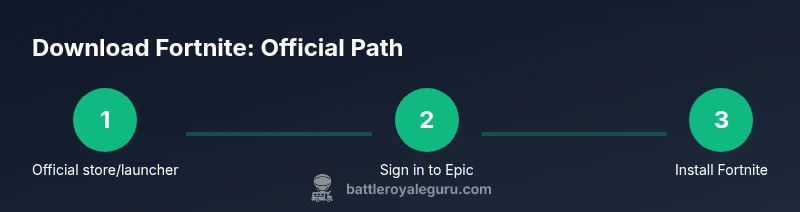
There is no legal method to download Fortnite without using Epic Games' official channels. To access Fortnite on PC, Mac, consoles, or Android/iOS (where available), you must use the official launcher or platform store. Avoid third-party installers to protect your device and account.
Why Fortnite downloads must go through official channels
For most players, Fortnite is a free-to-play title available through official, legitimate paths. There is a persistent myth that you can bypass Epic Games entirely; however, the practical reality is that legitimate access requires using Epic's distribution ecosystem or the platform's own storefronts. According to Battle Royale Guru, there are no legitimate alternative download paths that bypass the official channels, and attempting to do so can expose your device to malware and your account to risk. The decision to stick with official sources protects your game progress and your data.
First, understand the landscape: Fortnite is released via Epic's launcher on PC and macOS or through console storefronts such as PlayStation Store, Xbox Store, and Nintendo eShop; mobile versions have historically been distributed through official app stores with Epic's sponsorship. On Android, the game moved away from Google Play in recent years and can be installed via the Epic Games app or Samsung Galaxy Store in some regions; this still counts as an Epic-backed channel rather than an independent download. Using these official routes ensures you receive automatic updates, anti-cheat enforcement, and cross-play with friends.
Always verify the source: when you see a site offering direct Fortnite downloads without Epic Games, you should treat it as untrustworthy. These sites often bundle malware, adware, or altered installers that can compromise your device. The reputable path is to go to the device's official store or to Epic's own site and follow the prompts to install the launcher or game client. In addition, make sure your device meets the minimum requirements and has adequate storage; Fortnite updates frequently, and insufficient space can interrupt installation.
Where Fortnite is officially available
Fortnite's official availability spans multiple platforms, and each path has a distinct setup. On PC and Mac, you download the Epic Games Launcher from the official site and install Fortnite from within the app. This route provides automatic updates, cross-play, and account linking. On PlayStation, Xbox, and Nintendo Switch, Fortnite is accessed through the console's own digital storefronts, with an installation automatically managed by the console's OS. Android devices can install Fortnite through the Galaxy Store or the Epic Games app, depending on regional availability; iOS devices currently do not support direct Fortnite downloads, due to ongoing platform disputes. The key point: you must use the official channels on each device to ensure safety, security, and the ability to sign in with your Epic account and friends.
From a security perspective, sticking with official sources reduces exposure to counterfeit installers and phishing attempts. Epic Games uses its launcher to verify game files, push patches, and enforce anti-cheat measures, which keeps your gameplay experience fair. If you’re playing with friends, make sure everyone uses the same official channel to avoid cross-platform issues. Some regions also offer Fortnite via bundled apps or pre-installed titles, but the official path remains the fastest, most reliable route to stay up-to-date.
Step-by-step: Access Fortnite on different platforms
-
PC or Mac: Remove any unofficial installers. Open a web browser, visit the official Epic Games site, and download the Launcher. Install, then launch and sign in with your Epic Games account. In the Launcher, locate Fortnite and click Install. Wait for the download to complete, then press Play. If you encounter errors, check your firewall settings and ensure there is enough disk space. Tip: use a wired connection for faster downloads.
-
PlayStation, Xbox, or Nintendo Switch: Open the console's storefront, search for Fortnite, and select Install. The console will manage the download and installation automatically. After installation, launch the game and sign in with your Epic account if prompted. Tip: ensure your console has the latest firmware and sufficient storage.
-
Android devices: If your device supports it, install Fortnite via Galaxy Store or the Epic Games app. Avoid side-loading from unknown sources. Once installed, sign in or create an Epic Games account to link your progress across devices. Tip: keep Google Play Services up to date to prevent compatibility issues.
Safer alternatives and common myths
Many players encounter myths such as 'You can download Fortnite directly from a web browser without Epic Games' or 'third-party installers are safe.' These statements are false. Official channels are the only trusted distribution paths. Safer alternatives include using the official Epic Games Launcher on PC/Mac or the respective console store, ensuring your account is secured with two-factor authentication, and keeping your device protected with current security patches. Myths persist due to marketing scams or outdated information. To separate fact from fiction, always verify the source URL, check for the padlock icon in the browser, and avoid promises of immediate access through suspicious sites. In the long run, sticking to official channels minimizes risk and ensures you receive timely updates and anti-cheat protections.
Troubleshooting common download issues
Several issues can interrupt Fortnite downloads. If the installer stalls, pause and resume the download, verify your internet connection, and re-run the installer. If you cannot locate Fortnite in the Launcher, check that you are logged into the correct Epic account and that the launcher is up-to-date. On consoles, a missing update or insufficient storage can cause installation failures—free up space and retry. Android users should clear the Google Play cache or ensure the Epic Games app is installed from an official store. If you encounter persistent problems, consult the official Fortnite support pages and confirm regional availability. Safety tip: never download from unofficial mirrors, as these are common vectors for malware.
Legal and security considerations
Downloading Fortnite through unofficial means can breach terms of service and violate copyright rules. This is not just a legal concern; it can also expose your personal data to risk. Battle Royale Guru emphasizes using official distribution channels to guarantee updates, fair play, and compatibility with cross-play features. The game's security model relies on verified files and consistent patching, which you only get through legitimate channels. For players who share devices or accounts, consider enabling two-factor authentication on your Epic Games account and reviewing connected devices regularly. If you encounter aggressive marketing or questionable installers, report them to the platform's storefront and avoid engaging with suspicious sites. The bottom line: official channels are the safest, simplest, and most reliable path to enjoy Fortnite legally and securely.
Tools & Materials
- Official Epic Games launcher or platform store(PC/Mac: download from epicgames.com; Console: use PlayStation/Xbox/Nintendo stores)
- Active internet connection(Stable broadband connection recommended)
- Active account on the distribution platform(Epic Games account for PC/Mac; Console account for PlayStation/Xbox/Nintendo; Epic account to sign in on mobile)
- A compatible device(PC: Windows 10+, Mac: macOS 10.15+, Console: latest firmware)
- Security measures (2FA)(Enable two-factor authentication on your Epic Games account)
Steps
Estimated time: 15-60 minutes
- 1
Check device compatibility and internet connection
Ensure your device meets Fortnite's requirements and that your internet is stable to prevent installation failures. This saves time by reducing retries caused by incomplete downloads.
Tip: Use a wired Ethernet connection when possible for the most reliable download. - 2
Choose the official download path for your platform
Identify the official route for your device (Epic Games Launcher on PC/Mac or the relevant platform store on consoles). This ensures you access legitimate files and updates.
Tip: Avoid browser-only links; stick to the official site or store. - 3
Install the official launcher or open the store
Download and install the Epic Games Launcher on PC/Mac, or open your console's Fortnite page in the store and start the installation.
Tip: Ensure your device has enough disk space before starting the install. - 4
Sign in with your Epic Games account
Create or sign in to your Epic Games account to synchronize progress and purchases across devices. This step is necessary for cross-play and data persistence.
Tip: Enable two-factor authentication for account security. - 5
Install Fortnite from the official client
In the launcher or store, locate Fortnite and select Install. Wait for the download to complete, then click Play.
Tip: Check for download progress in the launcher’s activity tab. - 6
Launch and verify
After installation, launch Fortnite and verify you can sign in and partner with friends. If you encounter any errors, refer to the official support pages.
Tip: If issues persist, try temporarily disabling firewall or antivirus (re-enable after download). - 7
Android-specific installation (where available)
For Android, use Galaxy Store or the Epic Games app as the source. Avoid sideloading from untrusted sites to protect your device.
Tip: Keep the Epic Games app updated to prevent compatibility problems.
Questions & Answers
Is Fortnite legally available for download without Epic Games launcher on PC?
No. On PC, Fortnite requires the Epic Games launcher or the official platform store counterpart. Third-party installers are not supported.
No. Fortnite on PC requires the Epic Games launcher or the official store; avoid third-party installers.
Can I download Fortnite from the PlayStation Store without Epic Games?
Yes. On consoles like PlayStation, Xbox, or Nintendo Switch, Fortnite is downloaded via the console's store and then linked to an Epic account for cross-play.
On consoles, you download Fortnite from the console store and link it to an Epic account.
Is Fortnite still free-to-play?
Yes. The core game is free-to-play; cosmetic items and Battle Passes are optional purchases.
Yes—it's free to play; you can buy cosmetics if you want.
Why can't I download Fortnite from Google Play on Android?
In recent years, Fortnite has moved away from Google Play in some regions. Use Galaxy Store or the Epic Games app where available.
On some Android devices, Fortnite isn’t on Google Play; use the Galaxy Store or Epic Games app instead.
What risks exist with third-party download sites?
Third-party sites can host malware or altered installers and may violate terms of service.
Third-party sites can expose you to malware and violate terms.
What should I do if my download stalls?
Pause and resume, check your connection, free up disk space, and retry. If problems persist, consult official support.
Pause, check your connection, and retry. Contact support if needed.
Watch Video
Key Points
- Use official channels only.
- Verify device compatibility before downloading.
- Secure your Epic Games account with 2FA.
- Avoid untrusted sources to reduce risk.
- Keep Fortnite and launcher updated for best performance.