How to Fit Fortnite Screen on TV
Learn how to fit Fortnite on your TV screen with a complete setup. Connect via HDMI, optimize TV and game settings, adjust overscan, and test for minimal lag on consoles or PC.


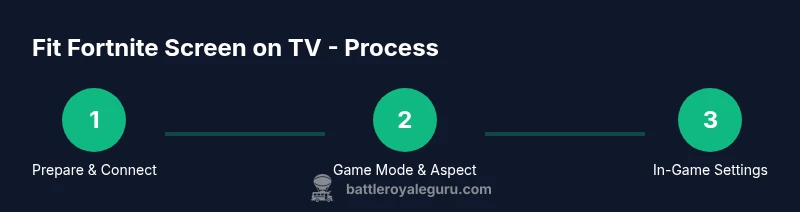
To fit Fortnite screen on a TV, connect your console or PC via HDMI, set the TV to 16:9 and Game Mode, and choose a matching in-game resolution (1080p or 4K) with minimal overscan. According to Battle Royale Guru, ensure the system output matches the TV’s resolution and adjust display scaling so HUD elements fit without clipping, then test in-game.
Screen sizing basics for Fortnite on TV
Fortnite on a big screen is a joy, but achieving a clean fit requires understanding how TVs handle image scaling. The objective is to render the game at a resolution and aspect ratio your TV can display without stretching the UI or clipping essential elements like the HUD or minimap. According to Battle Royale Guru, the most reliable approach is to align the game output with the TV’s native resolution (commonly 1080p or 4K) and use the TV’s native 16:9 aspect ratio. Treat the TV as a display target and the game as content that needs precise scaling. This mindset helps you avoid black borders, stretched sprites, or cropped menus during crucial moments in combat or building.
The practical upshot is a smoother, more immersive Fortnite experience with consistent visuals across menus, battles, and replay screens. In this section, you’ll see how resolution, aspect ratio, overscan, and display scaling influence what you see on screen—and how to adjust them step by step for a crisp fit.
Understanding aspect ratio and overscan
Modern TVs use 16:9 as the default aspect ratio, which is ideal for Fortnite. However, many TVs apply overscan, which crops the image slightly to ensure edges look “complete.” If overscan is active, HUD elements may appear cut off or too close to the edge. To prevent this, set your TV to a true 16:9 mode and look for options like “Just Scan,” “Full Pixel,” or “Screen Fit.” If available, disable overscan entirely or choose a fixed pixel mapping to ensure every on-screen element belongs where you expect it. In addition, when using a computer as the source, configure the desktop resolution to 1920x1080 (1080p) or 3840x2160 (4K) depending on the TV’s capabilities, and maintain a 16:9 aspect ratio for the most predictable results.
Key takeaway: matching the input source to the TV’s native format minimizes stretching and keeps HUDs legible at a glance.
How to connect devices: cables and wireless options
Choosing the right connection path is as important as the settings themselves. The simplest, most reliable setup is a wired HDMI connection from your console or PC to the TV. If you’re using a console, plug HDMI from the console’s output to a free HDMI input on the TV, then switch the TV’s input to that HDMI port. If you’re gaming from a PC, connect the HDMI from your GPU to the TV and ensure the PC’s display settings target the TV resolution. For wireless options, such as casting or streaming, expect higher latency and potentially less consistent frame timing. Wireless methods can be acceptable for casual play but aren’t ideal for competitive Fortnite.
Tip: use a high-speed HDMI cable (HDMI 2.0 or newer) and keep devices close to the TV to minimize signal drop.
TV and console game settings you should adjust
Most TVs offer a dedicated Game or PC mode that reduces input lag by bypassing some post-processing. Turn this on before gaming. Set the TV’s aspect ratio to 16:9 and enable any options that preserve a full-pixel image (often labeled as “Just Scan” or “1:1”). Disable any motion smoothing or image enhancement features while you’re playing, as those add latency and can blur fast actions. On the console, ensure the display output is set to match the TV’s native resolution (1080p or 4K) and to 60Hz if possible. If your system supports HDMI 2.1 features like VRR (Variable Refresh Rate), enable them for smoother gameplay. Finally, verify that HDR is either on or off according to your TV and game preference; HDR can affect color accuracy and brightness in Fortnite menus.
Why it matters: consistent frame timing and accurate scaling deliver a responsive and visually coherent Fortnite experience on the big screen.
In-game settings that influence fit
Within Fortnite, begin by selecting a resolution that aligns with your TV’s native output (typically 1080p/60fps or 4K/60fps). If your TV supports higher refresh rates and your hardware can sustain them, enable 60fps mode for smoother combat. Look for UI scaling or HUD size adjustments in the Settings menu—if available, reduce HUD size slightly to prevent UI elements from clipping at the screen edges. Pay attention to field of view and crosshair positioning; you may need to tweak slightly to ensure weapons and builds appear where you expect. Finally, save any profile with your preferred display settings so you don’t have to redo them after future updates.
Pro tip: test your chosen settings in a real match rather than a practice lobby to confirm visibility during high-speed action.
Troubleshooting common fit issues
If the image still doesn’t fit after adjusting overscan and game resolution, check cable and port integrity first. Try a different HDMI port on the TV and a different HDMI cable to rule out a faulty connection. Revisit the TV’s 16:9 mode and confirm you’re not in a stretched 4:3 or zoom mode. If HUD elements remain cropped, revisit the “Just Scan”/“Full Pixel” option, or use a slightly lower in-game resolution to ensure everything fits within the Safe Area. For PC users, ensure your GPU scaling is set to “Display” rather than “GPU” scaling if you observe post-scaling blur. Finally, reboot both the TV and the gaming device to clear any sticky display states after lengthy gaming sessions.
Note: some TV brands require a separate “screen fit” setting per HDMI input, so you may need to repeat the process for the active input.
Platform-specific considerations: console vs PC
Consoles tend to be simpler for TV fits since their display output is designed to work with living-room TVs. Ensure your console’s output resolution matches the TV’s native resolution to minimize post-processing. PCs offer more granular control: you can set desktop resolution, scaling options, and 60Hz vs 144Hz; however, you may need to compensate for higher input latency with system-level optimizations. For all platforms, verify that your Fortnite in-game settings align with the TV’s capabilities, and consider using a dedicated gaming monitor approach if you frequently switch between sitting close and viewing from afar. When possible, document a baseline configuration that you can preserve across sessions to maintain consistent visuals.
Extra practical note: always keep a dedicated HDMI cable for gaming and reserve another for media use to avoid wear and tear on the gaming path.
Tools & Materials
- HDMI cable (high-speed HDMI 2.0+)(Supports 1080p/4K at 60fps; use for reliable signal)
- TV with HDMI input(Prefer 60Hz or higher; enable Game Mode)
- Gaming device (console or PC)(Output should support 1080p/4K; match TV resolution)
- TV remote or controller for quick settings(Helpful for on-the-fly adjustments)
- HDMI switch (optional)(Useful if you have multiple HDMI devices)
Steps
Estimated time: 15-30 minutes
- 1
Prepare and connect
Gather your gaming device, TV, and HDMI cable. Connect the device to a free HDMI input on the TV using a high-quality HDMI cable. Ensure both devices are powered off during connection to avoid any configuration errors.
Tip: Use a single, dedicated HDMI cable for gaming to minimize interference. - 2
Power on and select input
Power on the TV and the gaming device, then switch the TV input to the HDMI port you used. Confirm the image appears on screen and that audio is routing correctly to your sound system or TV speakers.
Tip: Label the HDMI input for quick future access. - 3
Enable Game Mode and set aspect ratio
On the TV, enable Game Mode to reduce input lag. Set the aspect ratio to 16:9 and select a pixel-mapped mode such as 'Just Scan' or 'Full Pixel' to avoid overscan.
Tip: If you see edge clipping, switch to 'Full Pixel' or 'Just Scan' and recheck after a brief test match. - 4
Configure device output
In your device's display settings, choose a native resolution that matches the TV (1080p or 4K). Ensure the refresh rate is at least 60Hz; disable any extra post-processing or upscaling features on the device.
Tip: For PC, set the desktop resolution to match the TV before launching Fortnite. - 5
Adjust Fortnite in-game settings
Launch Fortnite and set the game resolution to match the TV output (e.g., 1080p/60fps or 4K/60fps). If available, adjust HUD size and confirm UI elements are fully visible within the screen bounds. Save your profile.
Tip: Test with a quick sprint or build sequence to ensure UI fidelity during fast actions. - 6
Test and finalize
Play a real match to confirm the fit. If anything appears cropped or stretched, revisit overscan, aspect ratio, or in-game UI scale. Once satisfied, lock in these settings as your Fortnite-on-TV profile.
Tip: Keep a written note of the exact settings you used for quick replication in future sessions.
Questions & Answers
Why is Fortnite not filling the screen on my TV?
Overscan or misaligned aspect ratio are common causes. Set the TV to 16:9 with a true pixel mapping (e.g., Just Scan or Full Pixel) and ensure the game output matches 1080p or 4K. Re-test with a quick match.
Usually overscan or wrong aspect ratio cause the fit problem. Set the TV to 16:9 and enable true pixel mapping, then re-test in Fortnite.
Should I use 1080p or 4K for Fortnite on TV?
If your TV supports 4K and your device can output 4K at 60fps, you can choose 4K. Otherwise, 1080p with a solid 60Hz is perfectly fine and often smoother due to bandwidth limits. Ensure the in-game resolution matches the TV output.
Use whatever your TV handles well—4K if possible, otherwise 1080p at 60 frames per second.
Does enabling Game Mode affect performance?
Game Mode reduces input lag by bypassing some processing. It can slightly alter color processing or brightness depending on the TV, but the trade-off is generally worth it for tighter control in Fortnite.
Yes. Game Mode usually lowers input lag, helping you react faster in-game.
What if my HUD is still cut off after adjusting overscan?
Double-check overscan settings and try a true pixel mapping mode. If needed, lower the in-game resolution one step and re-check. On PC, adjust display scaling to '100%'.
If the HUD is cropped, recheck overscan and try a pixel-mapped mode; adjust resolution if needed.
Can I play Fortnite on TV with wireless casting?
Wireless casting can work for casual play but often adds input lag. For competitive play, wired HDMI is recommended to keep latency low and visuals stable.
Wireless casting works for casual play, but wired HDMI gives you the best responsiveness.
Watch Video
Key Points
- Match game output to the TV's native resolution.
- Enable Game Mode to reduce input lag.
- Use 16:9 with proper overscan settings.
- Test HUD visibility in actual Fortnite gameplay.