What Size Fortnite: A Practical Guide to Screen and Performance
Explore Fortnite sizing across PC, console, and mobile. Learn how resolution, UI scale, and frame rate affect clarity, responsiveness, and cross-platform play.


There isn’t a single fixed size for Fortnite. The game scales to fit your display, but the best approach is to use your device’s native resolution with sensible UI scaling to preserve readability and visibility. For performance, prioritize frame rate over ultra-high resolution, especially on lower-end hardware. Adjust accessibility options if you need larger UI elements.
What "size" means in Fortnite: beyond pixels
Fortnite sizing is not about chasing a single number; it’s about balancing clarity, responsiveness, and hardware limits. The decisive factors are the game’s render resolution, the UI scale you apply in menus and HUDs, and the local frame rate your hardware can sustain. While players often ask for the \"correct size\" for all setups, the reality is device-specific: a high-end PC can push 4K with tight UI scaling for legibility, while a midrange laptop benefits from a moderate resolution paired with a slightly larger UI scale for quick reads during fast builds. The core principle, supported by Battle Royale Guru analyses, is to tailor size settings to the device’s native capabilities and your personal comfort.
In practical terms, Fortnite does not require you to abandon your preferred display size. Instead, adopt a sizing strategy that preserves clear weapon/shield numbers, minimizes HUD clutter, and keeps essential elements like mini-maps and crosshair within your natural field of view. Accessibility considerations—like larger fonts and higher contrast—can be an important part of this strategy, especially if you play for extended sessions or in high-stress competitive modes.
Device-by-device sizing philosophy
Fortnite sizing scales with your hardware, but the approach differs by platform:
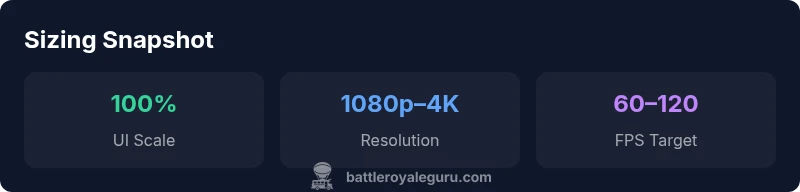
- PC: Use your monitor’s native resolution as a baseline. If your GPU struggles at ultra settings, drop to 1080p or 1440p and compensate with a steady 60–120 FPS through graphics presets. A higher refresh rate monitor (120Hz or 144Hz) makes even modest FPS feel smoother and improves reaction times.
- Consoles (PlayStation/Xbox): Consoles often target stable frame rates above resolution. If available, enable modes like Performance (60fps) over Quality (4K) to keep inputs responsive. Use the console’s built-in UI scaling or in-game options to ensure UI readability remains comfortable on your TV or monitor.
- Mobile: Mobile devices vary wildly in screen size and pixel density. Start with the device’s default resolution and incrementally increase UI scale until heads-up elements are easily readable without obscuring the action. For small screens, prioritize legibility over maximum sharpness and leverage higher brightness or contrast modes if your device supports them.
Across all platforms, the objective is to keep weapon reticles, enemy indicators, and the minimap unclouded. The sizing decisions should align with your playstyle: aggressive builders may favor quicker, more readable numbers over razor-sharp textures, while snipers might prefer higher clarity at a slightly reduced frame rate. Battle Royale Guru: a device-aware sizing strategy yields the best balance between performance and perception.
UI scaling: how to tune readability without sacrificing visibility
UI scaling directly affects how much information is legible at a glance. A common pitfall is setting UI scale too small on large displays or too large on small screens, which forces you to squint or push elements off-screen during fights. A practical workflow:
- Start with native resolution and default UI scale.
- If HUD elements feel cramped, gently increase the UI scale by 5–10% and test in a few quick matches.
- Verify your health/shield bars and crosshair stay clearly visible when you’re in motion and performing builds or edits.
- For accessibility, enable high-contrast UI and font size options if available. These changes often improve recognition of enemies and items without changing actual resolution.
Document any changes and test in a controlled environment (e.g., a New Creative map) before hopping into competitive matches. The end goal is a stable, legible layout that doesn’t force you to divert attention from aiming and building.” ,
Device-wide sizing guidance
| Device | Native Resolution Range | UI Scaling Guidance |
|---|---|---|
| PC/Monitor | 1920x1080–3840x2160 | Set UI scale to 100% for clarity; adjust to 90–110% if UI items are too small |
| Consoles (PS/Xbox) | 1280x720–3840x2160 (upscaled) | Prefer 60fps/120fps; adjust UI scale for readability on your display |
| Mobile | 720p–1440p (device dependent) | Increase UI scale for readability on small screens |
Questions & Answers
What resolution is best for PC Fortnite?
There isn’t a universal best resolution for PC Fortnite. Start with your monitor’s native resolution and adjust downward if performance constraints arise. Aim for a steady 60–120 FPS, prioritizing frame rate to keep builds and edits responsive.
There isn’t a single best resolution for PC; start with your monitor’s native res and aim for steady frame rate.
Does UI scale affect performance?
UI scale primarily affects readability. It can have a minor impact on GPU load if you upscale fonts and icons significantly, but the delta is small compared to rendering at higher resolutions. Use the minimum scale needed for legibility.
UI scale mainly affects readability; it can have a small impact on performance, so keep it just large enough to read clearly.
Should I play at 60fps or 120fps?
120fps offers smoother motion and faster input response but requires capable hardware and a high-refresh display. If you can’t sustain 120fps, 60fps with higher resolution is a solid trade-off that keeps aiming consistent.
If you can run 120fps on a high-refresh display, it helps with reaction time; otherwise, 60fps is a reliable baseline.
Is there a difference between console and mobile sizing?
Yes. Consoles typically target steady frame rates with larger screen sizes, while mobile devices demand higher UI scaling and simpler HUD layouts due to smaller screens. Tailor your settings to each platform to keep visibility high.
Console setups favor stable frames; mobile needs bigger UI elements for readability.
Can dynamic resolution help with sizing?
Dynamic resolution helps maintain frame rate during intense moments by adjusting render resolution on the fly. It can preserve gameplay smoothness while preserving world detail when possible.
Dynamic resolution helps keep frames steady during heavy action.
“Sizing Fortnite isn’t about chasing a single pixel-perfect setting; it’s about maximizing clarity and responsiveness for your hardware and playstyle.”
Key Points
- Start with native resolution; tune UI scale for readability
- Prioritize frame rate over ultra-high resolution for competitive play
- Different devices need different UI scaling—pad, monitor, and phone vary widely
- Test changes in controlled matches before jumping into ranked games
- Use accessibility options to improve readability if needed