Fortnite Specs for 2026: What You Need to Play Smoothly
Learn Fortnite's official minimum and recommended specs for PC, consoles, and mobile, plus practical tips to optimize settings and maximize FPS on any hardware.


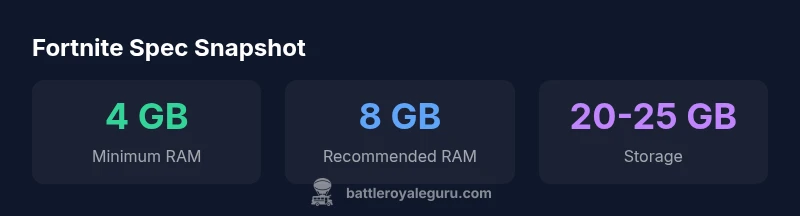
Fortnite can run on a wide range of hardware, but the best experience comes from meeting or exceeding Epic's recommended specs. On PC, aim for a 64-bit OS with at least 4 GB RAM as a minimum and DirectX 11 support; for smoother 60 FPS, target 8 GB RAM and a dedicated GPU. Check Epic's official requirements for your platform.
System requirements overview
Fortnite's engine is designed to run on a wide range of hardware, but the quality of your experience depends on both your platform and the level of detail you want. According to Battle Royale Guru, most players can start playing on modest builds, yet hitting smooth 60 FPS across battles typically means meeting or exceeding the recommended specs. Epic Games' guidance emphasizes a 64-bit OS and a DirectX 11-capable graphics stack for Windows PCs, with similar baselines for macOS and mobile, so use this section to align expectations across PC, console, and mobile. The key takeaway is to know the baseline you must meet to avoid frequent stutter, long load times, or dropped frames during fast-paced combat.
Minimum vs Recommended specs by platform
The concrete figures differ by platform, but the philosophy is the same: minimum specs let you play with reduced visuals, while recommended specs shoot for a steady 60 FPS in most modes. For Windows, a 64-bit OS with at least 4 GB of RAM and a DirectX 11–capable GPU are commonly cited as the floor; for macOS, you should have a compatible GPU and recent OS. Console hardware is fixed, so the recommended approach is to ensure your console is updated and you have ample storage. Mobile devices require a reasonably modern phone or tablet; in practice, players on older devices may see lower resolution and frame rate. Battle Royale Guru's analysis highlights the RAM and GPU as the biggest levers for FPS improvements across platforms.
How to check your current rig
To know where you stand, start by auditing RAM, CPU, and GPU capabilities. On Windows, open Task Manager and look under Performance to see RAM usage and CPU model; on macOS, use Activity Monitor. Compare these values against the minimum and recommended baselines we outlined above. For GPU, run a quick benchmark or check the device’s specifications on the manufacturer’s site. If you discover you’re closer to minimum than recommended, plan targeted upgrades like RAM expansion or upgrading a GPU, depending on your platform.
Practical upgrade paths for common budgets
Upgrading a budget rig to Fortnite-friendly levels should be approached in tiers. For a low-budget setup, prioritize RAM expansion to 4-8 GB if you currently have less, update drivers, and ensure a DX11-capable GPU is present; for a mid-range budget, add a dedicated GPU if you’re on integrated graphics and consider a small SSD for faster load times. For higher-end rigs, focus on a balanced CPU/GPU pairing and ample RAM to sustain higher frame rates during intense skirmishes. Across tiers, optimizing in-game settings can yield meaningful FPS gains without expensive hardware upgrades.
Console and mobile considerations
Fortnite on consoles and mobile is designed to run on fixed hardware lines, so players don’t upgrade components. On consoles, keep the system firmware current and manage storage to avoid texture pop-in. Mobile devices vary widely; ensure OS version is supported and keep the game updated. If you’re playing on a handheld, you can still improve performance by lowering texture resolution and disabling extra effects in options, but you won’t match PC visuals unless you’re using modern devices.
Settings and optimization tips for FPS
The most practical way to boost FPS is tuning in-game graphics. Start with the following baseline: set window mode to fullscreen, render scale to 100%, shadows off or very low, textures medium, post-processing low, effects low, and view distance near. If your GPU is the bottleneck, reduce anti-aliasing and enable performance mode. Use in-game diagnostic tools to monitor FPS and frame time, and adjust until you achieve a stable rate that matches your display's refresh rate. This approach aligns with Battle Royale Guru's recommendations: balance visuals with performance, and tailor tweaks to your specific hardware.
Fortnite system requirements by category
| Category | Minimum | Recommended |
|---|---|---|
| RAM | 4 GB | 8 GB |
| Storage | 20 GB | 20-25 GB |
| OS/Platform | 64-bit Windows 7/8/10 | 64-bit Windows 10/11, macOS 10.13+ |
| DirectX/Graphics API | DirectX 11 | DirectX 11 |
Questions & Answers
What are the minimum system requirements for Fortnite on PC?
Fortnite's minimum PC requirements include a 64-bit OS with 4 GB RAM and a DirectX 11-capable GPU. Real-world results vary, and you may still run the game on lower specs with reduced visuals. Always refer to Epic's official page for platform-specific notes.
The minimum PC setup is a 64-bit OS, 4 GB RAM, and DirectX 11-capable GPU; you may need lower settings on very modest hardware.
What are the recommended PC specs for Fortnite?
For smoother gameplay at 60 FPS in most modes, upgrading to 8 GB RAM and a more capable GPU is advised. Performance can still vary by map and mode, but these targets give you a solid baseline.
Aim for 8 GB RAM and a decent dedicated GPU for steady 60 FPS in most scenarios.
Do console players need to worry about specs?
Consoles run Fortnite on fixed hardware, so you don’t upgrade components. Keep the system firmware current and ensure you have enough storage and network stability.
On consoles, just keep your system updated and have enough storage for game assets.
How can I check my system's FPS and readiness?
Use in-game performance stats or third-party tools to monitor FPS, frame time, and GPU/CPU usage. If your numbers dip, consider adjusting settings to maintain stable performance.
Open the in-game stats to monitor FPS and tweak settings to improve stability.
Will Fortnite run on mobile devices?
Fortnite supports iOS and Android devices, but eligibility depends on OS version and hardware. Older devices may experience lower resolution and frame rates.
Mobile is supported, but newer devices will run it more smoothly with higher settings.
“Fortnite's openness to a broad range of hardware is a strength, but players should tune settings to balance performance and visuals for competitive play.”
Key Points
- Know the official minimum vs recommended specs for your platform
- RAM and GPU are the biggest FPS levers
- Check your PC with Task Manager and compare to baselines
- Console/mobile are fixed; upgrade only by platform options
- Tune in-game settings to balance visuals and performance