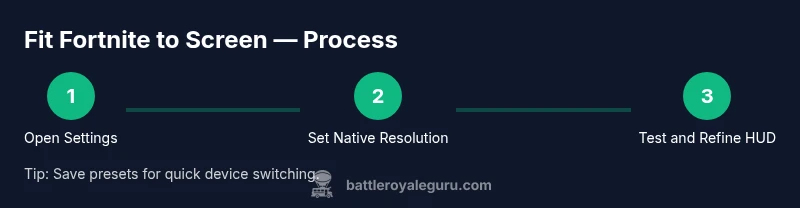
How to Fit Fortnite to Screen: A Practical Guide
Learn precise steps to fit Fortnite to any screen, aligning resolution, aspect ratio, fullscreen mode, and HUD scale for PC and consoles. Practical, battle-tested tips from Battle Royale Guru.


This quick answer shows you how to fit Fortnite to your screen by aligning resolution, aspect ratio, fullscreen mode, and HUD scale. It covers PC and console setups and provides a fast, practical approach to remove letterboxing, prevent stretched UI, and ensure consistent gameplay across devices.
Understand what fit to screen means for Fortnite
Fitting Fortnite to your screen means aligning the game's display settings with your monitor or TV so the image fills the display area without distortion, letterboxing, or cropped UI. A proper fit improves clarity, target acquisition, and overall immersion. In practice, you want the game to use the native resolution of your display, the correct aspect ratio, and a UI scale that keeps everything legible. According to Battle Royale Guru, when you nail these basics you reduce eye strain and improve reaction times during fast-paced matches. This section breaks down what to adjust and why each choice matters, so you can make informed decisions rather than guessing.
Core concepts: resolution, aspect ratio, and HUD scaling
Resolution determines how many pixels Fortnite renders, while the aspect ratio defines the width-to-height relationship. The goal is to use the native resolution of your display with an aspect ratio that preserves geometry. HUD scaling adjusts in-game UI element sizes so health bars, inventory, and mini-map remain readable at your chosen resolution. Overscan, letterboxing, and stretched UI all reduce clarity and can hide enemies or items. Balancing these factors ensures both image fidelity and in-game usability. Think of fit as a three-legged stool: resolution, aspect ratio, and HUD/UI scale must all be aligned for a stable, comfortable view.
PC setup: matching resolution and display scaling
Start by setting Fortnite to the display’s native resolution (e.g., 1920x1080, 2560x1440, or 3840x2160). Then choose the aspect ratio that matches your monitor (16:9, 21:9, etc.). Enable Fullscreen to prevent the system from resizing the game window and introduce less input lag. If your monitor supports a higher refresh rate, ensure Fortnite is configured to use it. Finally, test with actual gameplay to verify that the framing feels natural, and that UI elements don’t collide with screen edges. Adjust DPI or scaling within Windows as needed to keep text crisp in menus and HUD elements.
Console setup: PS5/Xbox Series X|S
Consoles rely on system-level scaling. Start by selecting the console’s native resolution (1080p, 1440p, or 4K) and set the display mode to Fullscreen. If the game offers a “Aspect” option, choose a setting that mirrors your display’s native aspect ratio. Some TVs apply overscan; disable overscan or use a “Just Scan”/“1:1” picture size option in the TV’s settings. Save any profile presets to avoid repeating the process on subsequent sessions. Consistency across sessions matters for muscle memory and competitive readiness.
In-game settings: resolution, fullscreen modes, and windowed modes
Within Fortnite, navigate to Settings > Video. Set the resolution to the display’s native value and select Fullscreen (not Windowed) to maximize consistency. If you need to multitask, test Borderless Window, but be aware it can introduce micro-stutters. Adjust the Aspect Ratio to match your monitor’s native shape and verify the HUD scale. For mobile-like displays or ultra-wide monitors, experiment with a 1.0x or 0.95x HUD scale to keep essential elements legible without crowding edges.
HUD sizing and UI elements: maintain legibility
HUD scale directly impacts readability of health, ammo, and mini-map. Start with a mid-range scale (around 1.0x) and adjust in 0.05x increments until you reach a comfortable balance between visibility and field of view. Ensure crosshair, timer, and inventory icons remain unobstructed during combat. If UI elements appear blurry, reinstate native resolution or enable sharpening in the display driver. Save your preferred HUD presets so you can switch between gaming and streaming modes quickly.
Troubleshooting common issues
If the game looks stretched, re-check the aspect ratio and ensure you’re using a matching display mode (Fullscreen). If letterboxing persists, verify that your monitor’s overscan is disabled and that you’ve chosen the monitor’s native resolution in both the game and the console/OS settings. On PC, updating graphics drivers often resolves minor scaling glitches. If UI elements clip off-screen, revert to a slightly lower resolution or adjust the HUD scale. Finally, test across different scenes (combat, menu, and launcher) to confirm consistent fit.
Best practices for cross-device consistency
Document each device’s settings in a quick-reference guide, including resolution, aspect ratio, fullscreen mode, and HUD scale. Use a single base preset for testing and save device-specific variants as named profiles. Regularly re-check settings after system updates or Fortnite patches, as official changes may affect display behavior. Maintain a visual log (screenshots/video) to compare before/after results and share findings with teammates for consensus.
Quick-start test plan
Before jumping into long sessions, perform a 15-minute test with a few warm-up matches to confirm the fit. Start with your primary device, adjust one setting at a time, and test at various in-game environments (open terrain, dense builds, and close-quarters combat). Record observations, compare them to your reference images, and refine your presets. When you’re satisfied, lock in your presets and back them up to the cloud or an external drive for rapid recovery after updates or hardware changes.
Tools & Materials
- Fortnite installed on target platform(Make sure it’s updated to the latest patch (2026))
- Display device (monitor, TV, or projector)(Prefer 60 Hz or higher; 1080p+ recommended for clarity)
- HDMI/DisplayPort cable or wireless display adapter(Ensure full bandwidth for high resolutions and stable input lag)
- Access to in-game Settings menu(Navigate with controller or keyboard/mouse depending on platform)
- Screen with adjustable resolution options(Helpful for testing multiple targets and verifying fit)
- Screenshot or video capture(Optional for documenting comparisons and sharing references)
- Calibration tools (color test patterns)(Optional to verify color accuracy and consistency)
Steps
Estimated time: 30-60 minutes
- 1
Open Fortnite and access Settings
Launch the game and open the Settings menu. Navigate to the Video and Display sections to begin aligning resolution, aspect ratio, and HUD scale with your display. The goal is to gather all initial baselines before making adjustments.
Tip: Take a baseline screenshot of current settings for reference. - 2
Set the target resolution and aspect ratio
Choose the display’s native resolution (e.g., 1920x1080, 2560x1440, or 3840x2160) and ensure the aspect ratio matches your monitor (16:9, 21:9, etc.). This prevents distortion and maintains consistent geometry during combat.
Tip: If you’re unsure about your monitor’s native resolution, check the display information in the system settings. - 3
Enable Fullscreen and disable disruptive modes
Select Fullscreen to minimize input lag and ensure stable scaling. Avoid Borderless Window unless you need to alt-tab frequently; Borderless can introduce subtle frame timing differences that impact fit.
Tip: Test both Fullscreen and Borderless Window to see which provides more stable visuals for your setup. - 4
Adjust HUD/UI scale for readability
Modify the in-game UI scale so health, ammo, and minimap remain clear at the selected resolution. Start at 1.0x and adjust in small increments until elements are comfortably legible without crowding the screen.
Tip: Avoid extreme scaling—too large UI reduces the field of view and can hinder awareness. - 5
Check for overscan and safe areas
Inspect the edges of the screen for black bars or clipped UI. If necessary, enable overscan compensation on the monitor or disable overscan in the display settings. This ensures nothing important is cropped.
Tip: Use a test pattern to confirm the edges are fully visible. - 6
Apply changes and run short test matches
Save the new presets and play a handful of warm-up matches to verify fit across different scenes. Observe whether the UI remains legible and the image fills the screen consistently.
Tip: Take note of any momentary misalignment during rapid camera movements and adjust accordingly. - 7
Compare against reference and refine
After your tests, compare with baseline references. If the image still feels off, slightly tweak the resolution or HUD scale and re-test until it matches your comfort standard.
Tip: Document each tweak with a quick screenshot for future reference. - 8
Create presets and document device-specific tweaks
Save named presets for each device and keep a concise note of tweaks that work best on that platform. This makes switching between PC and console setups fast and reliable.
Tip: Back up presets to cloud storage to prevent loss after updates.
Questions & Answers
What does it mean to fit Fortnite to screen?
Fitting Fortnite to screen means aligning the game's resolution, aspect ratio, fullscreen mode, and HUD scale with your display so the image fills the screen without distortion while keeping UI elements legible.
Fitting Fortnite to screen means matching resolution, aspect ratio, fullscreen mode, and UI size to your display for a distortion-free, readable image.
Should I always use Fullscreen mode?
Fullscreen generally provides the most stable scaling and lowest input lag. Borderless can be useful for multitasking, but may introduce subtle delays or scaling quirks.
Fullscreen is usually best for performance and a clean fit; use Borderless Window only if you need to switch tasks often.
How can I make the HUD easier to read on small screens?
Increase the HUD scale moderately within in-game settings while keeping key elements visible without cluttering the view. If needed, adjust text size in system accessibility options.
Boost the HUD scale a little to keep critical UI readable without crowding your view.
What if the image still looks stretched after changes?
Recheck the monitor's overscan settings and ensure the game uses the monitor’s native resolution. Try a different aspect ratio that matches your display geometry.
If it still looks stretched, verify overscan is off and try a matching aspect ratio.
Are PC and console settings different for fit to screen?
PC offers finer-grained control over resolution and DPI scaling; consoles rely on system-level display settings and in-game options. Expect slight differences in available presets.
Yes—PC gives more precise control, while consoles lean on system settings and built-in presets.
Will changes affect other games?
Some display changes can affect other games. Consider saving platform-specific presets and keeping a backup, so you can revert quickly if needed.
Other games may be affected; you can keep separate presets for each game.
Watch Video
Key Points
- Define target resolution and aspect ratio first
- Keep UI readable with balanced HUD scaling
- Test across scenes to ensure consistent fit
- Save device-specific presets for quick setup