How to Make Fortnite Full Screen on PC
Learn how to switch Fortnite to fullscreen on PC with a clear, actionable, step-by-step guide. Includes exclusive fullscreen vs borderless windowed modes, Windows and GPU tweaks, and troubleshooting to maximize FPS and reduce input lag. Battle Royale Guru provides practical tips for stable, immersive matches.


According to Battle Royale Guru, this guide shows you how to make Fortnite run in full screen on PC, compares exclusive fullscreen versus borderless windowed modes, and highlights quick fixes for common display issues. You’ll get a concise set of steps, plus key tips to minimize input lag and preserve high FPS during intense matches.
Why fullscreen matters for Fortnite on PC
Fullscreen mode is more than just hiding the desktop. When Fortnite runs in Exclusive Fullscreen, the game gets direct control of the GPU, which reduces input lag and often delivers steadier frame times. This can give you a competitive edge in chaotic skirmishes where responsiveness matters. The Battle Royale Guru team has observed that players who commit to true fullscreen frequently report fewer stutters and more consistent aiming under load. If you’re aiming for smooth performance during tournaments or clutch plays, starting with true fullscreen is a smart baseline. Ensure your Windows display settings match Fortnite’s resolution and refresh rate to avoid scaling artifacts or stretched visuals that degrade clarity. If you’re on a multi-monitor setup, designate your primary display for Fortnite to prevent unwanted window focus shifts during fast pivots.
Understanding display modes and aspect ratios
In Fortnite you can choose between several display modes: Fullscreen (Exclusive), Borderless Window, and Windowed. Exclusive Fullscreen gives the game priority access to the GPU, which typically yields the lowest input lag and crispest visuals. Borderless Window can make alt-tabbing seamless, but some systems experience minor input lag or occasional focus issues. Windowed mode is generally avoided for competitive play due to higher latency, but can be useful for streaming or multitasking. If you’re using a high-DPI display or a mix of native and ultrawide configurations, confirm that Fortnite’s resolution matches your monitor’s native aspect ratio (most commonly 16:9). Mismatches can create subtle letterboxing or stretching that hurts precision aiming. This section helps you pick the mode that best fits your rig and play style.
Quick fixes you can try before heavy tweaking
Before diving into advanced settings, run through a short checklist. Start Fortnite and set Display Mode to Fullscreen (Exclusive). Check Windows power plan and switch to Best performance, then disable any fullscreen optimizations for Fortnite in the executable properties. Update your GPU drivers to the latest stable release and ensure Windows is up to date. Confirm your monitor’s refresh rate aligns with Fortnite’s frame rate cap (e.g., 144 Hz or 165 Hz if supported). If you notice tearing, experiment with a light V-Sync toggle or a modest frame cap. These quick fixes resolve most fullscreen issues without disrupting your core setup.
In-game settings: optimizing for full screen
With fullscreen active, tune in-game resolution to match your monitor’s native resolution and set a stable frame rate cap that your hardware can sustain. Turn on features like Dynamic Resolution only if you need to stabilize performance during drops, otherwise disable to maximize clarity. Consider adjusting shadows, textures, and anti-aliasing to balance visuals and frame times. The goal is a steady FPS that matches your monitor’s refresh rate, minimizing stutter during high-speed builds and accurate gunplay. Also review any overlays (recording software, voice chat apps) that might intermittently steal cycles from Fortnite.
Troubleshooting common issues: taskbar, alt-tab, borderless tricks
If the taskbar intrudes while Fortnite is fullscreen, verify you are using Exclusive Fullscreen and not a borderless approximation. Alt-tabbing should feel instant; if it doesn’t, try Windows+Alt+K or an Alt+Enter shortcut depending on your setup. For multi-monitor configurations, ensure Fortnite runs on the primary display and that the Windows display order places the game at the top. If borders appear, re-check the in-game resolution against the monitor’s native resolution and ensure no custom scaling is in effect. These patterns cover the majority of border and tabbing problems you’ll encounter.
Advanced methods: using borderless windowed mode, GPU scaling, and Windows 10/11 settings
If exclusive fullscreen remains unstable, borderless windowed mode offers resilience with nearly seamless alt-tabbing. In the GPU control panel, enable GPU scaling for crisp output at non-native resolutions. Disable Windows fullscreen optimizations for Fortnite to reduce unexpected frame timing changes. For fans of multi-monitor setups, configure Fortnite to launch on the primary display and consider a dedicated profile to lock your chosen resolution. While more involved, these steps can dramatically improve stability on high-refresh-rate or mixed hardware systems.
Best practices and verification: testing across monitors, refresh rates
After applying changes, verify responsiveness by enabling the in-game FPS counter and running a quick test across different game modes. Check latency by performing precision-based drills and measuring reaction times at your target resolution. If you have a second monitor, monitor CPU/GPU usage during intense moments to ensure there’s headroom. Finally, document your exact configuration so you can reproduce it after patches or driver updates. Regular driver and game updates can alter fullscreen behavior, so periodic reevaluation is wise.
Tools & Materials
- Fortnite installed on PC(Ensure the latest patch is installed before starting.)
- PC with capable GPU/CPU(Aim for a GPU driver that supports your monitor's refresh rate.)
- Windows 10/11 PC(Keep OS up to date for best display performance.)
- Monitor with native resolution and refresh rate(Match Fortnite settings to your monitor’s specs (e.g., 1920x1080 @ 144 Hz).)
- Display and GPU driver software(Use official control panels to adjust scaling and fullscreen behavior.)
- Optional: hardware-based capture/streaming software(Disable overlays when testing fullscreen behavior to avoid confounding results.)
Steps
Estimated time: 10-25 minutes
- 1
Close extraneous programs
Exit apps that use GPU cycles (web browsers, overlays, recording software) to free resources for Fortnite. This reduces input lag and prevents background processes from stealing frame time.
Tip: Disable in-game overlays (NVIDIA ShadowPlay, Discord overlay) during testing to get clean measurements. - 2
Open Windows display settings
Right-click the desktop and choose Display settings. Confirm your monitor is set as the primary display and that the scale is set to 100% or the recommended value for precise rendering.
Tip: Note the recommended scale value for your display; changing scale later can affect game rendering. - 3
Launch Fortnite and go to Video settings
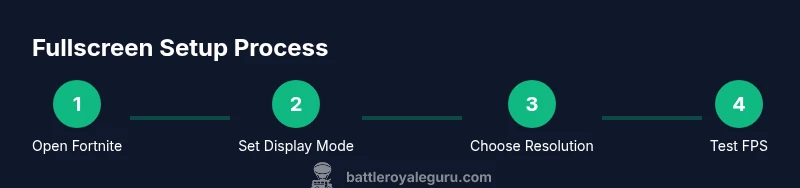
In Fortnite, navigate to Video settings. Set Display Mode to Fullscreen (Exclusive). Ensure the resolution matches your monitor’s native resolution.
Tip: If you see letterboxing, verify you are using the monitor’s native resolution and that no custom DPI scaling is interfering. - 4
Set the in-game resolution to match your monitor
Choose the exact resolution of your monitor (e.g., 1920x1080) and apply. This prevents stretched or blurry images and stabilizes pixel-perfect aiming.
Tip: Avoid non-native resolutions unless you’re troubleshooting; always revert to native when possible. - 5
Configure refresh rate and frame cap
In Windows, set the monitor to its maximum refresh rate (e.g., 144 Hz). In Fortnite, set a stable frame rate cap equal to or slightly below that refresh rate to maintain consistency.
Tip: A small, fixed cap helps prevent sudden frame drops during intense actions. - 6
Adjust performance-related in-game settings
Lower some high-cost visuals (shadows, post-processing) to improve frame time stability, then test responsiveness in combat scenarios.
Tip: Keep textures and view distance at reasonable levels to preserve clarity without sacrificing performance. - 7
Disable fullscreen optimizations and update drivers
In the Fortnite executable’s properties, disable fullscreen optimizations. Update your GPU drivers to the latest stable release and verify Windows updates are current.
Tip: After driver updates, reboot and re-test fullscreen to confirm stability improvements. - 8
Test alt-tabbing and multi-monitor behavior
If you switch to a second monitor, ensure Fortnite remains on the primary display. Test alt-tabbing to ensure smooth focus changes without flicker.
Tip: Consider creating a dedicated shortcut to toggle between fullscreen modes for quick testing. - 9
Validate stability with a short playtest
Play a 5–10 minute session focusing on accuracy and build speed. Watch for stutters, input lag, or sudden drops in FPS and adjust as needed.
Tip: Keep notes on settings that work best for your setup to simplify future patches.
Questions & Answers
What is the difference between fullscreen and borderless mode in Fortnite on PC?
Fullscreen (Exclusive) gives Fortnite direct access to the GPU, typically yielding the lowest input lag and sharpest visuals. Borderless windowed offers easier alt-tabbing but can introduce minor lag and occasional focus hiccups. For competitive play, fullscreen is usually preferred, with borderless as a fallback for multitasking.
Fullscreen gives the lowest input lag, while borderless makes alt-tabbing easier. For competition, use fullscreen unless you need quick switching.
How do I fix black bars when Fortnite is in fullscreen?
Ensure Fortnite’s resolution matches your monitor’s native resolution and that Windows display scaling is set to the recommended value. Disable any custom DPI scaling, and verify the aspect ratio stays 16:9 (or your monitor’s native ratio). Reboot after applying changes to ensure they take effect.
Make sure the game and monitor resolutions match and there’s no scaling distortion.
Will fullscreen mode affect FPS?
In most cases, exclusive fullscreen helps maintain stable FPS by reducing overhead. However, FPS is also influenced by drivers, background processes, and in-game settings. If FPS drops, revisit drivers, disable overlays, and consider lowering select visuals to stabilize frame times.
Yes, exclusive fullscreen often helps FPS, but other factors matter too.
Which setting should I choose for competitive play?
Choose Exclusive Fullscreen with your monitor’s native resolution and a fixed frame rate cap aligned to your refresh rate. Keep most visuals moderate to preserve consistent frame times. Use a quick hotkey to toggle back to windowed if you need to multitask.
Go with exclusive fullscreen and fixed FPS for consistency.
How do I switch back to windowed if I need to use other apps quickly?
In Fortnite, switch Display Mode to Windowed or Borderless and then adjust the Windows taskbar and focus behavior. You can also use Alt+Tab shortcuts if the game supports quick focus changes. Practicing the toggle helps you react without losing time.
Use the in-game mode switch or Alt+Tab to switch app focus quickly.
Does Windows display scaling affect Fortnite fullscreen?
Yes. High DPI scaling can cause blurriness or misalignment. Set Windows scaling to 100% (or the recommended value) and verify Fortnite uses the native resolution. If scaling is necessary, adjust in-game resolution to compensate.
Typically scaling can blur the game; stick to 100% when possible.
What if my monitor supports a higher refresh rate than my GPU can sustain?
Pick a refresh rate your GPU can consistently sustain and cap the frame rate to that value. This prevents sudden drops and stutter during fast-paced combat. If needed, reduce some visual settings to maintain stable frame times.
Cap your FPS to your GPU’s sustainable rate to avoid stutter.
Should I enable V-Sync for fullscreen on PC?
V-Sync can reduce tearing, but it may introduce input lag. Use it if you experience tearing and your input latency remains acceptable. If you’re chasing the lowest latency, try AMD/NVIDIA-specific options like Fast Sync or G-Sync/FreeSync depending on your hardware.
V-Sync reduces tearing but can add lag; test what works best for you.
Watch Video
Key Points
- Match in-game resolution to your monitor for best clarity
- Exclusive fullscreen often delivers the lowest input lag
- Borderless windowed is a viable fallback for frequent alt-tabbing
- Re-test after drivers or Windows updates to maintain stability
- Document and unify your settings for quick recovery after patches