How to Put Fortnite in Windowed Mode
Learn how to run Fortnite in windowed mode on PC with practical steps, tips, and troubleshooting from Battle Royale Guru. Includes borderless and windowed options for better multitasking.


This guide shows how to put Fortnite in windowed mode on PC, including Windowed and Windowed Fullscreen options, plus quick setting changes, and troubleshooting tips. You'll learn where to find the settings, how to apply them, and how to troubleshoot common issues so you can game smoothly while multitasking.
Why Fortnite windowed mode matters
Running Fortnite in a windowed mode can improve multitasking, streaming, and multi-monitor workflows. It helps when you want to switch between the game and other apps without the disruptive minimization sequence. According to Battle Royale Guru, players who adopt windowed modes often report better focus management and fewer screen-tearing quirks on certain setups. This approach isn’t for everyone; some players prioritize absolute FPS with fullscreen. The goal here is to provide a practical path to choose the mode that matches your workflow while keeping stability.
Display mode options in Fortnite
Fortnite provides several display modes to fit different workflows: Windowed, Windowed Fullscreen (also called borderless), and Fullscreen. Windowed shows the game in a resizable window with borders, making it easy to move the game between monitors or open other apps side-by-side. Windowed Fullscreen fills the screen without borders but behaves like a window for quick alt-tabbing. Fullscreen uses exclusive mode and can offer the most consistent visuals on certain rigs. Your choice should balance performance, stability, and multitasking needs, keeping in mind how your setup handles multiple inputs and overlays.
Preparing your PC for windowed mode
Before changing display modes, ensure your PC is ready for a smooth transition. Update your graphics drivers to the latest version from NVIDIA, AMD, or Intel. Use a modern Windows 10 or 11 install with all critical updates installed. If you encounter glitches, consider disabling Windows fullscreen optimizations for Fortnite to avoid conflicts with windowed modes on some hardware configurations. Also confirm your monitor is set to a supported resolution and a refresh rate you can sustain, as mismatches can cause scaling or tearing issues that undermine the windowed experience.
How to enable windowed mode in Fortnite (in-game steps) overview
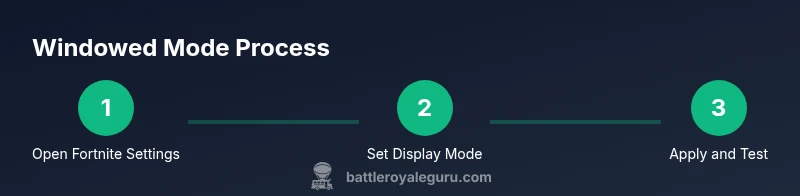
The in-game path for enabling windowed mode is straightforward. Start Fortnite, open Settings, switch to the Video tab, and locate the Display Mode option. Choose Windowed or Windowed Fullscreen, then adjust the resolution and frame rate as needed. Apply the changes and test Alt-Tab to ensure smooth transitions. If the option isn’t visible, try restarting Fortnite or the Epic Games Launcher, or use Windowed Fullscreen as a fallback. This overview maps out the exact places you’ll touch so you can execute without guesswork during a live session.
Performance and troubleshooting tips
Windowed modes can behave differently depending on hardware and monitor setups. To minimize tearing and stuttering, align the display mode with a stable refresh rate and ensure your monitor is configured correctly. On multi-monitor setups, place Fortnite on your primary display to avoid cursor focus issues when you switch tasks. If you experience micro-stutter, experiment with Windowed Fullscreen, and ensure V-Sync is set to your preference. For streaming, use a fixed window size and disable overlays that compete for GPU power to maintain steady performance.
Troubleshooting common issues with multi-monitor setups
If the Fortnite window doesn’t align to the screen edges, use Windows Snap Assist to position it precisely. If the option is missing, verify game integrity via the Epic Games launcher and relaunch the game. Some users report that changing display resolutions while Fortnite is running can cause glitches; always apply mode changes with the game closed. Lastly, check OS-level settings that may override game window behavior, such as scale and layout options, and ensure the game is set as the primary application on the intended monitor.
Authority sources and references
- Epic Games Help Center: https://www.epicgames.com/help/en-US/
- Microsoft Support: https://support.microsoft.com/
- PC Gamer: https://www.pcgamer.com/
Tools & Materials
- Fortnite installed on PC(Ensure you’re on the latest patch.)
- Windows PC (Windows 10/11)(64-bit OS recommended.)
- Stable internet connection(For downloading patches and online play.)
- Updated graphics drivers(NVIDIA/AMD/Intel latest version.)
- Keyboard and mouse (or controller)(Needed to navigate settings.)
- Backup of current display settings(Helpful in case you need to revert.)
Steps
Estimated time: 10-15 minutes
- 1
Open Fortnite Settings
From the main menu, open the settings menu by selecting the gear icon. This is where visual configurations start.
Tip: Make sure you’re not mid-match when changing settings. - 2
Navigate to Video Settings
In the Settings panel, switch to the Video tab to access display options.
Tip: Use the search-like filter if available to locate Display Mode quickly. - 3
Set Display Mode to Windowed
Choose Windowed or Windowed Fullscreen from the Display Mode dropdown.
Tip: Windowed Fullscreen reduces border artifacts while keeping easier alt-tabbing. - 4
Adjust Resolution and Refresh Rate
Set a resolution that matches your monitor's native resolution and a refresh rate you can sustain.
Tip: Start with your native resolution for best clarity. - 5
Apply Changes and Test Alt-Tab
Apply the changes, then switch to other apps to ensure quick focus return.
Tip: If alt-tab feels laggy, try Windowed Fullscreen instead. - 6
If Display Mode Isn’t Visible, Try a Reboot
Close Fortnite, restart your PC, and re-open to refresh the settings cache. Some GPUs cache display options.
Tip: Ensure the Epic Games Launcher is also up to date. - 7
Fine-Tune for Your Setup
Experiment with borderless vs windowed and adjust the alignment on multi-monitor setups.
Tip: Use Windows Snap Assist to position the window precisely.
Questions & Answers
What is the difference between Windowed and Windowed Fullscreen in Fortnite?
Windowed displays Fortnite in a resizable window with borders. Windowed Fullscreen fills the screen without borders but behaves like a window for quicker alt-tabbing.
Windowed shows a bordered window; Windowed Fullscreen fills the screen for fast switching.
Will changing to windowed mode affect FPS or latency?
Display mode can influence performance slightly. Borderless may introduce minor overhead but improves tab switching.
Display mode can affect performance a bit; borderless helps with quicker tab switching.
How do I revert to fullscreen if windowed mode causes issues?
Go to Video settings and set Display Mode back to Fullscreen, then apply.
In Fortnite, switch Display Mode to Fullscreen and apply the change.
Does windowed mode work on Mac?
Windowed mode options may differ on macOS; consult Epic Games support for platform-specific steps.
Mac users should check Epic Games support for windowed mode details.
What if Fortnite crashes when changing modes?
Update graphics drivers, verify game files, and restart the game. If needed, reset preferences.
Update drivers and verify files; restart Fortnite to apply changes.
Can I use windowed mode while streaming?
Yes, windowed or borderless modes work well with overlays; test performance and adjust bitrate if needed.
Windowed modes are streamer-friendly; test overlays and performance.
Watch Video
Key Points
- Switch to Windowed or Windowed Fullscreen for multitasking.
- Match the resolution to your monitor for sharp visuals.
- Test alt-tab and streaming interactions to avoid surprises.
- Consult official support if options aren’t visible.