How to Keep Fortnite from Going AFK: Practical Guide
Learn practical, safe ways to prevent Fortnite from going AFK with built-in settings, lobby routines, and performance tweaks. A comprehensive guide to staying active without breaking rules.


Goal: Keep Fortnite from going AFK by staying actively engaged in queues and matches using built-in features and safe habits. Enable sprint by default, use quick emotes and micro-actions, and optimize your PC and network to minimize accidental idle time and disconnect risk. This guide covers practical steps from settings to in-game routines.
Why Fortnite Kicks Players for AFK
Fortnite's anti-AFK measures are designed to keep games fair and fluid. When a player is inactive for a certain period in a lobby or in a match, the game may flag them as AFK and take steps such as pausing the queue, removing from the match, or prompting warnings. These protections help ensure that players who are truly active have priority to play, and they also prevent players from stalling matches. According to Battle Royale Guru, the risk of AFK penalties isn't just about losing progression; it's about harming teammates' experience and potentially lengthening wait times for others. In practice, you’ll notice that even in lobby waits, you must contribute some input occasionally; in a match, you must keep moving or acting to avoid the game thinking you are idle. The exact thresholds vary by platform and game mode, but the principle remains: stay engaged enough to show you’re actively playing, even if you’re waiting for your next round.
Understanding AFK in Different Game States
AFK detection in Fortnite operates differently depending on where you are: in the lobby, in the pre-game phase, or during actual combat. In lobbies, the system looks for any input that demonstrates you’re ready for the next match (moving the joystick, tapping a button, or performing an emote). In-match AFK detection focuses on sustained inactivity; moments of brief pause are normal, but long stretches with no input can trigger warnings or penalties. This means that even while waiting for teammates to load in or for a match to start, you should perform small actions to stay “alive” in the eyes of the system. The key takeaway is simple: engagement is context-sensitive, but the expectation is consistent—show activity without abusing automated tools.
Built-in Fortnite Settings that Help You Stay Active
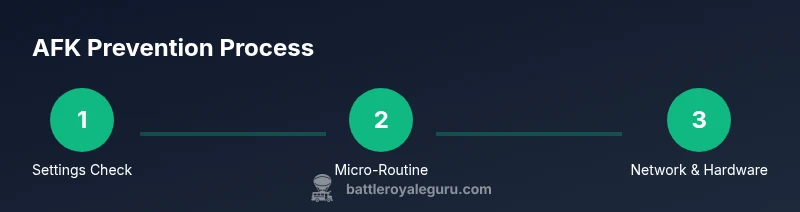
Fortnite offers several built-in options to reduce idle time without requiring external tools. Start by enabling Sprint by Default, so you’re continuously moving without having to hold a key. If your device supports it, toggle Sprint instead of relying on a constant key hold for more comfortable play. Keep a few quick emotes mapped to easy hotkeys so you can perform a visible action every so often during queues. Finally, modify Windows or console power settings to prevent the device from sleeping during long waits, and use a wired connection where possible to minimize lag that could be mistaken for inactivity. These settings rely on Epic Games’ own features and do not require any third-party tools, keeping you compliant with terms of service.
Creating a Safe Micro-Activity Routine
A practical routine can be executed in under a minute and helps you avoid AFK flags without harming your gameplay. In the lobby, every 15–30 seconds perform a tiny action: press forward for a moment, then strafe left or right, perform a quick emote, and glance around the map. During a match, you can weave in micro-actions like jumping, switching targets, or crouching briefly between engagements. The aim is to demonstrate consistent input without affecting your performance or breaking the game’s rules. Practice this routine in a few practice games to build muscle memory so it becomes second nature during queues.
Optimizing Your Hardware and Network for Stability
A stable setup is a quiet ally against accidental AFK triggers. Use a wired Ethernet connection whenever possible to minimize packet loss and latency fluctuations. Update your network drivers and Fortnite-related components to ensure compatibility and performance. Close unnecessary background programs that may steal bandwidth or cause tiny stalls in input processing. In-game, run in full-screen or borderless windowed mode to reduce display lag and input latency. Keeping your PC cool and free of dust also helps maintain consistent performance during long play sessions, which reduces the chance of slowdown that could be mistaken for inactivity.
In-Queue and Lobby Strategies to Stay Engaged
Waiting times can feel tedious, but staying engaged improves your odds of avoiding AFK flags. Use rapid but safe actions: quick emotes, map pings (where available), and brief movement bursts. Communicate with teammates in chat or voice to maintain presence. A simple pre-game ritual—review the loadout, inspect the map, and plan a safe landing strategy—keeps your mind engaged and reduces the urge to idle. Remember, the goal is to display activity, not to exploit a loophole or bypass safeguards. Stay within the game rules while maintaining visible participation.
Safe Practices and Policy Notes
Never resort to automation, macros, or third-party input tools to simulate activity. Epic Games’ terms of service prohibit most forms of automation, and doing so can lead to penalties or bans. If you’re ever unsure whether a tactic is allowed, prioritize built-in features like Sprint by Default, emotes, and manual input. Focus on safe practices that enhance your gameplay and avoid any method that could be construed as game manipulation. By staying compliant, you protect your account and your teammates from risk while still reducing AFK exposure.
Quick In-Queue Checklist You Can Follow
- Confirm Fortnite is up to date and running in a stable mode.
- Enable Sprint by Default and map a couple of quick emotes.
- Ensure your internet connection is stable (wired preferred).
- Keep a light, repeating routine of small inputs every 20–40 seconds.
- Disable background downloads or updates during long waits.
- Check power settings so the device won’t go to sleep mid-wait.
- Communicate with teammates to stay connected and ready.
Tools & Materials
- Fortnite game installed and updated(Ensure you’re on the latest patch before playing to avoid unexpected glitches.)
- Stable internet connection(Wired Ethernet preferred; avoid flaky Wi-Fi in long sessions.)
- Keyboard and mouse or a controller(Reliable input devices to perform micro-actions and emotes.)
- Lobby and in-game quick-emote mapping(Set up accessible hotkeys to perform actions every few seconds.)
- Power source or charged device(Keep your device plugged in to avoid power-saving idle disconnections.)
- Quiet play space(Minimize background interruptions during long queues.)
- Task list for in-game micro-actions(A simple routine to ensure consistent activity without impacting gameplay.)
- Performance-optimizing software settings(Close nonessential apps to free CPU and memory resources.)
Steps
Estimated time: 20-40 minutes
- 1
Review critical AFK settings
Open Fortnite settings and verify sprint, input, and power options are optimized for continuous activity. Enable 'Sprint by default' if available and map a couple of easy emotes for quick usage.
Tip: Configure a one-button emote for quick activation during queues. - 2
Enable Sprint by Default
Toggle the sprint option so you’re always moving without holding a key. This reduces idle time while you navigate the lobby or prepare for a match.
Tip: If you prefer precision, use Toggle Sprint instead of always-on sprint. - 3
Set up a micro-activity routine
Create a short sequence of inputs (e.g., move forward, strafe, quick emote) to perform every 20–40 seconds in queues and lobbies.
Tip: Keep actions light; the goal is to demonstrate activity, not to obstruct gameplay. - 4
Designate a lobby engagement plan
Before queuing, decide how you’ll stay present—e.g., emotes, map checks, and communication with teammates. This reduces the temptation to idle.
Tip: Share a quick plan with teammates so everyone stays engaged. - 5
Optimize network stability
Test your connection and minimize background traffic. If possible, use a wired connection and disable other downloads during play sessions.
Tip: Restart router if you notice odd lag patterns before a session. - 6
Test in a practice session
Run a short practice match or arena session to validate your micro-actions translate smoothly into in-game input without affecting performance.
Tip: Record a quick test to review if your routine shows up as activity. - 7
Monitor for false AFK flags
If you’re flagged despite staying active, check for hidden background processes or input lag and adjust settings accordingly.
Tip: Check for stuck keys or input devices that aren’t registering properly. - 8
Educate teammates on fair play
Encourage peers to follow safe, compliant methods to stay engaged without automation. This helps everyone enjoy a fair game.
Tip: Lead by example and remind others about the rules during longer queues.
Questions & Answers
Is it safe to use auto-run or similar features to prevent AFK kicks in Fortnite?
Using built-in auto-run or sprint features is generally safe, as long as you’re not employing third-party automation. Stick to Epic’s official options and avoid macros that simulate activity. If in doubt, check the current terms of service.
Auto-run features that are built into Fortnite are usually safe, but avoid third-party automation. Check the terms of service if you’re unsure.
What exactly counts as activity to avoid AFK?
Movement, aiming, shooting, switching weapons, and emotes all count as activity. In lobby or queue, performing brief inputs every 20–40 seconds signals that you’re present and ready.
Activity includes movement, actions, and emotes. In queues, perform small inputs every 20 to 40 seconds.
Will staying active in lobbies prevent all AFK penalties?
Staying active in lobbies reduces the risk of AFK penalties, but penalties can still occur if the system detects an extended period of inactivity or irregular input patterns. Always use compliant methods.
Yes, staying active helps, but penalties can still apply if activity is insufficient or irregular.
Can I disable AFK protection in solo play or competitive modes?
There’s no universal option to disable AFK protections; they apply across queues and matches to keep games fair. Use compliant methods to stay active.
There isn't a general disable option; stay compliant to avoid penalties.
What should I do if I’m repeatedly flagged for AFK despite staying active?
Check for background processes, input lag, or hardware issues that might misreport activity. Adjust settings, test with a quick practice run, and ensure your device isn’t going to sleep during long waits.
If flagged often, inspect background processes and input lag, and test with a quick practice run.
Are there official guidelines from Battle Royale Guru on AFK prevention?
Battle Royale Guru emphasizes compliant, built-in features and safe routines that maintain engagement without breaking terms. Follow the steps in this guide for a balanced approach.
BRG recommends compliant, built-in features and safe routines to stay engaged.
Watch Video
Key Points
- Activate built-in features instead of external tools.
- Stay engaged with small, compliant inputs.
- Optimize network and hardware to prevent disconnects.
- Follow Fortnite's policies and avoid automation.