How to Get Fortnite Out of Sleep Mode: A Practical Guide
Learn practical, platform-spanning methods to stop Fortnite from entering sleep mode. This guide covers power settings, display timers, and game updates to keep your sessions uninterrupted.


Fortnite sleep mode can pause your sessions and cause delays between matches. This guide shows how to exit sleep mode by adjusting system power settings, display timers, and in-game preferences across Windows, macOS, and consoles. Follow the step-by-step approach to keep Fortnite active and prevent future interruptions. It also includes safety reminders and best practices for long gaming sessions. According to Battle Royale Guru, understanding the root cause is key to choosing the right fixes.
Why Fortnite Might Enter Sleep Mode
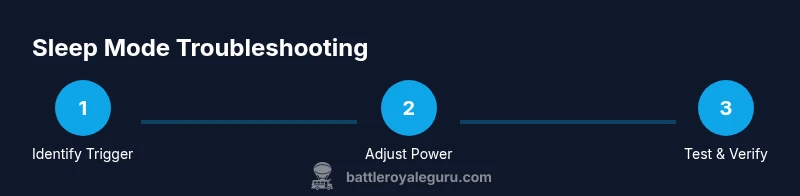
When you game, your device should stay awake, but several factors can trigger a sleep mode state that disrupts Fortnite. Primary culprits are system power settings, rest timers, and display sleep thresholds. Many laptops have aggressive battery-saving rules that kick in the moment you disconnect the charger, which can inadvertently pause online play. Consoles also have rest-mode configurations that can look like a paused game even while you are actively playing. Understanding these triggers helps you decide which fixes to apply first. According to Battle Royale Guru, most sleep-mode troubles originate from misaligned power profiles rather than a single faulty device, so the first step is to review both OS-wide and game-specific settings. Take a few minutes to map exactly when sleep triggers happen: is it during long load screens, when you switch tasks, or after a period of idle in the lobby? Once you can reproduce the behavior, you’ll be able to apply the right settings quickly and with confidence.
-
Pro tip: Take screenshots of current power settings before making changes so you can revert if needed.
-
Note: Some laptops default to aggressive power saving on battery; always verify both plugged-in and battery modes.
-
Warning: Do not disable essential security updates while adjusting power plans. Going too far can expose you to risks.
How Sleep Mode Affects Fortnite Gameplay
Sleep mode doesn’t just pause visuals; it can interrupt network activity, cause you to be signed out of Epic Games, or delay matchmaking as the system reinitializes resources. You might notice sudden stutters, momentary audio drops, or the game appearing suspended while you are actively playing. In some cases, the lobby or match may fail to respond promptly after you take a break, forcing a re-entry that feels like a restart. These symptoms aren't unique to Fortnite; any online game can suffer when the host device or monitor enters sleep. The practical takeaway is that sleep mode acts like a hidden pause button, so identifying exact trigger points is essential for effective fixes.
-
Pro tip: Keep your game and drivers up to date to minimize compatibility gaps that can trigger sleep behavior.
-
Note: If sleep mode happens only after long matches, focus on timers and display settings first.
-
Warning: If you see hardware overheating while trying to play, stop and check cooling before continuing.
Quick Fixes to Exit Sleep Mode
To rapidly get back into Fortnite, apply a sequence of quick wins that address common culprits. Start with system-level changes, then verify game readiness, and finally test in a live session. These fixes are designed to be safe, reversible, and effective across platforms.
-
Ensure Sleep is Disabled Temporarily: On Windows, set both “Put the computer to sleep” and “Turn off after” to Never when plugged in, and extend the display timeout rather than allowing immediate sleep.
-
Keep Fortnite Foreground: Make sure the game remains the active window during play, so the OS does not believe you’re idle.
-
Adjust Display Settings: Increase the display idle timer to a longer duration and disable any automatic screen lock while gaming.
-
Update Software: Install the latest OS updates and Fortnite patches to close compatibility gaps that can cause sleep triggers.
-
Reboot If Stagnant: A clean reboot clears lingering timers and resets background services that might enforce sleep.
-
Pro tip: Use a dedicated gaming profile on your device to isolate gaming settings from daily use.
-
Warning: Don’t leave critical background tasks disabled that rely on timers for security or maintenance.
-
Note: If you’re on a laptop, staying plugged in often reduces sleep occurrences; verify both power states.
Preventing Sleep Mode During Gameplay
Long-term prevention requires aligning hardware, software, and in-game behavior so Fortnite stays awake during sessions. Start with a gaming-first configuration that minimizes automatic sleep, then tailor it to each platform. This approach reduces interruptions across sessions and helps maintain consistent performance.
-
Create a Gaming Power Plan: For Windows, customize a High Performance profile with sleep timers disabled and ensure “Hibernate after” is set to Never.
-
macOS Energy Settings: In Energy Saver (or Battery settings), disable “Put hard disks to sleep when possible” and enable “Prevent computer from sleeping automatically when the display is off” while gaming.
-
Console Rest-Mode Management: Disable automatic rest mode during active gaming, and ensure the console wakes quickly on controller input.
-
Monitor and Peripherals: Use a display with a fixed idle time and avoid USB devices that aggressively enter power-saving modes during play.
-
Network Stability: Prefer wired connections to reduce latency that can appear as sleep-like delays.
-
Pro tip: Schedule regular restarts of your device during long gaming sessions to refresh background services.
-
Warning: Avoid disabling critical security updates or antivirus checks; schedule them for later windows.
-
Note: Regularly reviewing settings after OS or Fortnite updates helps maintain wake behavior.
Advanced Troubleshooting (PC/mac/console)
If quick fixes don’t resolve sleep mode, dive into platform-specific settings. This section covers Windows, macOS, and console nuances that influence how sleep mode behaves during Fortnite gameplay. Each subsection focuses on precise toggles that commonly resolve stubborn sleep behavior.
-
Windows: Access Settings > System > Power & sleep. Set Sleep to Never for both plugged in and battery (if you play on battery). Then go to Additional power settings > High performance > Change plan settings > Never sleep. Disable any toggle that “turns off the display” after a short idle period during gaming. Install any pending driver updates and Fortnite patches.
-
macOS: Open System Settings > Battery and Power Adapter. Uncheck options that let the computer sleep during activity and extend the display sleep timer for gaming sessions. Ensure automatic graphics switching is disabled if you notice freezes while waking from sleep.
-
Console (PlayStation/Xbox): Navigate to Settings > Power Saving > Set features available in Rest Mode to use your preferred online options. Disable automatic Rest Mode during active gameplay and ensure your console boots quickly to your home screen after wake.
-
Pro tip: Collect a small set of test scenarios (short match, long lobby, loading screen) to verify wake behavior across platforms.
-
Warning: Some changes can affect background downloads and updates; plan updates for off-peak hours.
-
Note: If sleep issues persist after platform-specific fixes, consider a clean reinstall of Fortnite or a factory reset of the console as a last resort.
When to Seek Official Support
If you’ve exhausted standard fixes and sleep mode persists across platforms, it may be time to contact official support or browse system forums for your particular hardware. Persistent sleep behavior can be a sign of a deeper compatibility issue between Fortnite, your OS, or your device firmware. Before reaching out, collect the following: a detailed description of when sleep occurs, the exact device model, OS version, Fortnite build number, and a log of steps you took to reproduce the issue. This information helps support agents diagnose the problem faster and tailor a solution to your setup. The Battle Royale Guru Team recommends documenting the problem with timestamps and screen captures to illustrate the exact sequence causing the sleep behavior.
Final Checks and Recap
With sleep mode issues, consistency is key. Revisit your power settings after any OS or Fortnite update, test across a few different sessions, and keep your system firmware current. The most reliable wins come from combining a robust gaming profile with platform-specific steps rather than broad, sweeping changes. If you still experience interruptions, revert changes one-by-one to identify the exact culprit and reapply the fixes that work best for your device. Remember: a methodical, platform-aware approach yields the most stable Fortnite wake behavior and keeps your sessions flowing smoothly.
Tools & Materials
- Gaming PC or Console(Primary device for Fortnite playback; ensure it meets minimum system requirements.)
- Reliable Power Source(Use a stable wall outlet or UPS to prevent unexpected power loss.)
- Internet Connection(Wired Ethernet preferred for stability; avoid flaky Wi‑Fi when testing sleep behavior.)
- Display/Monitor(Screen with a long idle time and compatible refresh rate for gaming.)
- Keyboard and Controller(Use reliable input devices to ensure quick wake actions.)
- Access to OS Power Settings(Administrative access may be required to modify advanced power options.)
Steps
Estimated time: 15-25 minutes
- 1
Open Power & Sleep Settings (Windows)
Open Settings > System > Power & sleep. Review the current timers and set both Sleep and Display to Never when plugged in. This prevents the system from entering a low-power state during Fortnite sessions.
Tip: Take a screenshot of current settings before changing them to revert if needed. - 2
Set Sleep to Never (plugged in) and Extend Display Timeout
In the same menu, set Sleep to Never and extend the display timeout to a longer interval. This keeps the screen awake during long loading screens or matches.
Tip: Verify these changes across both battery and plugged-in modes if you alternate power sources. - 3
Choose a High-Performance Power Plan
Go to Control Panel > Hardware and Sound > Power Options and select High performance. If available, customize to ensure Never sleep and Never turn off display under both battery and plugged-in modes.
Tip: Apply changes and run a quick test by launching Fortnite and staying in a lobby for a few minutes. - 4
Ensure Fortnite Is Foreground
While playing, keep Fortnite as the active window and disable any fullscreen optimizations that might cause background windows to appear idle.
Tip: Use Alt+Tab sparingly during testing to avoid accidental wake triggers. - 5
Check Display Settings and Screen Lock
Disable screen locks or auto-locks during gaming; adjust screen saver settings so they don’t trigger during a session.
Tip: If using a multi-monitor setup, set the primary monitor to never sleep. - 6
Update Drivers and Fortnite
Install the latest graphics drivers and Fortnite patches. Compatibility fixes often resolve sleep-related conflicts.
Tip: Reboot after updates to ensure changes take effect. - 7
Test with a Short Fortnite Session
Launch a quick match or practice mode to observe wake behavior. Confirm that the system doesn’t sleep and the game remains responsive.
Tip: Document any remaining hiccups with timestamps for future troubleshooting. - 8
Console-Specific Rest-Mode Check
If you’re on a console, review Rest Mode and online standby settings. Disable automatic rest during active gameplay and ensure wake from controller input is smooth.
Tip: Test waking from Rest Mode with a quick power cycle if needed.
Questions & Answers
What causes Fortnite to enter sleep mode?
Sleep mode is often triggered by power-saving timers, rest modes, or display sleep settings that run while gaming. Misaligned configurations across the OS and hardware can make Fortnite appear paused even when you’re actively playing. Identifying the exact trigger helps apply the right fixes.
Sleep mode during Fortnite is usually caused by power-saving timers or display sleep settings. Identify which setting triggers first and adjust accordingly.
Does sleep mode affect crossplay or matchmaking?
Sleep mode can impact connectivity and timing, which may affect matchmaking if the device wakes slowly or disconnects. Keeping the device awake and maintaining stable network activity helps ensure smoother matchmaking.
Sleep mode can disrupt connectivity and timing, influencing matchmaking. Keep the device awake and the network stable to minimize impact.
Is sleep mode a device-wide setting or game-specific?
Sleep mode is primarily governed by device-wide power and display settings, though some in-game overlays and background processes can aggravate wake behavior. Adjust system settings first, then verify in-game behavior.
Sleep mode is mostly a device setting, but certain game overlays can worsen wake behavior. Start with system settings and test in-game.
Will updating drivers fix sleep mode?
Driver updates can resolve compatibility issues that cause sleep-like interruptions during gameplay. Always install the latest graphics and chipset drivers, along with any Fortnite patches.
Driver updates can fix sleep-like interruptions. Install the latest graphics and chipset drivers, plus Fortnite patches.
What if sleep mode persists after changes?
If sleep mode continues, recheck each setting step-by-step, consider a clean reinstall of Fortnite, and test across a fresh user profile. As a last resort, consult official support with a detailed reproduction log.
If issues persist, redo settings, try a clean reinstall, and contact support with a reproduction log.
Can I play while the device is charging?
Playing while charging often reduces aggressive sleep behavior on laptops and consoles. Verify that the charger is connected and that power-saving timers are disabled for the session.
Yes, playing while charging generally helps; ensure power-saving timers are off for the session.
Watch Video
Key Points
- Identify sleep triggers by testing across platforms.
- Adjust power and display settings to stay awake during play.
- Keep Fortnite and drivers updated for compatibility.
- Test across Windows, macOS, and consoles to confirm wake behavior.
- Seek official support if issues persist after platform-specific fixes.