How to Prevent Fortnite Sleep Mode
Learn how to prevent Fortnite sleep mode across PC, console, and mobile with practical, platform-specific steps, power settings, testing tips, and safety reminders to keep games uninterrupted.


To prevent Fortnite sleep mode, adjust device power settings, disable auto-lock, and use continuous power while gaming. This guide covers PC, console, and mobile methods, plus tips for extended sessions and risks to avoid. We’ll explain platform-specific options, safety considerations, and how to test settings with a short practice match for a reliable, uninterrupted session.
Why Fortnite Sleep Mode Happens
Fortnite players often encounter interruptions when their device goes into sleep due to energy-saving policies, even during a heated match. Sleep mode is not a Fortnite-specific feature; it's an OS-level behavior designed to conserve power when the device is idle or under heavy load. In practice, this means the screen may dim, the display may sleep, or network connections may pause if no user input is detected for a set period. This can cause you to drop from a session, lose progress, or miss a critical moment.
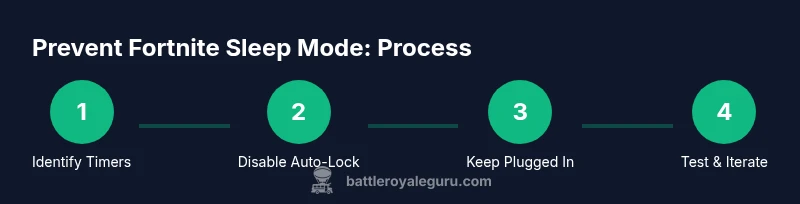
According to Battle Royale Guru, sleep mode interruptions are often caused by default OS timers and battery saver settings. The good news is you can preempt these triggers without compromising safety or device health by configuring platform-specific options. Start by identifying which timers are active (display sleep, system sleep, or app suspensions) and then adjust them to accommodate long Fortnite sessions. If you game on a laptop, ensure that battery saver is disabled while you’re plugged in. If you play on a desktop, focus on display and hard drive sleep settings. These changes create a stable foundation for uninterrupted practice, creative maps, and sweaty endgames.
Platform Scope: PC, Console, and Mobile
Sleep mode behavior varies by platform, so you’ll need platform-aware tweaks. On PCs, Windows and macOS both offer power timers that can trigger sleep when the system detects inactivity. Consoles have their own rest or sleep settings, often labeled as “Rest Mode” or “Power Saving.” Mobile devices rely on screen timeout and battery optimization features that can suspend Fortnite in the background. The core strategy across platforms is to extend or disable inactivity timers during play, while ensuring normal power use when you’re not gaming. In practice: look for display sleep, system sleep, and app suspension timers; disable or lengthen them during sessions; re-enable standard settings after you’re done to protect battery health and updates. This multi-platform approach reduces interruptions and keeps your progress intact.
Practical Impact on Fortnite Sessions
Sleep mode interruptions can disrupt matchmaking, ruin mid-game saves, and force you out of a lobby right as a sweep is about to happen. For competitive players, even a few seconds of wake-up delay can mean losing a clutch moment. By preventing sleep mode, you gain more consistent practice time, smoother creative maps, and reliable progression in ongoing events. Battle Royale Guru analysis shows that sleep-mode triggers vary by device and power plan, so a one-size-fits-all solution often falls short. The goal is to create a predictable play window where your system remains active, responsive, and ready to react when you need it most. Keep your setup aligned with your platform to minimize surprises during a sweaty endgame.
Quick Wins: Essentials You Can Do Right Now
Before diving into deeper changes, try a quick audit of your current settings. Check all devices you use for Fortnite (PC, console, and mobile) and confirm that display sleep and system sleep timers are disabled or set to a long duration while you’re gaming. Plugging devices into a reliable power source during sessions is essential, especially on laptops, to prevent battery saver from kicking in. Ensure you’re not running unnecessary background apps or power-hungry overlays that can trip timers or throttle performance. Finally, perform a short practice match to verify that no sleep-related interruptions occur during real play. If you notice a sleep trigger, apply the corresponding platform-specific tweak and re-test.
Step 1: Inspect Platform Power Settings
Actionable first step is to audit every device you’ll use for Fortnite. On Windows, open Power & Sleep settings and extend the ‘When plugged in, turn off after’ timer or set it to Never for both display and computer sleep. On macOS, check Energy Saver and set options to prevent the computer from sleeping automatically and extend display sleep. On consoles, locate Power Saving or Rest Mode options and disable automatic sleep during gaming sessions. On mobile, review Screen Timeout/Auto-Lock and set a longer duration or Never if available. The reason is simple: identifying the exact trigger allows targeted fixes rather than broad, risky changes. Tip: document each setting with a screenshot for quick reference and rollback.
Step 2: Disable Auto-Lock and Increase Timeouts
After identifying the timers, disable auto-lock on mobile and extend or disable auto-sleep on PCs and consoles. On Windows, set both display and computer sleep to Never while gaming. On macOS, enable ‘Prevent computer from sleeping’ and ‘Prevent display from sleeping automatically.’ For consoles, disable any automatic sleep configurations during play. This step ensures Fortnite stays foregrounded and responsive, preventing accidental sleep during an important play window. Pro tip: create a quick OS profile or mode labeled ‘Fortnite Session’ so you can switch back to normal power behavior easily.
Step 3: Keep the Device Plugged In During Play
A reliable power source is critical for long Fortnite sessions. Laptop users should connect to a power outlet and consider a high-quality charger or dock to maintain stable voltage. Desktop players will typically be on a constant power supply, but it’s still worth confirming that power settings won’t inadvertently trigger sleep if the system load spikes. Some laptops automatically reduce performance on battery power; staying plugged in prevents performance throttling that could indirectly trigger sleep-related timers. If you must game on battery, plan shorter sessions and monitor battery levels closely.
Step 4: Optimize Background Processes and Network
Background apps, OS services, and network-intensive processes can influence wake behavior. Close non-essential programs, disable unnecessary overlays, and restrict apps from waking the display or CPU when Fortnite is running. On Windows, use Task Manager to end background processes that spike CPU usage. On macOS, review Activity Monitor and quit apps that may intermittently steal focus. Ensure Fortnite has priority in your network router settings if possible, and disable any bandwidth-heavy cloud backup during play. These optimizations minimize distractions to wake timers and help maintain a stable gaming environment.
Step 5: Test and Validate Your Settings with a Practice Match
Once changes are in place, test with a practice match that simulates real conditions: long-duration play, frequent map interactions, and high-intensity moments. Observe whether the screen remains awake, input stays responsive, and the session stays uninterrupted. If you encounter any sleep triggers, revisit the corresponding setting and adjust by a small increment, then re-test. Documentation of changes helps you reproduce a reliable setup for future sessions and reduces guesswork during live play.
Step 6: Monitor Hardware and Revisit Settings Regularly
Over time, OS updates or driver changes may reset power settings or introduce new sleep behaviors. Schedule a quarterly check of power profiles across devices and re-run a short practice session after each major update. If you notice overheating, reduced performance, or battery drain, refine settings to balance safety and uninterrupted play. Keeping a simple log of changes helps identify which tweaks deliver consistent results and minimizes the risk of regressions.
Tools & Materials
- Fortnite-installed device (PC, console, or mobile)(Ensure Fortnite and OS are updated to the latest versions)
- Steady power source(Wall outlet or qualified docking station; avoid battery-only play)
- Screen and input accessories(Reliable monitor/TV, controller, keyboard, or mouse as appropriate)
- Documentation tools(Screenshots or notes to capture settings for rollback)
- Monitoring software (optional)(Temp and power usage monitoring to catch overheating)
Steps
Estimated time: 60-120 minutes
- 1
Inspect platform power settings
Audit all devices used for Fortnite and identify sleep timers (display sleep, system sleep, app suspensions). Note the current values for quick reference.
Tip: Take before/after screenshots for each device. - 2
Disable auto-lock and extend timeouts
Set auto-lock or idle timers to Never or the maximum allowed duration on mobile, and Never for both display and system sleep on PC/macOS.
Tip: Use a dedicated Fortnite session profile to simplify toggling back later. - 3
Keep device plugged in during play
Ensure your device stays powered via outlet or dock to prevent power-saving modes from triggering.
Tip: Avoid power-saving peripherals that can disconnect in long sessions. - 4
Close non-essential background apps
Quit software that can wake the screen or use CPU in the background, especially overlays and cloud syncing tools.
Tip: Disable in-game overlays if they cause input latency. - 5
Test with a practice match
Run a 10–15 minute test to verify wake behavior, input responsiveness, and uninterrupted play.
Tip: Document results and adjust one setting at a time. - 6
Check for overheating or throttling
Monitor temperatures during the test; if throttling occurs, lower in-game settings or improve cooling.
Tip: Keep vents clear and use a stand if needed. - 7
Iterate until stable
If sleep triggers return, revisit the suspected setting and adjust by a small margin.
Tip: Avoid drastic changes; small tweaks yield better stability. - 8
Document and share your setup
Create a short guide from your tested settings for future sessions or teammates.
Tip: Use a simple checklist to reproduce the setup quickly. - 9
Re-test after updates
After OS or game updates, re-run a practice match to confirm settings hold.
Tip: Updates can reset timers; verify promptly. - 10
Review safety considerations
Balance uninterrupted play with safe device use to avoid overheating or battery damage.
Tip: Always ensure proper ventilation and take breaks as needed.
Questions & Answers
What is Fortnite sleep mode and why should I care?
Fortnite sleep mode is an OS-level power-saving feature that can pause the display or suspend apps during inactivity, causing interruptions mid-game. Preventing it helps keep matches continuous and reduces the chance of losing progress.
Fortnite sleep mode is an OS feature that turns off the screen or pauses apps when idle. Preventing it helps you stay in the game without interruptions.
How do I disable auto-lock on Windows and macOS?
On Windows, adjust Power & Sleep settings to never sleep when plugged in. On macOS, use Energy Saver or Battery settings to prevent automatic sleep while gaming. These changes keep Fortnite active during long sessions.
Disable auto-lock in Windows and macOS energy settings to keep Fortnite active during long sessions.
Can preventing sleep mode cause overheating or battery drain?
Extending sleep timers reduces interruptions but may increase heat and power use. Monitor temperatures and ensure good ventilation. If you notice overheating, revert to safer timer values and take breaks.
Longer timers can raise heat and power use, so watch temperatures and take breaks if needed.
Are there platform-specific differences I should know?
Yes. PCs use OS timers, consoles have Rest/Sleep modes, and mobile devices depend on screen timeout and battery optimization. Tweak each platform accordingly and test with a short game session.
PCs, consoles, and mobile have different sleep controls; adjust each platform and test.
Will these changes affect game updates or charging?
Power and sleep settings do not block updates, but updates can reset preferences. After updating, recheck timers and repeat a quick test session to confirm stability.
Updates may reset settings, so verify them after updates and test again.
Is there a universal setting I can apply across all devices?
There isn't a single universal setting; you must configure timers and power options per device. Use a consistent profile approach to simplify switching during Fortnite sessions.
Use device-specific profiles to maintain consistency across devices.
What should I do if sleep mode still interrupts after changes?
Isolate the problem by testing one setting at a time and documenting results. If the issue persists, consult device-specific forums or the manufacturer support for deeper power management options.
If it still interrupts, test settings one by one and seek device-specific guidance.
How often should I re-check settings?
Review power settings after major OS or Fortnite updates and after hardware changes. A routine check ensures uninterrupted play and avoids regressions.
Check settings after updates or hardware changes.
Watch Video
Key Points
- Audit all devices for sleep timers before play
- Disable auto-lock and extend timeouts during Fortnite sessions
- Keep devices plugged in to avoid battery-driven sleep triggers
- Test with practice matches and document results
- Revisit settings after OS or game updates