How to Put Fortnite in Sleep Mode: A Practical Guide
Learn how to safely pause Fortnite by using OS sleep/rest modes across PC, consoles, and mobile. This educational guide covers platform nuances, risks, and best practices for energy savings and quick resume.


You can't enable Fortnite-specific sleep mode. You create a sleep-like pause by letting your device or console enter a sleep/rest state or by quitting to the OS. See our full step-by-step guide for platform-specific instructions.
What 'how to put Fortnite in sleep mode' actually entails
'how to put fortnite in sleep mode' is a phrase many players search when they want to pause the game without losing progress or wasting power. In practice, there is no Fortnite-internal 'sleep mode.' Instead you achieve a sleep-like pause by letting the device or console enter a low-power state while Fortnite is paused or not running. According to Battle Royale Guru, successful sleep-mode practice hinges on using system sleep or rest modes that preserve memory and cloud saves, rather than closing the game completely. The goal is to minimize heat, power draw, and background activity while keeping your progress intact. Across PC, consoles, and mobile, the approach is platform-specific, but the core idea remains the same: suspend activity safely and resume quickly when you’re ready to play again.
Key terms you should know
- Sleep mode: A system-level state where the device reduces power while keeping memory contents accessible. Fortnite does not control this internally; you rely on the platform’s sleep behavior.
- Rest mode vs. Sleep: Consoles like PlayStation and Xbox refer to Rest/Resume; these states preserve RAM and active network connections to speed up the return to gameplay.
- Pausing vs. sleeping: Pausing keeps the game running in memory, while sleep mode suspends most activity; you must wake the device to resume.
- Quitting Fortnite: Ending a session that may clear in-memory state; resume could require a full relaunch.
Preparing your device and account for sleep mode
Before attempting any sleep-state pause, perform a quick readiness check:
- Ensure your Fortnite progress is saved to your Epic account to prevent loss if something goes wrong.
- Update your device and Fortnite to the latest patch; this reduces compatibility issues during resume.
- Close non-essential apps and processes to minimize background activity that could wake the device or drain battery.
- If you rely on cloud saves, confirm that cloud syncing is enabled and stable on your platform. A quick test run can prevent surprises when you wake the device.
Step-by-Step Overview
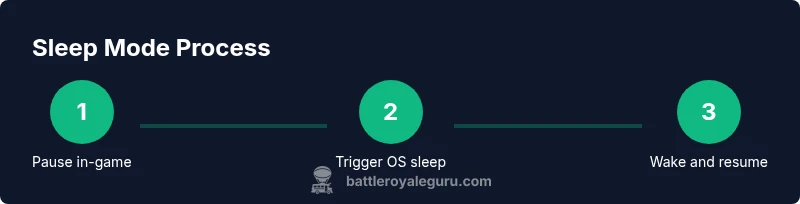
This section provides an overview of the general flow for achieving a sleep-like pause across platforms. The exact actions are detailed in the dedicated STEP-BY-STEP block. The core sequence remains consistent: pause in-game at a safe point, place the device into a low-power state, wake and verify that Fortnite resumes where you left off, and finally re-enter the lobby if needed. Consistency matters because mismatch between the game state and the OS state can lead to minor hiccups upon resume. Keep in mind platform differences and always perform a quick post-sleep check.
OS Sleep vs. Console Rest Mode: What's different?
OS sleep on Windows, macOS, iOS, and Android is designed to suspend most active processes and reduce power draw while preserving memory. However, resume times can vary depending on background tasks and disk speed. Console Rest Mode (PS5, Xbox, Nintendo Switch) prioritizes a rapid resume but may allow background updates and network tasks. Fortnite state is usually preserved in memory for quick resume, but occasional updates may require you to re-enter login details or re-sync cloud saves after waking. Understanding these differences helps you choose the best approach for your situation.
Windows and macOS: Sleep, Hibernate, and Resume
On desktop platforms, you have multiple options. Sleep keeps RAM content loaded and typically allows for fastest resume; Hibernate writes memory to disk and offers better battery savings but slower resume. For Fortnite, Sleep is usually the most convenient if you’re stepping away for a few minutes, but if you’re worried about power, Hibernate is a suitable alternative. Always make sure Fortnite is not actively updating or syncing in the background when you attempt to resume. If you suspect a hiccup, a quick relaunch from the Epic Games Launcher will reinitialize the game state.
Console Sleep: PS5, Xbox, Nintendo Switch
Consoles provide Rest Mode or Sleep Mode as an official feature. Rest Mode keeps apps in memory, allows continued background downloads, and preserves network connections, which can help you resume quickly but may consume more energy. Sleep Mode generally performs similarly, with slight differences based on the console generation. Ensure your console’s power settings are configured to your preferred balance of energy savings and quick resume. When you wake from Rest/Sleep, you may need to sign in again or re-establish some network sessions, depending on platform and firmware version.
Mobile Sleep: iOS and Android
Mobile devices behave similarly to desktop OS sleep. Locking the screen or letting the device enter a short sleep state preserves the app in memory if supported by the platform and device model. iOS and Android variations mean some games may completely pause, while others stay resident in memory for resume. The safest approach is to use a brief system sleep while Fortnite is paused, then wake and re-enter from the home screen. Remember that background processes and notifications can briefly wake the device, so plan accordingly.
Safety, Data Integrity, and Cloud Saves
Data integrity is a key concern when using sleep modes. Fortnite saves progress to your Epic account, but you should still verify that cloud sync completed before leaving a session. If you enable cloud saves, consider performing a quick manual save command or checking the Epic account interface after waking. Avoid relying on local-only state when you’re stepping away for longer periods. If you’re in the middle of a match or a time-sensitive event, it’s safer to quit Fortnite and resume when you’re ready to play again rather than risk disconnects.
Common Mistakes and How to Avoid Them
- Mistake: Sleeping the device in the middle of a match. Solution: Always pause first and wait for a safe checkpoint.
- Mistake: Forgetting to save progress. Solution: Use Epic account saves and cloud syncing before sleep.
- Mistake: Not testing after wake. Solution: Wake the device and launch Fortnite to confirm your session state.
- Mistake: Relying on background updates during sleep. Solution: Disable automatic updates during sleepy periods to prevent unexpected wakeups.
- Mistake: Using sleep mode on devices with poor battery. Solution: Plug in or choose a shorter sleep window.
Final Thoughts: A Battle Royale Guru Perspective
Putting Fortnite into a sleep-like pause is about energy efficiency and readiness. The Battle Royale Guru team emphasizes that platform-appropriate sleep or rest modes can extend device life and reduce heat while preserving progress. Use cloud saves and test resume regularly to build confidence. By following the steps outlined and understanding platform nuances, you’ll enjoy shorter resume times and smoother transitions between plays. Remember: your exact steps depend on your hardware, but the core concept remains universal: pause safely, sleep smartly, resume confidently.
Tools & Materials
- Fortnite installed on your device(Ensure it’s the latest patch and that the installation is healthy.)
- Access to OS or console sleep/rest mode settings(Know where to find power options on your platform.)
- Charger or power supply nearby(Helpful for longer pauses to prevent battery drain.)
- Stable internet connection (optional for resume checks)(Helpful for verifying cloud saves and syncs.)
- Background apps closed(Reduces wake-ups and ensures a clean sleep state.)
Steps
Estimated time: 5-12 minutes
- 1
Pause Fortnite to a safe state
In-game, pause or reach a safe lobby state before leaving the game to ensure you’re not interrupting an active match. This helps prevent progress loss in case something goes wrong during the sleep transition.
Tip: Always pause at a stable checkpoint or lobby. - 2
Trigger OS sleep or console Rest/Sleep mode (Windows/macOS/iOS/Android)
Use your device’s power options to enter a sleep/rest state. Do not force-close Fortnite; instead, let the system manage the low-power state to preserve memory.
Tip: Close non-essential apps to minimize background activity. - 3
Wake the device to resume test
After the device has entered sleep, wake it and confirm that the system passes control back to Fortnite without a full relaunch. This confirms your resume path.
Tip: If the app restarts, open Fortnite from the main launcher or home screen. - 4
Console-specific sleep steps
On PS5/Xbox, enable Rest Mode in the console settings and ensure automatic updates are configured to your preference. This keeps Fortnite ready while the rest of the system remains powered down.
Tip: Check that rest mode won’t auto-update during your break. - 5
Mobile sleep steps
On iOS/Android, use screen lock or a short auto-lock timeout and physically sleep the device. When you wake, reopen Fortnite from the home screen.
Tip: Be mindful of apps that may wake the device with notifications. - 6
Resume flow and verify
Open Fortnite and verify you resume at the last checkpoint or lobby. Ensure your Epic account shows the expected progress.
Tip: If you see a login prompt, sign in and re-sync as needed.
Questions & Answers
Does Fortnite have a built-in sleep mode?
No; there is no internal feature. You rely on the device or console's sleep/rest mode to pause safely.
Fortnite itself doesn't include a sleep mode; use your device's sleep options.
Will sleep mode affect my in-game progress?
Progress is stored with your Epic account and cloud saves. Local settings may vary based on platform.
Progress is saved to your Epic account, so sleep mode won't lose it.
Can I use sleep mode on PC, console, and mobile?
Yes, through OS sleep on PC and mobile, and Rest/ Sleep Mode on consoles.
You can use sleep or rest modes on all major platforms.
What risks exist when sleeping during a match?
Sleeping during an active match can lead to loss of progress if you don't save. Pause at safe points.
Avoid leaving a match in progress when going into sleep mode.
How do I resume quickly after sleep mode?
Wake the device and relaunch Fortnite; ensure you’re signed in to the correct Epic account.
Wake the device, sign in if needed, and reopen Fortnite from the main menu.
Watch Video
Key Points
- Pause Fortnite before entering sleep mode
- Use OS sleep or Rest Mode to save energy
- Test resume after waking to verify progress
- Rely on Epic cloud saves for protection
- The Battle Royale Guru team recommends energy-aware sleep practices