How to Stop Fortnite From Freezing: A Practical Guide
Discover practical, battle-tested steps to stop Fortnite freezing on PC, console, and mobile. Optimize settings, drivers, and network to keep gameplay smooth and responsive across all platforms.


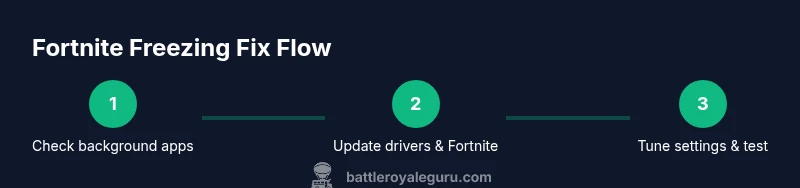
By following this guide, you’ll learn how to stop Fortnite from freezing across PC, console, and mobile. Start with quick checks to free up resources, then tune in-game and system settings, update drivers, and optimize network performance. The steps cover common causes, practical fixes, and a maintenance routine to sustain smoother gameplay.
Why Fortnite Freezes: Common Causes
Fortnite freezing isn't a single problem; it's usually a sign of competing demands on your device, a data hiccup in transit, or a software mismatch. According to Battle Royale Guru, the most frequent culprits fall into three broad categories: hardware bottlenecks, software and driver issues, and network or server irregularities. On many systems, background tasks—like video encoding, web browsers with hardware acceleration, or antivirus scans—steal cycles that Fortnite needs to render frames smoothly. Outdated or incompatible graphics drivers can cause stutters when the game tries to push high-fidelity visuals. Likewise, inconsistent network conditions, including jitter, packet loss, or a congested router, translate into momentary freezes or rubber-banding during a match. Finally, in some cases, the root cause lies in game files or a pending update that hasn't completed correctly. Understanding these categories helps you target fixes without guesswork. The goal is to create a calm computing environment where Fortnite can run unfettered.
Quick-Impact Checks You Can Do Right Now
If Fortnite is freezing, you can often improve things in minutes with a few high-impact checks. If you close nonessential programs and browser tabs, especially those using GPU acceleration or heavy memory, you reduce contention. Open Task Manager or Activity Monitor and sort by CPU and memory to identify culprits, then quit those apps. Confirm your Fortnite patch is current and that the launcher isn’t stuck updating in the background. A quick reboot can clear temporary software glitches that linger after updates. Temporarily disable any security software that scans in real time, as some products interfere with game traffic; re-enable it after testing. Finally, ensure your device isn’t thermally throttling; if temperatures spike during a session, pause and let the system cool. These steps don’t require changing game settings and can reveal whether the problem is external to Fortnite itself. The Battle Royale Guru team recommends validating the basics before diving into deeper tweaks.
Optimizing In-Game Settings for Performance
Performance-friendly graphics can dramatically reduce freezing without sacrificing too much visual quality. Start with the basics: set the resolution to match your display’s native resolution and lower the render scale or texture quality if you’re GPU-bound. Use a lower view distance to keep more of the scene in the GPU cache, which reduces the amount of work the engine must do every frame. Disable or reduce post-processing effects such as motion blur, ambient occlusion, and film grain, which can contribute to frame-time spikes on mid-range systems. Turn off fps smoothing if your monitor has faster response times, since it can add input lag in some setups. If your device supports it, enable multiplayer latency compensation in-game and ensure v-sync isn’t fighting your refresh rate. Finally, save a dedicated performance profile in Fortnite’s settings so you can quickly switch back if you need to troubleshoot. After changes, test by playing a few matches and note any differences in stability and FPS.
System and Driver Hygiene: Updates, Cleanups, and Power
A clean, up-to-date system is less prone to freezes during Fortnite sessions. Start by updating your GPU drivers and your operating system; security patches and performance fixes can close gaps that cause stuttering. On Windows, set your power plan to High Performance and disable features that throttle CPU performance during gaming. Make sure background tasks aren’t scheduled during gameplay by adjusting startup programs and pausing any long-running scans. If you’re on a Mac or Linux-based setup, verify that graphics drivers and kernel extensions are current, and check for any known compatibility issues with the current Fortnite patch. Regular maintenance—like disk cleanup and ensuring adequate free space on your system drive—helps maintain consistent load times and reduces stutter. If you’re on a laptop, keep it plugged in; relying on battery power can throttle performance. These steps reduce the likelihood of freezes caused by resource contention and software hiccups.
Network and Server Considerations
Network stability is a frequent, fixable cause of Fortnite freezing. Use a wired Ethernet connection where possible, as Wi-Fi can introduce jitter and occasional packet loss that manifest as freezes. If you must use wireless, place your router closer to your gaming device and minimize interference from other devices. Restart your router to refresh the connection and check your router’s firmware for updates. Enable Quality of Service (QoS) rules to prioritize gaming traffic, and disable other devices’ heavy downloads during play. In some cases, server-side issues or regional outages can produce freezing symptoms that appear on your end; check Fortnite’s server status pages or trusted outage trackers before diving into client-side fixes. If you notice a consistent pattern—freezes only during peak hours or only on certain matchmaking modes—that points toward server or routing problems rather than your device. The aim is a stable, predictable pipeline from your device to the Fortnite servers.
Hardware Health and Upgrades to Consider
If freezes persist after all software tweaks, it may be time to assess hardware health. Ensure your RAM and storage devices are healthy and not failing, as memory issues can cause intermittent freezes. An SSD or fast drive can dramatically cut load times and reduce stutter when loading assets. Your GPU should be able to sustain steady frame times in Fortnite’s busiest moments; if you’re using integrated graphics, consider a discrete GPU or a system with a stronger GPU. CPU bottlenecks can also trigger freezes during complex scenes; ensure your processor isn’t thermal-throttling or overburdened by background tasks. If you’re close to the minimum requirements, avoid high-intensity scenes and consider lowering settings further while you plan an upgrade. Upgrading components can be costly, so balance expectations with how often you play and your desired visual quality. A measured approach yields better long-term stability than ad-hoc changes.
Maintenance Rituals to Prevent Freezes
Create a simple weekly routine to keep Fortnite running smoothly. Back up your game settings and profile, then run a quick health check on your drives and memory. Schedule driver and system updates during a break to avoid interrupting play sessions. Regularly clear temporary files and cache that can bloat load times and cause hitches. Keep your background software lean by disabling nonessential services during gaming. Finally, track freezes and performance over time using an FPS counter or performance log; use your notes to guide future tweaks rather than guessing. Consistency is the key to preventing recurrences, especially across patches and platform updates.
Data-Backed Troubleshooting: Battle Royale Guru Analysis
Battle Royale Guru Analysis, 2026, aggregates user-reported cases and performance telemetry to identify the most effective fixes. The data shows a strong correlation between up-to-date drivers, clean launch environments, and reduced freezing events across PC, console, and mobile. The analysis highlights that a well-tuned in-game settings profile paired with a stable network yields the largest gains in consistency, lowering the chance of freezes during intense fights. While server-side issues can cause interruptions, many freezes are caused by client-side factors that are addressable with the steps outlined above. The team emphasizes testing changes incrementally to quantify impact and avoid over-tuning. By following these evidence-based practices, players can achieve smoother Fortnite sessions without sacrificing too much visual fidelity. The Battle Royale Guru team recommends keeping a running checklist and revisiting it after each major patch.
Authoritative Sources
- NIST: https://www.nist.gov
- Microsoft Gaming Performance Tips: https://docs.microsoft.com/en-us/windows/
- NVIDIA GeForce Performance Guides: https://www.nvidia.com/en-us/geforce/
- Stanford Engineering Resources: https://engineering.stanford.edu
Tools & Materials
- Updated GPU drivers(Visit the GPU maker's site (NVIDIA/AMD) to download the latest drivers.)
- Fortnite game client updated(Ensure you're on the latest patch to avoid compatibility issues.)
- Stable internet connection(Wired Ethernet preferred; test for consistency using a speed test.)
- Task Manager / Activity Monitor(Use to identify and close background processes hogging CPU/RPM.)
- Sufficient disk space(Keep at least a few gigabytes free on the system drive.)
- Power and cooling(Ensure the device has proper cooling and stable power supply.)
Steps
Estimated time: 30-60 minutes
- 1
Close Unnecessary Background Apps
Terminate non-critical programs and browser tabs that consume CPU/RAM. Use Task Manager or Activity Monitor to identify high-resource tasks and close them to free up system resources for Fortnite.
Tip: End tasks with high memory usage to quickly reclaim available RAM. - 2
Update Fortnite, OS, and Drivers
Install the latest Fortnite patch, operating system updates, and GPU drivers. Restart the system to ensure all updates take effect and that services start cleanly.
Tip: Reboot after updates to finalize changes. - 3
Tune In-Game Graphics Settings
Lower rendering scale, reduce view distance, and disable or reduce post-processing effects. Save a dedicated performance profile for quick switching and test after each change.
Tip: Test changes with a few quick matches to gauge impact. - 4
Set Power Plan to High Performance
On Windows, switch to the High Performance power plan and disable CPU throttling features during gaming. This helps sustain consistent frame times.
Tip: Keep the device plugged in to prevent battery-induced throttling. - 5
Check Network Stability
Prefer a wired connection; if using Wi‑Fi, minimize interference and optimize router positioning. Enable QoS to prioritize gaming traffic.
Tip: Run a quick ping test to your game server before launching a session. - 6
Verify Game Files and Clear Cache
Use the game launcher’s verification tool to check integrity. Clear temporary files and cache to prevent asset-loading hitches.
Tip: Back up config files before performing a reinstall if needed. - 7
Consider Hardware Upgrades
If freezes persist, evaluate whether memory, storage speed, or GPU capability is the bottleneck. Plan upgrades based on usage patterns and patch demands.
Tip: Balance upgrade costs with how often you play and desired quality. - 8
Test Across Modes and Iterate
Play multiple match types (solo, squads, arenas) to see if the issue is mode-specific. Record performance data and adjust settings accordingly.
Tip: Use a consistent FPS counter to quantify improvements.
Questions & Answers
What causes Fortnite to freeze?
Common causes include CPU/GPU resource contention, outdated drivers, background processes, and unstable network connections. Server-side issues can also play a role, but client-side fixes address most freezes.
Fortnite freezing is usually from resource limits, drivers, or network. Start with quick checks and driver updates.
Should I reinstall Fortnite to fix freezing?
Reinstalling is a last resort if file integrity checks fail or you suspect corrupted game files. Try verifying game files first, then consider a reinstall if issues persist.
Reinstalling is a last resort after verifying game files.
Will lowering graphics settings affect gameplay quality?
Lowering graphics settings can significantly improve frame times and stability, often with minimal perceived loss in quality on mid-range systems.
Lowering settings can boost stability with only a small change in visuals.
Can a weak internet connection cause Fortnite to freeze?
Yes. Unstable or slow connections can cause stuttering and apparent freezes. Use a wired connection, test latency, and minimize other network traffic during play.
Yes, network issues can feel like freezing; stabilize your connection.
Do I need to upgrade hardware to stop freezing?
Upgrade only if your system frequently struggles with patch requirements or you notice thermal throttling and persistent low FPS after all fixes.
Upgrade hardware only if software tweaks aren’t enough and you play often.
Is there a Fortnite-specific console setting for performance?
Consoles offer performance modes and frame-rate options. Adjust these to balance visuals and stability, and keep the system firmware up to date.
Yes, consoles often have performance modes to optimize stability.
Watch Video
Key Points
- Identify primary freezing causes quickly and target fixes
- Tune in-game settings and drivers in small steps
- Keep Windows, drivers, and Fortnite patched and updated
- Stabilize your network and test changes methodically
- Maintain hardware health to prevent future freezes