How to Get Out of a Fortnite Game: A Practical Exit Guide
Learn how to get out of a Fortnite game quickly and safely with graceful exit steps, platform-specific instructions, and tips to avoid data loss. Includes PC, console, freezes, and post-exit tips.


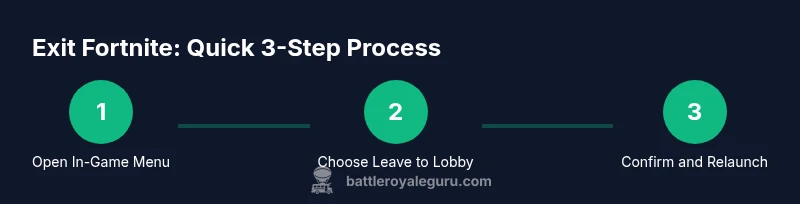
To get out of a Fortnite game, gracefully exit to the lobby from the in-game menu, then close the app or return to the system menu on your device if needed. On PC, press Esc, select Leave or Return to Lobby; on consoles, use the home button to quit or switch tabs and close the app.
Why Exiting Gracefully Matters
In Fortnite, there are moments when you need to step away from a game without derailing your teammates or wasting time. According to Battle Royale Guru, mastering exit techniques reduces downtime, preserves match flow, and helps you rejoin quickly when you’re ready. The goal is a graceful exit: get back to the lobby, keep your party intact, and avoid abandoning a crucial moment that could hurt your team. In this guide we explore platform-specific exits, etiquette, and what happens to your progress when you quit mid-game. Understanding these nuances helps you stay in control, even when real life interrupts your session.
Quick Exit Scenarios: When to Leave
There are several common situations where you should consider exiting Fortnite gracefully. If you’re called away with a real-life interruption, if you’re stuck in a long loading screen, or if the game is crashing or lagging beyond recovery, exiting to the lobby is typically the best option. Leaving mid-game can mean you forfeit that match and your team may be disadvantaged, but a well-timed exit minimizes disruption and lets you come back stronger. Plan exits ahead of time when possible (e.g., before a long queue or during a lull in activity) to reduce stress and avoid rash decisions during a tense moment. Battle Royale Guru’s approach emphasizes calm, predictable actions over impulsive quits.
Graceful Exit on PC: Step-by-Step
PC users typically rely on the in-game menu to exit cleanly. Pause or open the menu with Esc, then select Leave Match or Return to Lobby. If you’re stuck in a non-responsive screen, you can use the taskbar to switch focus back to Fortnite and repeat the exit steps. Always confirm the action to ensure you leave the current match, not just minimize the window. After you return to the lobby, you can rejoin a new match, invite friends, or take a break before diving back in. The key is to avoid forcing a quit while your squad is still active, as this can disrupt team strategy.
Graceful Exit on Consoles: PS, Xbox, Switch
Console exits differ slightly from PC. Press the PlayStation or Xbox button or the Switch Home button to return to the console dashboard, then select Fortnite and choose Quit/Close App or return to the home screen. If you’re in a party, notify teammates before exiting. This keeps everyone informed and prevents confusion about who is leaving. On Nintendo Switch, you can also use the +/– button to reach the Home Menu and close the app. Always ensure you’re not in the middle of a critical in-game event before quitting.
Handling a Freeze or Unresponsive Game
A frozen Fortnite session requires careful action. First, try the in-game exit options. If the screen remains unresponsive, you may need to force close the game. On Windows, use Ctrl+Alt+Delete to open Task Manager, select Fortnite, and End Task. On macOS, use Command+Option+Escape to force quit Fortnite. If you’re on a console and the game crashes, use the system menu to quit Fortnite. In all cases, relaunch Fortnite and re-enter through the lobby rather than rejoining a mid-match to avoid losing progress.
Avoid Data Loss: Save Progress and Quit Etiquette
Exiting gracefully helps preserve your match history and avoids accidental progress loss. Do not spam exits or quit during a critical moment if you can avoid it; instead, wait for a natural pause or reach the lobby. If you’re concerned about losing progress, remember that match rewards and XP are earned per completed game, and leaving early typically means forgoing those rewards for that session. Keep teammates informed and aim for a quick, predictable pattern for future exits.
After You Exit: Rejoining or Restarting
When you’ve exited, you can either re-enter a new match or invite friends and queue up again. If you experienced a crash or disconnect, restart Fortnite to ensure files load correctly. If the issue recurs, check for updates, verify your game files, or restart your device. Rejoining with a fresh start helps minimize repeated issues and keeps your momentum intact.
Troubleshooting Common Exit Issues
If you can’t exit via the usual menu, try the following: (1) ensure you’re on a stable network, (2) update Fortnite to the latest version, (3) clear the game's cache if possible on console, and (4) reboot your device after shutdown. Persistent problems may indicate a broader service issue; check Fortnite’s server status and planned downtime. In most cases, a clean exit is achieved by using the in-game menu for a lobby return, then closing the app if required.
Best Practices for Competitive Play: Timeouts and Etiquette
In competitive modes or when streaming, use timeouts or pauses when available instead of a hard quit. Communicate clearly with your team, especially if you need to leave due to real-life interruptions. Maintaining transparency preserves team morale and helps teammates plan around your temporary absence. Battle Royale Guru recommends practicing exit routines until they become second nature, so you can disengage quickly without derailing the action.
Tools & Materials
- Device with Fortnite installed(PC, console, or mobile device; ensure you can access the in-game menu)
- Controller or keyboard/mouse(Used to navigate menus and system interfaces)
- Stable network connection(Helpful to ensure smooth transitions when exiting and rejoining)
- Access to system menu or task manager(Needed if the in-game exit is unresponsive)
Steps
Estimated time: 2-4 minutes
- 1
Pause and access the in-game menu
Press the pause/menu button to bring up Fortnite’s in-game options. This is your first, safest chance to exit without disrupting teammates.
Tip: If the screen is unresponsive, try Alt+Tab to switch focus before attempting to exit again. - 2
Choose Leave/Return to Lobby
Select the option to leave the current match or return to the lobby. Confirm the action when prompted to avoid accidental quits.
Tip: Return to Lobby is preferred over quitting from the system menu if you’re planning to rejoin quickly. - 3
Confirm and observe the lobby transition
Wait for the transition to complete and verify you’re back in the Fortnite lobby or main menu.
Tip: If you don’t see the lobby after a moment, back out and relaunch the game. - 4
If unresponsive, use system controls
On PC, open Task Manager and End Task for Fortnite. On Mac, force quit from Force Quit Applications. Then relaunch.
Tip: Force quitting is a last resort; use it only when the in-game exit fails. - 5
On consoles, use the Home/Menu button to quit
Press the home button to return to the console dashboard, highlight Fortnite, and choose Quit or Close App.
Tip: Notify your teammates if you’re leaving a party to avoid confusion. - 6
Relaunch and rejoin a new match
Open Fortnite again, navigate to the lobby, and queue up for a new game when ready.
Tip: Check for updates before rejoining to ensure a smooth experience. - 7
If issues persist, reboot the device
If the game remains unstable after re-entry, reboot your device to clear cached data and reset connections.
Tip: Rebooting can resolve many transient problems that blocks exit flow.
Questions & Answers
How do I leave a Fortnite match on PC without quitting the whole game?
Open the in-game menu with Esc, choose Leave Match or Return to Lobby, and confirm. This exits you from the current match while keeping Fortnite running for a new game.
Open the in-game menu with Esc, select Leave Match, then confirm to exit the current game and return to the lobby.
What happens if I quit during a squad match?
Quitting ends your participation in that match and may affect your teammates’ experience. It’s best to inform your squad and exit to the lobby when possible.
Quitting ends your participation in the current match. Let your teammates know and exit to the lobby when you can.
How can I exit if Fortnite is frozen or unresponsive?
Use the system-level exit: on PC, Task Manager to End Task; on Mac, Force Quit; on consoles, the Home/Menu button to quit Fortnite and return to the dashboard.
If the game freezes, force quit from the system menu and relaunch when ready.
Will exiting affect my progress or rewards?
Exiting a match early typically means you won’t earn the rewards for that session. Your overall account progress remains intact, but the match is forfeited.
Leaving early usually means you won't get rewards for that match, but your overall progress stays intact.
Is there a difference between leaving to lobby and quitting the app?
Leaving to the lobby preserves the ability to queue for a new match immediately, while quitting the app closes Fortnite completely and requires a relaunch.
Leaving to the lobby is faster for rejoining; quitting closes the app and requires a relaunch.
What should I do if I repeatedly can’t exit properly?
Check for updates, verify game files, clear cache if possible, and reboot the device. If problems persist, consult official Fortnite support or server status pages.
If exit problems persist, update, verify files, and reboot. Contact support if needed.
Watch Video
Key Points
- Graceful exits preserve team flow and reduce disruption.
- Use in-game Leave/Return to Lobby first, then close the app if needed.
- Know platform-specific exit paths to avoid getting stuck.
- If unresponsive, switch to system controls rather than forcing a quit.
- Rejoin quickly by relaunching and queuing up again.