How to Exit Fortnite Replay: A Complete Guide
Learn how to exit Fortnite replay quickly and safely. This step-by-step guide covers PC, console, and mobile exits, saving highlights, and troubleshooting tips for a smooth workflow.


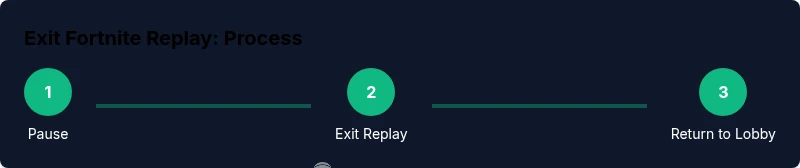
To get out of Fortnite replay, pause the replay and choose Exit Replay or Return to Lobby. On PC, press Esc to open the pause menu; on consoles, use the Pause/Menu button to access the option. Confirm to return to the main hub, and optionally save clips before exiting. The application will close.
What getting out of Fortnite replay means
Fortnite replays are a powerful tool for players who want to analyze their matches, study opponent behavior, and improve decision-making. Exiting the replay is not just leaving a viewing mode; it’s about returning to live play and returning to your practice routine with minimal disruption. A clean exit keeps your mindset focused on the next game rather than lingering in review mode. When you exit replay properly, you preserve the momentum you built while reviewing clips and keep your in-game timing sharp. According to Battle Royale Guru, understanding the exit flow is a small but meaningful part of a broader training strategy that helps players translate insights from replays into real-world improvements on the battlefield.
In practice, you want a seamless transition from analysis to action. The replay interface is designed to offer controls for playback, slow-motion review, and clipping moments you want to save. Knowing how to exit efficiently ensures you don’t lose track of your next match or the changes you intended to implement in your build, aim, or rotation. By mastering the exit flow, you can consistently move between study and play without cognitive friction and keep your training sessions productive.
Understanding the Replay Interface
Fortnite replay mode presents a timeline, playback controls, and additional capture options. The play/pause button, timeline scrubbing, and speed controls let you dissect a moment in detail. The most important element for exiting is the pause/menu access point. In most cases you’ll find an Exit Replay or Return to Lobby option within the pause menu or on-screen controls. The UI is designed so a quick press of the pause button reveals the exit path, then a single confirmation leaves replay and returns you to the Fortnite hub. While the exact layout can vary by platform, the principle remains the same: pause, select the exit path, confirm, and land back in live play or the lobby. Keeping this mental map in mind helps you avoid hunting for the option under menus you don’t normally use during a live game.
If you’re new to replays, take a moment to familiarize yourself with the keyboard shortcuts or controller mappings for your platform. Customizing controls in the settings can speed up the exit process. Remember that replays are a tool for learning, not a barrier; the quicker you can leave replay, the more time you have to apply the insights you’ve gathered.
Exiting Replay on PC
On PC, you’ll typically access the exit path by pausing the replay. Press Esc to open the in-game pause menu, then navigate with the keyboard arrows or mouse to highlight Exit Replay or Return to Lobby. Press Enter to confirm. If you’re saving clips, you can choose to do that before you confirm exit. A successful exit returns you to the Fortnite lobby or the hub, depending on where you left the replay. If you want to speed this up, learn and use the first-letter shortcuts (where available) to jump straight to the exit option.
If you encounter any lag or unresponsive controls, give the system a brief moment to register the input before attempting again. A quick restart of the replay and re-entering the exit flow usually resolves minor glitches. This approach keeps you from getting stalled in the middle of your practice.
Exiting Replay on Console
Console users generally press the Pause button or the equivalent on their controller to reveal the replay menu. From there, use the D-pad or left stick to navigate to Exit Replay or Return to Lobby. Confirm your choice with the A button (or the platform-specific confirm control). The exit should place you back into the lobby or the regular Fortnite hub, ready for your next live game. If your controller mapping varies, check the in-game settings for the exact controls and consider customizing them for faster access to the exit path.
Note that some consoles may display slightly different wording or button prompts. As a rule, look for a pause-based menu, then look for an explicit “Exit Replay” option. If the option isn’t visible, ensure you’re actually in replay mode and not in a different spectator or content screen.
Exiting Replay on Mobile
Mobile players navigate via touch controls. While in replay, tap the screen to reveal the on-screen controls, then tap Pause or the gear/settings icon to open the replay menu. In the menu, select Exit Replay or Return to Lobby and confirm. Exiting on mobile is similar to PC/console, but the touch interface requires tapping instead of clicking a button. If you don’t see the exit option, confirm you are actively in replay mode rather than in a separate viewer screen.
Mobile exits can feel slower if the interface is hidden by overlays. Make sure your screen isn’t cracked with glare or obscured by finger placement; clear the UI so you can quickly select the correct option.
Common Pitfalls and How to Avoid Them
One common pitfall is attempting to exit while the replay is paused in a non-standard state, which can leave you stuck in a limbo view. Always start by pausing to reveal the exit option. Another pitfall is exiting too quickly without saving a clip. If you’ve reviewed a moment you want to keep, use the capture/save option before exiting. A third pitfall is assuming the exit will always lead to the lobby; some setups return you to the hub or a different screen. Check your platform’s behavior in the settings or practice in a controlled replay environment.
To avoid confusion, create a simple mental flow: Pause → Exit Replay → Confirm → Return to Live. If you find yourself stuck, re-enter the replay, practice the exit once or twice, and ensure you know the exact path in your current platform’s UI.
Saving Highlights and Managing Replays
If you’re actively reviewing a moment you’d like to save, use the replay’s capture tools before exiting. Saving clips allows you to reference builds, fights, or decision points later. Name saved clips clearly and store them in a dedicated folder or cloud location so you can access them without hunting through your files later. Some players prefer to create a short series of highlights that correspond to different training goals (e.g., early-game rotations, high-ground retakes, shotgun trades). Exiting replay cleanly after saving ensures you don’t lose the clip you intended to keep and keeps your training organized for future sessions.
When saving, consider including the date and key terms in the clip title (for example, “Rotations_Intro_2026-02-20”). This makes it easier to locate the clip later when you’re building a personalized review library for improving your gameplay.
Troubleshooting Exit Fails and Quick Recovery
If the exit option is unresponsive, try re-entering the replay and attempting the exit flow again. Sometimes UI elements fail to render correctly, and a quick re-entry resolves the issue. If the problem persists, restart the game client, then launch Fortnite and re-open the replay to exit. Avoid force-closing the application as a first resort, since unsaved clips or progress can be affected. If you frequently encounter unresponsive exits, consider updating the game client or checking for known issues in the official Fortnite support channels.
Persistent failures may warrant a clean reboot of your device or console, followed by a test of basic replay exit in a controlled environment to confirm the fix before returning to live play. This method helps ensure you’re not repeatedly losing time to a technical hiccup and supports subsequent training sessions.
Practice Impact: How Exiting Replay Helps Your Skills
Efficiently exiting Fortnite replay frees you to apply insights from your analysis to new matches quickly. By maintaining a smooth transition from reflection to action, you build a more consistent practice routine. The habit of reviewing key moments, exporting clips, and exiting cleanly reduces downtime between sessions and reinforces the connection between study and live gameplay. In practice, this translates to faster decision-making, better aim improvement, and more deliberate builds during live games. The Battle Royale Guru team emphasizes that deliberate, repeatable exit flows are a small but meaningful part of a larger, data-informed training approach, helping players convert replay analysis into real-world performance improvements. Incorporating this discipline into your routine will yield incremental gains over time and keep you progressing toward your Fortnite goals.
Tools & Materials
- Gaming device (PC/console/mobile)(Fortnite installed and updated)
- Controller or keyboard/mouse(For navigation in replay UI)
- Stable internet connection(Ensures smooth access to online features and saves)
- Optional: External storage or cloud save(For saving highlights and clips)
- Headphones or speakers(Improved audio cues during review)
Steps
Estimated time: 6-12 minutes
- 1
Open the Replay Menu
While in Fortnite replay, pause to reveal the in-game menu where exit options are located. This gives you a clear path to leaving replay and returning to live gameplay. The pause menu is your gateway to exiting, so take a moment to ensure you are actively in replay mode before proceeding.
Tip: If the pause menu doesn’t appear, press the Esc key (PC) or the pause button on your controller and wait a moment for the UI to respond. - 2
Navigate to Exit Replay/Return to Lobby
Use the arrow keys or the D-pad to highlight Exit Replay or Return to Lobby in the pause menu. This is the option you’ll select to initiate the exit from replay. Make sure you’re choosing the correct option, especially if the menu offers multiple ways back to live play.
Tip: If you’re unsure, hover with the mouse or gently move the thumbstick to ensure you’ve selected the correct item. - 3
Confirm Exit
Select the confirm action to exit the replay. This is usually labeled Exit Replay or Return to Lobby. Confirmation closes the replay view and transitions you back to live Fortnite or the hub screen.
Tip: Be mindful of unsaved clips; if you want to save something, do it before confirming exit. - 4
Return to Live Hub or Lobby
After confirming, you’ll return to the Fortnite hub or the lobby, depending on where you were when you started the replay. This is your immediate gateway back into live matches and practice.
Tip: Take a quick breath and check your inventory or weapon loadout before queuing for the next match. - 5
Troubleshoot unresponsive exits
If the exit option is unresponsive, re-enter the replay and attempt the exit flow again. If it still fails, restart the game client and retry. Avoid force-closing the app as a first resort to prevent losing progress.
Tip: Most issues resolve with a quick re-entry or a fresh client start. - 6
Optional: Save highlights before exiting
If you’ve captured moments you want to keep, use the replay’s capture tooling to save clips before exiting. Name and organize clips for easy retrieval later.
Tip: Clear clip titles help you find the right moments in your library.
Questions & Answers
What should I do if I can't see Exit Replay in the pause menu?
Make sure you are actually in replay mode. If the option still isn’t visible, try re-entering the replay and opening the menu again. If problems persist, restart the lobby or the game client and attempt the exit flow once more.
If you don’t see Exit Replay, re-enter the replay and check the pause menu again; a restart often fixes visibility issues.
Can I save a clip before exiting a Fortnite replay?
Yes. Use the replay capture tools to save a moment you want to review later. Save the clip, give it a clear title, and store it in a dedicated folder so you can locate it easily after exiting.
You can save clips before exiting by using the replay’s capture tools and organizing them for easy retrieval.
Does exiting a replay affect my live match progress?
Exiting a replay does not affect your live match progress. It simply takes you out of the replay view and back into the lobby or hub for a new match or practice session.
Exiting replay won’t impact your currently queued or ongoing live match.
Are there shortcuts to exit faster?
Yes. Use Esc (PC) or the Pause/Menu button (console) to access the exit option quickly, then confirm. Shortcuts speed up the process and reduce the chance of getting stuck.
You can speed up exits by using platform shortcuts like Esc or the Pause button.
How do I re-enter a replay after exiting?
Go back to the Replays tab in Fortnite, locate the match you want to review again, and open the replay to analyze it from the start or from a specific moment.
To re-enter a replay, go to the Replays section and reopen the one you want to review.
What if the exit option remains unresponsive after multiple tries?
Try restarting the game client and re-trying the exit flow. If the issue persists, check for updates or known issues on the Fortnite support pages and consider reporting the problem.
If it stays unresponsive, restart the game and try again, or check for updates.
Watch Video
Key Points
- Exit replay via Pause Menu and Confirm
- Use platform shortcuts to speed up exit
- Save valuable clips before exiting when needed
- If exit fails, re-enter replay or restart client
- Keep a consistent exit flow to improve practice tempo