How to Exit Fortnite on PC: Safe, Quick Exit Guide
Learn how to exit Fortnite on PC safely and quickly. This step-by-step guide covers in-game exits, Alt+Tab switching, and force-quit methods to protect progress and prevent data loss.


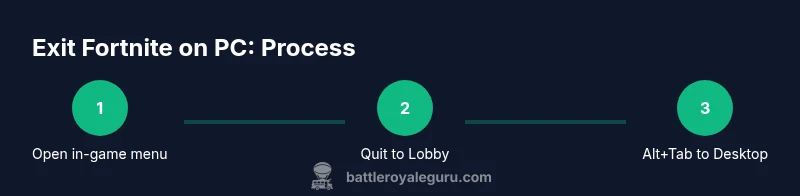
According to Battle Royale Guru, exiting Fortnite on PC safely and quickly is about using the in-game quit option, then cleanly switching to your desktop. If the game stalls, use Alt+Tab to leave, or open Task Manager to end the process. These steps protect progress and help you avoid data loss.
Overview: Why a Clean Exit Matters
Exiting Fortnite on PC without a clean shutdown can lead to unsaved progress, corrupted save data, or lingering background processes that steal system resources. A proper exit keeps your settings intact, reduces the chance of loss of matchmaking progress, and helps the game re-launch cleanly next time. The Battle Royale Guru team emphasizes that taking a moment to exit correctly is part of good game hygiene. By using the in-game quit option when available, you ensure your session ends gracefully. If you’re in the middle of a high-stakes moment, pausing and exiting to the lobby preserves your current status and keeps your PC network-ready for the next match. Regularly exiting correctly also reduces the risk of stuck processes.
Exit Options Inside Fortnite: Timely In-Game Steps
Fortnite provides a straightforward in-game path to leave a match and return to the lobby. Press the Escape key to open the pause menu, then choose the option labeled Quit to Lobby or Return to Lobby. If you’re in a party, notify teammates before exiting to avoid miscommunications. Confirm prompts carefully to avoid accidentally ending your session. This method is ideal when you’re ready to switch tasks without closing the entire game client.
If you’re currently in a matchmaking queue, waiting for a result can be frustrating, but you can still quit safely using the same menu path. Remember that exiting to the lobby saves your current progress in that session, but any uncompleted challenges or in-progress quests should be checked in your quest log after relaunch.
From the Main Menu to Desktop: A Clear Path
Starting from the Fortnite main menu, you can exit quickly by selecting Quit to Desktop if you’re done playing, or Quit to Lobby if you want to resume later. If you choose Quit to Desktop, confirm when prompted, and your game will close to the Windows desktop. If you instead return to the lobby, you’ll be back on the Fortnite hub with your social circle intact and ready to launch again. This path is particularly useful when you need to switch to another program, update drivers, or run maintenance tasks without interrupting your game data.
Alt+Tab and Window Management: Safe Switching
If you need to switch to another task without closing Fortnite, Alt+Tab is your friend. Press Alt+Tab to move focus to another window, and then use Windows’ taskbar to manage your current session. If Fortnite remains visible but unresponsive, you can still Alt+Tab to another app and attempt a normal quit after you’ve addressed the other task. This technique helps preserve your session state and prevents abrupt shutdowns that could corrupt saves.
For keyboard shortcuts, Windows users often rely on the Windows key + D to minimize everything and show the desktop. Returning to Fortnite is simply a re-click of the Fortnite task icon. Frequent reliance on safe window management practices keeps your system stable while gaming.
Unresponsive Fortnite: Force Quit Safely
If Fortnite stops responding, you may need to force quit. Open Task Manager (Ctrl+Shift+Esc) and locate Fortnite. Right-click and select End Task. This should terminate the process cleanly. Do not end tasks for other programs unless they are clearly stuck, as this can cause data loss in those apps. After force quitting, relaunch Fortnite to verify a clean startup or reboot your PC if the game continues to crash. This step is a last resort and should be used sparingly to minimize data loss risk.
Post-Exit Steps: Save Progress and Re-launch Tips
After exiting, take a moment to verify that your latest in-game progress is saved and synced to your Epic account if you’re connected online. Re-launch Fortnite to confirm a smooth startup, check for updates, and ensure your graphics settings persist. If issues recur, consider updating your GPU drivers, verifying game files, or performing a Windows health check. A quick post-exit Review helps ensure you’re ready for the next session and prevents repeated disruptions.
Common Pitfalls and How to Avoid Them
Rushing a shutdown can cause unsaved progress to vanish. Avoid closing Fortnite mid-clip or mid-match in a way that bypasses the lobby, as it may leave you in a corrupted state. Never force quit while Epic Games services are updating, as this can damage the launcher’s ability to sync data. Always exit through the in-game menu if possible, and reserve force quit for unresponsive scenarios only. Keeping your game updated and maintaining a clean startup sequence reduces the frequency of exit-related issues.
Quick Exit Shortcuts and Settings for Future Sessions
To streamline future exits, map a quick action to your keyboard for quitting to the lobby or desktop, if your OS allows it. Ensure you know how to access Task Manager quickly (Ctrl+Shift+Esc) and practice a safe sequence for quitting: in-game menu > Quit to Lobby or Desktop, then confirm. Consider enabling game updates during idle times to avoid mid-session restarts that disrupt your exit flow. Regular practice with safe exit steps makes future sessions smoother and less error-prone.
Battle Royale Guru Verdict: Best Practices for Exiting Fortnite on PC
The Battle Royale Guru team recommends using the in-game quit option whenever possible, followed by a quick return to the Windows desktop via Alt+Tab if needed. In unresponsive cases, rely on Task Manager to end the task gracefully, then restart Fortnite. Consistently applying these steps minimizes data loss and reduces startup issues. By adopting these practices, players protect their progress, maintain system stability, and enjoy more reliable game sessions.
VERDICT: Final Exit Checklist
- Use in-game Quit to Lobby when possible.
- Alt+Tab to switch tasks safely if needed.
- End Task via Task Manager only for unresponsive games.
- Verify progress after re-launch and check for updates.
- Keep drivers and game files up to date for a smoother exit next time.
Tools & Materials
- Keyboard and mouse(Standard PC input devices for navigation and shortcuts)
- Windows PC with Fortnite installed(Ensure the game is up to date and you know your login)
- Task Manager access (Ctrl+Shift+Esc)(Needed when Fortnite is unresponsive)
Steps
Estimated time: 8-12 minutes
- 1
Open the in-game pause menu
While in a match or on the lobby screen, press the Escape key to bring up the pause menu. This is the first step to exiting gracefully and accessing exit options.
Tip: If you’re in a middle of a match, consider taking a moment to finish your current action before quitting. - 2
Select Quit to Lobby
From the pause menu, choose Quit to Lobby or Return to Lobby and confirm if prompted. This returns you to the lobby rather than closing the client entirely.
Tip: Notify teammates before leaving a party to avoid confusion. - 3
Exit to Desktop (optional)
If you want to close the client completely, select Quit to Desktop and confirm. This will close Fortnite and return you to the Windows desktop.
Tip: Use this only when you’re done playing and don’t need to relaunch immediately. - 4
Switch tasks safely with Alt+Tab
If you need to switch to another program first, press Alt+Tab to switch windows before choosing Quit. Return to Fortnite later from the taskbar.
Tip: Make sure no critical work is unsaved before switching. - 5
If Fortnite is unresponsive, open Task Manager
If the game won’t close, press Ctrl+Shift+Esc to open Task Manager and locate Fortnite. End Task to force quit.
Tip: End Task only for unresponsive games to avoid data loss in other apps. - 6
Restart Fortnite and verify
Launch Fortnite again and verify that the latest update is applied and your settings persist. Check your progress and recent quests after relaunch.
Tip: If issues recur, verify game files or reboot the PC. - 7
Check for updates and drivers
Periodically update GPU drivers and Fortnite to ensure a smooth exit experience and minimize crashes.
Tip: Set automatic updates during idle hours to reduce mid-game interruptions. - 8
Create a quick-exit habit
Practice the exit sequence so you’re comfortable with it under pressure. A consistent routine reduces errors.
Tip: Document a personal habit: game open > menu > quit to lobby > desktop.
Questions & Answers
How do I exit Fortnite from the lobby?
From the lobby, you can quit to desktop or rejoin a game later. Use the in-game menu when possible, but you can close the client directly from the Windows taskbar if needed.
From the lobby, use the in-game menu to quit to lobby or desktop. If you’re stuck, you can force quit through the task manager.
What if Fortnite won’t close normally?
If Fortnite is unresponsive, open Task Manager (Ctrl+Shift+Esc) and End Task. Then relaunch the game and check for updates or corrupted files.
If the game won’t close, use Task Manager to end the task, then restart Fortnite and check for updates.
Will exiting affect my progress or matches?
Exiting via the lobby should preserve current progress in most cases. If you’re in a match, ensure you exit to the lobby and avoid leaving mid-action to prevent loss of match data.
Exiting to the lobby generally preserves progress. Don’t quit mid-match to avoid data loss.
Is there a shortcut to quickly exit Fortnite?
There isn’t a universal OS shortcut to quit Fortnite; use the in-game menu, Alt+Tab to switch, or Task Manager if unresponsive.
There isn’t a universal shortcut; use the in-game menu or Task Manager if needed.
Should I restart my PC after exiting?
Restarting is optional unless you experience repeated crashes. A simple relaunch and driver check often suffices for a clean exit.
Restart only if you have recurring crashes; otherwise a relaunch and update check is enough.
Can I exit Fortnite while in the middle of an update?
Exiting during an update can corrupt files. Let updates finish, then exit safely after the update completes.
Don’t exit during an update; wait for it to finish before exiting.
Watch Video
Key Points
- Exit via in-game menu when possible to preserve state.
- Use Alt+Tab for safe task switching, then quit to lobby or desktop.
- End Task only for unresponsive games to minimize data loss.
- Verify progress and updates after each exit.