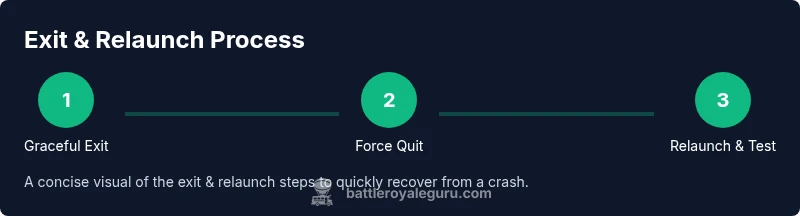
How to Close Fortnite When It Crashes: Quick Exit Guide
Learn how to close Fortnite when it crashes across PC, consoles, and mobile. Step-by-step exit methods, forced quit tips, and prevention strategies to jump back into the game quickly.


By the end of this guide, you will know how to safely close Fortnite when it crashes and relaunch with minimal data loss. We cover platform-specific exit methods, how to force-quit on PC, console, and mobile, plus quick recovery steps and basic crash prevention tips. Follow the steps to avoid sticking in a frozen state and get back to the game fast.
Why closing Fortnite properly matters when it crashes
When Fortnite suddenly freezes or crashes, quick, deliberate action helps protect your recent game data and avoids corrupt saves. For players seeking practical guidance, the goal is to exit cleanly, Save the match state if possible, and prevent a lingering process from consuming system resources. The Battle Royale Guru team notes that most crashes are caused by driver conflicts, memory pressure, or background updates competing with Fortnite's runtime. By closing the game correctly, you minimize data loss and set up a smoother relaunch. In the context of fortnite, understanding "how to close fortnite when it crashes" translates directly to safeguarding progress, preventing progress loss, and reducing the likelihood of a stubborn crash loop upon restart. This section outlines why a clean exit matters and how it affects subsequent play.
Immediate exit methods by platform
Across platforms, the core principle is the same: if Fortnite stops responding, try a graceful exit first, then escalate to a forced quit only if necessary. On PC or Mac, use the built-in exit option first. On consoles, close the application from the system menu. On mobile, switch away or force stop if needed. The key is to avoid leaving a frozen process that can linger in memory and cause longer downtime. The Battle Royale Guru guidance emphasizes starting with the least disruptive option to preserve your game state and ensure a smooth relaunch.
Step-by-step: PC and Mac force-quit
If Fortnite won’t close through the in-game menu, you’ll need to force-quit the application. On Windows, press Ctrl+Shift+Esc to open Task Manager, locate Fortnite in the Processes tab, and choose End Task. If Fortnite is the parent process for multiple sub-processes, end them as a group. On macOS, open Activity Monitor, find Fortnite, and click Quit Process, then Force Quit if needed. These actions terminate the running instance and release locked resources. After force-quitting, wait a few seconds before relaunching to ensure all handles are freed and the system can allocate memory to a fresh session.
Why this matters: a stuck process can keep resources tied up, causing longer startup times or repeated crashes on relaunch. Pro tip from Battle Royale Guru: sort by CPU or Memory to identify any background processes that may be competing with Fortnite and close them if safe.
Step-by-step: Console users
Consoles handle closures differently but follow the same safety rationale. On PlayStation or Xbox, bring up the system quick menu, navigate to the Fortnite icon, and choose Close Application. If the console remains unresponsive or the game remains stuck after closing, perform a full power cycle: turn off the console completely, wait 15–30 seconds, then power back on. For Nintendo Switch, similarly close the game from the Home menu and relaunch. These steps ensure no lingering sandboxed processes interfere with the next startup. A clean shutdown can prevent resuming a crash loop.
Step-by-step: Mobile exit
On iOS and Android, first swipe Fortnite away from your recent apps view to dismiss it. If the app remains active in memory, go to Settings > Apps > Fortnite and Force Stop (Android) or close Fortnite from App Switcher (iOS). After halting the process, reopen Fortnite from your home screen or app drawer. If it re-crashes immediately, reboot the device to clear memory caches. Mobile devices can accumulate background data that conflicts with high-drain games; a fresh start helps reset resource usage.
Recovery and prevention after exit
With Fortnite closed and relaunched, test by loading into a quick match or Practice Arena to confirm stability. If crashes recur, check for updates for the game, the launcher, and your graphics drivers. Clear Fortnite cache if available, verify game files (on PC via the launcher), and consider lowering graphics or enabling performance-focused settings. Regularly restart your device after long play sessions to reset memory. Keeping Windows Update or macOS patches current can address compatibility issues that cause crashes.
Troubleshooting and general best practices
Common missteps include repeatedly alt-tabbing between games, ignoring pending updates, or forcing quit while a match is in progress. Instead, use a graceful exit first, then escalate to a forced quit only if the game becomes unresponsive. Ensure your power supply is stable and your internet connection is not dropping during relaunch. If you play on a laptop, plug in the charger to avoid power-saver throttling that can trigger instability. Finally, keeping system temps in check helps prevent thermal throttling that may crash Fortnite mid-match.
Quick checks after relaunch
After you relaunch, monitor for anomalies: check if the crash recurs within the first few minutes, review crash logs if accessible, and observe whether performance metrics return to normal. If crashes persist, consider seeking help from official support or community forums with your system specs, driver versions, and a brief description of when the crash happens. Consistently applying these exit practices reduces downtime and helps you return to the battlefield faster.
Tools & Materials
- Fortnite launcher / platform app(Ensure you have the launcher installed and updated to the latest version)
- Task Manager (Windows) / Activity Monitor (Mac)(Used for force-quitting unresponsive Fortnite processes)
- Console system menu access(PlayStation/Xbox Switch: close application from system menu; have a stable controller setup)
- Mobile OS controls (switcher/Settings for Force Stop)(Use app switcher to swipe away Fortnite; if needed, Force Stop in Android settings)
- Stable power and network(Keep a reliable power source and steady internet during relaunch)
- Optional: backup save data steps(If cloud saves are enabled, ensure recent progress is synced before closing)
Steps
Estimated time: 15-25 minutes
- 1
Attempt a graceful in-game exit
From Fortnite, try to exit via the in-game menu. If the game responds, allow it to close cleanly to avoid data corruption. This preserves progress and reduces the chance of a crash loop if you relaunch quickly.
Tip: If the menu lags, give it 10–15 seconds before trying again. - 2
Open Task Manager (Windows) to end Fortnite
Press Ctrl+Shift+Esc to open Task Manager, locate Fortnite under Processes, and click End Task. If Fortnite is part of a larger launcher process, end the related entries too. This ensures the process is fully terminated before reconnecting a new session.
Tip: Sort by CPU or Memory to spot runaway processes that could cause crashes. - 3
Force-quit Fortnite on macOS
Open Spotlight or Activity Monitor, find Fortnite, and click Quit Process, then Force Quit if necessary. Closing the process avoids lingering locks on system resources and helps a clean relaunch.
Tip: Check for any related background apps that might compete for GPU memory. - 4
Close the game on consoles via system menu
Bring up the console’s quick menu, select Fortnite, and choose Close Application. If the console remains unresponsive, perform a full power cycle after a brief shutdown period.
Tip: A clean power cycle clears temporary system cache that can trigger instability. - 5
Exit Fortnite on mobile devices
Swipe Fortnite off the recent apps screen, or go to Settings > Apps and Force Stop (Android). Reopen from the home screen. If it continues to crash, reboot the device to clear memory caches.
Tip: Mobile devices often save crash data in memory; a reboot helps reset state. - 6
Relaunch and verify stability
Launch Fortnite again via the launcher or app icon. Start with a quick test match or practice mode to confirm that the crash is resolved. If it crashes again, proceed to diagnostics and updates.
Tip: Avoid heavy overlays or other apps during the test run to minimize resource contention. - 7
Check for updates and verify game files
If crashes recur, check for Fortnite updates, launcher updates, and graphics driver updates. On PC, use the launcher’s verify files option; on consoles, install the latest patch; on mobile, check store updates.
Tip: Driver updates can resolve many stability issues; ensure your GPU vendor software is current. - 8
Apply prevention measures and monitor
Adjust in-game settings for performance, enable performance mode if available, and monitor temperatures and throttling. Establish a post-game routine of restarting after long sessions to keep memory fresh.
Tip: Record a small baseline of safe settings to reuse after future crashes.
Questions & Answers
What causes Fortnite to crash during a game session?
Crashes can stem from driver conflicts, memory pressure, background updates conflicting with Fortnite, or overheating. Checking for updates, reducing graphics load, and ensuring stable power and internet can reduce incidents.
Crashes usually come from drivers, memory strain, or background apps. Update drivers, lower graphics, and ensure stable power to reduce crashes.
Is it safe to force-quit Fortnite?
Yes, force-quitting is safe when the game is unresponsive. It terminates the process and frees system resources. Do not force-quit during a critical online match if the game responds.
It's safe to force quit if the game stops responding, but try a graceful exit first if possible.
What should I do after closing Fortnite to prevent future crashes?
Check for updates, verify game files, and adjust in-game settings for stability. Keep your device drivers current and monitor temperatures during long sessions.
After closing, update everything, verify files, adjust settings, and keep drivers up to date.
Do I need to reinstall Fortnite if crashes persist?
Reinstall is a last resort. Before that, verify files, clear caches, and inspect system temperatures. If problems persist, a clean reinstall can fix corrupted files.
Reinstall is a last resort after verifying files and investigating potential corruption.
Should I check my computer for overheating when Fortnite crashes?
Yes. Overheating can cause stability issues. Clean dust, improve airflow, and monitor temperatures during play to catch thermal throttling early.
Overheating can cause crashes; check temps and improve cooling if needed.
How do I contact official Fortnite support for crash issues?
Visit the official support site for troubleshooting articles and crash reports. Provide your platform, device specs, recent game version, and steps to reproduce the crash.
Go to the official support site and describe your crash with your system details.
Watch Video
Key Points
- Exit gracefully first to preserve data integrity
- Use platform-specific force-quit methods when necessary
- Relaunch and verify stability before playing again
- Update drivers and game patches to prevent repeating crashes
- Apply prevention steps to minimize future downtime