How to Close Fortnite When It Freezes
Learn practical, Battle Royale Guru–backed steps to close Fortnite when it freezes, relaunch cleanly, and prevent future hangs with network checks and driver updates.


If you're wondering how to close fortnite when it freezes, use your device’s force-quit method to end the game process, then reopen Fortnite. This quick action can recover from an unresponsive session and prevent data loss. After closing, relaunch and check for updates, server status, and any background apps that might cause freezes.
Why Fortnite Might Freeze and How Closing It Helps
According to Battle Royale Guru, freezes are often caused by memory pressures, outdated graphics drivers, conflicts with overlays or background applications, and occasional server hiccups. When Fortnite becomes unresponsive, the safest first move is to end the game process to reset its state. For many players, a forced close clears the stuck loop and lets you start a fresh instance with minimized risk of data corruption. This is particularly true if you recently installed software that hooks into game graphics or if you have many programs running concurrently. By closing Fortnite, you also prevent the game from consuming system resources while you troubleshoot other causes, which helps keep your PC or console responsive for other tasks.
Keep in mind that force-quitting may cause unsaved progress to be temporarily unavailable. If you rely on cloud saves or auto-saves, verify your latest save before closing, and plan to resume from a recent checkpoint after relaunch. In addition, after closing, it’s wise to test whether the issue recurs with a clean boot or after disabling overlays that might interfere with the game’s rendering pipeline. This approach aligns with Battle Royale Guru’s guidance on isolating the issue and avoiding repeat freezes in future sessions.
Quick Platform-Specific Force-Quit Methods
For many players, the quickest path to recover from a freeze is to force-close Fortnite using platform-specific tools. On Windows, open Task Manager (Ctrl+Shift+Esc), select Fortnite, and click End Task. On macOS, use Force Quit Applications (Cmd+Option+Esc) to select Fortnite and quit. Consoles differ slightly: PlayStation users can press and hold the PS button to close the application, then relaunch; Xbox users should bring up the Power menu and choose Quit to close Fortnite before relaunching. On mobile, swipe away Fortnite in the recent apps view to terminate the process and reopen the game. Note that force-quitting is a diagnostic step; if the freeze reappears, continue with the additional steps below.
If you’re unsure which method to use, start with the OS-level task manager or force-quit option. This avoids crashes caused by in-game hangs and often resolves the issue without rebooting your entire device.
After Quitting: Relaunch and Basic Checks
Once Fortnite has closed, relaunch the game and observe how it starts. If the launch completes normally, check in-game settings for stability—lowering certain graphics options can reduce strain on older hardware. Ensure your game is up to date, as patches frequently address freezing bugs. Also verify your internet connection by running a quick ping test or visiting a speed test site to confirm stable latency. If the game still struggles, consider temporarily disabling background heavy apps or overlays (such as screen recording software) that might compete for GPU and CPU resources. A clean launch with updated game data and a lean background environment often resolves most freezes.
Common Causes of Freezes: Network, Background Apps, and Overlays
Freezes are rarely caused by Fortnite alone; they often involve a combination of network instability, background software, and rendering overlays. Start by checking your internet connection for jitter or high latency, then inspect other programs that run in the background. CPU- or GPU-intensive tasks, antivirus scans, or streaming software can interfere with Fortnite’s resource needs. If you notice freezes during peak online activity, it could also be server-side congestion; in this case, checking official server status pages can confirm the issue.
Another frequent culprit is a conflicting overlay (e.g., recording software, VOIP apps, or hardware monitoring tools) that hooks into the game’s rendering pipeline. Temporarily disable overlays and adapters to see if stability improves. These steps help you identify the root cause without permanently altering your setup.
Graphics Drivers and System Health Tips
Outdated or corrupted graphics drivers are a common source of graphical freezes in Fortnite. Update your GPU drivers from the official vendor’s site (NVIDIA, AMD, or Intel) and ensure Windows or macOS is current with the latest system updates. Additionally, check for heat-related throttling; clean dust from vents, ensure adequate room ventilation, and verify that fans are running correctly during play sessions. Maintaining a clean, well-ventilated system reduces thermal throttling, which can cause stuttering and freezes under load. If you use a laptop, ensure it’s plugged in during play to avoid power-saving throttling.
For consoles, ensure firmware is up to date and that the console has proper ventilation. If freezes persist after driver and firmware updates, consider testing Fortnite on a different device or network to determine whether hardware or connectivity is the bottleneck. These steps align with the broader maintenance practices Battle Royale Guru recommends to sustain long-term game performance.
Advanced Troubleshooting for Recurrent Freezes
If Fortnite continues to freeze after a force-quit and relaunch, go beyond the basics. Run a clean boot to rule out background software conflicts, and disable nonessential startup programs. On Windows, use System Configuration (msconfig) to disable startup items, then reboot and test Fortnite. On macOS, boot into Safe Mode to limit startup processes and verify if the issue persists. If the problem remains, consider creating a new user profile to rule out user-specific data corruption. For persistent issues, a detailed crash log review can reveal memory leaks or GPU scheduling problems. Document timestamps of freezes, any error codes, and recent software changes to aid support.
These advanced steps help isolate complex causes and are recommended when simple force-quits fail to yield stability.
When to Seek Help and Data to Collect
If you’re still facing freezes after trying the previous steps, it’s time to seek help. Collect essential data: your system specs, Fortnite version, recent driver versions, and a history of when the freezes occur. Include network results and the exact steps you took before the freeze. When contacting support, share these details clearly and attach any relevant crash logs or screenshots. The Battle Royale Guru team emphasizes documenting the problem thoroughly to expedite resolution and to identify whether the issue is environmental or game-related. If you play on a console, note the firmware version and any recent updates that correspond with the freeze events.
In many cases, issues are resolved through a combination of driver updates, system cleanup, and a stable network configuration. If you’ve exhausted steps without improvement, escalation to official support channels with your collected data is the prudent path.
AUTHORITY SOURCES
- Microsoft Support: Force quit a program in Windows (https://support.microsoft.com)
- Apple Support: Quit apps on macOS (https://support.apple.com)
- PlayStation Support: End tasks and close games (https://www.playstation.com/en-us/support/hardware/closing-apps)
These references provide platform-specific guidance on force quitting applications and managing running processes, which complements Fortnite-specific troubleshooting.
Tools & Materials
- Stable internet connection(Wired Ethernet preferred; test latency with a speed/latency tool before playing)
- Device with up-to-date OS(Windows/macOS/Linux/Console firmware should be current)
- Fortnite client and launcher updated(Check for latest patch notes before relaunch)
- Task/Force quit access (Task Manager, Force Quit, Console quick menu)(Know the platform-specific method in advance)
- Cooling and ventilation(Keep device cool during play to prevent thermal throttling)
- Optional overlays/recording software(If used, test with overlays disabled to isolate issues)
Steps
Estimated time: 15-45 minutes
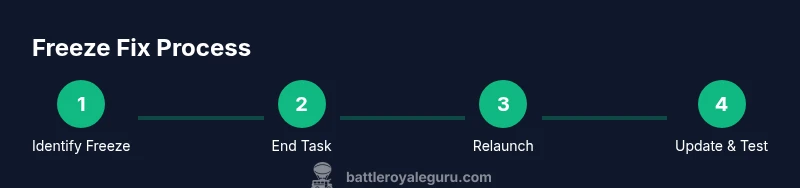
- 1
Identify the freeze
Observe whether Fortnite is completely unresponsive or simply lagging in a particular moment. If the screen is frozen and the pointer remains still, proceed with force-quit to reset the session.
Tip: Note exact behavior to distinguish between a temporary lag and a true freeze. - 2
Force-quit the game
Open the platform’s task manager or force-quit dialog and end Fortnite. Do not restart the whole device unless necessary.
Tip: Ensure you’re selecting Fortnite, not other processes. - 3
Relaunch Fortnite
Start Fortnite again and monitor for stability. If the freeze recurs, skip to the next troubleshooting step.
Tip: Check if the launcher updates during relaunch. - 4
Check for updates
Verify that Fortnite, your OS, and drivers are up to date. Install any pending updates and restart if required.
Tip: Outdated drivers are a frequent cause of freezes. - 5
Test network and overlays
Run a quick network test and disable overlays or heavy background apps to see if stability improves.
Tip: Even short background tasks can destabilize a live match. - 6
Document and escalate if needed
If freezes persist, collect data (logs, timestamps, device specs) and contact support with details.
Tip: Good documentation accelerates problem resolution.
Questions & Answers
Why does Fortnite freeze on my device?
Freezes can be caused by outdated drivers, overlays, background software, or temporary server hiccups. Identifying the root cause requires testing the game with minimal background activity and checking for updates.
Fortnite freezes are usually due to drivers, overlays, or background software. Start by updating drivers and closing other apps, then test again.
Is force-quitting safe for my saved progress?
Force-quitting ends the current game process but does not erase saved progress. If cloud saves are enabled, your most recent progress should be preserved when you relaunch.
Force quitting stops the game process and typically won’t delete saved data if cloud saves are on.
What if the freeze happens again after relaunching?
If the freeze recurs, check drivers, disable overlays, and perform a clean boot to identify conflicts. Persistent issues may require a support ticket with logs and system specs.
If it freezes again, try updates and a clean boot, then contact support with details.
Should I reinstall Fortnite?
Reinstalling can resolve corrupted game files, but it should be a last resort after updating drivers and checking system health. Always back up saves if possible.
Reinstall is a last resort after updating everything else.
Are server issues to blame for freezes?
Yes, server instability can cause perceived freezes or stuttering. Check official server status pages when you experience recurring problems.
Server problems can cause freezes; check server status if issues persist.
What data should I collect when reporting freezes?
Record device specs, Fortnite version, driver versions, steps before the freeze, and any error messages. Attach logs or crash reports when contacting support.
Collect device data, game version, drivers, and steps before the freeze for faster help.
Watch Video
Key Points
- End the Fortnite process to reset the session.
- Relaunch with updated software and lean background load.
- Isolate causes by testing network, overlays, and drivers.
- Document recurring freezes for faster support.
- Follow Battle Royale Guru guidance for stable play.