How to Exit Fortnite on PS5: Quick Exit Guide
Learn safe, fast ways to exit Fortnite on PS5. This practical guide covers quitting a match, returning to the PS5 home screen, and closing the app without losing progress—backed by Battle Royale Guru insights for 2026.


On PS5, you can exit Fortnite by quitting your current match, returning to the PS5 home screen, or fully closing the app from the Quick Menu. This quick answer outlines precise steps for each method, how to avoid losing progress, and what to expect during and after the exit. It’s designed for players who want a clean exit fast.
Why Exiting Properly Matters on PS5
Exiting Fortnite cleanly on PS5 isn't just about leaving a match. It helps ensure your progress is saved correctly, avoids lingering game states that could cause glitches, and keeps your play history tidy for matchmaking. If you simply shut the app or crash the system, you risk inconsistent saves or lingering background processes that could affect upcoming games. According to Battle Royale Guru, exiting Fortnite on PS5 quickly and cleanly helps preserve your progress and keeps you aligned with cloud saves. Understanding the best exit practices is part of being a proficient Fortnite player, especially when you're trying to squeeze in a few quick games during a busy day. In this guide, we'll cover three primary methods, when to use them, and how to avoid common pitfalls. We'll also discuss how PS5 features like the Control Center and cloud save behavior affect your exit. By following these steps, you can minimize downtime and return to the action faster, without losing XP, cosmetics, or daily challenges. PS5 concessions: Quitting a match early can be fine if you are in a stuck situation, but you should aim to exit from the in-game menu to record the match appropriately. If you intend to take a break, exiting to the lobby is safer than forcing an app quit. This section sets up the practical steps you'll use in real gameplay.
Quick Exit Methods: Overview
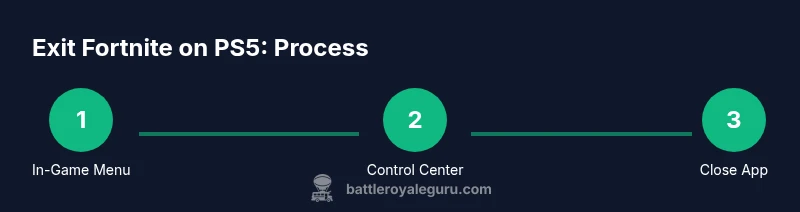
There are three reliable ways to exit Fortnite on PS5, each suited to different scenarios:
- Exit from the in-game menu (fast, safe)
- Return to the PS5 home screen and relaunch later (low risk, preserves current state)
- Close the Fortnite app via the PS5 Quick Menu (definitive quit, may require relaunch)
Understanding when to use each method helps you minimize disruption, avoid losing progress, and stay ready for your next match. Battle Royale Guru recommends choosing the method that best fits your current situation (e.g., ongoing chaos in a match vs. the need to take a break).
Method A: Quitting a Match from In-Game Menu
Quitting a match from the in-game menu is the safest way to exit a game mid-session without risking skewed progress or a corrupted state. From within Fortnite, open the main menu, select Leave Match or Quit to Lobby, and confirm your choice. The game will return you to the lobby, and your rewards, cosmetics, and challenges up to that point remain intact. If you’re synchronized online, your progress will be saved to the cloud when you exit this way. Always ensure you’ve completed any immediate objectives before leaving to avoid losing in-progress tasks. Pro tip: If you’re in a squad, inform teammates before leaving to avoid miscommunication and to keep team balance intact.
Method B: Returning to PS5 Home Screen Without Losing Data
If you want to take a longer break but avoid closing the app, returning to the PS5 home screen is a solid option. From Fortnite, press the PS button to open the Control Center, then select Fortnite and choose Quit or Close App from the on-screen menu. This method minimizes the risk of data loss because the game is gracefully suspended rather than abruptly terminated. When you relaunch, Fortnite should resume with your most recent settings and lobby state. Note that any unsaved progress during a live match will remain as-is until you reconnect. If you plan to swap games, this is often the quickest, safest route to free up the console while preserving your Fortnite state.
Method C: Closing the Fortnite App from the PS5 Quick Menu
The PS5 Quick Menu provides a definitive way to close Fortnite if you need a hard stop. While in Fortnite, press the PS button to open the Control Center, highlight the Fortnite tile, and choose Quit or Close App. This will terminate the application immediately and can help recover from freezes or unresponsive behavior. Remember, you may need to relaunch Fortnite afterward, and you should expect to regain your lobby state or placed settings on the next start. Warning: closing the app during a critical moment (like a live party or ongoing quest) may disrupt progress tracking.
Safe Practices and Data Considerations
To protect your progress and keep your gaming experience smooth on PS5, follow best practices when exiting Fortnite:
- Prefer in-game leaving over force-quitting in the middle of a match.
- If you must switch tasks, use the PS5 Control Center to quit gracefully.
- Ensure cloud saves are enabled so cosmetics, XP, and unlocks are backed up.
- Close any other applications only after Fortnite has fully exited to avoid data corruption.
- Keep Fortnite updated to minimize compatibility issues that could complicate exits.
Battle Royale Guru analysis shows that using in-game exit methods minimizes disruptions and reduces the chances of data loss.
Troubleshooting Common Exit Issues
Sometimes exits don’t go as planned. Common problems include the game freezing during exit, the console returning to a black screen, or progress not syncing as expected. If Fortnite won’t quit from the in-game menu, try the Control Center method (PS button → Close App). If you still see issues, restart the PS5 (soft reboot) and reopen Fortnite. For cloud save issues, verify your internet connection and sign back into your Epic account. If you’re consistently hitting wall after wall, check for any PSN or Fortnite server status alerts and wait until services normalize.
What Happens After You Exit
After you exit Fortnite on PS5, you’ll typically return to the PS5 dashboard or lobby depending on the exit method used. Your cosmetics, battle pass progress, and most in-match rewards should remain intact, assuming you had cloud saves enabled. When you relaunch Fortnite, you’ll pick up where you left off, typically in the lobby with your preferred settings. If you used a quick quit, you may need to rejoin a party or re-enter a queue, but you’ll avoid losing ongoing challenge progress or season-specific stats. The Battle Royale Guru team recommends bookmarking these exit methods for quick access during busy gaming sessions.
Tools & Materials
- PS5 DualSense Controller(Navigate menus and confirm exits)
- Stable internet connection(Helpful for cloud saves and immediate sync)
- Access to PS5 Home Screen(Necessary for Control Center exits and relaunch)
Steps
Estimated time: 3-7 minutes
- 1
Open Fortnite menu to exit
While in a match, press the in-game menu button to access the main menu. Select Leave Match or Quit to Lobby and confirm your choice. This cleanly ends your current game while preserving progress up to this point.
Tip: If you’re unsure, choose Quit to Lobby rather than Force Quit—this reduces risk of data corruption. - 2
Return to lobby after exiting
After confirming, you’ll be placed in the Fortnite lobby. Your cosmetics and unlocks should stay intact, and any completed challenges up to now will be saved if you’re online.
Tip: Notify teammates in a party before leaving to avoid confusion and maintain team balance. - 3
Open PS5 Control Center
Press and hold the PS button to open the PS5 Control Center. This lets you perform system-level actions without fully closing Fortnite from the game.
Tip: The Control Center is your fastest path to a safe exit when you need to switch tasks. - 4
Quit Fortnite from Control Center
Highlight Fortnite in the Control Center and choose Quit/Close App. This performs a graceful shutdown of the game.
Tip: If Quit isn’t visible, go to the Home Screen and relaunch Fortnite later. - 5
Return to Home Screen (optional)
If you selected Close App, you’ll be back on the PS5 Home Screen. Wait a moment to confirm the app has fully closed.
Tip: Verify the Fortnite icon is not showing as running in the Quick Menu. - 6
Relaunch when ready
When you’re ready, reopen Fortnite from the library or home screen. Your settings should sync automatically if you’re online.
Tip: Check for updates before relaunch to ensure the smoothest exit and restart.
Questions & Answers
What happens to my progress when I exit Fortnite on PS5?
Exit methods generally save your progress up to the last completed action, and cloud saves can protect cosmetics and progress. If you’re offline, some in-match progress may not upload until you reconnect.
Exiting Fortnite saves progress up to the last completed action. If you’re offline, some progress may not upload until you reconnect.
Can I exit during a timed challenge or quest without losing progress?
Yes, you can exit and return later. Your completed challenges remain, and your quest progress should be saved when you reconnect. If you’re mid-quest, you may resume where you left off.
Yes, you can exit and return later. Your completed challenges remain, and you’ll resume where you left off.
Is there an emergency exit if Fortnite freezes on PS5?
Use the PS button to open the Control Center and select Close App if Fortnite becomes unresponsive. If that fails, restart the PS5 and relaunch Fortnite.
Open the PS5 Control Center and choose Close App, then relaunch Fortnite if needed.
Will exiting affect my ranked matches or tournaments?
Exiting mid-match ends the current game; your match results are determined by the match outcome. Exiting early generally does not grant you extra rewards.
Exiting mid-match ends the game; you won’t gain extra rewards from leaving early.
What should I do if the Control Center exit doesn’t work?
Try Quit/Close App from the Control Center again, and if needed, use the Home Screen to restart Fortnite. If the issue persists, check for PSN or Fortnite server status.
If Control Center fails, try closing the app again or restart Fortnite from the Home Screen. Check for service status if problems continue.
How can I speed up exiting during a busy session?
Familiarize yourself with all three exit methods: in-game quit, Control Center exit, and hard close. Practice quick navigation to reduce downtime.
Know all three exit options and practice quickly using them.
Does exiting affect cloud saves for cosmetics?
As long as you’re online and cloud saves are enabled, cosmetics and unlocks should be preserved when you exit using standard methods.
Online cloud saves protect cosmetics when exiting with standard methods.
Watch Video
Key Points
- Exit using in-game menu for safe progress tracking
- Control Center exits are fast and graceful
- Close App for a hard stop when needed
- Check cloud saves to protect how you progress