How to Create a Custom Match in Fortnite
Learn how to design, configure, and host a custom Fortnite match. From island setup to sharing codes, Battle Royale Guru guides you through best practices for private games.


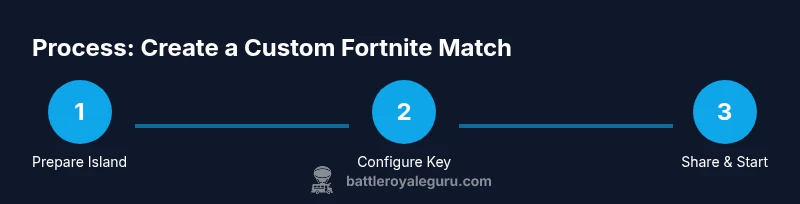
According to Battle Royale Guru, you can create a custom Fortnite match by configuring a private lobby, sharing a code, and enforcing rules. In this guide you’ll learn how to create the match, set a lobby key, invite players, and troubleshoot common issues. You will need a Fortnite account with Creative access, a suitable island in Creative, and a shared match key or island code. By the end, you’ll host your own tournament-ready private lobby.
What is a Fortnite Custom Match and why use it
According to Battle Royale Guru, Custom Matches provide a controlled space to experiment with rules and practice with friends. They let you set game modes, loot pools, and victory conditions, then share access through island codes or custom keys. This makes it ideal for scrims, creative tournaments, and teaching new players in a friendly, repeatable environment. In a custom match, you decide the pace, the constraints, and the objectives, so you can train or play exactly the way you want. The result is clearer communication, faster onboarding for new players, and a reliable testing ground for ideas before you replicate them in public lobbies. By understanding the core concepts, you’ll be ready to design matches that match your goals and your group’s playstyle.
Before you start: prerequisites
Before you dive into creating a custom Fortnite match, confirm you have the basics in place. You need a Fortnite account with access to Creative mode, a dedicated island you control for testing, and a plan for how players will join (island code or Custom Key). Ensure your party is aligned on the rules, number of players, and the target platform. It’s also helpful to have a quick reference sheet ready for players that outlines the lobby settings, authorized weapons, loot pools, and win conditions. Finally, establish a communication channel (Discord, in-game chat, or voice app) to coordinate invites and updates during the session. This preparation reduces back-and-forth during setup and keeps the match moving smoothly.
Choosing the right island and mode
Selecting the right island and game mode sets the foundation for a successful custom match. If you’re practicing builder fights or aiming for a tournament vibe, pick an island with balanced spawn points and a clear layout. Decide on Solo, Duo, Trio, or Squad based on your group size and skill level. Consider whether you want eliminations to influence a score system or if you’ll run a time-based round. Keep in mind that some modes emphasize teamwork, while others reward individual skill. The goal is to create a playable, repeatable sandbox that aligns with your objectives and your players’ experience level.
Setting up a Custom Key and permissions
For private matches, a Custom Key (sometimes called a lobby key) is essential. Create or generate a key in the island’s settings and share it only with your invited players. You can also rely on an island code for access if you’re using a publicly shareable island link. Permissions determine who can join, edit settings, or modify the loot pool during the match. Plan a role distribution in advance (host, co-hosts, observers) to prevent chaos and ensure smooth operation. If you’re new to the system, start with a simple key and a small group to learn the workflow before expanding.
Configuring match rules and lobby settings
Rule configuration is where your match takes shape. Set the max players, time limits, respawn rules, and win conditions. Decide on weapon and item availability, healing constraints, and collision rules to control pace and fairness. Configure lobby settings to display the match name, description, password (if used), and any required restrictions. Documented rules help players understand expectations and reduce disputes during gameplay. If you’re testing new ideas, run a few quick test rounds to verify that everything functions as intended and adjust as needed.
Custom loot pools and scoring systems
Custom loot pools let you tailor the supply of weapons, materials, and consumables, which can significantly affect balance and strategy. You can cap powerful items, rotate loot offers, or create specialized spawn zones. A scoring system (points for first place, eliminations, or objective-based goals) helps quantify performance and provides motivation. Maintain transparency by sharing scoring criteria with players before the match begins. For longer sessions, consider a scoreboard that updates in real-time to keep participants engaged and informed.
Starting the match and inviting players
When setup is complete, generate or share the island code or Custom Key with your players. Use a clear invite message that lists the rules, platform considerations, time limits, and any required warm-up period. Give players a short window to join, then start with a quick rundown of the rules and a practice round if time allows. During the match, keep communication concise and punctual—announce rounds, kills, and milestones to maintain momentum and excitement. After the round, reset as needed and transition to the next match quickly to keep engagement high.
Real-time management during the match
As host, you’ll manage player flow, enforce rules, and handle any in-game issues. Use a visible timer and a simple call-out system for penalties or rule clarifications. If a player disconnects, decide whether to pause or continue based on your pre-set guidelines. Have a backup plan for technical hiccups, such as pausing to troubleshoot or switching to a secondary server if available. Clear communication is essential—keep players informed about changes, delays, or restarts to avoid confusion and frustration.
Troubleshooting common issues
Join issues are the most common headaches in custom lobbies. If players can’t join, verify that the island code or Custom Key is correct and that the intended platform is supported. Check your internet connection, server status, and any active parental or privacy settings that could block access. If a match won’t start, confirm you have enough players, the correct mode, and that the loot and gameplay settings are loaded. For cross-platform play, ensure you’ve enabled crossplay and communicated any platform-specific restrictions to players beforehand.
Cross-platform considerations and chat
Cross-platform hosting adds reach but introduces chat and input differences. Establish expectations around voice chat, text chat, and party invites across consoles and PC. Test audio levels and muting procedures before launching, and designate a moderator to handle probes or disputes. When possible, use a shared external chat channel (like a Discord server) to keep in-game chat clear and organized. Document platform-specific caveats so every player has a smooth experience.
Advanced customization ideas for hosts
For experienced hosts, push your creative boundaries with advanced customization ideas. Create sequential rounds with escalating difficulty, implement objective-based challenges, or design special event modes (e.g., last-man-standing with limited resources). Use creative devices like portals, trap designs, or custom spawn points to craft unique gameplay. Keep a log of changes and feedback from each session so you can refine your approach over time. This iterative process helps you develop scalable formats that your community will request again and again.
Post-match debrief and feedback collection
Wrap up with a brief debrief to gather feedback and insights for improvement. Share a recap of results, highlight standout moments, and outline any changes you’ll implement next time. Collect player opinions on balance, rules clarity, and logistical issues such as join times and code sharing. Use a simple survey or quick chat thread to capture responses. A thoughtful post-match review helps you evolve your custom matches into consistently enjoyable experiences for your community.
Tools & Materials
- Fortnite account with Creator access(Needed to access Creative mode and publish islands)
- Creative island(A dedicated island for testing and hosting)
- Custom Key (match key)(Enable in island settings to host private games)
- Island code sharing method(Code or link to share with players)
- Communication channel(Discord, in-game chat, or voice app)
- Timer/notes tool(Track rounds and scores)
- Controller/keyboard + stable internet(Reliable input and connection)
Steps
Estimated time: 30-45 minutes
- 1
Open Creative and select your island
Launch Fortnite, switch to Creative, and load your dedicated testing island. Ensure you’re logged into the correct account and that the island is backed up. This step establishes the exact play space for your custom match.
Tip: Create a quick backup save of the island before making major changes. - 2
Enable Custom Key and set permissions
In the island settings, generate or enable the Custom Key to grant access to invited players. Decide who can join, who can edit settings, and who can view match details. This controls access and protects your setup.
Tip: Limit key access to trusted players during early tests. - 3
Configure game modes and rules
Choose the mode (solo/duo/squad) and adjust rules such as respawn, storm behavior, loot pools, and win conditions. Write down the rules in a shared doc so players can reference them during play.
Tip: Start with a simple rule set and expand after a few test rounds. - 4
Set up loot pools and spawn points
Define which weapons and items appear and where they spawn. Ensure spawn points are fair and balanced, with clear access to resources. Test balance with a quick practice round.
Tip: Limit powerful loot early on to keep matches tight. - 5
Configure lobby details and description
Fill in the match name, description, capacity, and any password requirements. A clear lobby banner helps players understand expectations before joining.
Tip: Use concise, player-friendly language in the description. - 6
Publish and share the island code or key
Copy the island code or Custom Key and distribute it to invited players. Provide joining instructions and a short timeline for your session.
Tip: Share codes through a trusted channel to prevent confusion. - 7
Invite players and run a test round
Have a few friends join to validate access and rule clarity. Use a quick test round to catch missing settings or balance issues.
Tip: Note any issues and adjust before your main event. - 8
Start the match and communicate rules
Begin the lobby, remind players of the rules, and track progress with a visible timer. Confirm that everyone understands win conditions.
Tip: Assign a moderator to handle disputes or questions. - 9
Monitor and adjust in real time
Watch for rule violations, connectivity problems, or balance issues. Be ready to pause or tweak settings as needed.
Tip: Keep a calm, decisive demeanor to maintain flow. - 10
Handle issues and troubleshooting
If joins fail, re-check codes, platform compatibility, and server status. Communicate clearly any changes or outages to players.
Tip: Maintain a quick help channel for players during the match. - 11
Conclude match and gather feedback
End the session with a debrief, collect feedback, and note improvements for next time. Share a recap of results and lessons learned.
Tip: Document adjustments to streamline future hosts. - 12
Archive and iterate
Save the final settings as a template island if possible, and plan a follow-up session to iterate on rules and balance.
Tip: Create a version history to track changes.
Questions & Answers
What is a Fortnite Custom Match?
A Fortnite Custom Match lets you run private games with friends using an island code or a Custom Key. You set the rules, loot, and win conditions, then invite players to join. It’s ideal for scrims, practice sessions, and learning in a controlled environment.
Fortnite Custom Matches are private games where you control the rules and access using an island code or Custom Key.
Do I need a Custom Key for private matches?
Yes, a Custom Key is commonly used to restrict access to private games. If you’re using a publicly shareable island, you can rely on the island code instead. Decide which method fits your group and security needs.
A Custom Key is typically required for private matches; island codes work too if you’re sharing with a smaller group.
Can I use cross-platform players in a custom match?
Cross-platform play is possible, but you should confirm platform restrictions and voice chat options before starting. Communicate any platform-specific limitations to keep the match fair and enjoyable for everyone.
Cross-platform is possible, but check platform limits and chat setup before you begin.
How do I share the island code with players?
Copy the island code from the island settings and send it through a trusted channel. Include joining instructions and a rough schedule to avoid confusion.
Copy the island code and share it via a trusted channel with clear joining instructions.
What should I do if players can’t join the match?
Verify the code or key, check platform compatibility, and ensure there are no server outages. If needed, restart the lobby and re-send access details.
If players can’t join, recheck access codes and platform compatibility, then retry the join process.
How should I handle post-match feedback?
Collect quick feedback on rules, balance, and join flow. Use a short form or chat thread to capture insights for future sessions.
After the match, gather quick feedback to improve future sessions.
Watch Video
Key Points
- Plan island setup and rules before inviting players
- Use island code or Custom Key to control access
- Test with a small group to balance rules and loot
- Communicate clearly and document the process
- The Battle Royale Guru team recommends iterative hosting with feedback